

One feature available when you format a volume with the NTFS file system is file compression. NTFS compression can only be applied to a partition or volume that is formatted with the NTFS file system. Through NTFS, you can create additional storage space for files by compressing either single files, or all files in a NTFS folder. Files in a compressed folder are compressed when folder compression is enabled. Any subfolders included in the compressed folder can also be compressed. You can also compress all files on NTFS volumes. A compressed file is automatically uncompressed when it is accessed. The section of the file being read is the section of the file that is uncompressed. The remainder of the data of the file remains uncompressed in memory. When the file is saved to memory or written to disk, NTFS compresses any new data in the file.
With Windows Server 2003, you can compress files that have any length. The only requirement being that the $Data attribute is non-resident. NTFS file compression is available only when your cluster size is 4KB or less on a NTFS volume. The NTFS file compression feature cannot be utilized on files that are encrypted.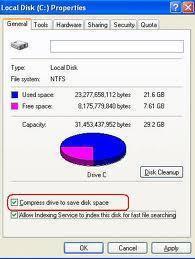
The NTFS compression algorithm used in NTFS 1.2, NTFS 3.0 and NTFS 3.1 are the same. You can therefore access compressed files from Windows NT 4.0, Windows 2000 and Windows Server 2003.
While DoubleSpace, DriveSpace and DriveSpace 3 compression compresses the entire volume, NTFS compression can be restricted to compressing only files, or folders. You do not need to compress the entire volume. NTFS is also faster than the other just mentioned compression techniques. Because Windows Server 2003 is unable to read DriveSpace volumes, you have to decompress these volumes before attempting to upgrade a Windows 9x or Windows Me desktop.
You should generally refrain from compressing database files, and from enabling compression on a server. The reason is that compressed files tend to be excessively fragmented, and the defragmenter cannot optimally defragmenter volumes that are compressed.
You can use Windows Explorer or My Computer to enable compression or change the compression state of an NTFS volume, or the compression state of individual files or folders on NTFS volumes. You can also use the COMPACT command line tool to compress or decompress files.
How moving or copying a file or folder affects a file’s compression state
When you move or copy files and folders between NTFS volumes or to or from File Allocation Table (FAT) partitions, the file’s compression state can change.
- When you move an uncompressed file or folder on a NTFS volume or partition to a different location on the same NTFS volume, the files or folder stays uncompressed.
- When you move or copy a compressed file or folder from a NTFS partition to a non-NTFS partition such as a FAT partition, the file or folder is decompressed on the non-NTFS partition.
- When you copy a compressed file or folder from a NTFS volume or partition to a different location on the same NTFS partition, the file or folder inherits the compression state of the new folder location.
- When you copy a compressed file or folder from a NTFS volume or partition to a location on a different NTFS partition, the file or folder inherits the compression state of the new folder location.
- When you move a compressed file or folder on a NTFS volume or partition to a location on the same NTFS partition, the file or folder keeps its previous compression state.
- When you move a compressed file or folder on a NTFS volume or partition to a location on a different NTFS volume, the file or folder inherits the compression state of the new folder location.
How to enable compression or change the compression state of an NTFS volume
- Open Windows Explorer
- Right-click the volume which you want to compress or uncompress, and then select Properties from the shortcut menu.
- When the Properties dialog box of the volume is displayed, you use the General tab to change the compression state of the NTFS volume.
- You can either select the Compress drive to save disk space checkbox to enable compression, or clear the Compress drive to save disk space checkbox to disable compression.
- Click OK
- When the Confirm Attribute Changes dialog box appears, choose to either apply compression to the NTFS volume or to apply compression to the root folder.
How to enable compression or change the compression state of a folder on a NTFS volume
- Open Windows Explorer
- Locate and right-click the folder that you want to enable compression for, and the choose Properties from the shortcut menu.
- When the Properties dialog box of the folder opens, click the Advanced button.
- Select the Compress drive to save disk space checkbox to enable compression for the folder. You can alternatively clear the Compress drive to save disk space checkbox to disable compression for the folder.
- Click OK
- When the Confirm Attribute Changes dialog box is displayed, select one of the following option:
- Apply changes to this folder only
- Apply changes to this folder, subfolders, and files
- Click OK
How to enable compression or change the compression state of a file on a NTFS volume
- Open Windows Explorer
- Locate and right-click the file that you want to enable compression for, and the choose Properties from the shortcut menu.
- When the Properties dialog box of the file opens, click the Advanced button.
- Select the Compress drive to save disk space checkbox to enable compression for the file. If you want to disable compression for the particular file, clear the Compress drive to save disk space checkbox.
- Click OK
How to change the display colors of compressed files and folders
- Using Windows Explorer, or My Computer, click the Tools menu, and select Folder Options.
- When the Folder Options dialog box opens, click the View tab.
- Select the Show encrypted or compressed NTFS files in color option.
- Click OK
- Windows will now display the names of all compressed files and folders in blue.
Follow Us!