

The WMA (Windows Media Audio) file format is a proprietary file format created by the Microsoft Corporation for the storage and playback of audio files. The WMA format is part of the greater Windows Media framework and actually consists of four variants to include WMA, WMA Pro, WMA Lossless, and WMA Voice. The most common format encountered by consumers is WMA for storage of music or audio book files. The WAV (Waveform audio format) file type was created by Microsoft and IBM in order to store audio bit streams across personal computers (PCs). The WAV format makes use of a RIFF bit stream and is primary intended to store uncompressed audio content. A task that commonly arises for end-users is converting files stored in WMA to WAV.
Convert WMA to WAV Using Online Tools
A common method to convert WMA formatted music or audio files to WAV format is to leverage online tools to do the work. The steps outlined here are common across sites, although registration steps or confirmation tasks may slightly differ.
MediaConverter.org
Step 1 – Open the web browser on your computer and navigate to MediaConverter.org by entering the URL in the browser toolbar.
Step 2– Select the “Upload a file” menu button located approximately half-way down the left-hand side of the web page.
Step 3 – Use the file choose to select the WMA file to convert.
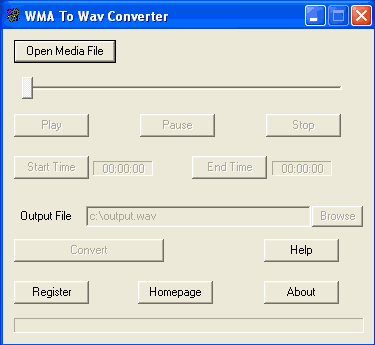
Step 4 – Choose the “WAV” format type for the target of the output file.
Step 5 – Select the “Start” button to initiate the file conversion to WAV.
Step 6 – After conversion is complete, left click (or single click on a MAC) the link displayed to download the new file.
ZamZar.com
Step 1 – Open the web browser on your computer and navigate to the ZamZar.com website.
Step 2 – Click the “Choose File” menu button located on the left-hand side of the webpage.
Step 3 – Select the WMA file to convert to WAV using the file chooser.
Step 4 – Click the drop down menu and select the “WAV” output file type listed under “Audio Formats.”
Step 5 – Enter an email address to receive the converted audio file in the “Step 3” text field.
Step 6 – Click the “Convert” menu button listed under “Step 4” on the web page.
Step 7 – Receive the converted WAV file in the email address entered in step 5.
Convert WMA to WAV Using Windows Media Player
Using Windows Media Player is another popular method to convert WMA to WAV format.
Step 1 – Launch Windows Media Player on your computer by double clicking the program icon located on your computer’s desktop.
Step 2 – Select the “Burn” menu button.
Step 3 – Single click and drag the WMA files to convert to WAV format on the application’s “Burn List” located on the right-hand side of the application window.
Step 4 – Open the DVD/CD-R drive on your computer and insert a blank CD-R.
Step 5 – Click the “Start Burn” menu button.
Step 6 – Select the “Rip Settings” menu button and then choose the “Format” menu option.
Step 7 – Choose the “WAV” format which will convert the WMA format to WAV during the CD burn process.
Step 8 – Select the “Rip CD” menu button and the files will then be converted to WAV format and saved to the CD.

clinsonack
I really don’t know how it is done, but Faasoft WMA to WAV Converter has that feature, and I didn’t have any problem using that function.
SunLight
I use MelodyCan. It is the best, easiest and fastest device I found. You can try it) 😉