Home     Blog

How to Create a Glass Picture Frame in PhotoShop

This tutorial will help you create a glass-looking picture frame in Photoshop.

First, draw a gradient in the background layer:

glass picture frame 01 How to Create a Glass Picture Frame in PhotoShop

Next, create a red rectangular box:

glass picture frame 02 How to Create a Glass Picture Frame in PhotoShop

Then apply this effect to the layer:

glass picture frame 03 How to Create a Glass Picture Frame in PhotoShop

This will be the result:

glass picture frame 04 How to Create a Glass Picture Frame in PhotoShop

Then duplicate the layer and flip it vertically to make it look like this:

glass picture frame 05 How to Create a Glass Picture Frame in PhotoShop

Then draw this shape on a new layer and fill it with white:

glass picture frame 06 How to Create a Glass Picture Frame in PhotoShop

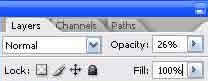
Next, reduce the opacity:

glass picture frame 07 How to Create a Glass Picture Frame in PhotoShop

Then again on a new layer fill a box with red to white gradient:
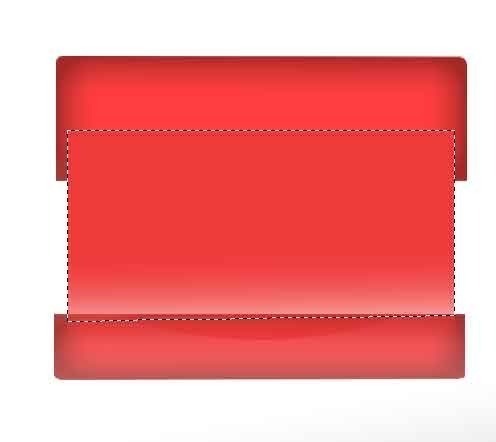
glass picture frame 08 How to Create a Glass Picture Frame in PhotoShop

Reduce the opacity for this layer also:
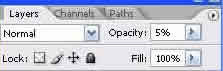
glass picture frame 09 How to Create a Glass Picture Frame in PhotoShop

This will be the result:

glass picture frame 10 How to Create a Glass Picture Frame in PhotoShop

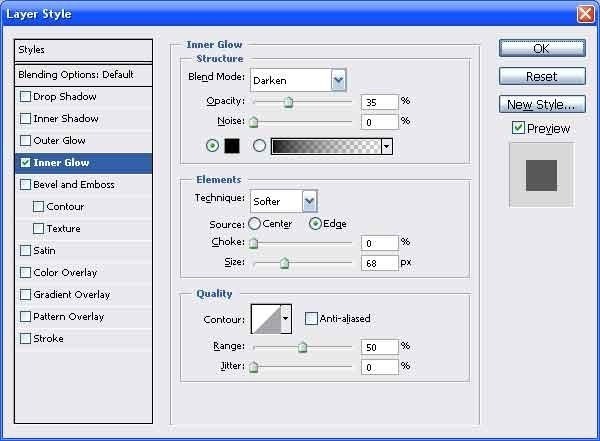
Apply these settings on the top layer:
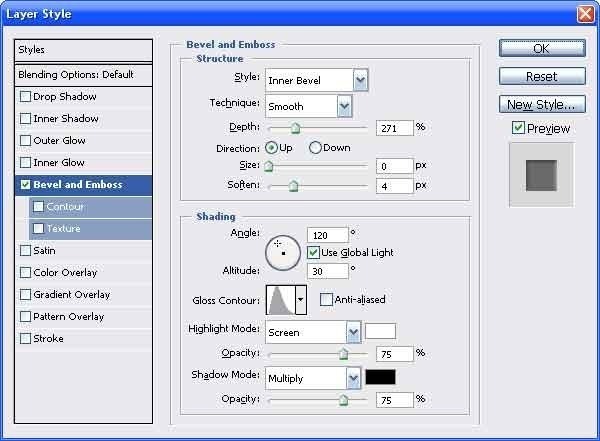
glass picture frame 11 How to Create a Glass Picture Frame in PhotoShop

Now create a new layer with a circular gradient on it:
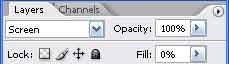
glass picture frame 12 How to Create a Glass Picture Frame in PhotoShop

Duplicate this layer:

glass picture frame 13 How to Create a Glass Picture Frame in PhotoShop

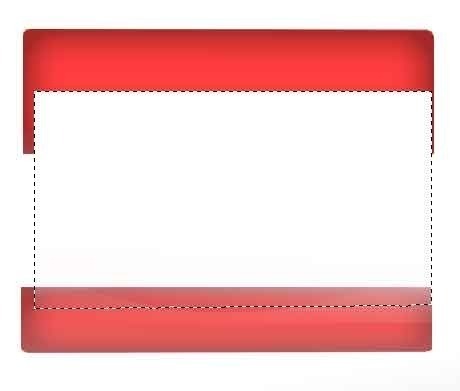
Then select some part of the gradient as an image and press :

glass picture frame 14 How to Create a Glass Picture Frame in PhotoShop

Then select the rest of the image:

glass picture frame 15 How to Create a Glass Picture Frame in PhotoShop

Apply this effect to the selected part:
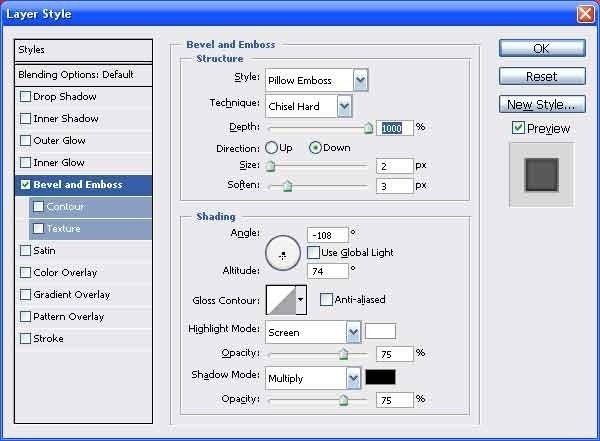
glass picture frame 16 How to Create a Glass Picture Frame in PhotoShop

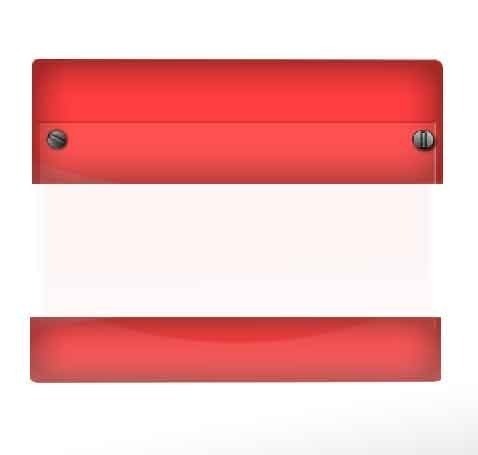
This will be the effect:

glass picture frame 17 How to Create a Glass Picture Frame in PhotoShop

Now place the picture in the picture frame:
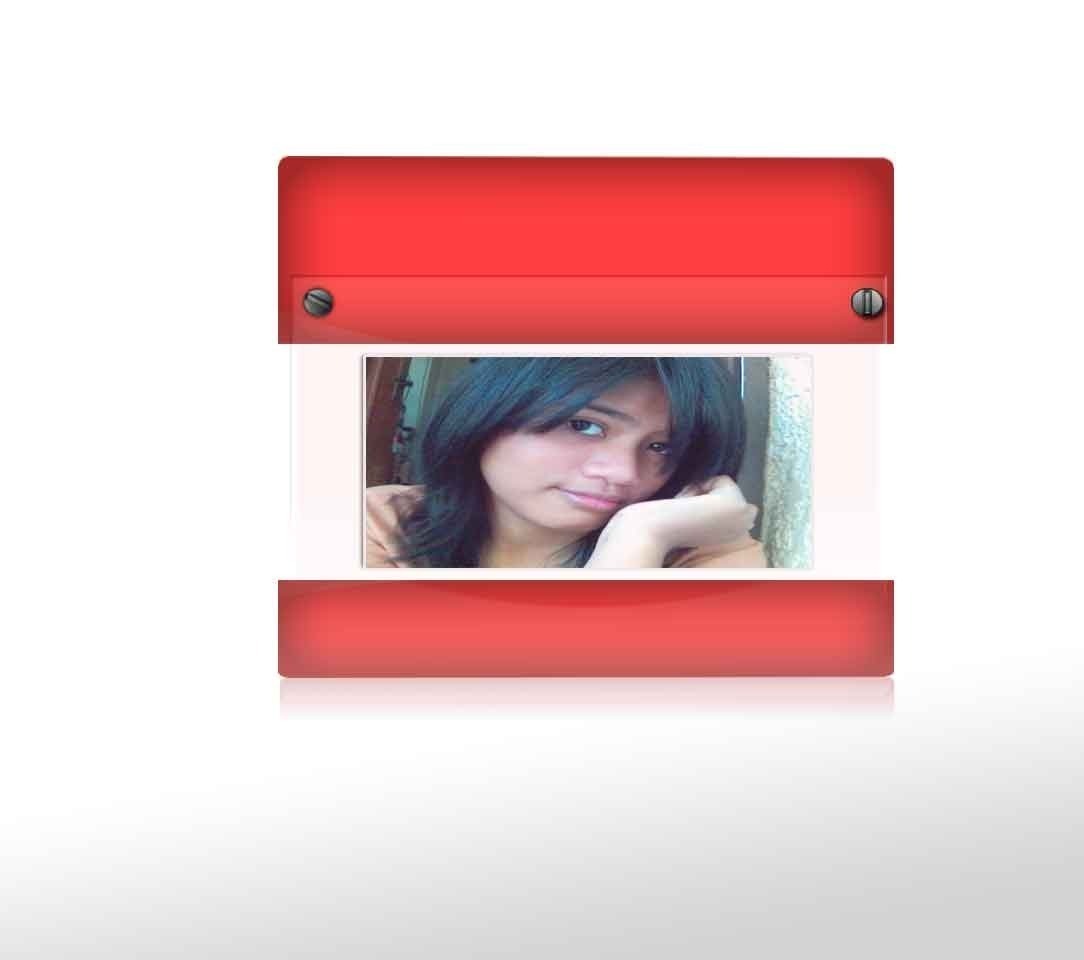
glass picture frame final How to Create a Glass Picture Frame in PhotoShop

VN:F [1.9.17_1161]
Rating: 0.0/10 (0 votes cast)
Follow Will.Spencer on

Leave a Reply

Related Posts

  • Making a 3D Can in PhotoShop

    This tutorial will help you create a three dimensional can in Photoshop. On a new layer draw a shape like this and fill with a gradient: Then on a new layer draw a eliptical shape and give it gausian until you get something like this, then place that below the layer having the main shape: [...]...


  • Digital Picture Frame

    The best way of remembering the good times is by taking photographs and preserving them. One will find numerous photo frames adorning the mantle piece in most houses with pictures of family members and friends alike. These are a way of cherishing happy moments or special times and one can take pleasure in going through [...]...


  • Page Curl

    Step 1: Open the picture in which you want to have this effect. Step 2: Unlock the background layer, this is done by double clicking on the lock in the layer palette as shown below and then rename the new layer as original as shown in the dialog box below. Step 3: Now select the [...]...


  • Boundary Around a Picture

    STEP 1: First open an image in Photoshop. STEP 2: Select an area in the picture. STEP 3: Now Invert the selection by pressing “ctrl + shift + I” keys STEP 4: Now press the “Edit in Quick mask Mode” as shown in the figure or just press key “Q”. STEP 5: We add a [...]...


  • Making a Glossy Logo in Photoshop

    Having a glossy logo is common with today’s sleek website interfaces. Creating one yourself is simple with the right software and a set of instructions to walk you through the basics. You will need to open your version of Adobe Photoshop (This tutorial uses 7.0, but all versions carry the same tools and can produce [...]...