

In Windows Vista, there is a difference between accounts with “computer administrator” privileges and the Administrator account. In the Administrator account, the User Account Control is disabled. Also, the Administrator account is present, but hidden and disabled by default.
Please be aware that Vista Beta 2 has a bug that may cause big problems, if a password is created for the Administrator account in Computer Management.
Enabling the Windows Vista Administrator Account
Here are two methods that will teach the user how to enable the Windows Vista Administrator Account.
Method 1
- Boot the computer to Vista in the computer administrator account, then open administrative tools in the control panel. Double click the computer management item to open it.
- Authorize user accounts control by clicking the continue button.
- Double click “local users and groups” to open it.
- Click the user’s folder.
- Select the administrator icon.
- Right click it to open its content menu.
- Choose properties.
- Remove the check mark from the “account is disabled” box.
- Click OK.
- Restart the computer.
- Once the computer restarts, open the administrative tools control panel.
- In the Users area, disable any other enabled accounts with computer administrator privileges.
- Look for account icons that do not have the red disable mark.
- Click to place a check mark on these account icons.
- Open Properties.
- Click to add a check mark in the box labeled “Account Is Disabled.”
- Check to see that the Administrator account is enabled.
- Close Computer Management and restart Windows.
- When vista reboots, the administrator account will be loaded automatically.
Be advised that this method is for temporary use only, for security reasons. Never leave one’s Administrator account enabled without a password.
Method 2
- Turn on the computer.
- As Windows is starting up, when “Starting Windows” comes on the screen, quickly press F8.
- In a dual boot environment, this can be done easily from the boot menu.
- When the boot menu is showing:
- Use the arrow or tab keys to select “Microsoft Windows” (this is the option that runs Windows Vista).
- Do not press Enter. Instead, press the F8 key and progress to the Safe Mode boot screen.
- At the Safe Mode boot screen, select the first option, “Safe Mode.”
- Press Enter.
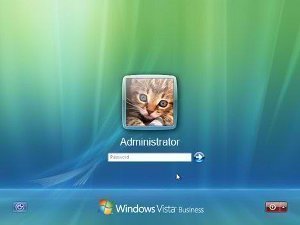
It will take a few moments, but Vista will present a login screen that has two options, Administrator and Other User.
- Click the Administrator icon.
The Windows Vista Administrator account is now enabled.
sinned_nister
is there other way to have an admin privileges even in standard user mode?
doug
my daughter hit the deny in the c drive securties policy tab and now we dont have access to anything.. restore no good, sys config no good, regedit no good tryed everything, even dos commands. what do i do???????
David
My problem is, when I’m on other users accounts it wants the admin password everytime I try and do anything like allowing acess to the web or changing a setting. How can I get it to stop?
Daniel Memenode
Originally posted by sharvin: “hi my computer has a administrator account but i dot have i have 3 account all standard user but my account is administrator but i change it to standard user but i can change back to adminitrator.can u help me pls?????????????”
Can you even understand what you just said?
sharvin
hi my computer has a administrator account but i dot have i have 3 account all standard user but my account is administrator but i change it to standard user but i can change back to adminitrator.can u help me pls?????????????
s3csh3n8
What if access is denied!!!!!!!
Jesus Wu
The convenient and easy way is to use some windows password recovery tool like Windows Password Reset Standard that can reset Administrator password for you within a few minutes automatically!ssword for you within a few minutes automatically!