

There are several ways to recover a lost windows password. Hidden administrator account method, Windows installation disk, and third party software are some of the methods you can try.
Hidden Administrator Account Method
If using a custom user account, Windows automatically creates an “Administrator” account that is hidden from the user selection log in screen. There are two options for logging into an administrator account:
The first option is to start up the machine in the welcome or log in screen and pull up the classic log in screen. Press “Ctrl+Alt+Del” twice in order to do this. The classic log on dialog will display an editable user name and password field. In the User name field, type in “Administrator,” leave the Password field empty, and log into Windows.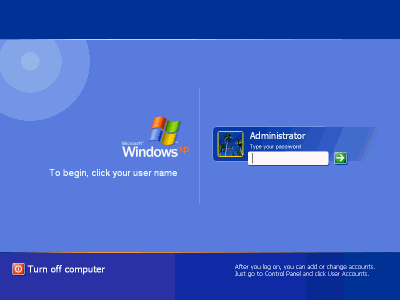
Several options can be changed in the Administrator account. The Administrator account has access to nearly everything in the computer. Click Start on the task bar and click Control Panel or hold down “Windows” on the keyboard, press the letter “R” to pull up the run command prompt, type in “control,” and select OK. Click “User Accounts” in the Control Panel and reset the password for the other administrator user account.
The second option is to restart the computer in safe mode. To do this, press “F8” during start up to load into the Windows Advanced Options Menu.
Note: The key should be pressed after the initial loading screen but before the “Starting Windows” message. To better achieve this, press “F8” multiple times during the start up.
Once the Windows Advanced Options Menu loads, select “Safe Mode” from the available options and then press “Enter.” Once safe mode loads completely, the user selection screen or the classic log in screen is shown. Simply select the administrator account or type “Administrator” into the username field. Leave the password field empty and log into Windows.
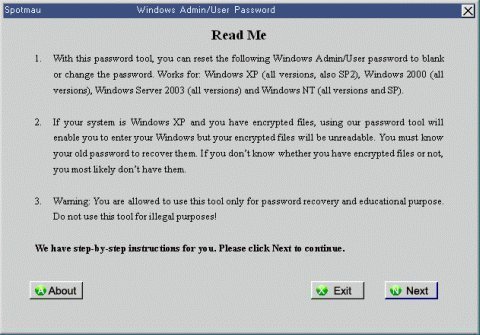
Here are the instructions for recovering a password with a Windows installation Disk:
- Insert the Windows operating system CD into the CD drive and start the computer. Make sure the selected Drive is the bootable drive.
- You will see a notification on your screen saying that the computer will now boot from the CD, or that a specific key will have to be pressed to boot from the CD. Select the key to boot from the CD.
- Now that the computer is booting from the CD, an initial set up screen that says the computer is loading files will be displayed.
- After the computer loads some files, a welcome screen will pop up. Follow the prompts and press enter to set up Windows.
- The next prompt will be the licensing agreement, choose ‘accept’.
- A set up screen will popup and give you the option to do a repair. Select the repair option.
- The repair option should start running immediately and might take a few minutes to check disks, files, etc.
- Once the computer has copied files, it will ask the user to reboot the computer or it will automatically reboot it. There can also be a message that the computer will reboot in 10 seconds.
- When the computer reboots, do not press any keys. The computer will automatically reboot and the Windows screen and the message Installing Windows will be displayed.
- It is important to look at the lower left corner of the screen. A message that says “Installing Devices” will pop up. When the progress bar is displayed, immediately press “Shift + F10.”
- When Shift + F10 is pressed, a command console pops up and gives access to many system functions.
- At the prompt enter NUSRMGR.CPL and press enter. This input will give access to the user account’s graphical access in the control panel.
- Choose the account you want to change or to remove the password from. To remove the password so that it does not have to be entered upon logging in, enter the following at the command prompt: “control userpasswords2.” Once the changes are made, close the window and command console. Continue with the repair.
- The computer will continue with the repair and ask for a product ID. Enter the product ID. Once the operating system starts up, users will be able to access all their user accounts with either the new password or no password at all. It is important to note that this strategy does not damage any files or settings.
Third Party Software
Although the third party software can be costly, there are several free solutions you can try. They mostly consist of cracking software that can find lost or forgotten passwords in a registry. Some are very easy to use and only take a few minutes. Internet access or a USB drive are required to download and install the files.
Creating a Password Reset Disk
Once the password is recovered or a new password is set, it is important to create a Password Reset Disk. This is usually a floppy disk that can be used in case the password is forgotten or lost again.
- Press the Start button and click Control Panel/ User Accounts.
- Click on the user account then under Related Tasks, click Prevent a Forgotten Password.
- Once “Prevent a Forgotten Password” is clicked, a Wizard will pop up. Follow the prompts to create a disk.
- Insert the floppy disk.
- Enter the log on password.
- Follow the prompts to create the Password Reset Disk.
- A prompt stating that the disk is created will be displayed. Label the disk and save.
In the future, if the password is forgotten or lost, simply insert the password reset disk, which will allow quick and easy password reset.
How to Recover a Lost Windows NT/2000/XP Administrator Password
The first step is to boot the machine with a bootable floppy or CD that contains NTFS (NT File System) drivers. This will allow users to proceed to the next step, which is to recover or reset the Administrator password.
Boot the System with NTFS Drivers
Petter Nordahl-Hagen has created a good set of Linux-based bootdisks with NTFS support. Download this package from Offline NT Password & Registry Editor.
Users may also use their own bootable floppies or CDs as long as they have support for the NTFS file system and can run the utility they intend to use to recover the administrator password.
Note that this step is only required if the system uses NTFS as a filesystem. If the system uses a different filesystem, boot with drivers for that specific filesystem.
To recover the Administrator password, use a tool like OpenWall’s John the Ripper with Olle Segerdahl’s NTLM patch, L0phtCrack, or LCP. John the Ripper runs on Unix, DOS, or Windows. L0phtCrack runs on Unix or Windows. LCP runs on Microsoft Windows.

Jacob
I can’t see the date when this article was written. Please put the date on your articles. Sometimes I am finding that I am reading an already old article.
zahy
uff i can’t download any program on my laptop, i forgot the password of THE USER ACCOUNT CONTROL, pls how can i do to unlock and download the normal programms
thanks
asmo
hello my hotmail it close i dont knew a want to helpe me please send my code hotmail if u have thanks
Colin
I just came across another blog post:
http://windows7password.com/forgot-windows-7-password-how-to-unlock-your-computer-on-your-own/
It should also be useful for resetting lost Windows password.