

Using Firewalls To Prevent Unauthorized Access
The method, by which you can physically secure the network, is through the usage of firewalls. While firewalls provide some level of physical security, you should bear in mind that firewalls are just barriers which make it difficult for intruders to attack the network.
Firewalls are categorized as follows:
- Network firewalls: These firewalls monitor traffic entering and exiting the network, in an attempt to protect the perimeter network. Software based Microsoft Internet Security and Acceleration (ISA) Server and the hardware based Nortel Networks Alteon Switched Firewall System are network firewall solutions.
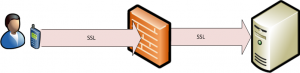
- Host-based firewalls: These firewalls protect those computers it is defined to protect. The network to which the computer is connected to is irrelevant. The Internet Connection Firewall (ICF) feature of Windows XP and Windows Server 2003 is a host-based firewall solution.
Firewalls work by checking packets to determine whether packets should be permitted to be forwarded, or whether packets should be dropped. The main function of the firewall is to filter traffic. TCP/IP packets have an IP packet header, followed by the actual content of the packet. The IP packet header is either a TCP header or a UDP header. The TCP header or UDP header contains the IP addresses and port number of the sender (source), and the IP addresses and port numbers of the receiver (destination). A TCP header contains the following additional information as well: Sequence numbers and acknowledgment numbers, and conversation state.
As packets pass over the firewall, packets are examined according to the filtering parameters configured for the firewall to filter traffic on. The filtering parameters define which packets should be allowed to pass over the firewall. The default configuration is that firewalls typically deny all packets other than those which it has been explicitly set up to allow. In networking environments, firewalls are usually configured to block all incoming traffic, and to allow outbound traffic from the private internal network.
Packet filters are used to define the traffic types that should be denied by a firewall. You need to implement firewalls and router packet filters to secure the resources within your private network from Internet users.
When you configure IP packet filters, you can specify what traffic is allowed or denied, based on the following:
- Source address
- Destination address
- Source and destination TCP port number
- Source and destination UDP port number
- The interface that the packet arrives on.
- The interface that the packet should be forwarded to
- IP protocol numbers
- ICMP types and codes
IP packet filters should be used for the purposes:
- To restrict traffic being sent to, or from a specific computer, you can filter on source/destination IP address range.
- To restrict traffic coming from, or being sent to a specific IP address range of a network segment, you can filter on source/destination IP address range.
- To restrict traffic being transmitted to/from a particular application, you can filter on protocol number.
Advanced firewalls include a number of additional security features, including:
- Stateful inspection: Here, packets are examined when they reach the firewall. However, packets are allowed to access internal network resources as determined by the configured access policy. Stateful inspection capabilities are provided by proxy servers and firewall solutions that support Network Address Translation (NAT).
- Intrusion detection features: Firewalls that include intrusion detection features are able to detect possible network attack attributes as they inspect packets. These firewalls can perform a number of activities when they detect a network attack:
- Start a counter attack.
- Block access from the network of the intruder.
- Notify an administrator of the network attack.
- Application layer intelligence capabilities: These firewalls allow or drop packets based on the content of the packet. The firewalls are capable of inspecting and analyzing data within the traffic flows.
- Virtual Private Network (VPN) capabilities: These types of firewalls enable remote networks to connect with other remote networks over the Internet. If you use both a VPN and a firewall solution, the firewall is able to filter traffic within the VPN tunnel.
If the Exchange organization accesses external networks, you should use a firewall to protect the Exchange organization. A strong firewall solution should be used to protect back-end Exchange servers. Front-end servers usually exist in the demilitarized zone (DMZ) or perimeter network.
A perimeter network usually consists of the following elements:
- A firewall for protecting the front-end servers from the Internet traffic.
- A firewall between the back-end servers and private network. This firewall should allow communication between back-end servers and specific servers located on the private network.
- Hardened servers for supporting the services provided by the applications. Hardened servers can be configured to disable unsafe Internet services.
A perimeter network is either a single firewall configuration, or back to back firewall configuration:
- Single firewall configuration: Here a single firewall is used with a network interface card (NIC) connected to the perimeter network, a NIC connected to the Internet, and another NIC connected to the private network. The private network comprises of the organization’s network, computers and servers that are not extended to the public network. This is the simplest firewall configuration strategy. Because this configuration consists of only one firewall, the private network is vulnerable when an attacker is able to bypasses the firewall.
- Back to back firewalls configuration: Here, one firewall is utilized to connect the front end of the perimeter network to the Internet, and another firewall is utilized to connect the back end of the perimeter network to the private network. This method provides more protection to the private network. Additional firewalls can be implemented between the Web tiers in the perimeter network to further enhance security for the private network.
You can use TCP port filtering to secure network applications and services. TCP port filtering allows you to control the type of network traffic that reaches your Exchange servers through the restriction of connections to specific TCP ports.
A few common TCP ports are listed here:
- Port 25; Simple Mail Transfer Protocol (SMTP)
- Port 80; Hypertext Transfer Protocol (HTTP)
- Port 88; Kerberos
- Port 102; Message Transfer Agent (MTA)
- Port 110; Post Office Protocol v3 (POP3)
- Port 119; Network News Transfer Protocol (NNTP)
- Port 135; Exchange administration, RPC, client server communication
- Port 143, Internet Message Access Protocol version 4 (IMAP4)
- Port 389, Lightweight Directory Application Protocol (LDAP)
- Port 443, HTTP using Secure Sockets Layer (SSL)
- Port 563, NNTP using Secure Sockets Layer (SSL)
- Port 636, LDAP using Secure Sockets Layer (SSL)
- Port 993, IMAP4 using Secure Sockets Layer (SSL)
- Port 995, POP3 using Secure Sockets Layer (SSL)
- Port 3268 – Port 3269; Global catalog lookups
MAPI Client Connection Across a Firewall
Messaging Application Programming Interface (MAPI) is a specification that provides a common method to access messaging backbones. A Messaging Application Programming Interface (MAPI) based Exchange client is a messaging application which communicates with an Exchange Server using MAPI and Exchange transport. A MAPI information service should be available for the messaging backbone prior to using a MAPI based client. Because MAPI defines standardized interfaces at two layers, a client interface and service provider interface; client applications and information services can be created. MAPI remains consistent regardless of the backbone and information services used.
RPC over HTTP makes it possible for remote users to access Exchange Server 2003 through Outlook 2003 MAPI client over the Internet.
To enable RPC over HTTP, the following configuration has to be performed on the front-end server for the remote connection:
- RPC over HTTP Proxy Windows component has to installed.
- IIS has to be configured to support RPC over HTTP communication.
Through RPC over HTTP, messages sent by a MAPI client are able to access the Exchange Server 2003 server through a firewall. When using RPC over HTTP, Outlook users can connect directly to an Exchange server over the Internet through HTTP. Whether the Exchange server and Outlook reside on different networks, and is behind firewalls is irrelevant. RPC over HTTP provides remote users with secure communication access to the Outlook features of the MAPI client.
When you install and configure RPC over HTTP, the Exchange front-end server becomes a RPC proxy server that defines the ports that the RPC client uses to connect to the Exchange servers, global catalog servers and domain controllers.
The RPC proxy server can be deployed or located as follows:
- Inside the firewall: If you do not want to open the ports for the RPC proxy server to connect to other computers, then you can configure the RPC proxy server on an Exchange Server 2003 front-end server in the firewall and install a ISA server in the demilitarized zone (DMZ). The ISA server will then forward RPC over HTTP requests to the Exchange front-end server.
- On the demilitarized zone (DMZ): To reduce the number of ports used by the RPC proxy server, you can configure the RPC proxy server on an Exchange Server 2003 front-end server in the demilitarized zone (DMZ).
Configuring Exchange Server 2003 to Use RPC Over HTTP
The following steps have to be performed to configure Exchange Server 2003 to use RPC over HTTP:
- Configure the front-end Exchange server as the RPC proxy server.
- Configure the RPC virtual directory in Internet Information Services (IIS) for basic authentication.
- Configure the registry on the back-end Exchange server to use the specific number of ports. This should be the back-end Exchange server which communicates with the RPC proxy server.
- Configure the ports as being open on the internal firewall on the Exchange back-end server.
- Configure the Outlook profile for users to utilize RPC over HTTP.
How to install the RPC over HTTP Proxy Windows component
- Log on to the front-end Exchange server.
- Open Control Panel.
- Click Add or Remove Programs.
- Select Add/Remove Windows Components.
- The Windows Components dialog box opens.
- Select Network Services and click the Details button.
- The Networking Services Component dialog box opens.
- Select the RPC over HTTP Proxy.
- Click OK.
- Click Next to install the RPC over HTTP Proxy Windows component
- Click Finish.
How to configure the RPC virtual directory in Internet Information Services (IIS) for basic authentication
- Click Start, Administrative Tools, and then click Internet Information Services (IIS) Manager on the Exchange front-end server.
- The IIS Manager console opens.
- In the left pane, expand the server node, Web sites, and then Default Web Site.
- Right-click Rpc and select Properties from the shortcut menu.
- The Rpc Properties dialog box opens.
- Click the Directory Services tab.
- Click Edit.
- Uncheck Enable Anonymous Access.
- Select Basic Authentication. Integrated Windows Authentication is by default selected.
- Click OK.
How to configure the registry on the back-end Exchange server to use the specific number of ports
- Open the Registry Editor on the Exchange front-end server.
- Navigate to the HKEY_LOCAL_MACHINESoftwareMicrosoftRpcRpcProxy registry key.
- Right-click Valid Ports and then select Modify on the shortcut menu.
- In the Edit String window provide the appropriate Exchange front-end server information.
- Close the Registry Editor on the Exchange front-end server.
- Open the Registry Editor on the Exchange back-end server.
- Navigate to the HKEY_LOCAL_MACHINESYSTEM CurrentControlSetServicesMSExchangeSAParameters registry key.
- Right-click Rpc/HTTP NSPI Port and then select Modify on the shortcut menu.
- Select Decimal in the Base window.
- In the Value Data field, provide the appropriate information.
- Click OK.
- Right-click HTTP Port and select Modify from the shortcut menu.
- Select Decimal in the Base window.
- In the Value Data field, provide the appropriate information.
- Click OK.
- Navigate to the HKEY_LOCAL_MACHINESYSTEMCurrentControlSetServicesMSExchangeISParametersSystem registry key.
- Right-click RPC/HTTP Port and select Modify from the shortcut menu.
- Select Decimal in the Base window.
- In the Value Data field, provide the appropriate information.
- Click OK.
- Close the Registry Editor on the Exchange back-end server.
How to configure the Outlook profile for users to utilize RPC over HTTP
The following default settings provide the most secure method of user connection:
- Connect with SSL Only
- Mutually Authenticate the Session When Connecting with SSL
- Password Authentication is NTLM
To configure the Outlook profile for users to utilize RPC over HTTP,
- On the back-end Exchange server, open Control Panel.
- In the See Also pane, select Control Panel Options and then Mail.
- Click Show Profiles.
- When the Mail dialog box opens, click Add.
- In the New Profile dialog box, in the Profile Name box, enter a name for the profile that you are creating.
- Select the Add A New E-Mail Account option and click Next.
- The Exchange Server Settings dialog box opens.
- Enter the Exchange server name and the account user name.
- Click Check Names and the click OK.
- Click More Settings.
- Click the Connection tab.
- In the Connection area of the tab, select the Connect Using Internet Explorer’s Or A 3rd Party Dialer option.
- In the Modem area of the Connection tab, select the Connect To My Exchange Mailbox Using HTTP option.
- Click Exchange Proxy Settings.
- In the Use This URL To Connect To My Proxy Server For Exchange box, provide the appropriate URL information.
- Select the Connect Using SSL Only option.
- Select the Mutually Authenticate The Session When Connecting With SSL option.
- In the Principal Name For Proxy Server box, provide the principal name information.
- For a user that resides on a fast network, the default connection order can be left unchanged. This is to connect through TCP/IP first and then HTTP.
- Fora user that resides on a slow network, change the default connection order to connect through HTTP first and then TCP/IP.
- In the Proxy Authentication Settings area of the Exchange Proxy Settings page, select the Basic Authentication option from the Use This Authentication When Connecting To My Proxy Server For Exchange drop-down list.
- Click OK.
- Click Finish.
Follow Us!