

Remote Access Overview
Dial-up networking allows a remote access client to establish a dial-up connection to a port on a remote access server. The configuration of the DUN server determines what resources the remote user can access. Users that connect through a DUN server, connect to the network much like a standard LAN user accessing resources.
Virtual Private Networks (VPNs) provide secure and advanced connections through a non-secure network by providing data privacy. Private data is secure in a public environment. Remote access VPNs provides a common environment where many different sources such as intermediaries, clients and off-site employees can access information via web browsers or email. Many companies supply their own VPN connections through the Internet. Through their ISPs, remote users running VPN client software are assured private access in a publicly shared environment. Tunneling is the concept used to describe a method of using an internetwork infrastructure to transfer a payload. IPSec tunnel mode enables IP payloads to be encrypted and encapsulated in an IP header so that it can be sent over the corporate IP internetwork or Internet.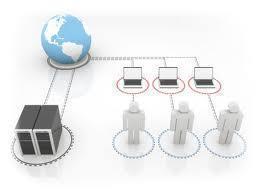
Routing is the process that transfers data over the internetwork from one local area network (LAN) to another. Routers are devices operating at the network layer of the OSI model that use the IP routing tables to forward traffic which it receives from a host or from another router. The different types of TCP/IP traffic become important when discussing routing and the routing protocols:
- Unicast traffic comprises of point-to-point connectivity between TCP/IP systems.
- Broadcast traffic comprises of point-to-multipoint connectivity between TCP/IP systems.
- Multicast traffic comprises of point-to-multipoint traffic to a group of selected members that belong to a multicast group.
There are a number of technologies that enable remote network connections, including:
- Frame Relay: This is a WAN technology that uses other hardware components to establish remote site connections. A frame relay connection uses a standard leased line which connects the network site to the frame relay provider’s nearest point of presence (POP). The frame relay provider then delivers the connection to the frame relay cloud. In order to use the frame relay provider for a LAN-to-LAN connection, you have to install a leased line at each site which connects the network to the nearest point of presence (POP) of the frame relay provider. The frame relay provider is then responsible for connecting the lines to the same frame relay cloud so that a connection can be established between the two networks. The benefits of using the frame relay WAN technology are:
- Frame relay provides flexibility.
- Each of your sites can be connected to a local point of presence (POP) which in turn leads to reduced cost of the leased lines.
- You can connect to multiple sites using a single frame relay connection.
- You pay for only the bandwidth that is used.
- Contracted bandwidth can be exceeded when heavy traffic conditions are present.
- Leased lines: Dedicated leased lines are also typically used to connect remote networks. While dedicated leased lines are commonly used for WAN links to enable remote network connectivity, purchasing and maintaining leased lines are expensive. In addition to this, you have to pay for allocated bandwidth all the time. This is due to leased lines being classed as persistent connections. This means that the connections are permanent connections, and remain open all the time.
- Dial-on demand connections: While the WAN connections provided by Integrated Service Digital Network (ISDN) and standard asynchronous modems are typically slower than dedicated leased lines, they can be disconnected at an time, and can also be used to enable connectivity to different locations. One of the main characteristics of dial-on demand connections is that you pay for the actual bandwidth that you are using.
- Virtual private networks (VPNs): Remote access VPNs provides a common environment where many different sources such as intermediaries, clients and off-site employees can access information via web browsers or email. Many companies supply their own VPN connections via the Internet. Through their ISPs, remote users running VPN client software are assured private access in a publicly shared environment. By using analog, ISDN, DSL, cable technology, dial and mobile IP; VPNs are implemented over extensive shared infrastructures. Remote access VPNs offer a number of advantages, including the elimination of WAN circuit and modem costs, cable modems enable fast connectivity and are relatively cost efficient, new users can be added with hardly any costs, and information is easily and speedily accessible to off-site users through Internet connectivity.
The Routing and Remote Access Service (RRAS) provides multiprotocol routing services for Microsoft Windows 2000 Server and Windows Server 2003 computers. RRAS includes a wide variety of features that support unicast and multicast IP routing, IPX routing, AppleTalk routing, and remote access.
Determining Organizational and User Requirements
Determining the remote access requirements of the organization and users should be one of the initial stages when you plan your remote access strategy. All organizations and all users do not have common remote access requirements.
From an organization perspective, a few issues that need to be initially addressed are:
- Identify the subnets which will be remotely accessed.
- Determine the resources which need to be remotely accessed.
- Determine whether your existing servers can be modified and configured to enable remote access.
- Evaluate existing modems and connections.
- Evaluate existing traffic patterns.
- Determine what dial-in connection security and VPN connection security mechanism need to be implemented.
From a users perspective, a few issues that need to be initially addressed are:
- Determine what operating systems are being used by clients.
- Determine the computers which are being used by clients.
- Determine what the bandwidth needs of users are.
- Determine what connections can be supported.
- Determine whether clients’ current Internet connections can be used for VPN connections.
- Determine how often users will need to connect to the network.
Determining the Types of Remote Access to Allow
When deciding on the specific type(s) of remote access that you are going to allow, you have to include the needs of the organization and the users which you have identified. The focal point here is whether the remote access type meets these needs and requirements. Another important factor that should be included when you determine the remote access type you are going to allow is the cost and administrative skills needed to both implement and maintain the remote access type.
The different types of remote access are summarized below:
- Dial-in remote access: Dial-in remote access uses modems and servers running the Routing and Remote Access (RRAS) service. To enable communication, dial-in access utilizes the Point-to-Point (PPP) protocol. The advantages of using dial-in remote access are:
- Modem access remains unaffected by Internet usage.
- You could use existing modems and phone lines.
- When high bandwidth is not a requirement, modem access is reliable and its speed is consistent.
- You do not need to provide encryption.
- Security features such as caller ID verification and callback security can be used.
- VPN remote access: A VPN provides secure and advanced connections through a non-secure network. With VPN access, encryption is used to create the VPN tunnel between the remote client and the corporate network. The advantages of using VPN access are:
- An unlimited number of connections can be allowed from clients, and over a single connection.
- You can easily modify existing Internet connections to enable VPN access.
- If clients can use a broadband Internet connection, more bandwidth is available than that provided by dial-in access.
- To secure VPN access, Windows Server 2003 provides strong levels of encryption.
- Wireless remote access: Wireless networks are defined by the IEEE 802.11 specification. With wireless networks, wireless users connect to the network through connecting to a wireless access point (WAP). Wireless networks do not have the inbuilt physical security of wired networks, and are unfortunately more prone to attacks from intruders. To secure wireless networks and wireless connections, administrators can require all wireless communications to be authenticated and encrypted. There are a number of wireless security technologies that can be used to protect wireless networks. When planning wireless remote access, planning security for wireless networks should be a high priority factor.
Understanding Network Access Client Types:
Based on the different types of remote access, there are three network access client types:
- Dial-up client: A dial-up client uses a physical connection to the remote access server to establish a connection to it. A dial-up client can access resources in much the same manner as if they are actually physically connected to the network. Dial-up clients can:
- Access network resources and services.
- Share files.
- Map network drives, and perform other operations, based on the access that is allowed.
You should utilize a dial-up client when the following conditions are present:
- The Internet cannot be used to access resources on the corporate network because of security issues.
- The throughput provide by a dial-up connection adequately meets the requirements of remote access clients – they are able to perform the various functions which they need to.
- The expense of phone lines and modems are affordable.
- VPN client: A VPN client utilizes the Internet, tunneling and TCP/IP protocols to establish a connection to the network.
- Wireless client: These clients connect to the network through radio frequencies such as infrared frequencies.
Dial-In Access Design Considerations
The common dial-up networking connection methods are:
- Plain old telephone service (POTS): In the early days of dial-up networking, phone lines were used to establish the dial-up connection. The amount of data that was passed was initially limited because analog components caused signal loss. This has since improved with the connections between phone offices becoming all digital connections paths.
- Integrated Services Digital Network (ISDN): ISDN uses an all digital signal path and includes features such as caller ID, call forwarding, and fast call setup times.
- Point-to-Point Protocol (PPP): The Point-to-Point Protocol (PPP) uses a three way PPP negotiation process to enable devices to establish a TCP/IP connection over a serial connection. There are a number of protocols that operate above the PPP to enable the PPP negotiation process, such as Challenge Handshake Authentication Protocol (CHAP), Callback Control Protocol (CBCP), Compression Control Protocol (CCP), IP Control Protocol (IPCP) and Internet Protocol (IP).
A few factors to consider before implementing dial-in remote access are:
- You need to provide for the initial cost of setting up a dial-up networking infrastructure, this includes cost on:
- Modems
- Phone lines
- Communication hardware
- Server hardware
- The cost of dial-in remote access increases as more phone lines are added for remote access. The number of remote access users also affects the cost component of dial-up networking.
The main factors or issues that you need to clarify when planning a dial-up networking strategy are:
- The method you will use to assign IP addresses to clients: The methods that you can select between for assigning assign IP addresses to clients are:
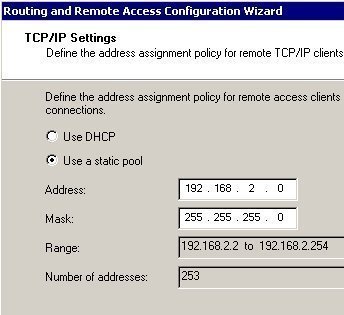
- Configure the RRAS server to assign IP addresses to clients, using a static address pool defined on the RRAS server: In this method, you have to configure the static address pool on the RRAS server. A few factors to consider on static address assignment are:
- Each address assigned has to be unique. You therefore have to ensure that the static address pool configured for the RRAS server does not overlap with the address range defined for your DHCP server.
- For multiple RRAS servers, the static address has to be unique for each RRAS server.
- Configure the RRAS server to request IP addresses for clients from a DHCP server: This method is more feasible than using a static address pool. Remote access clients can be assigned IP addresses from the range of IP addresses already configured for the DHCP server, thereby eliminating the possibility of conflicting IP address assignments.
- Configure the RRAS server to assign IP addresses to clients, using a static address pool defined on the RRAS server: In this method, you have to configure the static address pool on the RRAS server. A few factors to consider on static address assignment are:
- The type of incoming ports and the number of incoming ports you will need: The factors that fall within this dial-up networking planning component are:
- Whether multilink connections need to be supported.
- The number of remote access users who would simultaneously need to access the network.
- The available number of IP addresses.
- The bandwidth available on the connection of the RRAS server to the LAN.
- The security you will implement for your dial-in access strategy: There are two methods that you can use to control which users are able to remotely access the network:
- You can allow/disallow remote access for individual users. You configure individual user access through the Properties dialog box of a specific user, on the Dial-in tab. The Active Directory Users and Computers management console is the tool used to access the Properties dialog box of a specific user.
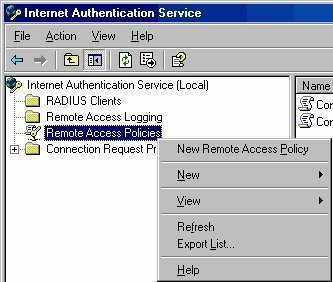
- You can allow/disallow remote access by configuring remote access policies. This method allows you to specify remote access rights based on various criteria, such as users, group, and time of day. The settings specified on the Properties dialog box of a specific user, on the Dial-in tab dictates whether a user is affected by a Remote Access Policy.
The different settings on the Dial-in tab of the Properties dialog box of a particular user are:- Allow Access; the user is allowed to remotely access the network. The remote access policies are not included in the decision.
- Deny Access: the user is denied to remotely access the network.
- Control access through Remote Access Policy; the remote access policies dictate whether or not the user is allowed remote access.
Remote access policies can also be used to restrict remote connections after they have been authorized based on the following:
- Idle timeout time setting
- Maximum session time setting
- IP packet filters
- Encryption strength
- IP addresses for PPP connections and static routes.
VPN Access Design Considerations
Before looking at the design considerations for implementing a VPN remote access strategy, lets first look at the components that are needed for VPN connections to occur:
- A transmit network is a public network such as the Internet. Data moves over the public network toconnect to the remote network.
- A VPN client creates a connection to the gateway configured as the VPN server. The Routing and Remote Access service (RRAS) is used.
- The VPN server performs the following operations:
- Responds to calls from VPN clients
- Establishes whether requests are permitted.
- Authenticates requests to connect to the VPN server.
- Forwards traffic between the VPN client and the corporate network.
- Assign IP addresses to clients, either through static address assignment or through the DHCP protocol.
- A VPN tunnel is a connection that encrypts and encapsulates data.
- The tunneling protocols used to encapsulate data and manage VPN tunnels are:
- Point-to-Point Tunneling Protocol (PPTP)
- Layer Two Transport Protocol (L2TP)
- The term used to describe data which is being sent over a connection is tunneled data.
The main factors or issues that you need to clarify when planning a VPN remote access strategy are summarized below:
- The placement of the VPN servers: The choices for VPN server placement are:
- Place the VPN server on the private internal network: For this placement strategy, the firewall has to allow traffic to the VPN server.
- Place the VPN server on the perimeter network: For this placement, you have to perform the following configurations:
- On the VPN server, configure inbound and outbound filters that allow VPN traffic to and from the Internet interface of the VPN server.
- On the firewall, configure it to allow traffic from the VPN server.
- The hardware requirements of the VPN server are:
- It is recommended to connect the interfaces on the private network to a high-capacity switch.
- Set devices to 100 Mbps Full duplex.
- For a multiprocessor computer, bind a processor to each network adapter card.
- It is always better to double the processor speed rather than doubling the number of processors.
- 512 MB of RAM is sufficient for 1,000 simultaneous connections. An additional 128 MB of RAM (above the standard RAM capacity for the server) is required for each 1,000 simultaneous calls. A further 128 MB of RAM should be added for remote access and services.
- The VPN protocols that you will be using: You can support the use of one or both of the VPN tunneling protocols: Point-to-Point Tunneling Protocol (PPTP) or Layer Two Transport Protocol (L2TP). The factors to consider when deciding on which VPN protocol to use are:
- The requirements of clients:
- Windows 95, Windows 98, Windows ME, Windows NT 4.0, Windows 2000, Windows XP and Windows Server 2003 support PPTP
- Only Windows 2000, Windows XP and Windows Server 2003 support L2TP.
- Public Key Infrastructure (PKI) requirements: A Public Key Infrastructure (PKI) is needed for the mutual authentication of the VPN server and the client. Certificates need to be installed on the VPN server and VPN clients. In addition to this, user authentication needs protocols such as Microsoft Challenge Handshake Authentication Protocol (MS-CHAP) and Extensible Authentication Protocol Transport Layer Security (EAP-TLS).
- Whether IPSec is needed as well. L2TP can be used with IPSec to provide encryption. If you need authentication for the VPN server and the client, then you need to be able to support L2TP. Only L2TP over IPSec can provide data integrity.
Wireless Remote Access Design Considerations
The main requirements for enabling wireless remote access are:
- You need to configure remote access policies that allow wireless users to connect to the network.
- If you are going to configure your WAPs for RADIUS authentication, you should deploy a second IAS server and configure it as a backup to the primary server. This would enable wireless clients to continue establishing connections when the primary IAS server is unavailable.
- When planning for using multiple WAPs, bear the following in mind:
- All WAPs and clients should support the same protocols.
- All your WAPs can use the same server for authentication if you are using IAS authentication.
- Each WAP must be included in the list of clients on the IAS server.
- Each WAP must be configured for RADIUS authentication.
- If you want your WAPs to use IAS authentication, you have to perform the following additional configurations:
- Each WAP must be added as a RADIUS client in the IAS MMC snap-in.
- On the WAP, you have to enable RADIUS authentication and define the primary and backup IAS servers.
- Because security is a high priority for wireless networks, you should use WAPs and adapters that support the following:
- Firmware updates
- WEP using 128-bit encryption
- Disabling of SSID broadcasts
- MAC filtering to restrict wireless access based on MAC addresses.
- When planning for wireless security remember to decide on the following important elements:
- Whether the Wi-Fi Protected Access (WPA) protocol or the Wired Equivalent Privacy (WEP) protocol will be used.
- For the WEP protocol, determine whether 64-bit or 128-bit encryption will be used.
- Whether 802.1X authentication will be used.
- Whether wireless clients will use IPSec.
- Whether MAC address filtering will be used.
- Whether Group Policy will be used to configure wireless client security.
Determining Authentication Methods for Remote Access
When planning your remote access strategy, you need to determine the authentication method that will be used to authenticate clients connecting to the remote access server. Once authentication occurs, authorization would determine the level of access that the user has to access network resources. The different authentication protocols are listed below:
- Kerberos Version 5: This is a standard Internet protocol that can be used to authenticate users and systems.
- NT LAN Manager (NTLM): This protocol is mainly used to authenticate computers in Windows NT domains.
- Secure Socket Layer/ Transport Layer Security (SSL/TLS): SSL/TLS is used for authentication when Web servers are accessed.
- .NET Passport Authentication: Used to authenticate Internet, intranet and extranet users for IIS 6.
- Challenge Handshake Authentication Protocol (CHAP): This is a challenge-response authentication protocol used for PPP connections.
- Microsoft Challenge Handshake Authentication Protocol Version 2 (MS-CHAP v2): Provides mutual authentication and is used for network and dialup authentication.
- Password Authentication Protocol (PAP): A network and dialup authentication method that uses plain text passwords and no encryption.
- Shiva Password Authentication Protocol (SPAP): This method uses a non-complicated password authentication protocol.
- Extensible Authentication Protocol (EAP): Used for network and dialup authentication, and for authentication for PPP connections.
- Extensible Authentication Protocol-Transport Level Security (EAP-TLS): Uses mutual authentication together with smart card certificates.
- Protected Extensible Authentication Protocol (PEAP): Used to increase the security of wireless network encryption.
- MD-5 Challenge: Enables EAP authorization through a name and password combination.
Determining domain function Levels
The domain functional level specified for the domain would determine whether additional security features are supported, and therefore also affects which remote access security features can be used. The Windows Server 2003 domain functional level is the highest level that can be specified for a domain. All Active Directory domain features are available in Windows Server 2003 domain functional level, including the following:
- Local and Global groups
- Security group nesting
- Group conversion between Security Groups and Distribution Groups
- SID History
- Update logon timestamp
- User password support on the InetOrgPerson object
How to check which domain function level is set for the domain
- Open the Active Directory Domains And Trusts console
- Right-click the particular domain whose functional level you want verify, and select Raise Domain Functional Level from the shortcut menu.
- The Raise Domain Functional Level dialog box opens
- You can view the existing domain functional level for the domain in Current domain functional level.
How to raise the domain functional level for a domain
- Open the Active Directory Domains And Trusts console
- Right-click the particular domain whose functional level you want to raise, and select Raise Domain Functional Level from the shortcut menu.
- The Raise Domain Functional Level dialog box opens.
- Use the Select An Available Domain Functional Level list to choose the domain functional level for the domain.
- Click Raise
- Click OK
Determining the Level of Encryption for VPN Access
For VPN access, you need to decide on the level of encryption that will be used. The options are:
- No encryption: This option is generally not recommended because it allows unencrypted VPN connections.
- Basic encryption: This option is also not frequently used because the weaker 40-bit key is used for encryption.
- Strong encryption: A 56-bit key is used for encryption. With IPSec, DES is used for encryption.
- Strongest encryption: A 128-bit key is used for encryption.
How to enable remote access for specific user
- Click Start, Administrative Tools, and then click Active Directory Users and Computers to open the Active Directory Users and Computers management console.
- In the console tree, expand the domain that contains the user account that you want to enable remote access for.
- Select the Users container.
- In the right pane, locate the user account that you want to configure.
- Right-click the specific user account and then select Properties from the shortcut menu.
- The Properties dialog box of the user opens.
- Click the Dial-in tab.
- In the Remote Access Permission area, click the Allow Access option.
- Click OK.
How to enable remote access based on remote access policy
- Click Start, Administrative Tools, and then click Active Directory Users and Computers to open the Active Directory Users and Computers management console.
- In the console tree, expand the domain that contains the user account that you want to enable remote access for.
- Select the Users container.
- In the right pane, locate the user account that you want to configure.
- Right-click the specific user account and then select Properties from the shortcut menu.
- The Properties dialog box of the user opens.
- Click the Dial-in tab.
- In the Remote Access Permission area, click the Control Access Through Remote Access Policy option.
- Click OK.
How to install computer certificates to support L2TP over IPSec for VPN connections
- Click Start, Run, and enter mmc in the Run dialog box. Click OK.
- From the File menu, select dd/Remove Snap-In.
- When the Add/Remove Snap-In dialog box opens, click Add.
- When the Add Standalone Snap-In dialog box opens, select Certificates from the available list and click Add.
- Click Close to close the Add Standalone Snap-In dialog box opens.
- Click OK in the Add/Remove Snap-In dialog box.
- In the Certificates console, in the console tree, expand Certificates.
- Select Personal.
- Click the Action menu, and select All Tasks, and then Request New Certificate.
- The Certificate Request Wizard launches.
- Click Next on the initial page of the wizard.
- For the type of certificate to request, click Computer and click Next.
- Specify a name and description for the computer certificate, and then click Next.
- Click Finish.
How to create a remote access policy for wireless access
- Click Start, Administrative Tools, and then click Routing and Remote Access to open the Routing and Remote Access console.
- Click the Action menu, and then select New Remote Access Policy.
- The New Remote Access Policy Wizard launches.
- Click Next on the initial screen of the New Remote Access Policy wizard.
- On the Policy Configuration Method page, select the Use the wizard to set up a typical policy option.
- In the Policy Name field, provide a name for the policy. Click Next.
- On the Access Method page, select the Wireless option. Click Next.
- On the User or Group Access, select the Group option, and then click the Add button.
- Specify the group, and then click OK and Next.
- Select the Smart card or other certificate option and then click Next.
- Click Finish.
How to disable password based authentication
Because password based authentication is considered a weak authentication method for securing remote access, you should disable the usage of the following password based authentication methods/protocols:
- Password Authentication Protocol (PAP)
- Shiva Password Authentication Protocol (SPAP)
- Challenge Handshake Authentication Protocol (CHAP):
- Microsoft Challenge Handshake Authentication Protocol Version 1 (MS-CHAP v1)
To do this,
- Click Start, Administrative Tools, and then click Routing and Remote Access to open the Routing and Remote Access console.
- In the console tree, select the server, and then click the Action menu to select the Properties command.
- Switch to the Security tab.
- Click the Authentication Methods button.
- The Authentication Methods dialog box opens.
- Disable the checkbox for Microsoft Encrypted Authentication (MS-CHAP).
- Disable the checkbox for Encrypted Authentication (CHAP).
- Disable the checkbox for Shiva Password Authentication Protocol (SPAP)
- Disable the checkbox for Unencrypted Password (PAP).
- Click OK.
carlly
gud info 4 a trainee to perfom better in academic result