

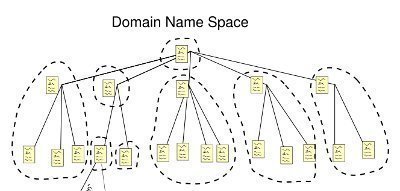
A DNS zone is the contiguous portion of the DNS domain name space over which a DNS server has authority or is authoritative. DNS zones contain either domains or subdomains. The DNS namespace can be divided into multiple zones. Users can even host all their zones on a single DNS server. The Windows Server 2003 DNS Server can host up to 20,000 DNS zones.
A DNS zone contains a zone database that contains resource records for all the domains within the zone. Zone files are used if DNS is not integrated with Active Directory. The zone files contain the DNS database resource records that define the zone. If DNS and Active Directory are integrated, zone data is stored in Active Directory.
The different types of zones that can be configured in Windows Server 2003 DNS are:
- Primary zone: This is the only zone type that can be edited or updated because the data in the zone is the original data source for all domains in the zone. The DNS server that is authoritative for the specific primary zone makes updates to the primary zone. Data can also be backed up from a primary to a secondary zone.
- Secondary zone: A secondary zone is a read-only copy of the zone that was copied from the master server during zone transfer.
- Active Directory-integrated zone: An Active Directory-integrated zone is a zone that stores its zone data in Active Directory. DNS zone files are not used to store data for these zones. An Active Directory integrated zone is an authoritative primary zone. An Active Directory-integrated zone’s zone data is replicated during the Active Directory replication process. This is the only DNS zone type that can use multi-master replication and the Active Directory’s security features.
- Reverse lookup zone: Reverse look-up zones are are mainly used to resolve IP addresses to resource names on the network. Forward lookup zones contain name to IP address mappings, while reverse lookup zones contain IP address to name mappings.
- Stub zone: A stub zone is a new Windows Server 2003 feature. Stub zones only contain those resource records necessary to identify the authoritative DNS servers for the master zone. Stub zones contain the following:
- Start Of Authority (SOA) resource record for the zone.
- Name Server (NS) resource record for the zone.
- Host (A) resource records that identify the authoritative servers for the specific zone.
Zone transfer is the process that copies a zone file’s resource records on the primary DNS server to the secondary DNS servers. A secondary DNS server can also transfer its zone data to other secondary DNS servers that are beneath it in the DNS hierarchy. In this case, the secondary DNS server is regarded as the master DNS server to the other secondary servers.
The zone transfer methods that can be configured are:
- Full transfer: When users configure a secondary DNS server for a zone and start the secondary DNS server, the secondary DNS server requests a full copy of the zone from the primary DNS server. All of the zone information is fully transferred. Full zone transfers tend to be resource intensive. This disadvantage has led to the development of incremental zone transfers.
- Incremental zone transfer: With an incremental zone transfer, only those resource records that have since changed in a zone are transferred to the secondary DNS servers. During zone transfer, the DNS databases on the primary DNS server and the secondary DNS server are compared to determine whether there are differences in the DNS data. If the DNS data of the primary and secondary DNS servers are the same, zone transfer does not take place. If the two servers’ DNS data are different, delta resource record transfer starts. This occurs when the serial number on the primary DNS server database is higher than the secondary DNS server’s serial number. For incremental zone transfer to occur, the primary DNS server has to record incremental changes to its DNS database. Incremental zone transfers require less bandwidth than full zone transfers.
- Active Directory transfers: These zone transfers occur when Active Directory-integrated zones are replicated to the domain controllers in a domain. Replication occurs through Active Directory replication.
- DNS Notify is a mechanism that enables a primary DNS server to inform secondary DNS servers when its database has been updated. DNS Notify informs the secondary DNS servers when they need to initiate a zone transfer so that the primary DNS server’s updates can be replicated to them. When a secondary DNS server receives the notification from the primary DNS server, it can start an incremental zone transfer or a full zone transfer to pull zone changes from the primary DNS servers.
Determining DNS Resource Record (RR) Requirements
The commonly used resource records (RR) are:
- Start of Authority (SOA): The SOA record is the first record in the DNS database file. The SOA record includes information on zone properties, such as the primary DNS server for the zone and the database’s version number.
- Name Server (NS): The Name Server (NS) resource record provides a list of the authoritative DNS servers for a domain and an authoritative DNS server for any delegated subdomains.
- Host (A): The host (A) resource record contains a specific host’s IP address and maps the FQDN to this 32-bit IPv4 addresses. Host (A) resource records basically associate the computers’ domain names (FQDNs) or hosts names to their IP addresses.
- Alias (CNAME): Alias (CNAME) resource records ties an alias name to its associated domain name. Alias (CNAME) resource records are referred to as canonical names. By using canonical names, network information can be hidden from the clients who connect to a network.
- Mail exchanger (MX): The mail exchanger (MX) resource record provides routing for messages to mail servers and backup servers. The MX resource record provides information on which mail servers process e-mail for the particular domain name.
- Pointer (PTR): The pointer (PTR) resource record is used for reverse lookups to point to A resource records. Reverse lookups resolve IP addresses to host names or FQDNs.
- Service location (SRV): Active directory typically uses Service (SRV) resource records to locate domain controllers, LDAP servers, and global catalog servers.
The main resource records that identify hosts on a DNS network are:
- Start of Authority (SOA)
- Address records: A and AAAA records
- Canonical Name (CNAME) or Alias record
For Active Directory to operate, DNS servers that host Active Directory-integrated zones must support the (SRV) resource records defined in RFC 2052: DNS RR for specifying the location of services (DNS SRV). This is due to clients and domain controllers querying DNS for SRV records when they need to locate a domain controller’s IP addresses.
Determining Zone Requirements
When determining how to break up the DNS namespace into zones, keep the following factors in mind:
- Transferring zone files between zones increases DNS zone transfer traffic and Active Directory replication traffic.
- Determine the traffic patterns that exist between clients and the DNS server. Pay careful attention to queries that are being passed over WAN connection. The System Monitor tool can be used to obtain DNS server statistics.
- Consider the network links between DNS servers and the speed of these links.
- Determine whether full DNS servers or caching-only DNS servers are required for the different locations.
Primary Zones versus Active Directory-integrated Zones
When deciding whether to implement primary DNS zones or Active Directory-integrated DNS zones, remember to include the environment’s DNS design requirements. Primary zones and secondary zones are standard DNS zones that use zone files. An Active Directory-integrated zone stores its zone data in Active Directory and can therefore use multi-master replication and Active Directory’s security features.
When implementing Active Directory-integrated zones, choose between the following zone replication scope options:
- To All DNS Servers In The Active Directory Forest option: Zone data is replicated to all DNS servers running on domain controllers in the Active Directory forest.
- To All DNS Servers In The Active Directory Domain option: Zone data is replicated to all DNS servers running on domain controllers in the Active Directory domain.
- To All Domain Controllers In The Active Directory Domain option: Zone data is replicated to all domain controllers in the Active Directory domain.
- To All Domain Controllers Specified In The Scope Of The Following Application Directory Partition option: Zone data is replicated based on the replication scope of the particular application directory partition.
The main advantages that Active Directory-integrated zones have over standard primary DNS zones are:
- Active Directory replication is faster, which means that the time needed to transfer zone data between zones is far less.
- The Active Directory replication topology is used for Active Directory replication and for Active Directory-integrated zone replication. There is no longer a need for DNS replication when DNS and Active Directory are integrated.
- Active Directory-integrated zones can enjoy Active Directory’s security features.
- The need to manage Active Directory domains and DNS namespaces as separate entities is eliminated. This in turn reduces administrative overhead.
- When DNS and Active Directory are integrated, the Active Directory-integrated zones are replicated and stored on any new domain controllers automatically. Synchronization takes place automatically when new domain controllers are deployed.
Determining Zone Placement
The process that DNS uses to forward a query that one DNS server cannot resolve to another DNS server is called DNS forwarding. DNS forwarders are the DNS servers used to forward DNS queries for different DNS namespaces to those DNS servers who can answer the query. Creating DNS forwarders can improve name resolution efficiency.
Windows Server 2003 DNS introduces a feature called conditional forwarding. With conditional forwarding, users create conditional forwarders within their environment that will forward DNS queries based on the specific domain names being requested in the query. This differs from DNS forwarders where the standard DNS resolution path to the root was used to resolve the query. A conditional forwarder can only forward queries for domains that are defined in the particular conditional forwarders list. The query is passed to the default DNS forwarder if there are no entries in the forwarders list for the specific domain queried.
When planning a DNS environment and it is evident that forwarders or conditional forwarders need to be implemented, consider the recommendations for planning forwarders that are summarized below:
- Use forwarders to limit the number of DNS servers that have to communicate between each other over firewalls. This strategy enhances DNS security.
- Users can also enhance fault tolerance by configuring multiple forwarders and enabling recursion for those queries that cannot be forwarded to the specified forwarders.
- Only implement the number of DNS forwarders that are necessary for the environment. Refrain from creating loads of forwarders for internal DNS servers.
- Avoid chaining DNS servers together in a forwarding configuration.
- To avoid the DNS forwarder turning into a bottleneck, do not configure one external DNS forwarder for all the internal DNS servers.
Recommendations for Determining Zone Replication
A number of recommendations for planning for zone replication are noted below:
- Limit the number of zones of authority within the DNS environment. The more authority zones there are, the greater the administrative effort required to manage the DNS environment.
- Transferring zone files between zones increases DNS zone transfer traffic and Active Directory replication traffic.
- To minimize zone transfer traffic when the DNS servers exist on Windows Server 2003 domain controllers and Active Directory-integrated zones are being used, consider using the application directory partition for storing zone data.
- If using standard DNS zone transfers, it is beneficial to implement the following:
- Incremental zone transfers
- Fast zone transfers
- To reduce the bandwidth that standard DNS zone transfers use, consider changing the schedule for zone transfers to the secondary DNS zones.
- Consider implementing stub zones to minimize DNS traffic.
- Use Active Directory-integrated zones to specify that only secure updates to the zones are allowed.
- To secure zone data of the standard zone types, consider implementing the following:
- Limit the number of hosts that are allowed to receive zone transfers.
- Encrypt zone transfer data via VPN tunnels or IPSec.
How to Create a DNS Zone
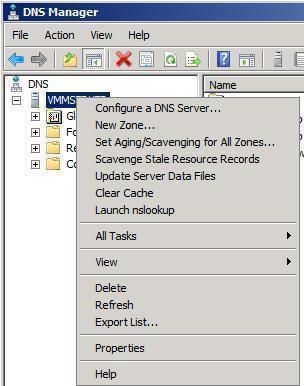
- Click Start, Administrative Tools, then DNS to open the DNS console.
- Expand the Forward Lookup Zones folder.
- Select the Forward Lookup Zones folder.
- From the Action menu, select New Zone.
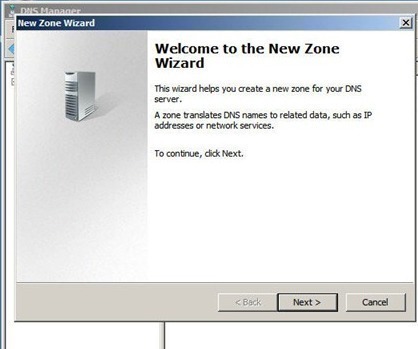
- The New Zone Wizard initiates.
- On the Wizard’s initial page, click Next.
- On the Zone Type page, ensure that the Primary Zone Creates A Copy Of A Zone That Can Be Updated Directly On This Server option is selected. This option is selected by default.
- Uncheck the Store The Zone In Active Directory (Available Only If DNS Server Is A Domain Controller) checkbox. Click Next.
- On the Zone Name page, enter the correct name for the zone in the Zone Name textbox. Click Next.
- On the Zone File page, ensure that the default option, Create A New File With This File Name is selected. Click Next.
- On the Dynamic Update page, ensure that the Do Not Allow Dynamic Updates. Dynamic Updates Of Resource Records Are Not Accepted By This Zone. You Must Update These Records Manually option is selected. Click Next.
- The Completing The New Zone Wizard page is displayed next.
- Click Finish to create the new zone.
Related Articles on DNS
- What is DNS?
- How do I flush DNS?
- How do I find my DNS servers?
- What are public DNS servers?
- How do I perform a DNS lookup?
- What is reverse DNS?
- What is a dynamic DNS?
- What are DNS root servers?
- Understanding DNS
Francesco
Excellent, it helps a lot.