

Through Group Policy, a wide variety of user and computer configuration settings can be applied to users and computers in Active Directory. If an Active Directory environment includes a hierarchy with many different organizational unit (OU) levels, when group policies are applied at these different levels within the hierarchy, it is almost certain that Group Policy behavior and settings will have to be troubleshooted.
There are going to be situations when Group Policy settings produce an expected result. Group Policy settings are contained in Group Policy Objects (GPOs), which are in turn linked to sites, domains, or OUs in Active Directory. The GPOs linked to sites, domains, and OUs in Active Directory are then applied to user and computer objects within these container type objects. GPOs are processed in a synchronous manner.
What this means is that the processing of one GPO must be completed before the next GPO is processed. Depending on the manner in which the GPOs are configured and linked, the GPO processing time at computer startup or user logon could become quite substantial. This typically occurs in large environments when the Group Policy settings have to be conveyed across the network and over slow WAN links. Group Policy also stops processing certain policies when it detects a slow link connection.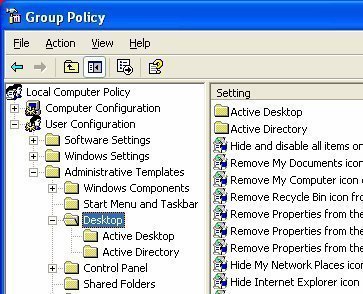
While users need to be familiar with troubleshooting issues specific to Group Policy settings, they also sometimes need to troubleshoot network connectivity issues and examine the underlying operating system that Group Policy depends on. These elements could also be affecting a GPO’s behavior. Remember that Group Policy interrelates with other system components as well.
The common Group Policy issues that need to be resolved are:
- GPOs are not being processed at the site, domain, or OU level.
- GPOs are not being applied to users and computers because the appropriate user or computer objects cannot access them.
- GPOs are being applied to the incorrect users and computers.
- When Group Policy settings are being applied, computer startup and user logon times are unacceptably long due to the GPO processing time.
- There may be instances when GPO inheritance produces the incorrect results. The Block Policy Inheritance and No Override option could be configured incorrectly.
- Folder redirection is not occurring as it should be.
- System folders are being redirected to the incorrect locations.
- Incorrect Offline File Feature configuration could result in files and folders not being available when the network connection is lost and files not being synchronized.
- When Group Policy is used to deploy software, users may have the incorrect NTFS and share permissions to access the network share where the installation packages are being stored. This results in the user not being able to install any published or assigned applications.
- Applications that were published in Active Directory do not appear in Add/Remove Programs in Control Panel.
- Applications assigned to a computer are not being installed.
Just by looking at the common Group Policy issues that could occur, users can see that Administrators have to be familiar with Group Policy troubleshooting techniques. Windows Server 2003 includes a number of tools and utilities that can be used to troubleshoot GPO behavior, software deployment, and security policies.
The tools and utilities that can be used to assist with troubleshooting Group Policy are:
- Resultant Set Of Policy (RSOP) Wizard
- Gpresult.exe
- Gpupdate.exe
- WinPolicies
- GPOTool
- Event Viewer
- Log Files
Troubleshooting Group Policy Infrastructure
As mentioned previously, the underlying operating system and network connectivity can influence whether Group Policy settings are applied to users and computers. The system components within the underlying operating system that should be examined when Group Policy fails are:
- The DNS service should be running and configured correctly on the domain controller(s) within the Active Directory environment. If DNS is not running and is not configured correctly, the Active Directory clients are unable to find domain controllers and ultimately access any GPOs.
- DNS also plays a role in Group Policy’s folder redirection feature. A client needs DNS to locate the redirected system folders’ network location.
- For a user or computer to fall within a GPO’s scope, he/she has to be a member of the site, domain, or OU that the particular GPO is linked to.
- To access Group Policy templates, clients require access to the SYSVOL share located on the domain controllers. Ensure that clients have the correct permission to access the SYSVOL share. Problems with replication can also result in clients experiencing problems accessing Group Policy templates.
- Ensure that Active Directory and file system replication are occurring as they should.
The tools that users can use to assist with troubleshooting the underlying operating system components that Group Policy depends on are:
- Replmon, which can verify Active Directory and file system replication.
- Group Policy Management Console (GPMC) assists with troubleshooting GPO behavior. Users can use the GPMC to determine which GPOs are enabled and being processed, and the manner in which GPOs are linked to sites, domains, and OUs.
Because processing GPOs rely on network connectivity between the client workstation and the domain controller(s) that are members of the sites or domains within Active Directory, network connectivity loss can result in no Group Policy settings being processed. A few issues that should be addressed when network connectivity problems are being experienced are:
- Verify that the TCP/IP protocol is installed and running within one’s environment. For GPOs to be processed, the TCP/IP protocol must be running.
- GPOs are also dependent on the Internet Control Message Protocol (ICMP) for slow network link detection. The firewall configuration within one’s environment determines whether ICMP packets should be enabled between the domain controllers and network clients.
- Verify that the time and date on the network client is in sync with the time and date of the domain controllers and the remainder of the network clients. The Windows Time Service is normally used to ensure that the time and date of clients and domain controllers are synchronized. If a client’s clock is not synchronized, authentication problems occur and the client may not be able to access any GPOs.
The tools listed below can be used to verify network connectivity between network clients and Active Directory domain controllers:
- Netstat utility
- Ping utility
Using Resultant Set of Policy (RSOP) to Troubleshoot Group Policy
The Resultant Set Of Policy Wizard and the Gpresult command-line utility can be used to create RSoP queries that determine the RSoPs for any users and computers that are defined in the RSoP query. The Resultant Set Of Policy feature is new in Windows Server 2003 and can assist in greatly reducing the quantity of time spent on troubleshooting GPOs. Through RSoP, users can query the existing policies that they linked to a site, domain, or OU and that are applied to users and computers.
RSoP can generate information on the following Group Policy settings:
- Administrative Templates
- Folder Redirection
- Security Settings
- Software Installation
- Scripts
- Internet Explorer Maintenance
Because numerous GPOs are typically applied in Active Directory, the RSoP feature can be used to determine which policies are applied to the user or computer being troubleshooted. RSoP also indicates which Group Policy settings have precedence. RSoP can assist in determining whether security templates have been applied correctly. It also points out instances when any settings are overwritten because of conflicting policy settings.
The four types of information that can be viewed in the RSoP console are:
- Individual Group Policy settings
- The list of GPOs associated with the RSoP query
- The scope of management associated with the RSoP query
- GPO revision information
RSoP has two modes:
- Logging mode: The RSoP logging mode determines which existing policy settings have been applied to a user or computer. Logging mode basically generates information on the existing Group Policy settings. Logging mode should be used for the purposes listed below:
- Determine how security groups and local policy are affecting policy settings.
- Discover failed and overwritten Group Policy settings.
- Planning mode: RSoP planning mode is used to simulate the effects of new Group Policy settings before implementing the GPOs in a production environment. Planning mode should be used for the purposes listed below:
- To test policy precedence
- To simulate GPO processing over a slow network link
- To simulate loopback processing
How to create and run an RSoP query to troubleshoot existing policy settings for a specified user and computer:
- Click Start, Run, and enter mmc in the Run dialog box. Click OK.
- Click Add/Remove Snap-in on the File menu.
- Click the Standalone tab then click Add.
- Select Resultant Set of Policy and click Add. Click Close.
- Click OK.
- In the MMC, right click Resultant Set of Policy and select Generate RSoP Data on the shortcut menu.
- Click Next on the the Resultant Set Of Policy Wizard’s initial page.
- Select Logging mode on the Mode Selection page. Click Next.
- When the Computer Selection page opens, either run the RSoP query on This Computer or Another Computer.
- The user may also select the Do not display policy settings for the selected computer in the results | display user policy settings only checkbox. Click Next.
- When the User Selection page opens, either select that the query uses the Current User or the Select A Specific User option.
- The user may also select the Do not display policy settings for the selected user in the results | display computer policy settings only checkbox. Click Next.
- Verify the parameters set for the RSoP query on the Summary Of Selections page. Click Next.
- Click Finish on the Completing The Resultant Set Of Policy Data Wizard page.
- The RSoP console displays the data that resulted from running the RSoP query.
Using Gpresult.exe to Troubleshoot Group Policy
The Gpresult.exe command-line utility available in Windows Server 2003 can be used to create RSoP queries that can collect and report RSoP data or information on users and computers. Gpresult.exe can be used to gather the information listed below, which can be useful when Group Policy has to be troubleshooted:
- Information on the OS, computer, and user.
- Group Policy information, including:
- When Group Policy was last applied
- The domain controller that applied Group Policy
- Information on all GPOs that are applied and their details
- Information on the Registry settings that are applied and their details
- Scripts
- Software management information and details on published and assigned applications
- Disk quota information
- Internet Protocol (IP) security settings
- Redirected folder information and their details
The Gpresult command’s syntax and parameters are listed below:
gpresult [/s computer [/u domainuser /p password]] [/user username] [/scope {user|computer}] [/v] [/z]
/s computer– defines the IP address/remote computer’s name. The local computer is used by default./u domainuser– specifies the user account that should be used to run the command. The user permissions currently logged on are used by default./p password– the user account’s password/user username– the user name for which RSoP information should be shown./scope {user|computer– used to define that user or computer settings should be displayed. Both are displayed by default./v– indicates output to show verbose policy information/z– indicates output to show all policy information
Using Gpupdate.exe to Troubleshoot Group Policy
The Gpupdate.exe command-line utility can be used to perform the following tasks:
- To refresh GPOs immediately if they are not being processed correctly
- To refresh a GPO immediately after a change has been made to its Group Policy settings.
The Gpupdate.exe command-line utility is new in Windows Server 2003. It replaces the Secedit refresh policy command that was used in Windows 2000.
The Gpupdate command’s syntax and parameters are listed below:
Gpupdate [/Target:{Computer | User}] [/Force] [/Wait:<value>] [/Logoff] [/Boot] [/Sync]
/Target:{Computer | User}– indicates whether only the computer policy setting or only the user policy settings are refreshed. Both types of policy settings are refreshed by default./Force– specifies that all policy settings be reapplied. Only the policy settings that have changed from the last Group Policy refresh are refreshed by default./Wait:<value>– specifies the number of seconds to wait for all policy processing to finish. The default value is 600 seconds. A value of 0 indicates to Gpupdate not to wait, while a value of 1 indicates to Gpupdate to wait indefinitely./Logoff– compels the user to logoff the computer after the Group Policy settings are refreshed./Boot– results in a reboot after the Group Policy settings are refreshed./Sync– results in the next policy application occurring synchronously on computer startup or user logon.
Using the Group Policy Management Console (GPMC) to Troubleshoot Group Policy
The Group Policy Management Console (GPMC) incorporates numerous Group Policy operations into one management console and therefore enables the user to manage Group Policy settings within his/her environment from one location. The GPMC can be used to examine all sites, domains, OUs, and GPOs within an enterprise. The GPMC consists of an MMC, a set of automated scripts that can be run from the command line, and a set of batch files. The scripts included in the Group Policy Management Console (GPMC) can be used to list and view the following GPO information:
- Information on a GPO
- All the GPOs in a domain
- All disabled GPOs
- View unlinked GPOs in a domain
- View GPOs by policy extension
- View GPOs by security group
- View GPOs with duplicate names
- View GPOs with no security filtering
- View scope of management information
Because of the information that can be viewed on the GPMC, it can be of assistance when GPO behavior needs to be troubleshooted. It allows users to examine a specific GPO’s settings and can also be used to determine how a user’s GPOs are linked to sites, domains, and OUs. To access the GPMC, click Start, Administrative Tasks, and Group Policy Management. The Group Policy Results report collects information on a computer and user to list the policy settings that are enabled. To create a Group Policy Results report, right click Group Policy Results and select Group Policy Results Wizard on the shortcut menu. This launches the Group Policy Results Wizard, which guides the user through various pages to set parameters for the information that should be displayed in the Group Policy Results report.
Troubleshooting Policy Inheritance
To successfully troubleshoot policy inheritance issues, the user must thoroughly understand how policy inheritance affects the application of Group Policy settings within GPOs. The user also needs to understand how enabling the Block Policy Inheritance and No Override options affect policy inheritance. Inheritance signifies that Group Policy settings that affect user and computer configurations are the resultant set of policies inherited from parent containers. Policies are usually passed down from a parent container to its associated child containers. When a parent OU’s policy setting is set to Enabled or Disabled and the child OU does not have the same policy setting configured, the child OUs inherit its parent OU’s policy setting. The exception is that a Group Policy setting defined for a child OU overrides the same setting that it inherited from its parent OU.
Group policy settings are processed in the order specified below:
- Local GPO: Because the local GPO is applied first, it means that policies defined at the local computer have the least priority.
- Site GPO: Site GPOs are GPOs that are linked to sites. The Administrator determines and defines the order of the different site GPOs.
- Domain GPOs: Domain GPOs are applied next. GPOs linked to a domain have precedence over site GPOs and local GPOs.
- OU GPOs linked to the OU highest in the Active Directory hierarchy are applied before any other OUs. OU GPOs linked to the OU closest to the user or computer are then applied. When the OU that contains the user or computer has a GPO linked to it, that GPO is applied last.
Block Policy Inheritance can be explicitly specified for a site, domain, or OU and is not applied to any GPOs or GPO links. When enabled for a site, domain, or OU, it prevents any Group Policy settings from passing down from higher up in the tree to the particular site, domain, or OU for which it is enabled. The only exception is that any GPO links that have the No Override settings enabled are not blocked, but are applied. When the No Override setting is enabled for a GPO that is linked to a site, domain, or OU, no other GPOs override Group Policy settings contained in that particular GPO. Because of the hierarchical manner in which GPOs are applied and there happens to be more than one GPO that has the No Override setting enabled, the GPO highest in the tree has precedence.
A few techniques for troubleshooting Group Policy inheritance are:
- GPOs can only be linked to sites, domains, and OUs then applied to users and computers.
- While child OUs inherit their associated parent OU’s Group Policy Settings by default, child domains do not inherit Group Policy settings from parent domains.
- A factor to consider when troubleshooting policy inheritance is that when both the Block Inheritance and No Override options are enabled, the No Override option has precedence.
- Remember that the Block Inheritance applies to the entire site, domain, or OU and can therefore prevent Group Policy settings from being applied. In a situation where a particular GPO is not being applied, verify that the GPO is not being blocked.
- Verify that the user or computer belong to a security group that has the Allow.
Chris Miller
Hi Will,
Any idea how I associate product activation keys with Group Policy installation assignments?
I have a small number of desktops and notebooks and I want to install Microsoft Office on each with Group Policy, but each assignment will eventually require the 25-character product activation code. How do I make this association?
Thanks for the help,
Chris.