

A group can be defined as a collection of accounts that are grouped together so that Administrators can assign permissions and rights to the group as a single entity. This removes the need for an Administrator to individually assign permissions and rights to each account. Therefore, while a user account is associated with an individual or entity, a group account or a group is created to simplify the administration of multiple user accounts (users). When permissions are granted to a group, all accounts that are part of that particular group are granted the permissions. Permissions actually control which actions users can perform on a network resource. Rights, on the other hand, relate to system tasks.
Windows Server 2003 provides user accounts and group accounts (of which users can be a member). User accounts are designed for individuals. Group accounts are designed to make the administration of multiple users easier.
The following entities can be added to groups: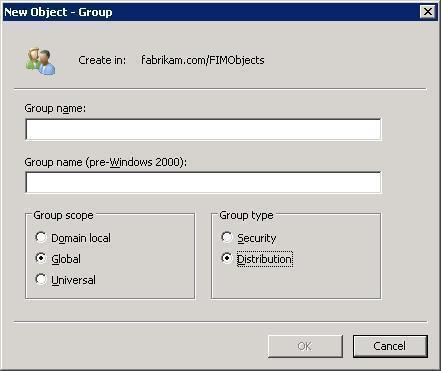
- User accounts
- Computer accounts
- Contacts
- Other groups’ members
- Other groups
The administrative tasks typically performed on groups are summarized below:
- Assign permissions to groups to access shared resources. Each group member would be able to access the shared resources.
- Assign rights to groups so that they can perform certain system tasks such as backing up or restoring files.
- Groups are also used to distribute bulk e-mail to its members.
Group type and scope have to be specified when a new group is created. Group types and group scopes are discussed throughout the remainder of this article.
Group Types
Two types of groups can be created in Active Directory. Each group type is used for a different purpose. A security group is one that is created for security purposes, while a distribution group is one created for purposes other than security purposes. Security groups are typically created to assign permissions, while distribution groups are usually created to distribute bulk e-mail to users. As one may notice, the main difference between the two groups is the manner in which each group type is used. Active Directory allows users to convert a security group into a distribution group and to convert a distribution group into a security group if the domain functional level is raised to Windows 2000 Native or above.
- Security groups: A security group is a collection of users who have the same permissions to resources and the same rights to perform certain system tasks. These are the groups to which permissions are assigned so that its members can access resources. Security groups therefore remove the need for an Administrator to individually assign permissions to users. Users that need to perform certain tasks can be grouped in a security group then assigned the necessary permissions to perform these tasks. Each user that is a member of the group has the same permissions. In addition to this, each group member receives any e-mail sent to a security group. When a security group is first created, it receives an SID. It is this SID that enables permissions to be assigned to security groups – the SID can be included in a resource’s DACL. An access token is created when a user logs on to the system. The access token contains the user’s SID and the SID of those groups to which the user is a member of. This access token is referenced when the user attempts to access a resource. The access token is compared with the resource’s DACL to determine which permissions the user should receive for the resource.
- Distribution groups: Distribution groups are created to share information with a group of users through e-mail messages. Thus, a distribution group is not created for security purposes. A distribution does not obtain an SID when it is created. Distribution groups enable the same message to be simultaneously sent to its group members. Messages do not need to be individually sent to each user. Applications such as Microsoft Exchange that work with Active Directory can use distribution groups to send bulk e-mail to groups of users.
Group Scopes
The different group scopes make it possible for groups to be used differently to assign permissions for accessing resources. A group’s scope defines the place in the network where the group will be used or is valid. This is the degree to which the group will be able to reach across a domain, domain tree, or forest. The group scope also determines what users can be included as group members.
In Active Directory, there are three different group scopes:
- Global groups: Global groups are containers for user accounts and computers accounts in the domain. They assign permissions to objects that reside in any domain in a tree or forest. Users can include a global group in the access control list (ACL) of objects in any domain in the tree/forest. A global group can, however, only have members from the domain in which it is created. What this means is that a global group cannot include user accounts, computer accounts, and global groups from other domains.
The domain functional level set for the domain determines which members can be included in the global group.
- Windows 2000 Mixed: Only user accounts and computer accounts from the domain in which the group was created can be added as group members.
- Windows 2000 Native / Windows Server 2003: User accounts, computer accounts, and other global groups from the domain in which the group was created can be added as group members.
- Domain Local groups: Domain local groups can have user accounts, computer accounts, global groups, and universal groups from any domain as group members. However, only domain local groups can assign permissions to local resources or to resources that reside in the domain in which the domain local group was created. This means that only domain local groups in the ACL of objects that are located in the local domain can be included.
The domain functional level set for the domain determines which members can be included in the domain local group.
- Windows 2000 Mixed: User accounts, computer accounts, and global groups from any domain can be added as group members.
- Windows 2000 Native / Windows Server 2003: User accounts, computer accounts, global groups, and universal groups from any domain can be added as group members. Other domain local groups from the same domain as group members can also be added.
- Universal groups: Universal groups can have user accounts, computer accounts, global groups, and other universal groups from any domain in the tree or forest as members. This basically means that users can add members from any domain in the forest to a universal group. Users can use universal groups to assign permissions to access resources that are located in any domain in the forest. Universal groups are only available when the domain functional level for the domain is Windows 2000 Native or Windows Server 2003. Universal groups are not available when domains are functioning in the Windows 2000 Mixed domain functional level. Users can convert a universal group to a global group or to a domain local group if the particular universal group has no other universal group as a group member. When adding members to universal groups, it is recommended to add global groups as members and not individual users.
When groups contain other groups as members, group nesting occurs. Group nesting occurs when groups are added to other groups. Group nesting assists in reducing the number of instances that users need to assign permissions and replication traffic. As mentioned previously, the domain functional level set for the domain determines what group nesting can be implemented as summarized below:
- Windows 2000 Mixed:
- Global groups: User accounts and computers accounts in the same domain.
- Domain local groups: User accounts, computers accounts, and global groups from any domain.
- Windows 2000 native or Windows Server 2003:
- Global groups: User accounts, computer accounts, and other global groups in the same domain.
- Domain local groups: User accounts, computers accounts, global groups, and universal groups from any domain, and other domain local groups in the same domain.
- Universal groups: User accounts, computers accounts, global groups, and universal groups from any domain.
A group’s scope can be changed as well. The Active Directory Users And Computers (ADUC) console can be used to view and modify an existing group’s scope. The command-line can also be used – dsget and dsmod. The rules that govern this capability are summarized below:
- Domain local groups and global groups can be converted to universal groups
- Universal groups can be converted to domain local groups or to global groups.
- Domain local groups cannot be converted to global groups.
- Global groups cannot be converted to domain local groups.
If using Windows Server 2003 Active Directory, Windows Server 2003 creates a few default security groups that assign administrative permissions to users. The default security groups are created in the Users folder in Active Directory Users And Computers (ADUC).
- The default domain local groups that are created are listed below:
- Cert Publishers: Members of this group can publish certificates to Active Directory.
- DnsAdmins: Group members have administrative access to the DNS server service.
- HelpServicesGroup: Group members can assign rights to support applications.
- RAS and IAS Servers: Servers assigned to this default group can access a user’s remote access properties.
- TelnetClients: Group members have administrative access to Telnet Server.
- The default global groups that are created are listed below:
- Domain Admins: Members of the Domain Admins group have permissions to perform administrative functions on computers in the domain.
- Domain Users: Group members are user accounts that are created in the domain.
- Domain Computers: Group members are computer accounts that are created in the domain. This includes all workstations and servers that are part of the domain.
- Domain Controllers: Group members are domain controllers of the domain.
- Domain Guests: Group members are guest accounts in the domain.
- Group Policy Creator: Group members can change the domain’s group policy.
- DnsUpdateProxy: Group members are DNS clients. Members can perform dynamic updates for clients such as DHCP servers.
- The default universal groups that are created are listed below:
- Enterprise Admins: Members of this group can perform administrative functions for the whole network.
- Schema Admins: Members of this group can perform administrative tasks on the schema.
When formulating a strategy for setting up domain local groups and global groups, follow the guidelines listed below:
- Add users that perform the same function in the organization to a global group.
- Domain local groups should be created for a resource(s) that multiple users need to share.
- Add any global groups that have to access a resource(s) to the appropriate domain local group.
- The domain local group should be assigned with the proper permissions to the resource.
In addition to the above mentioned group scopes, another group called a local group can be created. A local group is basically used on the local computer to assign permissions to resources that are located on the computer on which the particular local group is created. Local groups are created in the local security database and are not present in Active Directory. This means that local groups cannot be created on domain controllers.
How to Create a Group
Users can use the Active Directory Users And Computers console to create a new group. After the group is created, users can set additional properties for the group and add members to the group.
To create a new group:
- Click Start, Administrative Tools, and Active Directory Users And Computers.
- Right click the particular domain, organizational unit, or container in which the new group will be placed, and select New then Group from the shortcut menu.
- The New Object-Group dialog box opens next.
- In the Group Name box, enter a name for the new group. A name as long as 64 characters can be specified.
- The Group Name (Pre-Windows 2000) box is automatically populated with the first 20 characters of the group name specified.
- In the Group Scope box, select one of the following options as the group scope: Domain Local, Global, or Universal.
- In the Group Type box, select one of the following options as the group type: Security or Distribution.
- Click OK.
How to Add Multiple Members to a Group
- Click Start, Administrative Tools, and Active Directory Users And Computers.
- Expand the particular domain, organizational unit, or container that contains the group that members will be added to.
- Locate and right click the group then select Properties from the shortcut menu.
- When the Properties dialog box opens, click the Members tab.
- Click Add.
- When the Select Users, Contacts, Computers, Or Groups dialog box opens, click the Advanced button.
- Click the Find Now button and select the user accounts, group accounts, or computer accounts that should be added to the particular group. In order to select multiple users, groups, or computers, simply hold down the Shift or Ctrl key.
- Click OK.
- Each account selected now appears in the Enter The Object Names To Select box.
- Click OK to add the members to the group.
- Click OK in the Properties dialog box for the group.
How to Manage Group Membership Individually
- Click Start, Administrative Tools, and Active Directory Users And Computers.
- Double click the user, group, or computer account that will be worked with.
- When the Properties dialog box opens, click the Members Of tab.
- To add this particular account as a group member, click Add.
- When the Select Groups dialog box opens, select the groups of which this account should be a member.
- To remove the account from a group, simply click Remove.
- Click OK.
How to Delete a Group
When it comes to deleting a group, remember the following points:
- When a security group is created, it receives a unique SID. When a group is deleted, that particular group’s SID is never used again, even if a group with the same name is created at a later stage.
- When a group is deleted, the following are deleted:
- The actual group being deleted
- All permissions/rights associated with the particular group being deleted
- When a group is deleted, the following are not deleted:
- Any user accounts and computer accounts that are members of the particular group.
Use the steps listed below to delete a group:
- Click Start, Administrative Tools, then Active Directory Users And Computers.
- Expand the particular domain, organizational unit, or container that contains the group to be deleted.
- Locate and right click the group then select Delete from the shortcut menu.
- Click Yes to verify that that particular group should be deleted.
How to Change the Group Scope of an Existing Group
Users can change the group scope of existing groups when the domain functional level is set to Windows 2000 native or Windows Server 2003.
- Click Start, Administrative Tools, and Active Directory Users And Computers.
- Expand the particular domain, organizational unit, or container that contains the group for which the group scope should be changed.
- Locate and right click the group then select Properties from the shortcut menu.
- When the Properties dialog box opens, on the General tab, change the group scope in the Group Scope box to either Domain Local, Global, or Universal.
- Click OK.
How to Change the Group Type of an Existing Group
Users can convert a group’s type from being a security group to a distribution group or from being a distribution group to a security group:
- Click Start, Administrative Tools, and Active Directory Users And Computers.
- Expand the particular domain, organizational unit, or container that contains the group for which the group type should be changed.
- Locate and right click the group then select Properties from the shortcut menu.
- When the Properties dialog box opens, on the General tab, change the group type in Group Type box to either Security or Distribution.
- Click OK.
How to Manage Group Scope, Type, and Membership with the Command-line
The dsget group can be used to determine and view the properties of groups in Active Directory.
- To determine a group’s scope, use the syntax listed below:
- dsget group -scope
- To determine a group’s type, use the syntax listed below:
- dsget group -secgrp
- To determine a particular group’s members, use the syntax listed below:
- dsget group -members
- To determine a group’s membership, use the syntax listed below:
- dsget group -memberof
Use dsmod group to change the properties of groups in Active Directory.
- To change a group’s type, use the syntax listed below:
- dsmod group GroupDN [-secgrp {yes | no}]
- To change or add new members to a group, use the syntax listed below:
- dsmod group GroupDN -addmbr UserDN
- To remove existing members from a group, use the syntax listed below:
- dsmod group GroupDN -rmmbr UserDN
Rehan Miah
Thanks, Graet article that can be easily understood.
Robert babu
Thanks,This Article is quite explanatory
Paulo
Thanks dude, it help me too much!
RobinP
What would be the best group setup to be able to receive emails to everyone in the group from an external source, i.e. another company or ouside user?
Thanks
Robin
Juan
es una buena informacion, me sirve para mi examen de certificacion mta
Max
Really great article. Even better than corresponding chapter of Sybex book on exam 70-294.
anirban paul
yehh this tutorial is help so much,but needs some example for both global,domain and universal scope…..