

Managing the Different Server Roles
The different roles that can be configured for Exchange Server are listed here:
- Mailbox Store server (back-end server): The mailbox store server is mainly responsible for the following functions:
- Storing of messages of mail-enabled users.
- Storing attachments.
- Storing files and folders.
Managing the mailbox store server includes configurations and tasks performed through Exchange System Manager and standard server maintenance tasks.
- Public Folder server: This server stores messages and message posting in a hierarchical manner. If your system has multiple public folders, then you would have to manage and maintain multiple databases.
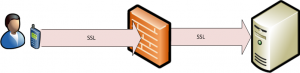
- Front-end server: This server usually serves as a proxy server to back-end Exchange Server servers. Front-end servers do not contain mailbox stores and public folder stores. While you would not need to manage any databases for a front-end server, there are other important factors to consider:
- To ensure the health of front-end servers, you have to manage and maintain the IIS metabase.
- You also have to monitor all connections to front-end servers. Users usually connect through HTTP or through Secure Sockets Layer (SSL). You should regularly monitor events recorded in the event logs.
- Bridgehead server: Bridgehead servers serve as a connection point between other Exchange servers, inside the Exchange organization or outside the organization.
- SMTP relay server: SMTP relay servers serve as mail gateways that relay mail between different systems.
Remotely Managing Exchange Server
The Windows Server feature set that enables you to remotely manage Windows Server can also be used to manage Exchange Server remotely. Remote management or administration is not new, and is used largely to manage servers and desktops. Windows Server includes a few technologies which can be used for the administration of remote client computers, and to remotely manage servers. These include:
- Microsoft Management Console snap-ins can be used to connect to a remote system and manage the remote system. The Microsoft Management Console (MMC) operates as the framework for system tools. It enables administrator to create specialized or custom tools which can then be utilized to delegate certain administrative tasks to users or groups. The tools can be modified, scaled up, scaled down, and customized to match your needs. A few MMC snap-ins can be used to manage local computers, and remote computers. Vendors also provide their own snap-ins that can be added to the MMC consoles. These custom tools are basically saved as MMC (.MSC) files which make it possible for it to be shared in a network folder, and sent through e-mail. There are certain tools in the Administrative Tools folder that do not work with an MMC. The Licensing program is an example of such a standalone tool. Standalone tools’ target files are executable, or .EXE and not .MSC. You can use the Computer Management console to perform management tasks on local and remote systems. Computer Management is available on client and server computers. You can use Exchange System Manager and Active Directory Users And Computers to manage the local system and a remote system.
- Remote Desktop For Administration: The Terminal Services service enables Remote Desktop For Administration and Remote Assistance. The Terminal Services service is automatically installed on Windows Server, and can be set up to support Remote Desktop For Administration. Through Remote Desktop For Administration, Terminal Services can be used as a management tool.Common tasks that can be performed are monitoring, print sharing, and edits to the registry.
- Command-line Utilities: There are numerous command-line utilities that can be used for remote system management. Windows Server includes a few command-line executable programs that can be used to perform server administrative functions. You can use these programs to administer and troubleshoot services. A few examples of using command-line utilities are listed here:
- You can use the sc.exe program to manage services.
- The tasklist.exe program can be used if you want to view all the tasks that are running on a local computer, or remote computer.
- The taskkill.exe program is used to end or terminate processes on the local computer, or remote computer.
- The schtasks.exe program is used to manage scheduled tasks. You can configure programs to run, modify existing scheduled tasks, delete tasks, and stop a task using this program
- Scripting with Windows Script Host (WSH): You can use Windows Script Host (WSH) to automate tasks locally or remotely. Exchange Server includes a number of scripts that can be used to configure virtual servers, and recipient polices, among other tasks.
The MMC consoles can be saved in two modes, namely Author mode or User mode. The mode which the console is saved in determines what nodes in the console tree can be accessed, determines the snap-ins which can be added to the console, and the windows which can be created.
When you create a customized MMC console, and add snap-ins to it, you can choose that the MMC console be used to manage a remote computer. You can for the majority of snap-ins change the management focus of the particular snap-in. The account you use has to though have sufficient privileges on the target remote computer.
To do this,
- In the console tree pane, right-click the snap-in, and select one of the following options from the shortcut menu:
- Connect To Another Computer
- Connect To Domain
- Connect To Domain Controller
A console typically used to connect to and manage a remote computer is the Computer Management console. The Computer Management console is a preconfigured MMC console. The console is available on both client and server computers to perform Administrative tasks, and can be accessed from the Administrative Tools Menu.
How to use the MMC standard user interface to create your own customized tools:
- Click Start and click Run.
- Type mmc and click OK.
- This opens a new MMC with no snap-ins.
- Select Add/Remove Snap-In from the File menu.
- When the Add/Remove Snap-In dialog box appears, accept the default setting, Console Root, in the Snap-Ins Added To box. Click Add.
- A dialog box that lists all the snap-ins currently installed on the computer is displayed. You can choose a snap-in if you want to view its role. You can double-click a snap-in to add it to the console.
- The Add All Extensions check box is enabled by default on the Extensions tab.
- To close the Add/Remove Snap-In dialog box, click OK.
- The snap-in you added would be displayed at the Console Root folder.
- You can save the console by selecting save from the Console menu. The file is then saved in the Administrative Tools folder.
How to manage a remote computer using the Computer Management console:
As mentioned previously, you can use the Computer Management console to perform management tasks on local and remote systems. Computer Management is available on client and server computers. You can also use Computer Management to connect to another computer.
When you select Computer Management in the console tree, you can perform tasks such as connecting to another computer, sending console messages, and exporting information lists.
Computer Management has three nodes which contain the available tools:
- System Tools, contains snap-ins such as Event Viewer, Performance Logs And Alerts, and Device Manager used for local management tasks.
- Storage, contains snap-ins such as Removable Storage and Disk Management for performing tasks associated with storage devices, and local disks.
- Service and Applications, contains snap-ins such as DHCP, DNS, and Routing and Remote Access, for server based applications.
To connect to other computers:
- In the console tree, right-click Computer Management.
- Select Connect To Another Computer from the shortcut menu.
- When the Select Computer dialog box appears, enter the fully qualified name of the computer, or click Browse to find the computer.
- Click OK.
How to enable Remote Desktop for Administration:
- Click Start, Control Panel, and then double-click System.
- When the System Properties dialog box opens, click the Remote tab.
- Select the Allow users to connect remotely to this computer checkbox. Members of the local Administrators group are now able connect.
- If you want to specify additional users to connect remotely to the computer, click the Select Remote Users button.
- In the Remote Desktop Users dialog box, enter the names of the users who should be able to connect to the computer.
- Click OK.
Exchange Server Auditing
Auditing enables you to determine which activities are occurring on your system. Through auditing, you can track access to objects, files and folders; as well as any modifications made to the objects, files and folders. Auditing enables you to collect information associated with resource access and usage on your system by allowing you to audit system logon, file access, object access, as well as any configuration changes. An audit trail can be defined as a list of audit entries which portray the life span of an object, or file and folder. When an event or action takes place that’s configured for auditing, the action or event is written to the security log. Security auditing events are written to the security log of the system, and can be accessed from Event Viewer.
Audit entries in the security log can be one of the following:
- Success event
- Failure event
The main types of events which you should audit are listed below:
- Computer logons and computer logoffs.
- Access to objects, and files and folders.
- System events, such as when the following occurs:
- Computer reboots and computer shutdowns.
- System time is modified.
- Audit logs are cleared.
- Performance of user and computer account management activities, such as:
- Creating new accounts.
- Changing permissions.
- Modifying account statuses.
The different types of Auditing available with Exchange Server are listed here:
- Audit logging.
- Protocol logging.
- Message tracking.
Audit policies are used to define audit events on a Windows Server system. In order to track access to objects, and files and folders, you have to define and configure audit policies. A step in defining audit policies is to determine the particular event categories which should be audited.
The event categories which you can audit are:
- Account logon events: This policy is typically enabled on domain controllers, to track users which are logging on to the computer.
- Account management: This policy tracks account management tasks performed on the computer, including creating, changing, an deleting user objects; and changing account passwords.
- Directory service access: For domain controllers, the policy tracks when users access Active Directory objects which have system access control lists (SACLs).
- Logon events: This audit policy tracks when the user logons and logoffs.
- Object access: Tracks when a user accesses operating system components such as files, folders or registry keys.
- Policy change: This policy tacks when changes are made to the security configuration settings of the computer, and includes changes made to:
- Audit policies
- Trust policies
- User rights
- Privilege use: Tracks when a user effects a user right. The user rights excluded from auditing because of the volume of log entries which they generate are:
- Back Up Files And Directories
- Bypass Traverse Checking
- Create A Token Object
- Debug Programs
- Generate Security Audits
- Replace Process Level Token
- Restore Files And Directories
- Process tracking: This audit policy tracks when certain events take place on the computer, such as when a program starts, or a process ends.
- System events: This policy tracks the following events:
- The computer restarts, or shuts down.
- Any events that impact the security log or the security of the system.
If you want to troubleshoot mail system protocol issues then you should use protocol logging. Protocol logging provides information on the message commands that a user sends to an Exchange Server server. This includes the following information:
- Date and time
- Protocol
- Domain name
- IP address
- Bytes sent
How to enable auditing for the local computer
- Click Start, Administrative Tools, and then click Local Security Policy.
- In the left pane, in Security Settings, expand Local Polices.
- Click Audit Policy.
- In the details pane, right-click the particular event category which you want to audit and then select Properties from the shortcut menu.
- The Properties dialog box of the event category opens.
- Select one or both of the following options: Success, Failure.
- Click OK.
How to enable protocol auditing
- Open Exchange System Manager.
- Expand the Administrative Groups node, the administrative group, the Servers node, Server Name, Protocols.
- Locate the protocol that you want to enable logging for.
- Right-click the Protocol Virtual Server and then select Properties.
- Select the Enable logging checkbox on the General tab.
- Choose either of the following logging format options:
- Microsoft IIS Log File Format
- NCSA Common Log File Format
- ODBC Logging
- W3C Extended Log File Format
- Click OK.
How to enable message tracking
- Open Exchange System Manager.
- Expand the Administrative Groups node, the administrative group, the Servers node, and the specific server object.
- Right-click the server object and choose Properties from the shortcut menu.
- Select the Enable subject logging and display checkbox.
- Select the Enable message tracking checkbox.
- Specify the duration for which log files should be retained.
- Click OK.
Tools for Maintaining Exchange Server
Exchange Server extends the capabilities of Active Directory by integrating the email and mobile phone, and remote access functionality into a centralized administration and management tool. For instance, the Active Directory Users and Computers sna-in can be used for the management of user accounts and mailboxes. While Windows 2000 and Windows Server include numerous snap-ins, not all aspects of Exchange Server administration are encompassed. Therefore, the Setup program of Exchange Server registers more snap-ins when the management utilities of Exchange Server are installed.
The Exchange Server snap-ins are listed here:
- The Exchange System snap-in is used to configure an Exchange organization.
- The Exchange Advanced Security snap-in is utilized for implementing advanced security.
- The Exchange Conferencing Services snap-in is used to configure resource accounts for scheduling online conferences.
- The Exchange Folders snap-in is utilized to configure configuration settings for public folders.
- The Exchange Message Tracking Center snap-in is utilized for message tracking purposes.
The Exchange System Manager uses extension snap-ins to perform its tasks. Extension snap-ins are able to extend other extensions’ functionality. To maintain configuration information, Exchange System Manager communicates with a Windows 2000 or Windows Server domain controller.
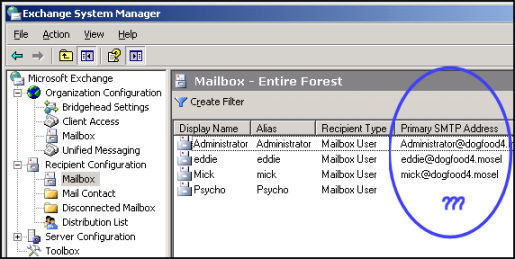
The Exchange System Manager window is displayed when Exchange System Manager is started. The window contains directory information relating to the Exchange organization from the specified domain controller. Multiple Exchange System Manager windows can be simultaneously displayed. To do this, simply select the particular node, and select New Window From Here to open a new Exchange System Manager window.
The Active Directory Users and Computers snap-in is extended to support the management of mailbox configurations and settings. The Active Directory Users and Computers management console is the central tool used for creating and managing user account and computer account objects and configuration settings in Windows domains.
You can apply different permissions to different Exchange server objects. Permissions can be assigned at the Exchange organization level and at the Administrative Group level:
- Exchange Full Administrator
- Exchange Administrator
- Exchange View Only Administrator
The Windows Server Backup utility provides a few methods that you can use to create backup jobs and execute backup jobs. You create a backup job by specifying the drives, directories and files that should be backed up, the storage medium for the backup, the time when the backup should occur, and other backup options.
A backup is the process of archiving data and system files on a computer to a different location on a hard disk, or other media type. A backup plan or strategy should detail the data that has to be backed up, the manner in which the data should be backed up, the frequency at which the backups should occur, and the manner in which data restorations should occur. The backup should be implemented to restore system files and other valuable data.
When determining the data that should be backed up, you should consider the organization’s needs. Mission critical data should be backed up, whereas temporary files do not possibly need to be backed up. System State data should be backed up. System State data contains the files which the operating system (OS) utilizes, such as the boot files and system files, the Registry, and COM+ Class Registration database. It also entails any additional files which Windows Server needs to restore the system. It is recommended to backup all data on a server, as well as System State data. You are then prepared for a disaster such as a hard disk failure on the server because a full backup exists to restore the server.
To access the Windows Server Backup utility:
- Click Start, Programs, Accessories, System Tools, and Backup to start the Windows Server Backup utility.
- The Welcome page for the Backup Or Restore Wizard is displayed
The Backup Or Restore Wizard guides you through the process of backing up the server, and restoring an existing backup from the hard disk or other media. You can use the Welcome page of the Backup Or Restore Wizard to open Backup in Advanced Mode. The Advanced Mode provides more features and flexibility. Clear the checkbox for Always Start In Wizard mode and select the Advanced Mode link.
With Backup in Advanced Mode, you are given the following options:
- Start the Backup Wizard
- Start the Restore Wizard
- Start the Automated System Recovery Wizard
A number of Active Directory management and maintenance tasks can be performed using the Ntdsutil utility. You can use Ntdsutil to manage domains, and information in the Active Directory directory and log files. You can also use Ntdsutil when needing to do an authoritative restore of Active Directory. The tool is also used to manage SIDs and the master operation roles.
Other functions that can be performed using the Ntdsutil utility are listed here:
- Performing an offline defragmentation of the Active Directory database.
- Performing an Active Directory database repair.
- Performing certain directory services restore operations.
- Moving the Active Directory database.
- Deleting domain controller entries from Active Directory.
Performing Exchange Server Database Maintenance Tasks
Performing maintenance activities for Exchange Server databases assist in ensuring the following:
- Health of your Exchange Server system.
- Database corruption is minimized.
- Decreases the risk of data loss.
- Prevents unnecessary downtime.
The main reasons why Exchange databases become corrupt are listed below. Database corruption eventually results in the Exchange system being less reliable.
- The Exchange system is not being efficiently managed.
- The Exchange system is not being monitored.
- The size of the databases is too large to manage efficiently.
- The Exchange system is being shut down incorrectly.
- Hardware failures usually occur.
- The disk subsystem is being inefficiently maintained.
- The databases are being manually modified.
- Exchange transaction logs are not being used and are simply being deleted.
Exchange database maintenance activities should include the following processes:
- Online database maintenance processes.
- Offline database maintenance processes.
Online Exchange database maintenance
Online database maintenance is performed automatically by default. Online database maintenance occurs while the Exchange system is running, and includes about 60 percent of the standard operations required to maintain your Exchange databases.
Exchange Server provides for automatic Exchange Server database cleanup maintenance, which includes the following processes:
- Tombstone Maintenance process: For deleted messages, this process deletes a deleted message from the Exchange database. Tombstone Maintenance also deletes any existing reference to a deleted message.
- Index Aging: Any user created views in Outlook client that have not been used for a specific time period are removed by the Index Aging process.
- Age Folder Tombstones: To control the size of the folder tombstone list, the AgeFolder Tombstones process removes any folder tombstone entries from the folder tombstone list which are older than 180 days. 180 days is the default setting.
- Message Expiration: The Message Expiration process removes messages in the public folder which are older than the predefined time setting.
- Update Server Versions: Server version information is used to maintain functionality between different versions of Exchange running in the enterprise.
Offline Exchange database maintenance
Offline Exchange database maintenance includes the following set of tasks:
- Repairing the Exchange databases.
- Recovering the Exchange databases.
- Defragmenting of the Exchange databases.
Because of the nature of these database maintenance tasks, it is recommended that you perform these tasks during non-business hours.
The Exchange maintenance tools used to perform offline Exchange database maintenance tasks are listed here:
- Eseutil utility: Can be used to perform maintenance tasks for both Active Directory databases and Exchange databases. The Eseutil utility can be used to perform the following database maintenance tasks:
- Maintain database integrity.
- Repair corrupt databases.
- Test databases.
- Defragment databases.
- Isinteg utility: This is an Exchange specific utility that can be used to perform the following database maintenance tasks:
- Maintain database integrity.
- Repair corrupt databases.
- Test databases.
Scheduling Exchange Server Maintenance
You can use the Microsoft Operations Manager (MOM) tool to automate a number of the administrative tasks needed to monitor, manage and maintain your Exchange Server environment.
A few activities that you can perform using the MOM Application Management Pack are listed here:
Monitor system resources and protocols.
- Report on security specific events.
- Obtain resource usage statistics.
- Determine capacity.
- Perform trend analysis for system performance.
- Perform trend analysis for usage.
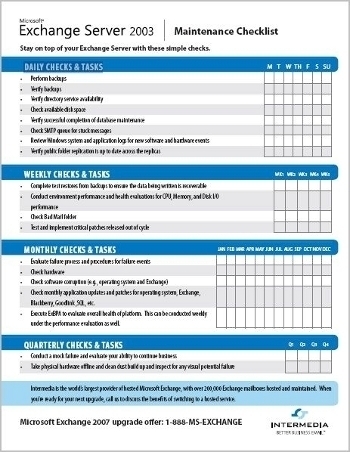
Scheduling Daily Maintenance
Daily maintenance should typically include the following set of tasks. Bear in mind though that these tasks should not require a substantial time to do:
- Checking that the online backup job of the Exchange Server server performed the previous evening has completed successfully: A few factors to consider with regard to this aspect of daily maintenance are listed here:
- You should back up System State data.
- If circular logging is not enabled, then you should verify that the transaction logs are deleted.
- Record the time period used to perform the backup job and verify that the time is in accordance with your service level agreements.
- Checking that the volumes on which Exchange Server is located has sufficient available free disk space.
- Checking the Application Log in Event Viewer for Warning error messages and Stop error messages.
- Checking that no messages are stuck in the messaging queues. You can use Queue Viewer to verify that messages are not stuck in the following queues:
- SMTP message queue.
- Connector messaging queue.
- MTA messaging queue.
Scheduling Weekly Maintenance
Weekly maintenance should typically include the following set of tasks:
- Monitoring and tracking system resource usageto identify any bottlenecks with regard to the following subsystems:
- Network subsystem
- Memory subsystem
- Disk subsystem
- Processor subsystem
- Verifying that online maintenance tasks and all scheduled tasks are performed. Information on online maintenance tasks are written to the Application Log in Event Viewer. To view this information in Event Viewer, use the following Event IDs:
- Event ID 700 and ID 701; shows the start time and stop time of online database defragmentation.
- Event ID 1206 – ID 1207; shows information on deleted item retention processing.
- Event ID 1221; shows the amount of free space that exists in a database.
- Event IDs 9531- ID 9535; shows information on deleted mailbox retention processing.
- Checking the size of the mailbox databases to verify that the databases’ size is acceptable and manageable.
- Use Exchange System Manager to check that the Offline Address List (OAL) is being generated so that remote users are able to get updated versions.
- If you are replicating public folder information between different Exchange Server servers, then you have to check that public folder replication is occurring as expected.
Scheduling Monthly Maintenance
A few monthly maintenance tasks that should be performed to ensure the health of your Exchange Server system are listed here:
- Install all new service packs.
- Test the Uninterruple Power Supply (UPS) equipment to ensure that the Exchange Server server is protected from any unexpected power loss.
- Perform all required hardware changes and other important server configurations.
- Refresh the Exchange Server services. This would assist in freeing up valuable memory resources.
- Check database free space.
Scheduling Quarterly Maintenance
A few quarterly maintenance tasks that should be performed to ensure the health of your Exchange Server system are listed here:
- Access the Properties of the mailbox store and public folder store to determine, check and verify a number of configurations, including the following:
- Various configuration settings
- Mailbox sizes
- Usage patterns
- Verify that the storage limits is still valid and that data storage has not yet been exceeded.
Best Practices for Managing and Maintaining Exchange Server
A few best practices for managing and maintaining Exchange Server are summarized here:
- Use the Microsoft Operations Manager (MOM) tool to automate a number of the administrative tasks needed to monitor, and manage and maintain your Exchange Server messaging environment.
- You should manage your Exchange Server environment based on server roles and responsibilities.
- Use the auditing capabilities of Windows Server to audit your Exchange Server environment.
- For troubleshooting of Exchange Server issues, use the diagnostic logging and protocol logging.
- If there are issues with generating the Offline Address List (OAL), then you should enable diagnostic logging and check the information in the Application log for the OAL Generator category events.
- Efficiently maintain Active Directory.
- You should document the configuration of your Exchange Server environment.
- Carefully document how you are going to restore your Exchange Server databases.
- You should include the back up of System State data in daily backup jobs.
- If you need to remotely manage Exchange Server, install the Exchange System Manager on the client computer. You should use the same Exchange Server version and service packs of the server that you are managing.
- Before you run any online database maintenance or offline database maintenance processes, do an offline copy of the information stores.
- You should steer of clear manually editing the Exchange Server databases and transaction log files.
Ali
Given Health Check Template is perfect for the environment.
But from where can i download the above template.
abdullah
exchange shut down not correctly and not working how can i fix that
memenode
Try reinstalling?