

What is The Recovery Console?
The Recovery Console is a command-line prompt that is available in most versions of the Windows Operating System. It allows users to repair/replace broken, corrupted, or missing system files. These files are crucial to Windows’ normal functionality and performance and the entire operating system can stop working if these files are damaged. In fact, Windows may not startup at all when these files are missing and this will require the user to open the Recovery Console from the Installation CD or boot menu. The Recovery Console can be found in Windows XP, Windows 2000, and Windows Servers 2003. However, it has been replaced in Windows Vista and Windows 7 with an array of features known as System Recovery.
How To Install The Recovery Console
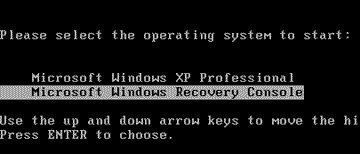 The Recovery Console can be used right from the installation CD that came with the computer. If this disc is no longer available, the user can open the Recovery Console in the boot menu, but only if it has been previously installed on the computer. This can be done by inserting the installation CD into the CD-ROM or mounting a virtual disc using a Windows XP ISO file and a mounting software such as Daemon Tools. Click Start and open the Run application. Type in F:i386winnt32.exe /cmdcons, with “F:” being the CD Drive letter. The Recovery Console installation process will begin. When the Recovery Console installs, it will connect to the Internet to perform a Dynamic Update that will update all of its system files in order to provide the user with a reliable backup. The user can opt out of this update by pressing ESC, causing the Recovery Console to use the system files it already has. The installation process is complete and the user should restart his/her computer.
Start the XP Recovery Console
When the system boots, you will see a screen that gives you three choices:
This portion of the Setup program prepares Microsoft Windows XP to run on your computer: To setup Windows XP now, press ENTER. To repair a Windows XP installation using Recovery Console, press R. To quit Setup without installing Windows XP, press F3
Press the R key to start the Recovery Console.
Choose which Windows Installation to Repair
The next prompt will ask you which Windows installation you want to recover:
The Recovery Console provides system repair and recovery functionality. Type EXIT to quit the Recovery Console and restart the computer. 1: C:WINDOWS Which Windows Installation would you like to log on to (To cancel, press ENTER)?
Enter the Windows XP Administrator Password
When prompted, enter the Microsoft Windows XP Local Administrator password. If you do not know this password, read How can I recover a lost Windows XP Administrator Password?.
Recovery Console Commands
The Recovery Console can be used to repair and replace virtually any system file of the Windows Operating System. The user can find a full list of commands by typing “Help” into the command prompt. Some examples of Recovery Console commands are listed below:
| Command | Purpose |
|---|---|
| Attrib | Changes the attributes of a file or directory |
| Batch | Executes the commands specified in the text file |
| Bootcfg | Boot file (boot.ini) configuration and recovery |
| CD / ChDir | Displays the name of the current directory or changes the current directory |
| Chkdsk | Checks a disk and displays a status report |
| Cls | Clears the screen |
| Copy | Copies a single file to another location |
| Del / Delete | Deletes one or more files |
| Dir | Displays a list of files and subdirectories in a directory |
| Disable | Disables a system service or a device driver |
| Diskpart | Manages partitions on your hard drives |
| Enable | Starts or enables a system service or a device driver |
| Exit | Exits the Recovery Console and restarts your computer |
| Expand | Extracts a file from a compressed file |
| Fixboot | Writes a new partition boot sector onto the specified partition |
| Fixmbr | Repairs the master boot record of the specified disk |
| Format | Formats a disk |
| Help | Displays a list of the commands you can use in the Recovery Console |
| Listsvc | Lists the services and drivers available on the computer |
| Logon | Logs on to a Windows installation |
| Map | Displays the drive letter mappings |
| MD / Mkdir | Creates a directory |
| More | Displays a text file |
| Net Use | Connects a network share to a drive letter |
| Ren / Rename | Renames a single file |
| RD / Rmdir | Deletes a directory |
| Set | Displays and sets environment variables |
| Systemroot | Sets the current directory to the systemroot directory |
| Type | Displays a text file. |
Follow Us!