

Remote Access and VPN Server Security Issues
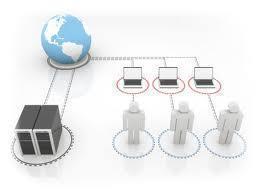
Remote Access Servers (RAS) provides access to the network for remote users. The different types of remote access connections are Dial-in remote access, VPN remote access, and Wireless remote access. Dial-in remote access uses modems, servers running the Routing and Remote Access (RRAS) service, and the Point-to-Point (PPP) protocol to enable remote users to access the network. VPN remote access provides secure and advanced connections through a non-secure network. VPN access uses encryption to create the VPN tunnel between the remote access client and the corporate network. Wireless users connect to the network by connecting to a wireless access point (WAP). Wireless networks do not have the inbuilt physical security of wired networks, and are more prone to attacks from intruders. To secure wireless networks and wireless connections, administrators can require all wireless communications to be authenticated and encrypted. There are a number of wireless security technologies that can be used to protect wireless networks.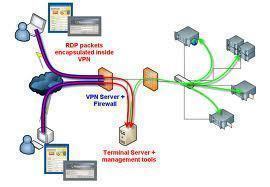
Basic security measures for securing remote access servers are listed here:
- Physically secure your remote access servers.
- Apply and maintain a strong virus protection solution. Software patches should be kept up to date.
- The NTFS file system should be utilized to protect data on the system volume.
- All unnecessary services and applications not being utilized on your remote access servers should be uninstalled.
- Secure the well-known accounts: Administrator account, Guest account.
- To protect remote access servers from unauthorized access, enforce the use of strong passwords.
- You can use either of these methods to secure traffic between a remote access server and remote users:
- Signing
- Encryption
- Tunneling
- IPSec filters can be used to protect confidential IP traffic.
- Consider using smart cards to further enhance your security access strategy.
- Monitor remote access server activity.
Additional security measures for securing remote access servers are listed below:
- You can create and configure remote access policies. Remote access policies can be used to restrict remote connections once they have been authorized
- You can create and configure remote access profiles.
- You can configure remote access authentication methods.
- You can configure encryption levels to secure remote access communication.
- You can control access through the Dial-in Properties of an individual user account that remote access clients use to connect to the network
- You can use Remote Authentication Dial-In User Service (RADIUS) to provide authentication, authorization, and accounting for your remote access infrastructure.
- You can raise the domain functional level to provide additional security features for your remote access infrastructure.
Using Authentication and Encryption Methods to Secure Access to Remote Access and VPN Servers
There are a number of different authentication methods supported by Windows Server 2003 Routing and Remote Access Service (RRAS) which you can configure to authenticate remote users when they attempt to connect to remote access servers:
- Unencrypted Password (PAP); uses plain text passwords and no encryption. PAP is only provided as an authentication method for those clients that do not support any more secure authentication methods.
- Shiva Password Authentication Protocol (SPAP); a simple password authentication protocol which provides no real authentication. SPAP is an insecure authentication protocol.
- Encrypted Authentication (CHAP); a challenge-response authentication protocol used for PPP connections. This authentication method utilizes the passwords of users for authentication.
- Microsoft Encrypted Authentication (MS-CHAP); one encryption key is used for sent messages and received messages, thereby making this method a weaker authentication method than MS-CHAPv2.
- Microsoft Encrypted Authentication Version 2 (MS-CHAPv2); provides mutual authentication for network and dialup authentication through the use of encrypted passwords. MS-CHAPv2 is one of the more secure authentication methods to use to control remote access connections to your remote access servers.
- Extensible Authentication Protocol (EAP) enables RRAS to use authentication protocols provided by Windows 2000 and Windows Server 2003 together with third-party authentication protocols such as smart cards. EAP offers mutual authentication, and provides for the negotiation of encryption methods.
To configure an authentication method,
- Click Start, Click Start, Administrative Tools, and then click Routing and Remote Access to open the Routing and Remote Access console.
- In the console tree, select the remote access server, and then click the Action menu to select the Properties command.
- Switch to the Security tab.
- Click the Authentication Methods button.
- The Authentication Methods dialog box opens.
- Specify the authentication method you want to use.
To disable the weaker password based authentication methods,
- Click Start, Administrative Tools, and then click Routing and Remote Access to open the Routing and Remote Access console.
- In the console tree, select the remote access server that you want to configure, and then click the Action menu to select the Properties command.
- Switch to the Security tab.
- Click the Authentication Methods button.
- The Authentication Methods dialog box opens.
- Clear the Microsoft Encrypted Authentication (MS-CHAP) checkbox.
- Clear the Encrypted Authentication (CHAP) checkbox.
- Clear the Shiva Password Authentication Protocol (SPAP) checkbox.
- Clear the checkbox for Unencrypted Password (PAP) checkbox.
- Click OK.
To secure VPN remote access connections, consider configuring either of these levels of encryption:
- Basic encryption, this level should not be used because a weak 40-bit key is used for encryption.
- Strong encryption; a 56-bit key is used for encryption.
- Strongest encryption; a128-bit key is used for encryption.
Using Remote Access Policies and Remote Access Profiles to Secure Remote Access
Remote access policies can be used to specify which users are allowed to establish connections to remote access servers. Remote access policies enable Administrators to restrict user access, based on the actual user, group membership, and time of day. You can also use remote access policies to control which authentication protocols and encryption methods clients utilize. After a connection is established to a remote access server, you can through remote access policies also configure restrictions for the connection.
Remote access profiles contains a set of properties that are applied to remote access connections that match the conditions specified in the remote access policy. Through remote access profiles, you can specify what actions should occur once the connection is authorized by the remote access server.
To control connections to remote access servers through remote access policy,
- Click Start, Administrative Tools, and then click Active Directory Users and Computers to open the Active Directory Users and Computers management console.
- In the console tree, expand the domain that contains the user account that you want to enable remote access for.
- Select the Users container.
- In the right pane, locate the user account that you want to configure.
- Right-click the specific user account and then select Properties from the shortcut menu.
- Click the Dial-in tab.
- In the Remote Access Permission area, click the Control Access Through Remote Access Policy option.
- Click OK.
Ash
I believe Windows Firewall is disabled when you run Routing and Remote Access Service. How do you protect the server on your LAN?
Thanks.