

A hard disk partition is a defined storage space on a hard drive. Most operating systems allow users to divide a hard disk into multiple partitions, in effect making one physical hard disk into several smaller logical hard disks.
Reasons to Use Hard Disk Partitions
A user may decide to split a hard disk into multiple partitions in order to organize his/her data more effectively. On Microsoft Windows machines, it is common to store the OS and applications on one hard disk partition and user data on another. When a problem occurs with Microsoft Windows, the OS partition can be completely formatted and reinstalled without affecting the data partition.
A user may decide to split a hard disk into multiple partitions because smaller partitions often have smaller cluster sizes. A cluster size is the smallest chunk of data that a partition can store. A large partition might have a cluster size of 16KB. This means that a file with one character in it will occupy 16KB of space on the disk. In a smaller partition, that file might only require 4KB to store. This is a useful strategy when storing a large number of small files.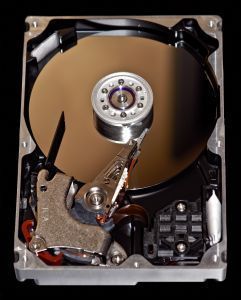
A user may have to split a large hard disk into multiple partitions if the hard disk is larger than the partition size that the operating system supports.
Creating Hard Disk Partitions
Most operating systems use the `fdisk` command to create hard disk partitions. Many operating systems also have graphical tools that accomplish the same task.
Hard Disk Partitions and File Systems
Data is not actually stored in hard disk partitions.
Hard disk partitions store file systems, then these file systems store data.
Some operating systems blur the lines between partitions and file systems.
The Partition Table
Partition information is stored in the partition table, a reserved area at the beginning of a hard disk.
Extended Partitions
A standard partition table is only able to store information about four partitions. At one time this meant that a hard disk could have a maximum of four partitions.
To work around this limitation, extended partitions were created.
An extended partition stores information about other partitions. By using an extended partition, many more than four partitions can be created on a hard disk.
The four standard partitions are often called the primary partitions.
Partitions configured into an extended partition are often referred to as logical partitions.
Partition Types
When a partition is created, a special byte of data is written to record what type of partition it is.
Because multiple operating systems may share one hard disk, operating systems tend to agree on the meaning of these values.
The table below lists some of the partition types in use.
| Partition Number | Partition Type |
|---|---|
| 00 | Empty |
| 01 | DOS 12-bit FAT |
| 02 | XENIX root |
| 03 | XENIX usr |
| 04 | DOS 16-bit FAT <=32M |
| 05 | DOS Extended Partition |
| 06 | DOS 16-bit FAT >=32 |
| 07 | OS/2 HPFS, WinNT NTFS |
| 08 | AIX |
| 09 | AIX bootable |
| 0a | OS/2 Boot Manager |
| 0b | Win95 FAT32 |
| 0c | Win95 FAT32 (LBA) |
| 0e | Win95 FAT16 (LBA) |
| 0f | Win95 Extended (LBA) |
| 35 | OS/2 JFS |
| 39 | Plan 9 |
| 40 | Venix 80286 |
| 51 | Novell |
| 52 | Microport |
| 63 | Unix System V, Mach, GNU HURD |
| 64 | Novell Netware 286 |
| 65 | Novell Netware 386 |
| 75 | PIC/IX |
| 80 | MINIX until 1.4a |
| 81 | MINUX, Linux |
| 82 | Solaris X86, Linux swap |
| 83 | Linux native |
| 85 | Linux extended |
| 93 | Amoeba |
| 94 | Amoeba BBT |
| a5 | FreeBSD, NetBSD, BSD/386, 386BSD |
| a6 | OpenBSD |
| a7 | NEXTSTEP |
| b7 | BSDI BSD/386 filesystem |
| b8 | BSDI BSD/386 swap |
| be | Solaris 8 bootable |
| bf | Solaris x86 |
| c7 | Syrinx |
| db | CP/M |
| e1 | DOS access |
| e3 | DOS R/O |
| eb | BeOS BFS |
| fb | VMWare filesystem |
| fc | VMWare swap |
| f2 | DOS secondary |
| ff | Xenix Bad Block Table |
Paul Nigel Abalos Ü
got 250GB of HDD seagate after i format it 5x in 1 year but i partition my computer in 2, make it 1 then i dual boot i create 3 and the last of all i make it 2 again beacause i want to sell it so the lastime i’m gonna format it because is not functioning well my hard disk cannot find my computer
Aileen
y i cant see the other half of my partition? i used to partition my hard drive… but it seems that the other half doesnt exist? how can i see it.. my hard drive has 80G and the only capacity i see in my computer is 40G. what will i do?
Bill Croxson
This could be because the other half of your hard drive is damaged, so the computer has basically ‘wiped’ it off your screen. I would suggest running disk defragmenter and disk scanner.
Alec
I tried repartitioning my samsung 500gb HDD through Disk Management in Win XP. I could see that the partitions were created successfully and they appear in My Computer. The problem is, when I restart my computer, the hard drive reverts to the original single partition before the repartitioning. Could this be a hardware problem? Thanks!
Madhu Akula
How many Maximum Partitions on a SATA Harddisk drive…?
R.Sri.Thushanthan
MAXIMUM HARD DISK PARTITION IN 4
Arjun
hi guys , i have sony laptop with window 7 and have only 1 drive (i.e C drive ) , i want to divide it into multiple drives to share my data , So if anyone knows how to do this partition reply me as soon as possible .. Waiting for the reply!!!!
Thanks
Marlon Franco
you might want to use Magic Partition.
Eric Scott
or you can use gparted, which is a free gnu partition editor. The live edition allows you to edit (ie, move, shrink, grow, split, and delete) partitions from a boot cd. It was surprisingly easy to use and I highly recommend it! All you have to do is burn the iso image onto a cd and boot from cd and you’ve got yourself a great partition editor!
R.Sri.Thushanthan
Hi i give some tips.
(1). Now on you’r pc go to start>run and now you can see dialog box. and type cmd and press the enter key. an you can see dialng box .and patition(divid),foramt. you can do
NOTE:- Requred win 7,win XP . Iam TAMIL PLESE ASK ME FOR TAIL.
Devarshi Sil
How do i perform disk partition for Windows 7 OS???
Will.Spencer
Open Computer Management by clicking the Start button, clicking Control Panel, clicking System and Maintenance, clicking Administrative Tools, and then double-clicking Computer Management. Administrator permission is required. If you are prompted for an administrator password or confirmation, type the password or provide confirmation.
In the Navigation pane, under Storage, click Disk Management.
Right-click an unallocated region on your hard drive, and then click New Simple Volume.
In the New Simple Volume Wizard, click Next.
Type the size of the volume you intend to create in megabytes or accept the maximum default size, and then click Next.
Accept the default drive letter or choose a different drive letter to identify the partition, and then click Next.
In the Format Partition dialog box, choose one of the following:
If you don’t want to format the volume right now, click Do not format this volume, and then click Next.
To format the volume with the default settings, click Next.
Click Finish!
fakhrul
can we partition a cd rom and floppy disk?
memenode
No. Floppy doesn’t have space for a partition table, and is meant to be a single-partition, and CD-ROM is non-writable. It is apparently possible to partition a CD according to this old article, but searching for “partitioning a CD” only brings me a bunch of boot and partition CDs, not the actual process of partitioning a CD.
I’m guessing most people never have a need for that. Why do you ask?