Home     Blog

How to Change Windows Startup Options

As a Windows computer ages, the number of third party applications that users download increases. Many of these programs automatically configure themselves to be opened when Windows starts eating away at the resources available for the computer to perform routine tasks. This can significantly slow overall computer speed. Users can mitigate this problem by changing the Windows startup options to only include the applications that they really need started every time they reboot the Windows computer. The startup program listing can be modified with the System Configuration utility or by manually opening the program through the MSCONFIG application available through the MS DOS command prompt.

How to Change Windows Startup Options

Step 1 – Start the computer normally. Press the “CTRL,” “Alt,” and “Delete” keys simultaneously to load the Windows Task Manager.

Step 2 – Choose the “Processes” menu tab to display the active computer processes on the computer.windows startup options 560x376 How to Change Windows Startup Options
Step 3 – Note any Windows Processes for third-party applications that were downloaded and are running in the background but are not actively being used. These are the programs that users should primarily focus on removing from the Windows Startup dialog.

Step 4 – Select the “Start” menu, enter “msconfig” in the search text field, then press “Enter” to open the System Configuration utility program. The application can also be opened from the Windows Control Panel.

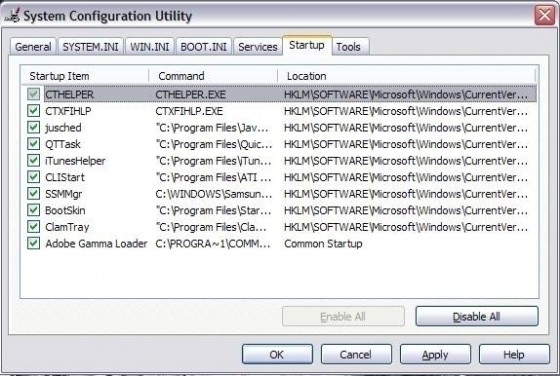
Step 5 – Choose the “Startup” menu tab located under the “General” section of the System Configuration utility.

Step 6 – Uncheck the check boxes next to the applications that will not be loaded when the Windows Operating System (OS) is next booted.

Step 7 – Choose the “Services” menu tab and de-select any processes that are not under the “Startup” options.

Step 8 – Click “Close” when program removal from the Windows startup is complete.

Step 9 – Restart the computer to complete removing programs from the Windows Startup menu.
VN:F [1.9.17_1161]
Rating: 0.0/10 (0 votes cast)
Follow javanx3d on

Leave a Reply

Related Posts

  • How to Remove Programs from Startup

    A common problem that most owners of Windows computers experience is that the older the computer, the longer it takes for it to start or boot. Typically this condition results from a large number of programs being installed on the computer over time that are configured to be started on-boot of your computer. Although you [...]...


  • How to Change Your Windows Password

    Whether you want to change the password on your own computer at home, office computer, or a computer that’s networked with other users, you can easily customize your Windows settings to protect specific files and folders from others either viewing or editing them. Creating or changing the windows password is very simple. It should be [...]...


  • How to Kill a Process in Windows

    Computer programs or applications commonly have one or more processes that are executing to support the program. These processes are instances of the running application and may have one or many Operating System threads dedicated to receive computer resources. Each program thread may execute any portion of the process code depending on the program design. [...]...


  • How to Change the Windows Toolbar

    The toolbar is a component of the Graphical User Interface (GUI) that houses various input and output components such as buttons, menus, icons and so on. End-users can customize toolbars as per their personal requirements. Toolbars can be found in operating systems, software applications, and web browsers. The latest development in toolbar interfacing is the [...]...


  • How to Change the Font Color in Windows Explorer

    While Windows Explorer is generally easy on the eyes, many computer users like to customize certain aesthetic features on their computer's operating system. One way to do this is to the change the font color in Windows Explorer. Here are some tips. Changing the font colors and even the font in Windows Explorer is extremely [...]...