

Secure Digital (SD) memory cards are very simple to format. There are 3 main options to format the SD cards to the format needed. To successfully format an SD card, the write protection lock on the side of the card must be in the “unlock” position. SD mini and micro SD cards must be used with an adapter or specialized USB card reader when a computer is formatting them.
The first option is to use a format utility. On most computer systems, there are generic formatting utilities available for nearly every form of writable media. In Microsoft Windows systems, the format option can be found in the “My Computer” folder or when the user clicks the Start Button on the taskbar and goes to the “Computer” tab when viewing drives. The available drive letter that corresponds with the SD card inserted can be right-clicked to bring up the drop down menu selection where the “Format” option can be selected. The different format options are available through the selectable options in the format utility.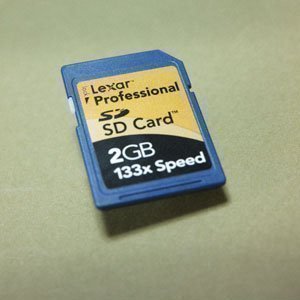
Secondly, the SD Association SD Formatter is the recommended option for anyone using a Microsoft Windows based system. The SD Formatter is recommended because the generic format utilities are not designed to format the SD cards to their official SD memory format requirements to run at optimum performance on devices. The SD formatter that the SD Association offers is free and is offered at SDcard.org.
Formatting through devices is the third option that is available to those who do not have access to a computer to format their cards. The devices that use the SD cards may have a built in format option to format the cards to work at optimum capacity with the device. This type of formatting is only recommended when the card is only going to be used in the one device to ensure that it remains compatible with the device. Cameras, phones, gaming consoles, and various other devices will usually have the built in function to format an SD card to work best with said device.
SD card formatters should be aware of the risks in order to prevent early card malfunction. Formatting uses some of the limited write function of the memory within SD cards. Each block of memory available on the card can only be written to a limited amount of times. This limit usually falls within 100,000 writes of the memory blocks and causes the cards to fail when the limit is reached. Formatting a card to completely erase it should be a last resort because formatting writes to every memory block whereas deleting unnecessary files from the card preserves unused memory life on the card. Use of any one memory card should not exceed 2 years to help prevent accidental loss of data or card failure from formatting damage and normal memory wear.
Christopher Campbell
I wish they made phones and accessories that last longer than 2 years, because new technology is starting to have some ugly drawbacks…every 2 years?
Apple is laughing hard and it almost seems better not to use something
(My computer is faster with less files on it…isn’t the whole point of have a computer is to put files on it…they say 2GB ram, more like 512MB and only 1.75GB ram being used…)
cjones
My micro 32 gb sd stopped working so I had to reformat it and I hit fat32 is that right or wrong cuz now my tablet won’t let me take pictures or videos saying its cuz I don’t have a sd but everythinge else works like moves music apps etc sowtf
MA
how can I format a 32gb micro sdhc card when I put it in a sd adaptor and stick it in the sd slot on my windows7 laptop it is not recognised and I can see any drive letter assigned to it in windows explorer?
my 2gb micro sd card is visible using the same sd adaptor in the same sd slot.
please suggest any thing else that I can try.
Rich
is there a way to format an micro SD card using the USB cord because my computer is old and it doesnt have the SD card slot.
Will.Spencer
Rich:
Definitely. You just need to purchase an adapter. They are about $20.
christopher
try memory increaser it will increase your memory on sd but it will delete all memory on sd
justme
Well, formatting a micro SDXC is not so simple, or just plain dangerous.
I used the windows (XP, SP3) formatter on my 64GB Sandisk and now I only have 32GB! SDFormatter is no help either, the card remains at 32GB.
I have not found a way to get back the original 64GB.
Christopher Campbell
Like I said Technology and ugly drawbacks…