Home     Blog

How to Reset a Mac OS X Keychain Password

A default keychain binds to an Administrator password upon creation and will continue to update when the Administrator password is updated via the Accounts menu. When someone forgets his/her password and is forced to utilize other means to reset it (See FAQ entitled: How do I reset a Mac OS X System Administrator (root) Password?), he/she will no longer be able to use any keychain that had a password bound to the lost password.

  1. Navigate to /Applications/Utilities/
  2. Locate and double click the icon entitled Keychain access. This will launch a Keychain Access window.
  3. Navigate to the Edit menu at the top of the screen and from the pull-down menu, select Change Password for Keychain “login”
  4. In the resulting Change Keychain Password window:
    1. Enter the current password (If doing this for the first time, the password is the administrator password).
    2. Enter the new password.
    3. Re-enter the new password in the Verify box.
  5. Click the OK button to commit the changes. This will close the Change Keychain Password window.

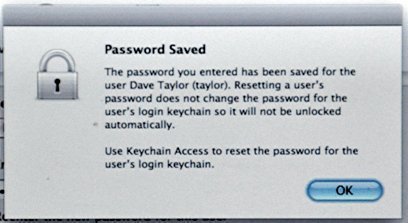
When someone can no longer access his/her keychain or has recently reset his/her password by means other than those associated with the Accounts menu, his/her only option is to delete the keychains that cannot be accessed. This may be done by completing the following steps:reset mac os x keychain password How to Reset a Mac OS X Keychain Password
  1. Navigate to /Applications/Utilities/
  2. Locate and double click the Keychain access icon. This will launch the Keychain Access window.
  3. Navigate to the Edit menu at the top of the screen and select Keychain List from the pull down menu.
  4. In the resulting window, locate and click the keychains that are currently inaccessible.
  5. Verify that no other keychains are selected.
  6. Click the OK button. This will commit the changes and close the window. If the OK button is dimmed, deselect and reselect one of one’s own options.
  7. Restart the machine and login. The keychain should now function with the new Administrator password.
VN:F [1.9.17_1161]
Rating: 8.5/10 (2 votes cast)
How to Reset a Mac OS X Keychain Password, 8.5 out of 10 based on 2 ratings
Follow Will.Spencer on

Comments (1)


  1. Sijo says:

    Thank you for this post…helped a lot…

    VA:F [1.9.17_1161]
    Rating: 0.0/5 (0 votes cast)

Leave a Reply

Related Posts

  • How to Reset a Mac OS X System Administrator (root) Password

    Warning: Unless deliberately changed, the keychain password is bound to the original administrator password. This originally provided single sign-on capabilities. Using the following method to reset one’s administrator password will require additional steps to also reset the keychain password. Please be advised that this may mean deleting any keychain protected with one’s original administrator password. [...]...


  • How to Change Your Windows Password

    Whether you want to change the password on your own computer at home, office computer, or a computer that’s networked with other users, you can easily customize your Windows settings to protect specific files and folders from others either viewing or editing them. Creating or changing the windows password is very simple. It should be [...]...


  • How to Re-enable Mac OS X Automatic Login

    Mac OS X Version 10.3 and Higher Log into the machine. Navigate to the Apple menu and select System Preferences. This action will launch a System Preferences window. In the System Preferences window, locate the section entitled System. In the System section, locate and click the Accounts icon. (It should be the first icon from [...]...


  • How to Disable Mac OSx Firmware Password Protection

    Launch the Open Firmware Password Application. Click the authentication icon and enter your Administrator credentials. You will be prompted for a password. Locate and click the Change button. This will launch an Open Firmware Password window. In the Open Firmware Password window, locate and click to deselect/uncheck the “Require password to change Open Firmware settings” [...]...


  • How to Enable Mac OSx Firmware Password Protection

    Warning: Altering your Open Firmware configuration in a manner that is not explicitly endorsed by Apple may damage your machine's logic board. Repair's for issues created by these unsupported configuration changes are not covered under the terms of any of the Apple support agreements. Warning: Please reselect your startup device PRIOR to resetting your PRAM [...]...