

A computer’s BIOS (Basic Input/Output System) is software that sets up the operating system by locating various hardware components and telling the operating system how to use them. Updating BIOS will minimize the amount of time it takes for the computer to boot up, correct compatibility issues, and improve the computer’s overall performance.
The computer or motherboard manufacturer will periodically update BIOS to repair bugs, add compatibility with new devices, and make other hardware corrections that can speed up the computer’s boot time and fix other issues. These updates are usually available on the manufacturer’s website.
Warning
You have to be extremely careful when updating BIOS. You must acquire the BIOS upgrade software from a reliable source. It is always recommended to download the BIOS upgrade software directly from the manufacturer’s website.
How to Update BIOS
First, identify the BIOS version without rebooting the computer. To do this, follow these steps:
- The simplest way to identify the BIOS version is to open the System Information App in Windows.
- Type msinfo32 into the search bar if you use Windows 7 or Windows Vista. Type msinfo32 into the Run Box if you use Windows XP.
- Click System Summary.
- The BIOS version should appear on the right, under the computer’s processor speed.
- Record the version’s number. Also record the date that shows up if applicable.
Next, check the motherboard/PC manufacturer’s website to find BIOS updates. To do this, follow these steps:
- Go to the manufacturer’s support website and look for listings for the PC’s specific line and model. Be sure to find the correct PC, because if a BIOS update for a different model is downloaded, it will not work on the computer.
- If one finds a BIOS update file, download it along with any documentation that comes with it. Warnings and specific instructions will mostly be in the Read Me documents.
- If you can’t remember the motherboard’s model number, look it up by downloading CPU-Z at http://www.pcworld.com/downloads/file/fid,64352-order,4/description.html. Once CPU-Z is downloaded, click the Mainboard tab.
Next, read the included documentation. It is extremely important to carefully read the Read Me file. The following information might be helpful:
- The computer’s BIOS takes care of many basics. The BIOS updates on the computer manufacturer’s website will have a Read Me file. This file will probably include a list of new functions and fixes created to support new hardware.
- The BIOS updates can range from support for a new AC adapter to a fix for fan speed issues. BIOS updates typically correct issues that updating Windows cannot fix.
- The most important information in the Read Me file tells users what they need to install before updating their BIOS. For example, to install a certain patch or have a certain graphics card, users would have to update the computer’s drivers above a specific version to successfully update the BIOS. If the information in these documents are not carefully followed, it may cause the computer to be unable to boot up.
It is a good idea to backup the BIOS before updating it. Most BIOS software update versions have a Save or Backup option built in and guide users when they back up their BIOS before upgrading it.
The last step is to update the BIOS. Before updating the BIOS, make sure that the computer’s power supply is not coming from a laptop battery. The computer may shut down in the middle of the BIOS update and may not be able to boot up. It is optimal to be plugged into a power supply that cannot be interrupted. To update the BIOS, follow these steps:
- Download the .exe file on the PC manufacturer’s website.
- Exit out of all open programs.
- Run the .exe.
- Let the .exe take care of the patch.
- Reboot the computer.
Some systems may require the user to copy files to a bootable disk, restart the computer, then open the BIOS during the startup by pressing a specific key. If this is the case, the user has to change the boot order so that the system seeks a bootable USB drive or CD before it loads the operating system from the hard drive.
Upgrading Award BIOS
Phoenix Technologies outsources all Award BIOS upgrade support to eSupport.
Upgrading Toshiba BIOS
The Toshiba BIOS may require regular updates in order to speed up its performance and add more functions. Use the following steps to update Toshiba BIOS:
Step 1 – Search for the appropriate BIOS update
Download the latest BIOS archive from http://uk.computers.toshiba-europe.com/innovation/download_bios.jsp or search for it via Google/Bing/Yahoo.
Select the appropriate Product Type, Family, Product Series, Model, and Short Model No. and click Search
Step 2 – Download BIOS update
The search result will display BIOS updates. Please download the most appropriate update for the computer.
When prompted, save and extract the Toshiba BIOS update archive into a directory on the computer. The extracted content will have a file with an exe extension.
Step 3 – Installing Toshiba BIOS update
Double click the exe file. It will start an installation wizard which will extract the package to a temporary location and initiate the setup.
A pre-installation checklist may be displayed for some updates. Make sure all the listed items are compliant with the computer’s configuration.
Once the installation is complete, it will restart the computer. During the restart, press F1 or Esc to enter the BIOS settings. Modify the BIOS settings (if needed), save, and exit.
Note: BIOS updates are prone to failure and can make the computer unusable.
Upgrading MSI BIOS
The first thing you should do is reboot your computer. When the MSI logo appears on the screen, hit the “F1” button. Scroll through the list of menu options that are available and then hit the “main” entry key. Hit enter and this will lead you to another set of options.
At the top of the screen, there should be a “BIOS Version.” Write down the version number as well as the MSI motherboard model number (you can find it underneath the “Model” heading). This will help you pick the correct update.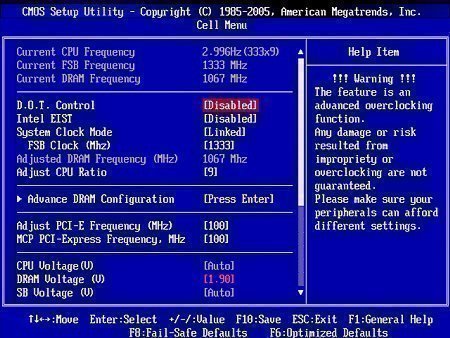
Now, hit the “F10” key. Highlight “Yes” and then hit the enter key to restart your computer. Once the system loads, open your web browser and check out the MSI website. Find the page that gives you the option to download and install MSI Live Update 3. What this Live Update does is automatically update BIOS and drivers for any MSI hardware. In this case, it’s the motherboard.
Alan Southwell
I was suggested this web site through my cousin. I am now not sure whether or not this publish is written by way of him as nobody else understand such exact approximately my trouble. You’re incredible! Thank you!