

Monitoring IIS Performance in Windows Server 2003
The primary performance monitoring MMC snap-ins and tools used for monitoring Windows Server 2003 and IIS are:
- System Monitor: The System Monitor is one of the main MMC snap-ins used to monitor system performance. This was previously the Performance Monitor tool in Windows NT. The name change to System Monitor occurred in Windows 2000. Through System Monitor, users can monitor various elements of the server’s performance, collect and view real-time data, or view historically collected data. System Monitor can be displayed in a graph, histogram, or report format. It uses objects, counters, and instances to monitor the system. An object can be described as a collection of counters that is associated with a system resource or service that produces the data that users can assess. When an object executes a function, its associated counters are updated. A counter can be regarded as a data reporting component in an object. The counter represents data for a particular system component or service. An instance refers to the incident of multiple performance objects of the identical type on a computer. An object can have one or multiple instances.
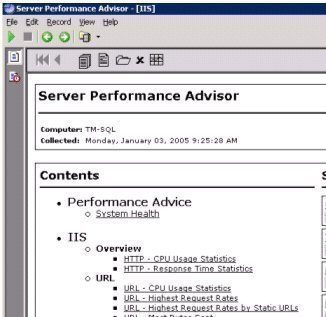
Someone has to be a member of one of the following groups to use System Monitor:
-
- Administrators
- Server Operators
- Performance Monitor Users
- Performance Log Users
To open System Monitor,
-
- Click Start, Run, enter perfmon.exe in the Run box, and OK.
- Click Start, Administrative Tools, Performance, and System Monitor.
A few commonly monitored objects include the:
-
- Processor
- Memory
- Logical Disk
- Physical Disk
- DNS
- DHCP Server
- Network interface
- Web service
To add counters in System Monitor,
-
- Open System Monitor.
- Click Add to open the Add Counters dialog box.
- Either choose the Use Local Computer Counters option to monitor the local computer or the Select From Computer option.
- When the latter option is used, users can select a computer from the list and choose counters for that particular computer.
- Choose the performance object from the list.
- Click the All Counters option to monitor all counters associated with the object or click the Select Counters From List option to individually select counters.
- Click the All Instances option to track all instances or click the Select Instances From List option to individually select instances.
- Click the Add button to add the counters.
- Performance Logs and Alerts: Users can create counter and trace logs and configure alerts with Performance Logs and Alerts. Any created logs can be viewed through System Monitor or exported to a database or spreadsheet. Because performance logging runs as a service, a user does not need to be logged on to the computer being monitored to collect data. Users can view data while or after the data has been collected. They can define an alert for a counter to initiate an action when the counter value surpasses or drops below a predefined setting. Counter logs record system performance data at specified intervals. Trace logs record comprehensive system events after the particular event occurred.
To access Performance Logs and Alerts,
-
- Click Start, Administrative Tools, Performance, and expand Performance Logs And Alerts.
- Task Manager: To view all applications and processes running on a Windows Server 2003 computer and a few common performance measures, use Task Manager. Use Task Manager to view system activities such as active applications and processes, memory, CPU process use, and the users who are currently logged on to the server. Users can also view a number of memory and network usage statistical information.
To open Task Manager, use one of the methods listed below:
-
- Click Start, Run, enter taskmgr.exe in the Run box, and click OK.
- Press Ctrl + Alt + Delete and select the Task Manager button.
- Right-click an empty section of the taskbar then click Task Manager.
- Network Monitor: Users can use Network Monitor to monitor network traffic and to troubleshoot network issues or problems. They can also use Network Monitor to gather network information that can be used in capacity planning efforts and to establish baselines. Network Monitor shipped with Windows Server 2003 allow the user to monitor network activity and use the gathered information to manage and optimize traffic, identify unnecessary protocols, and to detect problems with network applications and services. In order to capture frames, users have to install the Network Monitor application and the Network Monitor driver on the server that Network Monitor is going to be run on. Network Monitor saves captured data to a temporary capture file that is then saved with a .CAP extension. This enables captured data to be examined in Network Monitor. Users can design a capture filter to capture only specific frames configure it to respond to a specific condition.
To install the Network Monitor Driver :
-
- Open the Network Connections folder.
- Right-click Local Area Connection and select Properties.
- When the Properties dialog box is displayed, click the Install button.
- When the Select Network Component Type dialog box is displayed, click Protocol in the Component list and click the Add button.
- When the Select Network Protocol dialog box is displayed, click Network Monitor Driver.
- Click OK.
To install the Network Monitor application:
-
- Click Start, Control Panel, and Add or Remove Programs.
- When the Add Or Remove Programs dialog box is displayed, click Add/Remove Windows Components.
- This initiates the Windows Component Wizard.
- Select Management and Monitoring Tool and click the Details button.
- Select the Network Monitor Tools check box and click OK.
- Click Next and Finish.
- Web Application Stress Tool (WAST): WAST can be used to do the following:
- Simulate the effect of multiple web browsers concurrently connecting to IIS to run applications.
- Simulate the effect of multiple web browsers concurrently connecting to IIS to download Web content.
- Simulate different loads so that the user can determine the effect on the Web server.
When monitoring Windows Server 2003 and IIS, it is recommended to monitor counters for the following system resources or objects:
- Memory
- Processor
- Disk
- Network
The performance counters that should be enabled for the above system resources to monitor IIS performance are listed below:
- Memory: The counters useful for IIS monitoring are:
- Available Bytes – maintain over 20MB.
- Cache Bytes – a decrease could be indicative of IIS memory depleting.
- Committed Bytes – maintain beneath 75% of physical memory.
- Page Faults/sec – consider adding additional RAM when hard page faults are degrading IIS performance.
- Pages/sec – maintain a low figure. Consider supplementing RAM when the counter is over 80.
- Pool Nonpaged Bytes – if the counter gradually increases, verify that none of the applications have memory leaks.
- Processor: The counters useful for IIS monitoring are:
- % Processor Time – a processor bottleneck typically exists when this counter is over 80 for a continued time and network usage is low.
- Disk: The counters useful for IIS monitoring are:
- % Disk Time – it is recommended to maintain a low value for this counter.
- Avg. Disk Bytes/Transfer – it is recommended to maintain a high value for this counter.
- Avg. Disk Queue Length – it is recommended to have a value of 4 or lower.
- Network: The counter useful for IIS monitoring are:
- Bytes Total/sec – the value should be checked to the bandwidth of the network card to determine if any network connection bottlenecks exist.
The WWW Service objects’ performance counters that should be enabled to monitor the WWW service are listed below:
- WWW Service– The counters useful for IIS monitoring are:
- Bytes Total/sec – the counter value should be high.
- File Cache Hits – for static content, the counter value should be quite high.
- File Cache % – a low counter value could possibly mean that the applications’ designs have to be re-examined.
- ISAPI Extension – a drop of this counter during heavy load could mean that the application might be a bottleneck.
The performance counters of the Active Server Pages object that you should enable to monitor ASP are listed below:
- Active Server Pages– The counters useful for IIS monitoring are:
- Requests/Sec – a drop of this counter during heavy load could mean that the application might be a bottleneck.
- Request Queued – maintain a low counter value.
- Request Wait Time – the counter value should generally be low.
Tuning IIS for Maximum Performance
One definite way to ensure maximum IIS performance and security is to have the servers running in the worker process isolation mode of IIS 6. This is the default application mode in IIS 6, where all the new architectural features of IIS 6 are enabled including:
- Application pools and worker processes provide the following key features:
- CPU monitoring, Processor affinity, Health monitoring, Rapid-fail protection, Recycling, Startup and shutdown time limits, Queue length limits, and Idle timeout capabilities.
- ASP.NET provide the following features for applications:
- Improved performance over ASP applications, extensive programming language support, and XML integration.
To switch to worker process isolation mode,
- Open the IIS Manager.
- Right-click the Web Sites node and click Properties from the shortcut menu.
- When the Web Site Properties dialog box opens, click the Services tab.
- To use worker process isolation mode, clear the Run WWW service in the IIS 5 isolation mode checkbox.
- Click OK.
- Restart IIS.
How to Tune Application Pools through Recycling
Recycling a worker process improves the IIS’s reliability. Recycling is beneficial for faulty Web applications that memory leaks typically cause. Through recycling, the user enables IIS to periodically restart worker processes that are currently servicing an application pool. Users can configure recycling for a worker process using a number of criteria:
- Once a predetermined number of minutes of inactivity have passed. The default setting is 1740 minutes.
- Once a worker process has serviced a predefined number of requests. The default setting is 35,000 connections.
- After the virtual memory usage by the worker process attains a specific threshold.
- At a specific time of the day.
To manually recycle a worker process,
- Open IIS Manager.
- Locate and right-click the application pool associated with the worker process and select Recycle from the shortcut menu.
To configure all worker processes in each application pool to recycle according to the same criteria,
- Open IIS Manager.
- Right-click the Application Pool node in the console tree and select Properties from the shortcut menu.
- The Recycling tab is utilized for configuring recycling.
How to Configure the Idle Timeout Feature for all Application Pools
Through the idle timeout feature, users can enhance web server performance by enabling IIS to shut down idle worker processes. Enabling the idle timeout feature assists in eliminating system resource wasting that normally occurs when worker processes run idly. It allows users to better manage system resources, preserve resources so that they are available when needed, and free up resources.
To enable the idle time feature,
- Open IIS Manager.
- Right-click the Application Pool node in the console tree and select Properties from the shortcut menu.
- Click the Performance tab.
- In the Performance tab’s Idle Timeout area, enable the available checkbox and specify the inactivity time duration after which the worker process should shut down. The default setting is 20 minutes.
- Click OK.
How to Enable the Request Queue Limits, CPU Monitoring, and Web Gardens Features to Improve IIS Performance
- A lengthy request queue can result in clients considering the IIS server’s performance slow. To prevent this from happening, limit the request queue for applications in an application pool. This feature is configured on the Performance tab of the Application Pool’s Properties window.
- Users can enable CPU monitoring to track CPU use by the worker processes of an application pool. They can also configure IIS to shut down the worker processes of the application pool when their CPU usage has exceeded a specified threshold. This feature is also configured on the Performance tab of the Application Pool’s Properties window.
- Web Gardens, another IIS feature, improves IIS performance by allowing multiple worker processes to service one application pool. When a worker process fails, the remainder of the worker processes continue to service the application pool.
To configure the Request Queue Limit, CPU Monitoring, and Web Garden features:
- Open IIS Manager.
- Right-click the Application Pool node in the console tree and select Properties from the shortcut menu.
- Click the Performance tab.
- Enable the checkbox under the Request Queue Limit section of the Performance tab and set the appropriate limit.
- Enable the checkbox under the CPU Monitoring section of the Performance tab and specify the fitting setting value. Specify the action that IIS should take when the specified CPU usage level is exceeded.
- Enable the Web Garden feature by selecting a value greater than one in the Performance tab’s Web Gardens area. A value of one indicates that the Web Garden feature is disabled.
- Click OK.
How to Configure Health Monitoring Features
- Enable health monitoring for worker processes to determine whether they are functioning correctly. Health monitoring is enabled by selecting the Enable Pinging checkbox on the Health tab of the Application Pool’s Properties window.
- Rapid-fail protection is another IIS feature that enables users to detect when multiple worker processes associated with an application pool are performing incorrectly. Enable rapid-fail protection by selecting the Enable Rapid-Fail Protection checkbox on the Health tab of the Application Pool’s Properties window. To configure the feature, specify how many worker process failures need to occur and in how many minutes before IIS shuts down the application pool that the worker processes are servicing.
- Users can also configure Startup Time Limit and Shutdown Time Limit settings on the Health tab for worker processes that are not running as they should. The Startup Time Limit value indicates the time interval in which another worker process should replace an unhealthy worker process. The Shutdown Time Limit value indicates the time in which an unhealthy worker process can shut itself down before IIS forcefully terminates it.
The Quality of Service (QoS) Features of IIS
The various QoS features of IIS that users can enable and configure to tune IIS performance are listed below:
- HTTP Keep-Alives: This feature allows users to maintain TCP connections between the Web server and a client for a specified duration.
To enable or disable the HTTP Keep-Alives QoS feature,
-
- Open the IIS Manager.
- Right-click the Web Sites node and select Properties on the shortcut menu.
- When the Web Sites Properties dialog box opens, click the Web Site tab.
- To enable HTTP Keep-Alives, check the Enable HTTP Keep-Alives checkbox.
- To disable HTTP Keep-Alives, clear the Enable HTTP Keep-Alives checkbox.
- Click OK.
- Connection Timeouts: Connection timeouts and HTTP Keep-Alives are basically interconnected features. Connection timeouts allow IIS to claim back resources when connections are idle. Users can enable connection timeouts by setting the Connection Timeout value on the Web Sites Properties windows and then enabling HTTP Keep-Alives. Connection timeouts can be configured at the following levels:
- Global level for Websites and FTP sites.
- For each individual Web site and FTP site
- HTTP Compression: If the user has limited bandwidth or needs to more effectively use existing bandwidth, he/she should consider enabling HTTP compression. HTTP Compression can be used to compress static HTML files and dynamic response content for web browsers that support HTTP compression. HTTP compression is supported by:
- Internet Explorer 4 or above.
- Netscape Navigator 4.5 or above.
- Opera 5 or above.
To enable HTTP Compression,
-
- Open the IIS Manager.
- Right-click the Web Sites node and select Properties on the shortcut menu.
- When the Web Sites Properties dialog box opens, click the Services tab.
- In order to compress dynamic content, click the Compress Application Files checkbox.
- In order to compress static files, click the Compress Static Files checkbox.
- Click OK.
- Limiting Connections: Users can also limit the number of simultaneous connections that IIS allows on the Performance tab of the Properties window for a website and on the FTP Site tab on the Properties window for an FTP site. The default setting for Limiting Connections for websites is Unlimited. This means that IIS allows all incoming connections by default. For FTP sites, the default setting is that connections is limited to 100, 000 simultaneous connections. To assist in deciding on the connection limit that should be configured, monitor the Current Connections, Maximum Connections, and Total Connection Attempts counters for the WWW service and the FTP service.
- Bandwidth Throttling: This IIS feature allows users to specify the quantity of network bandwidth IIS can consume and the quantity of network bandwidth each individual website can consume. It is recommended to enable Bandwidth Throttling if the IIS machine uses over 50% of available network bandwidth. Bandwidth throttling can be enabled and configured on the Performance tab on a website’s Properties window. The recommended setting is 1024 kilobytes/second.
How to Tune the IIS Metabase
The metabase properties that affect IIS performance and the performance of ASP.NET, ASP and ISAPI applications that users can configure to tune IIS performance are:
- AppAllowDebugging: This property should be set to False so as not to negatively impact application performance and should only be set to True on development servers. Enabling the AppAllowDebugging property results in IIS application threads being serialized.
- AspScriptEngineCacheMax: For websites that are large, it is recommended to increase the AspScriptEngineCacheMax property’s value to increase the number of scripting engines ASP caches in memory.
- AspScriptFileCacheSize: It is strongly recommended to enable ASP caching to increase the performance of ASP applications.
- AspQueueConnectionTestTime: It is recommended to set the value of this property to only a few seconds, to compel the IIS server to verify that the client is indeed connected, prior to it servicing his/her request.
- AspBufferingOn: This property should be set to False so that application output is saved prior to flushing to clients.
- CacheISAPI: This property should be set to True to improve performance by caching ISAPI extensions in memory.
How to Tune Registry Settings to Improve IIS Performance
While the majority of IIS configuration information is stored in the metabase, there are still a few IIS settings that are stored in the Registry. The Registry settings that can be tuned to improve IIS performance are discussed below.
- The Registry settings located under HKLMSYSTEMCurrentControlSetServices InetinfoParameters are:
- CacheSecurityDescriptor: Do not change the default value of 1 for this setting because it means that the caching of security descriptors for file objects is enabled. This in turn quickens the retrieval of cached content when an authentication method other than Anonymous access is utilized.
- CheckCertRevocation: For production servers that are not being utilized for intranet environments, the CheckCertRevocation setting’s value should be 0 (disabled).
- DisableMemoryCache: A setting of 0 enables static file caching.
- ListenBackLog: Tune this setting’s value according to the server’s load.
- MaxCachedFileSize: Tune this setting’s value according to whether or not the server is servicing clients with large files (images or video clips)
- MemCacheSize: If the user sets the value of the setting for the cache size, then IIS no longer controls the cache size dynamically.
- MaxPoolThreads: This setting determines the number of pool threads that can be created for each processor. It is recommended to not set this value to more than 20.
- MinFileBytesPerSec: Change the setting to limit the time in which the client has to receive a response.
- ObjectCacheTTL: The value of this setting determines the time duration for which objects are stored in the static file cache.
- The Registry settings located in KLMSYSTEMCurrentControlSetServicesHTTPParameters are:
- UriMaxCacheMegabyteCount: Through the value of this setting, users can tune the performance of Http.sys. A default setting of 0 allows Http.sys to determine what memory the cache utilizes.
- UriScavengerPeriod: This setting controls how often the URI cache scavenger removes stale entries. The default value is 120 seconds.
- The Registry setting located in HKLMSYSTEMCurrentControlSetServicesASPParameters is:
- DisableLazyContentPropagation: It is recommended that the value of the DisableLazyContentPropagation key be left at its default value of 0. This prevents the Web server from failing when a large quantity of content needs to be updated.
- The Registry setting located in HKLMSYSTEMCurrentControlSetServicesW3SVCParameters is:
- UploadReadAhead: This setting determines how much request data IIS accepts prior to forwarding it to a particular application. Increase this value according to the amount of RAM on the server.
Common Server Tuning Methods for Tuning the IIS machine
A few common methods that should be considered to tune the performance of the IIS machine:
- Consider using an SMP-capable motherboard in order to easily add a CPU to improve processing power.
- If using Windows Server 2003, use its capability of effectively defragmenting NTFS drives to ensure that the disk subsystem performs efficiently.
- Consider setting a large enough fixed paging file size and distributing the paging file over multiple drives. This also assists in improving the disk subsystem performance.
- Consider using a hardware RAID solution over software RAID. Software RAID solutions place an additional burden on the processor subsystem.
- If the Web servers host e-commerce sites, consider using Windows clustering and network load balancing (NLB).
- The simplest way to improve the IIS machine’s performance is to add additional RAM.
- Maximize data throughput so that the RAM is utilized efficiently. Enable Maximize Data Throughput via the Control Panel. A few benefits of enabling Maximize Data Throughput is SMP scalability on multiprocessor machines, improved networking performance, and support for a larger amount of physical memory
To enable Maximize Data Throughput,
-
- Open Control Panel.
- Click Network Connections then select Local Area Connection.
- Click the General tab then click Properties.
- When the Local Area Connection Properties dialog box opens, select File and Print Sharing for Microsoft Networks, then click Properties.
- Select the Maximize Data Throughput for Network Applications option.
- Click OK.
- IIS logging depletes processor, disk, and memory resources. Therefore, do not extensively enable IIS logging. Before enabling remote logging, be sure to check for any performance impacts. Remote logging is definitely slower.
- It is recommended to not enable ODBC logging because it disables IIS kernel-mode caching.
- When using virtual directories, use the local IIS machine over mapping them to a share located on a remote server.
- Use the FTP user isolation feature with caution. It is recommended to use a separate IIS machine for FTP if FTP user isolation must be used.
- Steer clear of old CGI applications. A better solution would be to use ASP or ASP.NET applications.
- Also, use ISAPI extensions over ISAPI filters. It is recommended to rewrite any existing ISAP filters to operate as ISAPI extensions.
- Save CPU resources by disabling content indexing if user search pages are not being applied.
Tuning the Performance of ASP, ASP.NET, and ISAPI Applications
A few common tuning methods that can be used for applications running on IIS 6 are:
- Static HTML files because they utilize less memory and processor resources
- Because SSL encryption needs extensive CPU resources, only use it when really necessary.
- Configure expire headers for static HTML files and for image files.
Tune ASP.NET applications for high performance by implementing the following best practices:
- Caching should be enabled
- All input validation should be performed on the client
- If it is not being utilized, disable Session State
- It is recommended to store application session data out-of-process if web gardens and web farms are being deployed.
- Utilize stored procedures to access data on SQL servers. Do not use ad hoc queries.
- For VBScript code, utilize Option Strict.
- Trap exceptions rather than use it for directing program flow.
How to enable ISAPI caching to improve application performance on IIS 6:
- Open IIS Manager.
- Open the Properties window for the website that contains the particular application.
- Click the Home Directory tab.
- Click Create to enter a name for the application if it needs one.
- Click the Configuration button
- When the Application Configuration Properties dialog box of the application opens, click the Mappings tab.
- Select the Cache ISAPI Extensions checkbox.
- Click OK.

Melchior
“High-Performances” is meaningless without benchmarks:
http://gwan.ch/
And that’s with IIS running in the Windows kernel (while G-WAN is running in user-mode).
Guess what will happen when G-WAN will bother to release a 64-bit version (like IIS).