

Interoperating with Novell NetWare
Windows Server 2003 includes a few specific services that enable Novell NetWare servers and clients, and Windows computer to interoperate:
-
NWLink IPX/SPX/NetBIOS Compatible Transport Protocol (NWLink): NWLink IPX/SPX is the Microsoft implementation of Novell's NetWare Internetwork Packet Exchange/Sequenced Packet Exchange (IPX/SPX) protocol. NWLink IPX/SPX is simply called NWLink. NWLink is used in Novell NetWare, and can be considered IPX for Windows. NWLink is an IPX/SPX compatible transport protocol that was developed to enable Windows 2000 computers to communicate with NetWare services. It is therefore used when clients running Microsoft operating systems (OSs) need to access resources on NetWare servers. It is also used where clients running NetWare need to access resources on computers running Microsoft operating systems. Clients that connect to NetWare servers must use the NWLink protocol. NWLink must be installed if you want to use Gateway Service for NetWare or Client Service for NetWare to connect to NetWare servers. The NWLink protocol provides the network and transport protocols that enable communication with these NetWare servers.
-
The networking application programming interfaces (APIs) supported by NWLink are:
-
-
NetBIOS
-
Windows Sockets (WinSock).
-
If you want to log on to a NetWare network from a Windows 2000 Professional computer, you need to use either of the following:
-
-
Client Service for NetWare (CSNW)
-
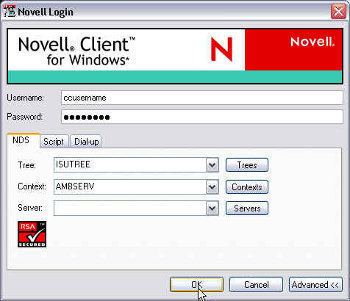
Novell Client for Windows 2000: Novell Client for Windows 2000 is an example of a third-party NetWare client which you can use.
-
Install Gateway Service for NetWare on a Windows 2000 server. This is an example of a gateway technology.
-
-
Client Service for NetWare (CSNW): CSNW enables computers running Windows Server to connect with NetWare servers. This includes NetWare 4.x servers or earlier version servers running Novell Directory Services (NDS) or bindery emulation.
CSNW installs the following protocols to enable communication with NetWare servers:
-
-
NWLink IPX/SPX
-
NetBIOS over IPX/SPX
-
To authenticate with NetWare servers, the username and password utilized to log on to the workstation is utilized. You therefore have to ensure that the user account on the Windows Server 2003 domain controller and the NetWare user account are the same for those users needing to utilize CSNW.
-
Microsoft Directory Synchronization Services (MSDSS): The Microsoft Directory Synchronization Services management interface can be used to administer multiple directory services. Through MSDSS, administrators can easy manage and configure synchronization between Active Directory and Novell Directory Services (NDS).
Novell and Microsoft offer client software for clients to access NetWare resources and Windows Server 2003 resources. Novell provides client software for the following:
-
MS-DOS
-
Microsoft Windows 3.x
-
Microsoft Windows 95
-
Microsoft Windows 98
-
Microsoft Windows NT 4 Workstation
-
Microsoft Windows 2000 Professional
-
Microsoft Windows XP Professional
Microsoft provides NetWare client software for the following:
-
Windows 95
-
Windows 98
-
Windows NT 4 Workstation
-
Windows 2000 Professional
-
Windows XP Professional
When opening files through CSNW, the Windows file attributes and NetWare file attributes differ:
-
A – Archive = A
-
S – System = Sy
-
H – Hidden = H
-
R – Read-only = Ro, Di for Delete inhibit, and Ri for Rename inhibit
There are also some NetWare file attributes which are not supported by CSNW:
-
Ci – Copy inhibit
-
P – Purge
-
Ra – Read audit
-
Rw – Read/write
-
S – Shareable
-
T – Transactional
-
Wa – Write audit
Windows Server 2003 and CSNW support a number of standard NetWare utilities which can be utilized to manage a NetWare network from a computer running Windows XP Professional or Windows Server 2003:
-
Chkvol
-
Colorpal
-
Dspace
-
Fconsole
-
Filer
-
Flag
-
Flagdir
-
Grant
-
Help
-
Listdir
-
Map
-
Ncopy
-
Ndir
-
Pconsole
-
Psc
-
Pstat
-
Rconsole
-
Remove
-
Revoke
-
Rights
-
Security
-
Send
-
Session
-
Setpass
-
Settts
-
Slist
-
Syscon
-
Tlist
-
Userlist
-
Volinfo
-
Whoami
How to install the NWLink protocol
-
Right-click My Network Places, and click Properties on the shortcut menu.
-
When the Network And Dial-Up Connections dialog box opens, right-click Local Area Connection, and select Properties on the shortcut menu.
-
The Local Area Connection Properties dialog box opens.
-
Click Install.
-
When the Select Network Component Type dialog box appears, click Protocol, and then click the Add button.
-
When the Select Network Protocol dialog box appears, click NWLink IPX/SPX/NetBIOS Compatible Transport Protocol.
-
Click OK.
-
Windows Server 2003 is now able to communicate with NetWare servers using the IPX/SPX protocol.
How to install CSNW
-
Right-click My Network Places, and click Properties on the shortcut menu.
-
In the Network and Dial-Up Connections dialog box, right-click the local area connection that you want to install Client Service for NetWare for, and then click Properties on the shortcut menu.
-
Click the Install button on the General tab.
-
When the Select Network Component Type dialog box appears, click Client, and then click the Add button.
-
When the Select Network Client dialog box opens, click Client Service For NetWare.
-
Click OK.
-
Click Yes to restart the computer.
-
After the computer has restarted, the Select NetWare Logon dialog box automatically opens. This is where you configure how CSNW will access the NetWare server.
-
Select the Preferred Server option if CSNW will be accessing a bindery based NetWare server. Proceed to specify the server in the Preferred Server list box.
-
Select the Default Tree And Context option if CSNW will be accessing a NDS based NetWare server. Proceed to specify the tree name and context name in the provided textboxes.
-
If you want to run the NetWare login script when the gateway initially connects to the NetWare server, enable the Run Login Script checkbox.
-
Click OK.
How to configure CSNW
-
Open Control Panel.
-
Click the CSNW icon.
-
The Client Service For NetWare dialog box opens.
-
To log on to a bindery based NetWare server, click the Preferred Server option.
-
To log on to a NDS based directory tree, click the Default Tree And Context option.
-
For printing to NetWare based printers, use the Print Options area of the Client Service For NetWare dialog box to specify the desired print settings.
-
Select the Run Login Script checkbox if you want to run the NetWare logon script.
How to uninstall the NWLink protocol
-
Right-click Local Area Connection in the Network And Dial-Up Connections dialog box, and select Properties on the shortcut menu.
-
On the Local Area Connection Properties dialog box, click NWLink PX/SPX/NetBIOS Compatible Transport Protocol, and click Uninstall.
-
Click Yes to uninstall NWLink IPX/SPX/NetBIOS Compatible Transport Protocol.
-
Click Close.
-
Follow Us!