

The Terminal Services Manager tool (Tsadmin.exe) is the main administration tool used to manage existing Terminal Services sessions, users, and processes that are connected to or running on the Terminal Services server. The Terminal Services Manager tool can manage one or more Terminal Services servers. The administrative tasks that the Terminal Services Manager tool can perform are listed below:
- View information on existing Terminal Services servers, users, and any connected or running sessions and processes.
- Connect and disconnect from sessions.
- Terminate existing sessions and processes.
- Log off users from sessions.
- Send messages to users and sessions.
- Monitor users, sessions, and processes.
The Terminal Services Manager tool is added to the Administrative Tools menu after Terminal Services is installed. Users can access the Terminal Services Manager tool via the steps listed below:
- Click Start, Administrative Tools, then Terminal Services Manager.
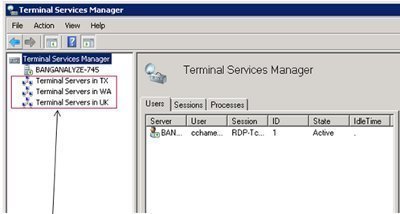
The left pane of the Terminal Services Manager window displays the domains, servers in the domain, and sessions. While the Terminal Services Manager only connects to one server by default, users can choose to connect to all the available servers at one time. Users can view information on users, sessions, and processes by network, domain, server, or even connection. This capability allows users to examine extensive information on their Terminal Services installation and operation within their environment.
The Actions menu on the Terminal Services Manager window contains various options that enable users to perform different tasks or actions for users, sessions, and processes. The Actions menu options and the permissions required to perform these actions are listed below:
- Connect: The Connect option can be used only from a session and it enables a user to connect from one session to a different session. The required permissions is Full Control or User Access.
- Disconnect: This Action menu option disconnects the user from the existing session. However, the session is saved and applications still continue to run. The required permission is Full Control.
- Send Message: The Send Message option enables a user to transmit a message to a single session or to all sessions. The required permission is Full Control or User Access.
- Remote Control: This option enables a user to utilize the existing session to examine or control another user’s session. The required permission is Full Control.
- Reset: This option immediately ends a session. All unsaved user data is lost. The required permission is Full Control.
- Status: This option can be used to display information on a particular session. The required permission is Full Control or User Access.
- Log Off: The Logoff option can be used to log off a user from a session. The required permission is Full Control.
- End Process: This option can end a process in a session. The required permission is Full Control.
How to Connect to a Server with Terminal Services Manager
Before users can manage users, sessions, and any processes running on a server, they have to use Terminal Services Manager to connect to the particular server. When a user opens the Terminal Services Manager tool (click Start, Administrative Tools, and Terminal Services Manager), the left pane in the Terminal Services Manager window contains the servers and sessions. The top level nodes displayed in the left pane are:
- This Computer: Indicates the local computer if Terminal Services Manager is used on a Terminal Services computer.
- Favorite Servers: Users can add a server in the left pane to the Favorite Servers node if it is a server regularly connect to.
To add a server to the Favorite Servers node:
- Right-click the server’s name in the left pane and click Add to Favorites from the shortcut menu.
- All Listed Servers: This node shows all the Terminal Services servers that the tool is connected to.
To connect to a Terminal Services server with the left pane of the Terminal Services Manager window, right-click the server’s icon and select Connect from the shortcut menu.
Alternatively, use the Action menu to connect to additional Terminal Services servers.
- Click the Action menu and select the Connect to Computer option.
To disconnect from a server in the left pane:
- Right-click the server’s name in the left pane then click Disconnect from the Action menu.
How to Manage Users with Terminal Services Manager
The tabs that are displayed in the Results pane when a server is selected in the left pane of the Terminal Services Manager are listed below:
- Users tab, Sessions tab, and Processes tab
The Users tab should be selected if the user wants to view information on users who are connected to the Terminal Services server and have active sessions, and who have disconnected sessions running on the server. The tab can also be used to perform administrative tasks on these users. The information displayed on each user is listed below:
- The user’s name
- The status of the session. The session can either be active or disconnected
- The session identifier of active sessions are listed
- The date and time when the user logged on is listed for active sessions
- The idle time of disconnected sessions is listed
To create a connection to a disconnected user session:
- Right-click the user’s name and select Connect from the shortcut menu.
To disconnect a user from his/her current session:
- Right-click the user’s name and select Disconnect from the shortcut menu.
To send the user a message:
- Right-click the user’s name and select Send Message from the shortcut menu. The message is displayed on the user’s session screen in the form of a pop-up message.
To remotely view or manage a user’s session:
- Right-click the user’s name and select Remote Control from the shortcut menu.
To immediately end a user’s session:
- Right-click the user’s name and select Reset from the shortcut menu. Remember that any unsaved data is lost when Reset is used.
To view the status of a user’s session:
- Right-click the user’s name and select Status from the shortcut menu. The information that can be viewed include:
- Incoming bytes and outgoing bytes
- Frames
- Bytes per frame
- Frame errors
- Timeout errors
- Compression ratio
To log off a user and end the session:
- Right-click the user’s name and select Log Off from the shortcut menu. The user’s data is first saved before the session is terminated.
The Msg command can also be used to send a message to all users who have sessions on the server or to send a message to a specifics user.
The syntax for the Msg command is listed below:
msg {username|sessionname|sessionid|@filename|*} [/SERVER:servername] [/TIME:seconds] [/V] [/W] [message text]
username/code> - specifies the user to whom the message should be sentsessionname– specifies that the message be sent to this session name.sessionid– specifies that the message be sent to this session ID@filename– specifies that the message be sent to all user names, session names, or session IDs listed in the file./SERVER:servername– indicates the server that the user/session is connected to. The current server is used by default./TIME:seconds– indicates the time, in seconds, that the message should be displayed for its recipients to acknowledge it. The default value is 60 seconds./V– the information is displayed on the command line./W -indicates to wait for a response from the user.message text– the message text that is going to be sent.
How to Manage Sessions with Terminal Services Manager
The Sessions tab is displayed in the Results pane when the user selects a server in the left pane of the Terminal Services Manager. To view information on sessions using Terminal Services server resources, click the Sessions tab. Sessions can also be managed from this tab. The different current sessions that the Sessions tab displays information on are:
- Connected sessions
- Disconnected sessions
- Listener sessions
- Console session
The information that can be viewed on each session is listed below:
- The session’s name
- The session’s identity number
- The session’s state, which is one of the following:
- Active
- Disconnected
- Listening
- The session type, listed as one of the following:
- RDP
- ICA
- Console
- The client name affiliated with the session.
- For an active session, the data and time that the user logged on to the server.
- For a disconnected session, the idle time is displayed.
- The Comment field typically indicates the system console.
To create a connection to a disconnected session:
- Right-click the session and select Connect from the shortcut menu.
To disconnect a current session:
- Right-click the session and select Disconnect from the shortcut menu.
- Click OK to the warning message that is displayed, requesting verification that the session should be disconnected.
To disconnect multiple sessions:
- Select the sessions in the right pane of Terminal Services Manager, then right-click and select Disconnect from the shortcut menu.
To send the session a message:
- Right-click the session and select Send Message from the shortcut menu.
- When the Send Message dialog box opens, type the message to be sent.
- Click OK.
To remotely view or manage the session,
- Right-click the session and select Remote Control from the shortcut menu.
- When the Remote Control dialog box opens, choose the hot key that terminates the session.
- Click OK.
- The Remote Control Request dialog box is displayed to the user to request remote control.
To immediately end a session:
- Right-click the session and select Reset from the shortcut menu.
- A warning message is displayed.
- Click OK.
To reset multiple sessions:
- Select the sessions in the right pane of Terminal Services Manager, then right-click and select Reset from the shortcut menu.
To view the session’s status:
- Right-click the session and select Status from the shortcut menu. The information that can be viewed includes incoming bytes and outgoing bytes, bytes per frame, frame errors and timeout errors, and compression ratio.
How to Manage Processes with Terminal Services Manager
The Processes tab is displayed in the Results pane when a server is selected in the left pane of the Terminal Services Manager. To view information on processes running on the Terminal Services server, click the Processes tab.
The information that can be viewed on the Processes tab is listed below:
- The processor identifier (PID) of the process.
- The user name that is associated with the particular process.
- The session’s identity number that is associated with the particular process.
- The session’s state wherein the process is running:
- The Image or Filename associated with the process.
To terminate a process:
- Right-click the process then select End Process from the shortcut menu.
- Click OK on the message that is displayed, requesting verification to end the process.
Pradeep Kumar Mali
hi this is pradeep from bhopal-(M.P)-INDIA, i have a qustion from which software we she users desktop windows or monitor all users desktop from singal screen of server