

ASIO (Audio Stream Input/Output) is a sound card driver protocol designed for professionals with the goal of reducing latency (a delay between input and output audio signals). Steinberg, a company very well known for its premium music production software such as Cubase, created ASIO. Steinberg also invented the VST plugin standard used in almost all digital audio workstations today.
In a nutshell, ASIO bypasses standard Windows intermediaries and allows more direct access to the sound hardware. Reducing the number of “hoops” through which the signal has to pass results in reduced latency. This is less important to ordinary users who mostly just listen to music or watch movies that are fine with standard sound card drivers, but it is very important to audio professionals such as audio engineers, music producers, and so on.
 An equivalent to ASIO on Mac OS X is CoreAudio, which was designed with low latency in mind and is the default driver on Macs. Linux features ALSA, which has a low latency direct access to the hardware as well. An experimental ASIO driver for WINE, an emulator for Windows software on Linux, is also available. WINE ASIO allows low latency access to audio hardware from audio programs running within WINE.
ASIO 4 ALL is simply a universal sound card driver for all Windows versions with WDM (Windows Driver Model) including Windows 98SE up to Windows 7, both 32bit and 64bit versions.
ASIO 4 ALL Setup
To set up ASIO 4 ALL download and install it. The latest version can be downloaded from an ASIO4ALL web site. The installation process is the same as installing any other standard program (involving clicking next a few times and then finish). There is no need to select any additional options in the installer aside from ASIO4ALL, which is already pre-set.
ASIO 4 ALL will not replace an existing sound card driver and is loaded only when applications designed to support and use it (ASIO host applications) request it. These can be various audio editing programs, including popular Digital Audio Workstations as well as DJ programs such as Traktor and Virtual DJ. Typical applications such as various music players, games, and so on will not use it. It is also designed not to disrupt or destabilize the system in any way.
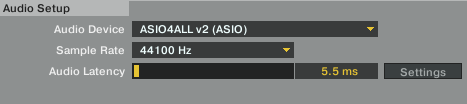
Once it is installed, make sure that the host application that it will be used with has ASIO selected as its audio device. This is typically a matter of going into the program’s audio settings and selecting the audio driver to use. ASIO should be among the available options as “ASIO4ALL v2 (ASIO)”, as seen in the illustration below.
ASIO4ALL also comes with its own control panel that loads when an ASIO host application is running, and allows the user to select the ASIO Buffer Size. Greater buffer size gives the hardware more room to “breathe,” resulting in less audible glitches or skipping and an increase in latency. Smaller buffer size means smaller latency, but the CPU and sound card need to process sound faster. The best setting should be as low as possible without experiencing sound glitches, but 256 samples is typically low enough.
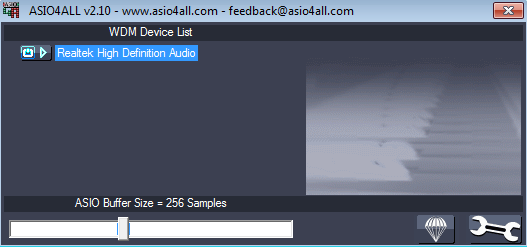
The ASIO control panel offers more advanced options that do not generally need to be adjusted. However, installing the ASIO4ALL driver gives a shortcut to the ASIO4ALL manual on the desktop, which can be read for detailed instructions if needed.

Ezekiel
I have asio 4 all installed on my system (windows 7 64 bit). I use it just fine with my audio applications. However, it disrupts my regular sound card (Realtek audio) for playback of normal applications like itunes, youtube, etc if I’m running one of my audio applications that’s using the asio 4 all driver. I hate that I have to close my audio software to in order to use itunes or whatever. Is there any way around this? Why does this happen? thanks