

Cisco Router IOS
Cisco routers are manageable devices, which means that they have the Cisco IOS software for network and internetwork management. The Cisco’s IOS software delivers network services and enabled networked applications. The Cisco IOS is the CLI based software with which Cisco IOS commands can be executed.
Cisco Commands
There are more than 2,000 Cisco router commands in the latest Cisco router IOS software version including the basic router commands along with the advanced level router commands such as Cisco wireless router commands. The Cisco router IOS has different executable modes with different prompts. These modes execute different tasks. Each mode has a set of specific commands.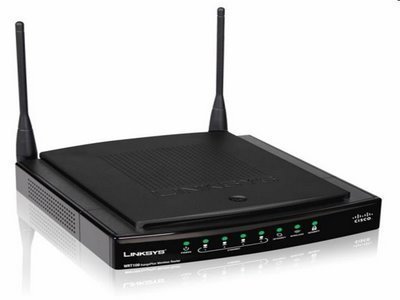
Cisco IOS User Interface Fundamentals
Bear the following in mind when using a command line interface:
- Operations vary on different internetworking devices
- Type or paste entries into the console command modes
- Enter key instructs device to parse and execute the commands
- Two primary EXEC modes for executing basic Cisco commands are user mode and privileged mode
- Command modes have distinctive prompts
Cisco IOS Software Exec
There are two main EXEC modes for entering commands:
User Mode
- Limited router examination
- Command prompt on the router is Router
Privileged (or enabled) Mode
- Detailed router examination
- Enables configuration and debugging
- Prerequisites for other configuration modes
- Command prompt on the router is Router#
Configured versus Unconfigured Router
After completing the booting process, the configured Cisco router prompts in user mode while the Cisco router prompts in setup mode for initial configuration dialogue if there is no configuration in the memory.
Cisco Router Setup Mode
The Cisco router setup mode commands are as follows:
Setup: The Initial Configuration Dialog
Router # setup
System Configuration Dialog
Continue with configuration dialog? [Yes/no]: Y
At any point, enter a question mark “?” for help
Use ctrl-c to abort the configuration dialog at any prompt
Default settings are in square brackets “[ ]”
Basic management setup configures only enough connectivity for system management. Extended setup will ask the user to configure each interface on the system:
Would you like to enter basic management setup? [Yes/no] n
Setup Interface Summary
First, would you like to see the current interface summary? [Yes]
Setup Global Parameters
Configuring global parameters:
Enter host name [router]: R1
The enable secret is the password that protects access to Privileged and configuration modes. This password, after entered, becomes encrypted in the configuration.
Enter enable secret: Cisco
Enable password is used with some older software versions and boot images when an enable secret password is not specified.
Enter enable password: sanfran
The virtual terminal password that protects the access to the router over a network interface.
Enter virtual terminal password: sanjose
Configure SNMP Network Management? [No]:
Configure IP? [Yes]:
Setup Interface Parameters
Configuring interface parameters:
Do you want to configure Ethernet 0 interface? [No]: Y
Configure IP on this interface? [No] Y
IP address for this interface: 10.1.1.33
Subnet mask for this interface [255.0.0.0]: 255.255.255.0
Class A network is 10.0.0.0. 245 subnet bits: mask is /24
Do you want to configure serial 0 interface? [No]:
Setup Script Review and Use
The following command script was created:
[0] go to the IOS command prompt without saving this configuration
[1] Return to the setup without saving this configuration
[2] Save this configuration to NVRAM and exit.
Enter the selection [2]:
What are the Basic Router Commands?
Below are some basic router commands for user and privileged exec modes that verify, copy, and delete the configuration:
- Show version: To view the hardware and software status of the Cisco router
- Show flash: To view the files and directories in the Cisco router’s flash
- Show running-config: To view the status of RAM, the Cisco router’s current configuration
- Show startup-config: To view the status of NVRAM, the Cisco router’s saved configuration
- Show interfaces: To view the detailed information about all of the Cisco router’s interfaces
- Show ip interfaces: To view the detailed ip configuration on all of the Cisco router’s interfaces
- Show interfaces serial 0: To view the detailed information about the Cisco router’s specific interface
- Show ip interfaces serial 0: To view the detailed IP configuration on the Cisco router’s specific interface
- Show ip interface brief: To view the brief ip configuration on all the Cisco router interfaces
- Show line: To view the brief information about all the Cisco router lines
- Show line console 0: To view the detailed information about a specific Cisco router line
- Show user: To view some details about the users that are currently logged onto the Cisco router through any line.
- Show ip route: To view the Cisco router’s IP routing table
- Show ip protocols: To view the IP routing protocols that are currently running on the Cisco router
- Show history: To view the last ten IOS commands that were executed on the Cisco router
- Erase startup-config: To erase the Cisco router’s NVRAM contents
- Erase Flash: To erase the contents of Flash of the Cisco router
- Copy running-config startup-config: To copy the contents of RAM into the Cisco router’s NVRAM
- Copy startup-config tftp: To copy the saved configurations from NVRAM into the TFTP server for backup purposes
- Copy flash tftp: To copy the IOS image file from Flash into the TFTP server for backup purposes
- Copy tftp startup-config: To restore the copy of saved configuration into NVRAM from the TFTP server
- Copy tftp flash: To restore the IOS file image copy into Flash from the TFTP server
alessio
file system gone. try to use x modem to copy a new ios in the router and to re-initialize the flash memory from ROM
good Luck
Alessio
Nilesh
while booting router I m getting following error:
device does not contain a valid FS
boot: cannot open “flash:”
boot: cannot determine first executable file name on device “flash:”