

The iPhone allows users to make voice memos while they are away from the computer. Users can make live recordings of their thoughts, shows, or just about anything that can be audibly detected. In order to extract a voice memo from the iPhone, either use the iTunes synchronization feature (with voice memos selected as an option to upload automatically when synced with the computer) or purchase a third party app that provides additional options to extract voice memos from the iPhone.
How to Extract a Voice Memo from an iPhone with iTunes
Step 1 – Connect the iPhone to the computer with the USB cable.
Step 2 – Open iTunes if the application is not set to open automatically when the iPhone is connected.
Step 3 – Click the iPhone icon located on the left-hand side of the iTunes window.
Step 4 – Click “Music” and then click the checkbox labeled “Include Voice Memos.”
Step 5 – Click the menu button to “sync” the phone in order to force iTunes to recognize the new setting.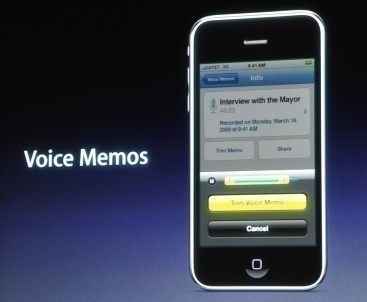
Step 6 – View the iTunes voice memos located under the “Voice Memos” playlist automatically created by iTunes. There is no size limit for Voice Memos being transferred.
How to Wirelessly Extract a Voice Memo from an iPhone
Step 1 – Purchase a third party application (such as the Four Track music recording app) from the iTunes store or directly via the iPhone.
Step 2 – (Specific Instructions for Four Track) Tap the “Song Tools” menu button with the Four Track app open.
Step 3 – Tap “WiFi” and note the subsequently displayed IP address on the iPhone.
Step 4 – Open the web browser on the computer that is connected to the same WiFi network as the iPhone.
Step 5 – Enter the URL noted in Step 3 in the computer’s web browser. Download the voice notes/song files to be transferred that are displayed on the subsequent web screen.

mayjohnson
If you are trying to save multiple voice memos, you can just get them off your device with FonePaw solution, iOS Transfer program.
emi chang
You can extract iPhone voice memos by extracting from iTunes backup with Coolmuster iPhone Backup Extractor.