

An error that most iTunes users will come across at some point is the “iTunes Network Connection Timed Out.” When this error is encountered, there are typically two root causes for the issue: 1 – There is an Internet connection issue or 2 – There is a computer security application or other program blocking the connection between the iTunes application and the Apple servers.
Common iTunes Network Connection Timed Out Errors
The network connection timed out error and related problems are commonly reported by consumers when trying to update their respective iDevice to a newer version of the iOS software. Once the upgrade has occurred, the iPhone, iPad, or iPod Touch then fail to connect to the iTunes Store. Some of the common errors displayed for this error include:
iTunes Error 9808
Variations of iTunes Error -3259
“Network Connection Timed Out”
“There was an error downloading your music (-3259)”
“There is a problem downloading the software”
“iTunes could not connect to the Store. An unknown error occurred (-3259). Make sure your network connection is active and try again.”
“Cannot connect to iTunes Store”
Steps to Fix the iTunes Network Connection Timed Out Error
Step 1 – Determine if your computer or iDevice can connect to the Internet by attempting to browser to non-Apple websites. Many times, iTunes users will forget to try this step and realize that they have an Internet outage 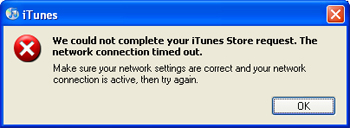 or are no longer connected to a wireless network. If the alternative website loads in the device or computer’s web browser then the Internet connectivity cause can be eliminated as a reason for the error.
Step 2 – Ensure the most current version of iTunes is installed on the target computer. You can verify the version of the iTunes program by selecting the “Help” and then “About” menu options from the primary iTunes file menu. A pop-up window will then display showing the version of the software installed on your computer. You can also select “Help” and “Check for Updates” from the iTunes File menu to check for software updates if manual verification and updating is not desired or too many steps for your personal preferences.
Step 3 – If your computer or portable device is able to browse to websites (and iTunes is up-to-date), then the issue with the iTunes Network Connection timing out is likely due to an antivirus or computer firewall conflict on the computer. In order for iTunes to contact the Apple server it has to be able to use port 80 and port 443 which should be enabled on computer firewalls. Trusted servers include: phobos.apple.com, deimos3.apple.com, albert.apple.com, gs.apple.com, itunes.apple.com, ax.itunes.apple.com, ax.init.itunes.apple.com, and ax.phobos.apple.com.edgesuite.net. Other ports that are considered “well known” that may need to be opened for proper iTunes use include: 3689, 5297, 5298, 5353, 8000-8999, and 42000-42999.
Step 4 – Add the VeriSign servers to the “Trusted” site list in your computer security software. iTunes will attempt to contact either evintl-ocsp.verisign.com or evsecure-ocsp.verisign.com during an iPhone restore and activation.
Step 5 – Disable or uninstall the computer security software installed on your computer temporarily. You may have encountered a case of where your specific software is not fully compatible with iTunes. The temporary removal may be required in some cases of security applications not truly being deactivated with that menu selection. Instead, the program will continue to run in the background and potentially interfere with the proper operation of iTunes. Ensure that all files required to reinstall computer security software are available for use (to include noting the license key). Your computer will be at risk for the timeframe the software is disabled while troubleshooting the iTunes connection error.
Step 6 – For Windows users, if you still encounter iTunes connection errors at this point, uninstalling and then reinstalling the iTunes program has proven effective for some end-users.
Step 7 – Troubleshoot potential home router issues by disconnecting the wireless router and connecting to the Internet directly through your DSL or cable modem. This will not help troubleshoot issues with Apple mobile devices; however, it will help you continue to eliminate potential issues or causes for the connectivity error.
Step 8 – Flush DNS cache on the client computer. DNS (Domain Name System) is a database that translates plan language web addresses to the Internet Protocol (IP). Sometimes these entries can become corrupted and contribute to the iTunes timing out error. As a result, if you flush the DNS (on both Windows and Mac OS X), it can help solve the error.
Step 9 – On Mac OS X 10.5 and 10.6 or later, launch the “Terminal” application from the “Utilities” folder on your computer. Then, enter “dscacheutil –flushcache” at the command prompt followed by the “Return” key. You will not necessarily see any response on the terminal. This is normal and the DNS has been flushed. In Mac OS 10.4 Tiger, the command is slightly different, lookupd –flushcache, but has the same effect.
Step 10 – In Windows XP, Vista, and Windows 7 the DNS cache can be flushed in a similar manner. First, launch the DOS prompt by selecting the “Start” menu button and entering “cmd” in the search text field. Then, enter “ipconfig /flushdns” followed by pressing the “enter” key. Unlike Mac OS X, Windows will then display a message stating that “DNS Resolving Cache has been flushed.” Note that in some versions of windows, you will need to be logged in as an “Administrator” to perform this task.
Step 11 – Restart your computer and try to connect to the iTunes store a final time. If you still receive the “iTunes Network Connection Timed Out” error, then you should seek assistance through iTunes help and submit a trouble ticket to your local ISP since they could be inadvertently blocking the Apple website or associated services.
How to Fix iTunes Error 9808
The iTunes error 9808 is commonly related to the “iTunes Network Connection Timed Out” error; however, is normally limited to only Windows users. The specific 9808 error is referred to as the “Unknown iTunes Store error” and is normally created through a conflict with a third party software application on the Windows operating system (OS).
Step 1 – Exit iTunes if it is running on your computer by selecting the “File” and “Exit” menu buttons.
Step 2 – Launch Internet Explorer. Then, select the “Tools” menu option followed by “Internet Options.
Step 3 – Choose the “Advanced” menu tab and locate the “Security” section of the menu. Uncheck or de-select the “Check for server certificate revocation” menu option.
Step 4 – Restart the computer and open iTunes. The iTunes error 9808 will now be eliminated and the application should be back to normal operation.
What is iTunes Error 7?
Another common iTunes error commonly associated with network connectivity issues is iTunes error 7. This error is normally encountered by end-users running the software on a Windows environment and is associated with a corrupted or bad installation of the Microsoft .NET framework or an error with an Apple Quicktime component.
Step1 – Download the updated version of Quicktime for Windows. After downloading, double click the installation file and install the new Quicktime component.
Step 2 – After completing the Quicktime update, download a new iTunes client and install on the client computer.
Step 3 – Restart the computer and launch iTunes. If iTunes error code 7 is still thrown, then the computer has a bad installation of the .NET framework.
Step 4 – Unfortunately, the Windows OS permits multiple versions of the .NET framework to be installed on the same computer. When this occurs, all need to be active and uncorrupted in order for iTunes to function properly and not throw the iTunes error 7. Based on the version of the Windows OS running on your computer, you will need to download and install or repair all of the .NET installers for the OS starting with the smaller version number. If prompted that the
version of .NET is already installed on your computer; click the “Repair” menu option followed by the next button to repair the install of the .NET framework. After installing the latest .NET component(s) for your computer, restart the computer. Then, launch iTunes and the iTunes error 7 will be resolved.
Windows XP .NET Framework Downloads
Microsoft .NET Framework 3.5 SP 1
Windows Vista .NET Framework Downloads
Microsoft .NET Framework 3.5 SP 1
Windows 7 .NET Framework Downloads
How Do You Fix iTunes Error 1013 in Windows?
The iTunes error 1013 is another related error to the iTunes Network Connection Timed Out issue encountered by many iTunes users. One of the more recent errors to emerge, error 1013 is most commonly associated with the upgrading of the iPhone 4 to iOS 4.2.1.
Step 1 – Choose the “Start,” “Programs” and “Accessories” menu options on your computer. Then, launch “WordPad” by clicking the program icon.
Step 2 – Choose the “File” and “Open” menu options and use the program’s file chooser to navigate to “Windows,” “System32,” “Drives,” and the “Etc” folders.
Step 3 – Change the “Files of Type” menu choice to “All Documents” and open the computer’s “Hosts” file in Wordpad.
Step 4 – Delete the “gs.apple.com” entry from the Hosts file and click the “Save” menu option.
Step 5 – Restart your computer. Then connect the iPhone and choose the menu option to perform a device or iPhone restore. After the restoral is completed, iTunes error 1013 will be eliminated.
How Do You Fix iTunes Error 1013 in Mac OS X?
Step 1 – Choose the “Applications” and then “Utilities” folders on the computer. Then, launch the “Terminal” application.
Step 2 – Type or enter “sudo nano /etc/hosts” and press the “Return” key on the computer.
Step 3 – Enter the computer’s administrator password. Find and delete the “gs.apple.com” entries located in the file.
Step 4 – Press “CTRL” and “O” to save the file and then “CTRL” and “X” to exit the text editor.
Step 5 – Restart iTunes and then connect your iPhone to the computer. Continue with a full restoral of the phone to finish correcting the iTunes error 1013.
Fixing iTunes Error 1601
iTunes error 1601 is normally thrown after an iPod or iPhone is restored using iTunes. The specific error thrown will state, “The iPhone could not be restored. An unknown error occurred (1601.” A similar message is thrown for the iPod, except error code 1602 is thrown. Once the error is received, you will not be able to connect to the iTunes store with the device and iTunes on the primary computer will not be able to update the devices with new data, music, or other multimedia files purchased from the store.
Steps to Fix iTunes Error 1601 on Mac OS X
Step 1 – Remove the iDevice from the computer and exit iTunes.
Step 2 – Launch or open the Mac “Finder.” Then, drag the iTunes icon to the Trash.
Step 3 – Choose the “Go” and the “Go to Folder” menu choices and click the “/System/Library/Extensions” followed by choosing the “Go” menu button.
Step 4 – Move the “AppleMobileDevice.kext” file to the Trash.
Step 5 – Choose the “Go” and “Go to Folder” menu choices and open “/Library/Receipts/” choice.
Step 6 – Click the “Go” button and drag the “AppleMobileDeviceSupport.pkg” file to the computer’s trash. In newer versions of Mac OS X this file may not be present. During this step, the OS may ask you to enter the administrator password for the computer.
Step 7 – Restart the computer and choose the “Finder” and then click the “Empty Trash” menu buttons.
Step 8 – Download and reinstall iTunes on the computer and the error will be removed.
Steps to Fix iTunes Error 1601 on Windows
Step 1 – Choose the “Start” menu button and open the computer’s Control Panel.
Step 2 – Pick the “Add/Remove Programs” menu option and choose the menu choice to remove the following applications in sequential order: QuickTime, Apple Software Update, Apple Mobile Device Support, Bonjour, and Apple Application Support.
Step 3 – Input the computer’s administrator password when prompted during the removal of each of the programs listed in step 2.
Step 5 – Restart the computer and download the iTunes application. Reinstall following the default menu prompts.
Step 6 – Launch iTunes and then connect the iPhone, iPod, or iPad to complete correcting the iTunes 1601 error.

Keith Argyle
Can you resolve a problem, I have some one who tells me that she has to pay her iTunes internet payment every week or she is cut off. I sent her a £50 iTunes card and she said it only paid for two weeks. I live in the UK and she lives in Michigan USA. I find what she is saying hard to believe. I checked into iTunes internet payment and was informed that an iTune user has to take out a 24 month agreement and make regular monthly payments.
She said she could transfer the UK card and pay for her phone payment. I have to admit that I am becoming very suspicious about this situation and feel I’m being conned.
Would you please advise me on this and let me know if she can do what she says she can. I will not be sending anything else until I know if what I’m told by her is true or not.
I remain your in anticipation of a quick reply.
Keith Argyle
BacchusPlateau
Thank you so much for posting this.
Nick
Just found another reason for this (after exploring all the possibilities suggested above):
Google DNS was blocking iTunes!
I have also just discovered Google DNS may be responsible for slow AppleTV downloads/streaming that I occasionally experience.
So good-bye Google DNS.
I hope this helps someone else!
richard lee morris
I got the iOS 8 update without using iTunes! I simply applied the update directly on my device connected via Wi-Fi.. I have Windows 7 and latest iTune 11.4. The iOS 8 update worked fine on my device the first time. Attempting to use iTunes the download failed repeatedly, as described in this article “itunes network connection timed out.”
primetyme
I had been frustrated for months in updating a phone with the newest software. I came across this, disabled and my turn off my Kaspersky and it actually worked! What a quick fix. Good to know my Kaspersky is working as well.
Thanks
Sri
Thank you! My problem is resolve as anti-virus was not allowing to connect to iTune store
Chuck
Traci,
No need to call Apple. You will get the same information that is here. I went there and still no download, just the network has timed out message pops up over and over.
Chuck
Traci
this whole update thing is so stupid. I also have the same problem everyone is saying quite frankly i am p o that if i call apple i gota pay to talk to someone unreal. Giv me my blackberry back ! I plain giv up on tryn this update
adam
i have tried pretty much everything to get itunes to work again and i havent found anything to work. i’ve turned off the proxy, made sure the firewall was down, reinstalled itunes, used the command prompt, etc. could it possibly be old virus protection software like Norton and Malwarebytes??
AppleSupport
before updating to any iOS, disable ALL antivirus and firewalls. they block your access to the apple update servers. In the most extreme cases, you have to uninstall the antivirus software altogether. Also, try flushing your DNS and restoring your original hosts files. When uninstalling iTunes, make sure you uninstall all SIX components, not just iTunes.
tamer
i dont know what is happening but i got a good internet connection
i got internet explorer 9
and i tried to shut down avg firewall and i tried to work on windows fire wall and i tried to shutdown all firewalls (has very high risks!) but it didnt somtimes he connect sometimes not
Scott
I’ve just fixed this problem, ‘Proxy server’ had become ticked in the Internet Settings in Internet Explorer.
Terry G
I have been geting this error for weeks I tried to update to the last iphone update and now that ios5 is out I obviously want to update to this too.
I have the latest itunes, have turned off my firewall (kaspersky), I am using IE 8
Nothing else has any issues.
I am so frustrated bythis whole Apple/MS thing and jus want my phone to be up to date!
Paula J.
Thank you so much. I’ve been trying for days to update my iPhone. Turning off Kaspersky worked!! wish I would googled this sooner.
Michele
OMG! I have been trying to fix this for days! Low and behold, all I had to do was turn off my Kaspersky! Go Figure!
Dave B
After dozens of attempts and receiving the timed out message, I disabled Kaspersky and downloaded IOS5 first time.
George .
Turning off Kaspersky worked for me also. Would have been nice if such “easy” fixes were noted by Apple support somewhere!
prdkumar
thanks for the information. it is help me to solve the problem
Shae
Have read the above comments and am now sure that updating my iPad to iOS5 will work once I figure out how to pause Kaspersky…. Help anyone, please? How do you pause Kaspersky? I have turned off the firewall so am going to see if that works, but please let me know if that is not what was meant by ‘pause’.
Thanks in advance
Pete
thanks for the helpful tip. i paused my kasperky anti-virus protection and was able to update with no interruptions.
Davidbostero
If you have Windows 7, open a new accout. Go to the control panel and switch or create a new user. It worked for me.
ww
I had and solved the timed-out problem. I have Windows XP, iPod Touch 3G, and was trying to update my iPod from 4.2.3 to 4.2.5. I bypassed my Linksys router by disconnecting it and connecting my Motorola modem by ethernet directly to my Dell tower. Of course, I could do it this way because I didn’t need the router which is only used to service our remote laptop. So, I guess with the router in the loop, it attenuated the connection enough to cause the process to take too long. As soon as I bypassed the router, the download began by immediately showing 3 or 4 minutes to go, whereas it was twice that–and more–with the router in the loop. Hope this helps.
Gary
Kaspersky was the problem for me. Excellent help. Thanks
Mary
Kaspersky was ALSO the problem for me! Thank you so much for all the help!
James
Yep, disabled my Kaspersky Anti-Virus and the iphone update went great !
Chris
Mine was timing out as I hadn’t authorised the computer. Surely they could have written something to tell me that.
Their error logging needs a bit of work!!
jesteban
Hey there, another Kaspersky pause that solved the problem. Simple, protectless and wird. Itunes has so low level solving problems here!
Natalie D
Turning Kasersky off did it for me too. Thank you so much for the posting guys! 🙂
Rudy
thank you very much , i fix mine after endeless hours
Aren
The Kaspersky v. 11.0.1.400 must be paused — that’s all I did (the Firewall stayed as is). Using WIN 7, I tried everything else, but now a fact I know that the Antivirus was the culprit.
dejavuu
thanks……… change of time settings and antivirus turning off solve a 6hours problem i really appreciate you guys but come to think of it how on this whole wide world did apple expect me to know or follow this steps……………
Ryan
I am a windows 7 user and could not figure out the problem. Here is a step by step process for other Windows 7 users. Open Control Panel, Under the Network and Internet Categorie click View Network Status and Tasks, then at the bottom click Troubleshoot problems. Be paitent, Control panel is looking through Microsoft’s Troubleshooting Wizards. Once they show up, click the fourth one down, Network Adapter; Troubleshoot ethernet, wireless, or other network adapters. Just follow the steps and hopefully it will work for you.
Sansira
I had the network connection timed out with windows XP and itunes 10.2 when trying to authorize my account. It had nothing to do with network settings and none of the online suggestions worked. I logged into the store online and realized my account address was US and I am in Canada. In iTunes, the store defaulted to Canada. Once I changed the iTunes store country (by clicking the flag at the bottom of the store iTunes page) to Canaada, it worked. Make sure your account Country and iTunes store Country are the same!
JB
Was having the same trouble trying to update my son’s 3Gen ipod 32Gb from ios 4.2 to 4.2.1. No problem with my 8Gb.
Did the clock sync and turned off Kapersky firewall and web antivirus and it worked.
Download and update went through without a problem.
Thanks for the help. Shame Apple do not feel any responsibility to their customers!
Rupali Saxena
I have the same iPod as your son, and I have kaspersky as well. I hope to try your method, but first, what is “clock sync”?
Ian
Sync your PC’s clock with time-b.nist.gov. This has fixed the problem for some (but not me.)
Naegea
Connection would time out while trying to connect to itunes store. After trying everything I called my isp their advice was to unplug router for a minute or two then plug it back in. It worked.
Marlon Franco
Yup, there are times that we have to refresh our network connection, for our application to work.
Melissa
I cannot thank you enough for this post! I have tried numerous times to restore my daughters iTouch after she forgot her password. I was ready to give up, then I found your suggestions. I turned off Kapersky and it WORKED! THANK YOU SO MUCH!!!!
Deanne
Thank you very much for the advice of turning off Kaspersky. I wish I would have found this posting months ago. I have spent HOURS trying to update my phone and even had to go to the Apple store to do it. It worked for the first time tonight after reading the post. I can’t thank you enough.
Rich
When you say you turn off Kaspersky…do you mean you are turning off the firewall? If not, then what do you mean by “turning off”?
Mike
Had the same Timed Out error message for the past 3 update and couldn’t find a fix – especially from Apple. I followed the advice above and turned off Kaspersky and the download went straight through.
Many thanks for the tip
Martin
CONNECTION TIMMED OUT FIX (Update or Restore)
So, there are a few ways of possibly fixing this:
1. (this helped me) Make sure the Itunes has “permision to make changes to your computer”. Its should ask you if you give permision automaticaly, but not always.
2. Make sure the Itunes is not getting blocked by your fire wall (start>search>firewall>add program or feature to windows firewall)
3.Your anti virus might be blocking it without you knowing it, so try turning it off fot the time youre restoring/updating your device.
Hope this helped someone out there. 😀
MamaLesa
I was having the same problem; could not get through the download of the update for iPhone. First, I was getting a network error at the beginning of the download so i hunted for solutions and discovered the UDP port issue. I went in to the firewall and included iTunes on the exceptions list so that all of the necessary ports would be open. That fixed the immediate download issue but then the download would time out. After reading this forum I temporarily disabled ESET antivirus and poof! It all worked fine.
Thanks to everyone for posting!
Morgan
Hello, I found the solution to this problem. For some reason, if your clock is not 100% synchronized, iTunes will not let you download. I have been going back and forth for days with itunes support and just found this out doing extensive research. i tried it, and now the timeout error is gone and downloading begins.
To fix: (For Windows 7 users) However all users can do this.
Click on your system clock in lower right corner of your screen.
Click on Change Time and Date Settings.
Click on Internet Time Tab
Click on Change Settings
Now click on Update Now.
**After a couple of minutes, Itunes should start downloading fine. I hope this helps everyone.
M&M
Lucky me. Download bar said it’d take 2 hours. Left alone, it timed out every time. So finally I messed around in itunes off & on for the complete 2 hours, just to see if that would keep the connection active. That did it for me! the 2 hour download finished and my ipad download, synchronization, installation, the whole shebang finished successfully.
anya
This worked! Just plaid songs until it finished. Thanx!
Derek 80
Hi there to all. After trying out several of your posts. To the timeout problem on
The ios4.2 upgrade.I exited my kapersky 2011 security and tried again, this time it worked, I now have the upgrade on my IPad
The download takes 10mins with install a further 23 mins ,so a chance of intruder
Don’t forgetful restat your security
JDL
Yes, turning off Kasperskey did it for me too
Tim
I had the same issue on a brand new computer with Windows 7. File would completely download, then I would get “network connection” error at the end. I disabled the Windows Firewall and disabled Kaspersky Anti-virus and then it worked. I suspect Kaspersky was the culprit.
mimi
Thank you so much for this tip. It worked for me after I turned off KIS2011. The problem drove me nuts!
berniemac
Yes, turning off Kasperskey did it for me too and i also turned off the firewall just in case
julybornjj
Yep, turnoff KAV. It’s work for me too. Cheer!
Thanks GUYS.
😀
emily
how to turn off kasperskey?
Daniel Memenode
This thread on Apple forums suggests trying “download only”, adding iTunes to the trusted apps in your antivirus software and setting it to “ignore network connections”. It apparently fixed it for them.
If not then it may indeed be overloaded servers although Apple really shouldn’t have those kinds of problems. :S
JaiLa
I’m having the same problem… I start the download for the new ios, it downloads ll of it, says it’s processing, and after a minute or two, throws up the “Your network connection timed out” error. I’ve tried 3 times today, with same results. I’m annoyed because I’m using all my data plan downloading software that crashes out at the very end, never mind the frustration of not being able to download the new ios! I suspect it’s caused by apples servers being in such high demand at the moment due to the new ios release.
Derek 80
Have just tried 4 times to upgrade my Ipad to the new 4 OS released on the 22nd and each time I get Net timeout after 7 mins of downloading. my net server works just fine with just the exception with Itunes. Any solutions wuold be welcome to adjust server time out settings
Chriss
In my case the problem was due to too many songs waiting to be downloaded (233). I contacted Itunes and they reduced the number of songs to 133, and I was able to connect and download these successfully. (Now I have to get them to set up the remainder for download.) So it appear it has something to do with having a large amount of data to be downloaded.
Dmac
I too am having this problem. Unable to download music and apps which I have already paid for! Tried all the obvious fixes, with no luck. I’m running PC, with Windows XP (Media Center Edition, which is also a disaster).
Daniel Memenode
TulipDawn, you might have stumbled on a solution, at least if by user id you mean your Windows user account. Anyway, check out this Yahoo Answers thread.
Basically, the guy solved it by creating a special Windows account and using iTunes with that.
It might not be an universal solution though. The above article and the link I posted earlier give a pretty broad array of potential solutions which I really hope should be enough for most people.
And btw.. despite being downvoted when I said don’t buy iPods (which lock you in to using iTunes), I still stand by that. If there’s a long standing problem that Apple doesn’t show interest in fixing for years on end, one way to avoid the problem is to go with an alternative, and there are plenty. iPods aren’t the only mp3 players and iTunes isn’t the only music player or music store!
Kloner
Its 2010 & the problem still exists. I have been searching for solutions to the problem. I am running Vista and I recently bought the new itouch 32GB and can’t get the latest 4.0.2 version downloaded so I can keep updating. If Apple can’t fix it through their support dept, then who? I have tried every posted fix & the same result. Makes me wonder what problems lies with the Ipad OS which was next on my list for purchase. If we can’t update what are we suppose to do?
Daniel Memenode
Originally posted by Shannan: “
Could it be because whenever I have to download the newest version of iTunes and than about 2 other things I only download the newest version of iTunes?”
Probably not, it should download all of it without issues. Perhaps this article could be of further help. Same for Vivienne. It lists some possible fixes.
Shannan
I’m having this problem with my purchases from the store. It will start to download but than it pops up that my connection timed out.
Could it be because whenever I have to download the newest version of iTunes and than about 2 other things I only download the newest version of iTunes?
Vivienne
I’m having this problem with iTunes – it wont let me update my software – I currently have 3.0 for my iPhone – it’s telling me I have update 4.01 ready to download I start to download then it tells me the network connection has timed out. It doesnt seem to matter what I do or who I talk to I keep getting the same result??? NOTHING Has anyone got any ideas to help me please!!!
This has been going on for months it’s driving me insane 😥 😮
Mark
I’m having this exact same problem, my internet access is fine, I’m not using proxy and internet explorer connects just fine! I think it may be a firewall issue, but ive reset and reconfigured windows firewall so many times! If it helps with the troubleshooting, google chrome and frostwire dont connect either.