

A network or network infrastructure is the grouping of hardware devices and software components needed to connect devices within an organization and to connect the organization to other organizations and the Internet. The network infrastructure’s physical hardware and logical components are needed to provide a number of features for the network, including connectivity, routing and switching capabilities, network security, and access control. The network or network infrastructure has to exist before a number of servers needed to support applications that users need can be deployed into a networking environment.
Therefore, when planning a network design and deciding on the computers for the network, the functions the computer will be performing must be known. Understanding these functions will put the network designer in a good position to determine the hardware and software components the computers need.
Windows Server 2003 itself provides a number of features and tools when installed on a computer. Additional features and functions have to be implemented on a server to provide the services and capabilities that the organization and its users require. In fact, until these additional features and functions make certain services available, the computer cannot be used as users require.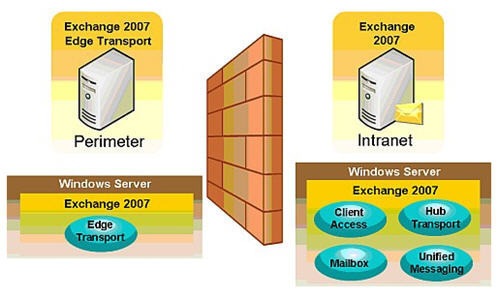
Computers required on a network can be broadly grouped according to the following roles:
- Server roles – servers can be configured to perform a number of roles. The applications that the server is running specify the particular server’s role. Servers typically need services and additional features installed to perform its specific role. When compared to workstations, servers have more disk space and memory and faster processors. The server’s role determines the hardware that servers require. A few common server roles are listed below:
- Domain controller
- Database server
- Backup server
- File server
- Print server
- Infrastructure server
- Web server
- E-mail server
- Desktop workstation roles – desktop workstations differ from servers in that desktop workstations are general purpose computers that can perform a number of functions.
- Portable workstation roles – portable workstations are the solution to bringing a desktop computer’s features to an off-site employee.
Windows Server 2003 introduced the concept of server roles. Server roles basically group related administrative tasks and provide a specific capability or function for the network design. With Windows Server 2003, if a server is configured for a certain server role, then a number of additional services, features, and tools are installed for the server. In this manner, the server is set up to provide users with the required services.
Windows Server 2003 provides a new tool for defining and managing server roles, namely, the Manage Your Server utility. The actual Wizard for applying the server roles to computers is the Configure Your Server Wizard. The Configure Your Server Wizard is included within the Manage Your Server utility and is also managed through this utility.
For Windows Server 2003, there are 11 different server roles that can be configured with the Configure Your Server Wizard:
- File server
- Print server
- Application server
- Mail server
- Terminal server
- Remote access server/VPN server
- Domain controllers
- DNS server
- WINS server
- DHCP server
- Streaming media server
Understanding the File Server Role
The file server role is a widely used role when configuring servers in Windows Server 2003 based networks. This is due to the file server role storing data for network users and providing access to files stored on the file server. The file server role is not available in the Windows Server 2003 Web Edition. Users that have the necessary rights to access the directories in which the files are stored can access a file stored on a file server volume.
File servers provide the following functions:
- Enable users to store files in a centralized location.
- Enable a user to share files with another user.
A few file server role characteristics and features are:
- Files and folder resources can be shared between network users.
- Administrators can manage the following file server aspects:
- Access to files and folders
- Disk space
- Disk quotas can be implemented to control the amount of space that users can utilize.
- For file servers that have NTFS volumes:
- NTFS security can be used to protect files from users who are not authorized to access the files and folders.
- Encrypting File System (EFS) enables users to encrypt files, folders, and entire data drives on NTFS formatted volumes. EFS secures confidential corporate data from unauthorized access.
- Distributed File System (DFS) provides a single hierarchical file system that assists with organizing shared folders on multiple computers in the network. DFS provides a single logical file system structure by concealing the underlying file share structure within a virtual folder structure. Users only see a single file structure even though there are multiple folders on different file servers within the organization.
- The Offline files feature can be enabled if necessary. Offline Files make it possible for a user to mirror server files to a local laptop and ensures that the laptop files and server files are in sync. Offline Files ensure that laptop users can access the server based files when they are not connected to the network.
Understanding the Print Server Role
The print server role provides network printing capabilities for the network. Through the print server role, a server can be configured to manage printing functions on the network. Users typically connect to a network printer through a connection to a print server. The print server is the computer where the print drivers are located that manage printing between printers and client computers. The print servers supply clients with the necessary printer drivers through Windows NT, Windows 2000, Windows XP, and Windows Server 2003. The print servers also manage communication between the printers and the client computers. The print servers manage the print queues and can also supply audit logs on jobs that users printed. A network interface printer is a printer that connects to the network through a network card. The print server role is not available in the Windows Server 2003 Web Edition.
When deciding on a print server, ensure that the print server has sufficient disk space to store print jobs waiting in the printer queue. It is recommended that a dedicated, fast drive is used for the print spooler. Users should consider implementing a print server cluster if their enterprise needs exceptional reliability and performance when it comes to printing.
A few print server characteristics are:
- The Windows Management Instrumentation (WMI) – a management application program interface (API) can be used to manage printing on the network.
- Print servers can also be remotely managed.
- Administrators can control when printing devices can be utilized.
- Administrators can control access to printers.
- Priorities can be defined for print jobs.
- Print jobs can be paused, resumed, and deleted and viewed.
- Printers can be published in Active Directory so that access to printers can be controlled according to Active Directory accounts.
Understanding Web Servers
The application server role makes web applications and distributed applications available to users. A web server typically contains a copy of a World Wide Web site and can also host web based applications. When a Web server is installed, users can utilize Web based applications and download files.
When a web server is added through the application server role, the following components are installed:
- Internet Information Services 6.0
- The Application Server console
- The Distributed Transaction Coordinator (DTC)
- COM+, the extension of the Component Object Model (COM)
Internet Information Services 6.0 (IIS 6.0) is Microsoft’s integrated web server that enables users to create and manage websites within an organization. Through IIS, users can create and manage websites and share and distribute information over the Internet or intranet. With the introduction of Windows Server 2003 came the advent of Internet Information Services (IIS) 6. IIS 6 is included with the 32-bit version and the 64-bit versions of the Windows Server 2003 Editions. IIS 6 include support for a number of protocols and management tools that enable users to configure the server as a Web server, File Transfer Protocol (FTP) server, or Simple Mail Transport Protocol (SMTP) server. The management tools included with Windows Server 2003 allows users to manage Internet Information Services on the Windows Server 2003 product platforms.
Before IIS 6 Web servers can be deployed within an enterprise, the user must first install Windows Server 2003 or upgrade to Windows Server 2003. After Windows Server 2003 is installed, for all editions of Windows Server 2003 other than the Web Edition, IIS 6 can be installed from the Configure Your Server Wizard. When users first log on after Windows Server 2003 is installed, the Manage Your Server Wizard is initiated. To start the Configure Your Server Wizard, choose the Add Or Remove A Role link then follow the Configure Your Server Wizard prompts to install the Application Server (IIS, ASP.NET) option.
The protocols that IIS 6.0 supports, the Microsoft integrated Web server, are listed here:
- Hypertext Transfer Protocol (HTTP) is a TCP/IP application layer protocol used to connect to websites and create web content. HTTP handles the publishing of static and dynamic Web content. An HTTP session consists of a connection, an HTTP request, and an HTTP response.
- Port 80 is used for HTTP connections. The client establishes a TCP connection to the server with a TCP three way handshake.
- After the connection is established, the client sends an HTTP GET request message to the server.
- The server sends the client the requested web page.
- HTTP Keep-Alives maintains the TCP connection between the client and server, if it is enabled, so that the client can request additional pages.
- If HTTP Keep-Alives is not enabled, the TCP connection is terminated after the requested page is downloaded.
- File Transfer Protocol (FTP) is a TCP/IP application layer protocol used to copy files to and from remote systems through the Transmission Control Protocol (TCP). FTP makes it possible for clients to upload and download files from an FTP server over an internetwork. Users can create and administer FTP servers through IIS. An FTP server and FTP client are needed to use the protocol. An FTP session has a connection, a request, and a response.
- The client establishes a TCP connection to the FTP server through port 21.
- A port number over 1023 is assigned to the client.
- The client sends an FTP command to port 21.
- If the client needs to receive data, another connection is created with the client to convey the data. This connection utilizes port 20.
- The second connection remains in a TIME_WAIT state after the data is transferred to the client. The TIME_WAIT state makes it possible for additional data to be transferred. The TIME_WAIT state ends when the connection times out.
- Network News Transfer Protocol (NNTP) is a TCP/IP application layer protocol used to send network news messages to NNTP servers and NNTP clients on the Internet. NNTP is a client/server and server/server protocol. The NNTP protocol enables an NNTP host to replicate its list of newsgroups and messages with another host through newsfeeds with a push or pull method. An NNTP client can establish a connection with an NNTP host to download a list of newsgroups and read the messages contained in the newsgroups. Through NNTP, users can implement private news servers to host discussion groups or implement public news servers to provide customer support and help resources to Internet users. It can be specified that users need to be authenticated to read and post items to newsgroups or they can be allowed access to everybody. The NNTP service can also integrate with the Windows Indexing Service to index newsgroup content. It is also fully integrated with event and performance monitoring of Windows Server 2003.
- Simple Mail Transfer Protocol (SMTP) is a TCP/IP application layer protocol that routes and transfers e-mail between SMTP hosts on the Internet. SMTP enables IIS machines to operate as SMTP hosts to forward e-mail over the Internet. IIS can be utilized instead of Sendmail. SMTP also enables IIS machines to protect mail servers such as Microsoft Exchange servers from malicious attacks by operating between these servers and Sendmail host at the organization’s ISP. SMTP can be used to forward mail from one SMTP host to another. SMTP cannot deliver mail directly to the client. Mail clients use POP3 or IMAP to receive e-mail. Windows Server 2003 includes the POP3 service for providing clients with mailboxes and for handling incoming e-mail. To use the SMTP as an IIS component, the SMTP service has to be installed first if a Windows Server 2003 Edition other than the Windows Server 2003 Web Edition is being run. The SMTP service is installed on the Windows Server 2003 Web Edition by default.
Understanding the Mail Server Role
The mail server role provides e-mail services for the network by providing the functions needed for users to both send and receive e-mail messages. A mail server has to exist for users to send e-mail to each other. When a mail server receives e-mail for a user, it stores the e-mail for the intended user until that particular user retrieves it from the mail server.
A mail server’s primary functions are to:
- Store e-mail data
- Process client requests
- Receive incoming e-mail from the Internet
When a server for the mail server role is configured, the following TCP/IP based protocols are installed:
- Simple Mail Transfer Protocol (SMTP) – is a TCP/IP application layer protocol used for routing and transferring e-mail between SMTP hosts on the Internet. IIS 6 has to be installed to install both the SMTP service and the Post Office Protocol 3 (POP3) service. The SMTP service has to be installed because mail servers and clients utilize this service to send e-mail.
- Post Office Protocol 3 (POP3) – mail clients use the POP3 service or IMAP to receive e-mail. Windows Server 2003 includes the POP3 service for providing clients with mailboxes and for handling incoming e-mail. The POP3 service also enables clients to retrieve e-mail from the mail server.
Understanding the Terminal Server Role
Terminal Services have the ability to operate as an application server that remote clients can connect to and run sessions from. The Terminal Services server runs the applications. The data response is transmitted back to the Terminal Services client. Clients can access Terminal Services over a local area connection or a wide area connection. Terminal Services clients can be MS-DOS based clients, Windows for Workgroups clients, (version 3.11), Windows based terminals, and Macintosh clients.
When a user connects to a Windows Server 2003 server using Remote Desktop, the server’s, not the workstation’s resources are used. The terminal is only responsible for the keyboard, mouse, and display. Every user has its own individual Terminal Services session. Sessions are unique and do not affect one another. In this manner, a user connecting to a Windows Server 2003 server through Remote Desktop functions as a terminal on that server.
Once a client connects with Terminal Services, it creates a Terminal Services session for the client. The Terminal Services server handles all processing. Clients use insignificant bandwidth on the underlying network when they establish a connection. Terminal Services is therefore popular in WANs where bandwidth is limited. It is also suited for mobile users who have to execute processor intensive applications over a dial-up connection. In this case, the local machine only needs to handle the console. When applications need to be installed or updated, a single instance of the application can be installed or updated on the Terminal Services server. Users will have access to the application without it having to be installed or updated on all machines.
Remote Desktop Protocol (RDP) is the protocol that manages communications between a computer running Terminal Services and a client computer running a Terminal Server client. The connection can be established with Terminal Services on a terminal server. The RDC utility can be used for complete terminal server client utilization or it can be used for Remote Administration. Remote Desktop Connection is by default installed with Windows XP and Windows Server 2003. However, Remote Desktop Connection can be installed on the previous Windows Operating Systems (OSs) such as Windows 2000, Windows NT, Windows ME, Windows 98, and Windows 95. The RDC utility is backward compatible and can therefore interact with Terminal Services in Windows XP, Windows 2000, and Windows NT 4 Terminal Server Edition.
Understanding the Remote Access and VPN Server Role
The Windows Server 2003 remote access and VPN server role can be used to provide remote access to clients through either of these methods:
- Dial-up connections – Dial-up networking makes it possible for a remote access client to establish a dial-up connection to a port on a remote access server. The configuration of the dial-up networking server determines what resources the remote user can access. Users that connect through a dial-up networking server connect to the network much like a standard LAN user accessing network resources.
- Virtual private networks (VPNs) – Virtual Private Networks (VPNs) provide secure and advanced connections through a non-secure network by providing data privacy. Private data is secure in a public environment. Remote access VPNs provide a common environment where many different sources such as intermediaries, clients, and off-site employees can access through web browsers or email. Many companies supply their own VPN connections via the Internet. Through their ISPs, remote users running VPN client software are assured private access in a publicly shared environment. By using analog, ISDN, DSL, cable technology, dial, and mobile IP, VPNs are implemented over extensive shared infrastructures. Email, database, and office applications use these secure remote VPN connections.
A few features and capabilities that the RRAS server provide are:
- LAN-to-LAN routing and LAN-to-WAN routing
- Virtual private network (VPN) routing
- Network Address Translation (NAT) routing – NAT, defined in RFC 1631, translates private addresses to Internet IP addresses that can be routed on the Internet
- Routing features, including
- IP multicasting
- Packet filtering
- Demand-dial routing
- DHCP relay
- Assign DHCP addresses to RRAS clients
- Remote Access Policies (RAPs) – RAPs are used to grant remote access permissions.
- Layer Two Tunneling Protocol (L2TP) combines Layer 2 Forwarding (L2F) of Cisco with Point-to-Point Tunneling Protocol (PPTP) of Microsoft. L2TP is a Data-link protocol that can be used to establish Virtual Private Networks (VPNs).
- Internet Authentication Service (IAS) – a Remote Authentication Dial-In User Service (RADIUS) server that provides remote authentication, authorization, and accounting for users that are connecting to the network through a network access server (NAS) such as Windows Routing and Remote Access.
Understanding the Domain Controller’s Role
A domain controller is a server that stores a write copy of Active Directory and maintains the Active Directory data store. Active Directory was designed to provide a centralized repository of information or data store that could securely manage an organization’s resources. The Active Directory directory services ensure that network resources are available and that users can access said network resources, applications, and programs. Active Directory also makes it possible for administrators to log on to a network computer and manage Active Directory objects on a different computer within the domain.
A domain controller is a computer running Windows 2000 or Windows Server 2003 that contains a replica of the domain directory. Domain controllers in Active Directory maintain the Active Directory data store and the domain’s security policy. Therefore, domain controllers also provide security for the domain by authenticating user logon attempts.
The domain controller role’s main functions within Active Directory are:
- Each domain controller in a domain stores and maintains a replica of the Active Directory data store for the particular domain.
- Domain controllers in Active Directory utilize multimaster replication. What this means is that no single domain controller is the master domain controller. All domain controllers are considered peers.
- Domain controllers also automatically replicate directory information for objects stored in the domain between one another.
- Updates that are considered important are replicated immediately to the remainder of the domain controllers within the domain.
- Implementing multiple domain controllers within the domain provides fault tolerance for the domain.
- In Active Directory, domain controllers can detect collisions. Collisions take place when an attribute modified on one particular domain is changed on a different domain controller prior to the change on the initial domain controller being fully propagated.
Certain master roles can be assigned to domain controllers within a domain and forest. Domain controllers that are assigned special master roles are called Operations Masters. These domain controllers host a master copy of specific data in Active Directory. They also copy data to the remainder of the domain controllers. There are five different types of master roles that can be defined for domain controllers. Two types of master roles, forest-wide master roles, are assigned to one domain controller in a forest. The other three master roles, domain-wide master roles, are applied to a domain controller in every domain.
The different types of master roles that can be configured on domain controllers are:
- The Schema Master is a forest-wide master role applied to a domain controller that manages all changes in the Active Directory schema.
- The Domain Naming Master is a forest-wide master role applied to a domain controller that manages changes to the forest, such as adding and removing a domain. The domain controller serving this role also manages changes to the domain namespace.
- The Relative ID (RID) Master is a domain-wide master role applied to a domain controller that creates unique ID numbers for domain controllers and manages the allocation of these numbers.
- The PDC Emulator is a domain-wide master role applied to a domain controller that operates like a Windows NT primary domain controller. This role is typically necessary when there are computers in an environment running pre-Windows 2000 and XP operating systems.
- The Infrastructure Master is a domain-wide master role applied to a domain controller that manages changes made to group memberships.
A Global Catalog (GC) server(s) can also be installed on a domain controller. The global catalog is a central information store on the Active Directory objects in a forest and domain and is used to improve performance when searching for objects in Active Directory. The first domain controller installed in a domain is designated as the global catalog server by default. The global catalog server stores a full replica of all objects in its host domain and a partial replica of objects for the remainder of the domains in the forest. The partial replica contains those objects that are frequently searched for. It is generally recommended to configure a global catalog server for each site in a domain.
The global catalog server’s functions are summarized below:
- Global catalog servers are crucial for Active Directory’s UPN function because they resolve user principal names (UPNs) when the domain controller handling the authentication request is unable to authenticate the user account because the user account actually exists in another domain. Here, the GC server assists in locating the user account so that the authenticating domain controller can proceed with the logon request for the user.
- The global catalog server deals with all search requests for users searching for information in Active Directory. It can find all Active Directory data irrespective of the domain in which the data is held. The GC server deals with requests for the entire forest.
- The global catalog server also makes it possible for users to provide Universal Group membership information to the domain controller for network logon requests.
Understanding the DNS Server Role
Domain Name Service (DNS) is a hierarchically distributed database that creates hierarchical names that can be resolved to IP addresses. The IP addresses are then resolved to MAC addresses. DNS provides the means for naming IP hosts and for locating IP hosts when they are queried for by name.
The DNS server role resolves IP addresses to domain names and domain name to IP addresses. In this way, DNS provides name resolution services to establish connections for those clients that need to resolve to IP addresses. A Fully Qualified Domain Name (FQDN) is the DNS name that is used to identify a computer on the network.
A DNS server is a computer running the DNS service or BIND that provides domain name services. The DNS server manages the DNS database that is located on it. The information in the DNS server’s DNS database pertains to a portion of the DNS domain tree structure or namespace. This information provides responses to client requests for name resolution. A DNS server is authoritative for the contiguous portion of the DNS namespace over which it resides.
When a DNS server is queried for name resolution services, it can do one of the following:
- Respond to the request directly by providing the requested information.
- Provide a pointer (referral) to another DNS server that can assist in resolving the query.
- Respond that the information is unavailable.
- Respond that the information does not exist.
Different server roles can be configured for DNS servers. The server role configured for a DNS server affects the server’s following operations:
- The way in which the DNS server stores DNS data.
- The way in which the DNS server maintains data.
- Whether the DNS data in the database file can be directly edited.
The different DNS server roles that can be configured are:
- Standard Primary DNS server – This DNS server owns the zones defined in its DNS database and can make changes to its zones. A standard primary DNS server obtains zone data from the local DNS database. The primary DNS server is authoritative for the zone data that it contains. When a change needs to be made to the zone’s resource records, it has to be done on the primary DNS server so that is can be included in the local zone database. A DNS primary server is created when a new primary zone is added.
- Standard Secondary DNS server – This DNS server obtains a read-only copy of zones through DNS zone transfers. A secondary DNS server cannot make any changes to the information contained in its read-only copy. A secondary DNS server can however resolve queries for name resolution. Secondary DNS servers are usually implemented to provide fault tolerance, provide fast access for clients in remote locations, and distribute the DNS server processing load evenly. If a secondary DNS server is implemented, that DNS server can continue to handle queries when the primary DNS becomes unavailable. Secondary DNS servers also assist in reducing the primary DNS server’s processing load. It is recommended to install at least one primary DNS server and one secondary DNS server for each DNS zone.
- Caching-only DNS server – A caching-only DNS server only performs queries and then stores these queries’ results. Therefore, all information stored on the caching-only DNS server is only the data that was cached while the server performed queries. Caching-only DNS servers only cache information when the queries have been resolved. The information that caching-only DNS servers store is the name resolution data that it has collected through name resolution queries. Caching-only DNS servers do not host zones and are not authoritative for any DNS domain.
- Master DNS servers – The DNS servers from which secondary DNS servers obtain zone information in the DNS hierarchy are called master DNS servers. When a secondary DNS server is configured, the user has to specify the master server from whom it will obtain zone information. Zone transfer enables a secondary DNS server to obtain zone information from its configured primary DNS server. A secondary DNS server can also transfer its zone data to other secondary DNS servers who are beneath it in the DNS hierarchy. Here, the secondary DNS server is regarded as the master server to the other subordinate secondary DNS servers. A secondary DNS server initiates the zone transfer process from its particular master server when it is brought online.
- Dynamic DNS Servers – Windows 2000, Windows XP, and Windows Server 2003 computers can dynamically update a DNS server’s resource records when a client’s IP addressing information is added or renewed through Dynamic Host Configuration Protocol (DHCP). Both DHCP and Dynamic DNS (DDNS) updates make this possible. When dynamic DNS updates are enabled, a client sends a message to the DNS server when changes are made to its IP addressing data. This indicates to the DNS server that the client’s A type resource record needs to be updated.
Understanding the WINS Server Role
The Windows Internet Name Service (WINS) server roles provide name resolution services for clients that need to resolve IP addresses to NetBIOS names and vice versa. A WINS server is an enhanced NetBIOS name server (NBNS) that Microsoft designed to resolve NetBIOS computer names to IP addresses. WINS can resolve NetBIOS names for local hosts and remote hosts. WINS registers NetBIOS computer names and stores these client name registrations in the WINS database. The registrations are used when clients query for host name resolution and service information and to resolve a NetBIOS name to an IP address. Clients that are configured to utilize a WINS server as a NetBIOS name server (NBNS) are called WINS enabled clients. If the WINS server resolves the NetBIOS name to an IP address, no broadcast traffic is sent over the network. Broadcasts are only utilized if the WINS server is unable to resolve the NetBIOS name. A WINS enabled client can communicate with a WINS server that is located anywhere on the internetwork.
Since Windows 2000 was the first Windows operating system where NetBIOS naming was no longer required, users might still need to provide support for NetBIOS naming if they have traditional applications. Remember that all Windows operating systems prior to Windows 2000 require NetBIOS name support.
To implement WINS, only one WINS server is needed for an internetwork. However, implementing two WINS servers provides fault tolerance for name resolution. The secondary WINS server would be used for name resolution if the primary WINS server is unavailable to service WINS clients’ requests.
A WINS server can cope with 1,500 name registrations and roughly 4,500 name queries per minute. It is recommended to have one WINS server and a backup server for each 10,000 WINS clients. When the WINS server role is configured, the WINS server must be statically assigned with the following TCP/IP parameters: static IP address, subnet mask, and default gateway.
Understanding the DHCP Server Role
DHCP is a service and protocol that runs on a Windows Server 2003 operating system. DHCP functions at the TCP/IP protocol stack’s application layer. One of the primary tasks of the protocol is to automatically assign IP addresses to DHCP clients.
A server running the DHCP service is called a DHCP server. The DHCP protocol automates TCP/IP clients’ configuration because IP addressing occurs through the system. Users can configure a server as a DHCP server so that the DHCP server can automatically assign IP addresses to DHCP clients without manual intervention. IP addresses that are assigned through a DHCP server are regarded as dynamically assigned IP addresses.
The DHCP server assigns IP addresses from a predetermined IP address range(s) called a scope. A DHCP scope can be defined as a set of IP addresses that the DHCP server can allocate or assign to DHCP clients. A scope contains specific configuration information for clients that have IP addresses that are within the particular scope. Scope information for each DHCP server is specific to that particular DHCP server only and is not shared between DHCP servers. Administrators configure scopes for DHCP servers.
The DHCP server’s functions are to:
- Dynamically assign IP addresses to DHCP clients.
- Allocate the following TCP/IP configuration information to DHCP clients:
- Subnet mask information
- Default gateway IP addresses
- Domain Name System (DNS) IP addresses
- Windows Internet Naming Service (WINS) IP addresses
Users can increase the availability of DHCP servers by using the 80/20 Rule if they have two DHCP servers on different subnets. The 80/20 Rule is applied as follows:
- Allocate 80% of the IP addresses to the DHCP server on the local subnet.
- Allocate 20% of the IP addresses to the DHCP Server on the remote subnet.
If the DHCP server that is allocated with 80% of the IP addresses has a failure, the remote DHCP server would resume assigning the DHCP clients with IP addresses.
With Windows Server 2003 DHCP, three options are available for registering IP addresses in DNS. The options can be configured for the DHCP server or for each scope. The options that can be specified to enable/disable the DHCP service to dynamically update DNS records on the client’s behalf are:
- The DHCP server can be configured to not register any DHCP client’s IP address when it assigns IP addresses to these clients.
- The DHCP server can be configured to register all clients’ IP address whenever they receive IP addresses from the DHCP server.
- The default option results in the DHCP server registering the IP addresses of clients with the authoritative DNS server based on the client’s request for an IP address.
Understanding the Streaming Media Server Role
The streaming media role provides media services so that clients can access streaming audio and video. The Windows Media Services provide media services to clients. The Windows Media Services can be configured on server and enterprise platforms.
The Windows Media Services are not available in the following Windows Server 2003 edition:
- Windows Server 2003 Web Edition
- Windows Server 2003 64-bit versions.
Understanding Certificate Authorities (CAs) Servers
A Certificate Authority is an entity that generates and validates digital certificates. The CA adds its own signature to the client’s public key. By using the tools that Microsoft provide, users can create an internal CA structure within their organization.
A digital certificate associates a public key with an owner. The certificate verifies the owner’s identity. A certificate cannot be forged because the authority that issued the certificate digitally signs the certificate. Certificates are issued for functions such as data encryption, code signing, Web user and Web server authentication, and securing e-mail. The Data Protection API manages certificates in Windows XP and Windows Server 2003. When certificates are issued to a client, it is stored in the Registry and in Active Directory. Users can also store certificates on smart cards. The certification type being used determines the information included in a certificate.
Certificate Authorities (CAs) are servers that are configured to issue certificates to users, computers, and services. CAs also manage certificates. An organization can have multiple CAs, which are arranged in a logical manner. A CA can be a trusted third party entity such as VeriSign or Thawte or it can be one of the organization’s internal entities. An example of an internal CA entity is Windows Server 2003 Certificate Services. Windows Server 2003 Certificate Services can be used to create certificates for users and computers in Active Directory domains.
Certificate Authorities (CAs):
- Accepts the request for a certificate from a user, computer, application, or service.
- Authenticates the identity of the user, computer, or service requesting the certificate. The CA utilizes its policies and incorporates the type of certificate being requested to verify the requester’s identity.
- Creates the certificate for the requester.
- Digitally signs the certificate using its own private key.
Windows Certificate Services is used to create a Certificate Authority on Windows Server 2003 servers. The first CA that is installed becomes the root CA. The common practice is to first install the root CA then use the root CA to validate all the other CAs within the organization. A root CA is the most trusted CA in a CA hierarchy. When a root CA issues certificates to other CAs, these CAs become the root CA’s subordinate CAs. When a root CA is online, it is used to issue certificates to subordinate CAs. The root CA never usually directly issues certificates to users, computers, applications, or services.
A subordinate CA can also issue certificates to other subordinate CAs. These subordinate CAs are called intermediate CAs. While an intermediate CA is subordinate to the root CA, it is considered superior to those subordinate CAs to which it issued certificates. Subordinate CAs that only issue certificates to users and not to other subordinate CAs are called leaf CAs.
The type of CAs that can be installed are:
- Enterprise root CA – This is the topmost CA in the CA hierarchy and is the first CA installed in the enterprise. Enterprise root CAs are reliant on Active Directory. Enterprise root CAs issue certificates to subordinate CAs.
- Enterprise Subordinate CA – This CA also needs Active Directory and is used to issue certificates to users and computers.
- Stand-alone Root CA – A stand-alone root CA is the topmost CA in the certificate chain. A stand-alone root CA is not, however, dependent on Active Directory and can be removed from the network. This makes a stand-alone root CA the solution for implementing a secure offline root CA.
- Stand-alone Subordinate CA – This type of CA is also independent of Active Directory and is used to issue certificates to users, computers, and other CAs.
Understanding the Configure Your Server Wizard
The Configure Your Server Wizard is one of the main wizards used to perform administrative tasks for Windows Server 2003 computers. The Configure Your Server Wizard configures server roles. Windows Server 2003 provides a new tool for defining and managing server roles, namely, the Manage Your Server utility. The actual Wizard for applying the server roles to computers is the Configure Your Server Wizard. The Configure Your Server Wizard is included with the Manage Your Server utility and is also managed through this utility.
To access the Manage Your Server utility and use the Configure Your Server Wizard:
- Click Start, Administrative Tools, and Manage Your Server.
The Manage Your Server utility’s main screen is made up as follows:
- At the top of the Manage Your Server main screen are three buttons that are labeled as follows:
- Add or remove a role button; for initiating the Configure Your Server Wizard.
- Read about server roles button; for accessing information on server roles.
- Read about remote administration button; for accessing information on remote administration.
- The left end of the screen contains the server roles that are already configured for the particular server.
- Each listed configured server role is accompanied by buttons that can be used to view information on the existing role or manage the existing server role. The buttons that are displayed differ between the existing server roles.
The Configure Your Server Wizard can also be initiated by:
- Clicking Start, Administrative Tools, and Configure Your Server.
After the Configure Your Server Wizard is initiated, the following preliminary steps need to be performed before any server roles can be added:
- Install all modems and network cards.
- Attach all necessary cables.
- Create an Internet connection if the server is to be used for Internet connectivity.
- Turn on all peripherals.
- Have the Windows Server 2003 installation CD at hand.
Clicking the Next button on the Preliminary Steps screen invokes the Configure Your Server Wizard to test network connections, verify the operating system, then display the Server Role screen.
The Server Role screen contains the following columns:
- Server role column – indicates the server roles that can be added or removed.
- Configured column – indicates whether a server role is configured or not.
To navigate to the Add or Remove Programs in Control Panel, click the Add or Remove Programs link on the Server Role screen.
How to Add an Application Server Role to Windows Server 2003
- Click Start, Administrative Tools, then Manage Your Server.
- Click the Add or remove a role button.
- The Configure Your Server Wizard initiates.
- Click Next on the Preliminary Steps page of the wizard.
- When the Server Role page opens, select the Application server (IIS, ASP.NET) server role then click Next.
- The Application Server Options page opens.
- Select the FrontPage Server Extensions checkbox to include Web server extensions in the configuration.
- Select the Enable ASP.NET checkbox so that Web applications created through ASP.NET can be utilized. Click Next.
- Verify the settings selected on the Summary of Selections. Click Next.
- The installation of the components occurs next.
- Click Finish.
How to Install the Remote Access and VPN Server Role with the Configure Your Server Wizard
- Click Start, Administrative Tools, and Manage Your Server.
- Select the Add or remove a role option.
- The Configure Your Server Wizard starts.
- On the Preliminary Steps page, click Next.
- A message appears, informing the user that the Configure Your Server Wizard is detecting network settings and server information.
- When the Server Role page appears, select the Remote Access/VPN Server option then click Next.
- On the Summary of Selections page, click Next.
- The Welcome to the Routing and Remote Access Server Setup Wizard page is displayed.
How to Add the Global Catalog Server Role on a Domain Controller
- Click Start, Administrative Tools, and Active Directory Sites and Services.
- In the console tree, expand Sites then expand the site that contains the domain controller to be configured as a global catalog server.
- Expand the Servers folder then locate and click the domain controller to be designated as a global catalog server.
- In the details pane, right-click NTDS Settings and click Properties on the shortcut menu.
- The NTDS Settings Properties dialog box opens.
- The General tab is where the domain controller is specified as a global catalog server.
- Enable the Global Catalog checkbox.
- Click OK.
How to Remove the Global Catalog Server Role from a Domain Controller
- Open the Active Directory Sites and Services console.
- In the console tree, locate and click the domain controller currently configured as the global catalog server.
- Right-click NTDS Settings and click Properties on the shortcut menu to open the NTDS Settings Properties dialog box.
- Clear the Global Catalog checkbox.
- Click OK.
How to Install the DHCP Server Role
- Click Start, Control Panel, and Add Or Remove Programs.
- When the Add Or Remove Programs dialog box opens, click Add/Remove Windows Components.
- This starts the Windows Components Wizard.
- In the Components list box, select Networking Services then click the Details button.
- The Networking Services dialog box opens.
- In the Subcomponents Of Networking Services list box, check the Dynamic Host Configuration Protocol (DHCP) checkbox.
- Click OK then Next.
- When The Completing The Windows Components Wizard page is displayed, click Finish.
How to Implement a Caching-only DNS Server
- Open Control Panel.
- Double-click Add/Remove Programs then click Add/Remove Windows Components.
- The Windows Components Wizard starts.
- Click Networking Services then Details.
- In the Networking Services dialog box, select the checkbox for Domain Name System (DNS) in the list. Click OK and Next.
- When The Completing The Windows Components Wizard page is displayed, click Finish.
- Do not add or configure any zones for the DNS server. The DNS Server service functions as a caching-only DNS server by default. This basically means no configuration is necessary to set up a caching-only DNS server.
- Verify that the server root hints are configured correctly.
How to Add the Terminal Services Server Role to Windows Server 2003 with Add Or Remove Programs in Control Panel
- Click Start, Control Panel, then Add Or Remove Programs.
- Click Add/Remove Windows Components to initiate the Windows Components Wizard.
- Select the Terminal Server checkbox. Click Next.
- When the Terminal Server Setup page is displayed, read the message on Terminal Server Licensing and Terminal Server mode. Click Next.
- Select the appropriate security setting. Click Next.
- After the necessary files are copied, click Finish.
- When the System Settings Change page is displayed, click Yes to reboot the computer.
- Terminal Services Configuration, Terminal Services Manager, and Terminal Server Licensing are added to the Administrative Tools menu.
How to Install IIS 6.0 with the Configure Your Server Wizard
- Click Start, Administrative Tools, then Manage Your Server.
- In the Manage Your Server main screen, click Add or remove a role.
- The Configure Your Server Wizard starts.
- The Preliminary Steps screen is a warning screen that prompts the user to verify that the requirements for the installation have been met. Click Next.
- The network connections configured on the machine are tested and verified before the Wizard displays the next screen.
- On the Configuration Options screen, choose one of the following options:
- Typical configuration for a first server – choose this option to install the server as a domain controller and to install the Active Directory directory service, DNS service, and DHCP service.
- Custom Configuration – This option should be selected to install IIS 6 on the server. Click Next.
- On the Server Role screen, choose Application Server (IIS, ASP.NET) as the desired role to be installed on the server. From this screen, one may also select to install Terminal, Print, DNS, and DHCP services. Select the Application Server (IIS, ASP.NET) option, installs IIS, ASP.NET, and additional components so that the server can host websites and FTP sites. Click Next.
- On the Application Server Options screen, one may select that these optional components be installed:
- FrontPage Server Extensions – for users to develop and publish Web content on the IIS machine via Microsoft FrontPage or Microsoft Visual Studio.
- Microsoft Data Engine – for hosting SQL databases on the IIS machine.
- Enable ASP.NET – This option is enabled by default. ASP.NET is the scripting framework that runs IIS applications. Click Next.
- The Summary of Selections screen displays a summary of the components selected for installation. Verify that the correct items are listed on this screen. The Enable COM+ for remote transactions option is automatically added. Click Next.
- The installation process now commences. Either insert the Windows Server 2003 CD or indicate the installation files’ location. The Application Selections screen is displayed, the Configuration Components window appears, and the necessary files are copied.

Eleni
This was really helpful! I will make sure to site this website and give you credit. Well Done! Thank you for the help.
Rick White
Good day,
How can I use Powershell to query servers for what Roles they provide to the network? Previously I could use Browstat but that is no longer available since I’ve upgraded my servers.
Thank you,
Rick
Daniel Memetic
How about loading ServerManager module (import-module ServerManager) and then running Get-WindowsFeature command?
Victoria
Thank you so much for providing such a comprehensive documentation! 🙂
the_ninny
help me please…
Describe server roles and how they are categorized.
Belamine
valuable ressources,
Thank you for your distinguished hard work!