

ARP (Address Resolution Protocol) Cache is a technique used to store “mappings” of OSI Model Network Layer addresses (IP addresses) to corresponding OSI Model Data Link addresses (MAC addresses). Due to a variety of possible circumstances, ARP cache can become damaged requiring the end user or administrator to determine how to clear the ARP cache for the respective computer system or device. Symptoms that the ARP cache requires clearing include the computer’s operating system failing to function properly, numerous websites failing to load, and interruptions in network or Internet connectivity. The PING command will also fail to work for communicating with two or more remote computer hosts when the cache requires clearing
What is the Address Resolution Protocol (ARP)?
ARP or the Address Resolution Protocol is primarily used to connect the OSI Model Network Layer (Layer 3) to the Data Link Layer (Layer 2). For most networks this refers to the linking of IP addresses to MAC addresses in Ethernet addressing. For a computer or other networking capable device to be able to communicate with another, the Ethernet MAC address must be known. If the desired recipient of the transmission is located outside of a LAN, the router or default gateway’s MAC address must be known for the computer to send outgoing messages.
How Does ARP Cache Work?
ARP cache makes use of two types of entry: static and dynamic. The majority of the time, dynamic ARP cache entries are made. For the dynamic scheme, the ARP entry (the MAC address to IP address mapping) is kept on the computer or networked device for a set amount of time (normally for the length of time that it is being used). For static entries, the mapping is manually entered representing the Ethernet MAC to IP address mapping. Due to the management overhead required with static entries, dynamic ARP is primarily used in modern computing equipment.
A dynamic ARP entry is created by using the ARP protocol. Once a website or host is resolved to an IP address using a DNS server, the computer will send an ARP request. The message is sent to the LAN first requesting the Ethernet MAC address for the desired IP address. If located on the local LAN, the computer or server with the IP address will respond with the corresponding MAC address which is entered into the requesting devices ARP cache. The entry will remain until not being used or the ARP cache times out. Routers also maintain their own ARP cache. The ARP cache for a switch will also store the MAC addresses connected to respective ports on the switch.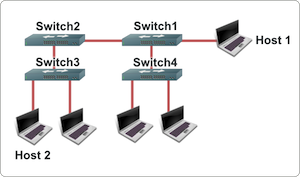
How Do You Display the ARP Cache?
Display ARP Cache in Windows
Step 1 – Open the Windows command prompt by selecting the “Start” menu button and entering “command” in the search text field.
Step 2 – Type “arp –a” followed by pressing the “Enter” key to view the ARP cache displayed on the DOS console.
C:>arp -a
Interface: 192.168.1.101 — 0×80004
Internet Address Physical Address Type
192.168.1.1 00-0d-6d-bc-a8-6b dynamic
192.168.1.2 00-0e-1c-2b-e5-3c dynamic
Display ARP Cache in Unix
Step 1 – Open the Unix console.
Step 2 – Enter “arp –a” followed by pressing the “enter” or “return” key on your computer’s keyboard and view the ARP cache contents subsequently displayed.
$ arp -a
www.tech-faq.com (192.168.1.2) at 00:34:c4:45:73:21 on fxp0 permanent [ethernet]
fw.tech-faq.com (192.168.1.1) at 00:34:62:a1:c2:00 on fxp0 [ethernet]
What Are the Benefits of ARP Cache?
ARP cache helps save computer and networking resources by saving the MAC to IP address mapping required for network communication. As a result, it is an enabler for the Address Resolution Protocol by further accelerating the methods of locating host hardware addresses when the network layer is known through DNS lookup.
What Are the Symptoms of a Faulty ARP Cache?
With time, ARP cache entries can become stale. It is possible for additional entries to the ARP cache table to be made without removing expired entries from the stored table. Eventually, this will result in errors that can significantly impact computer or network performance. Some of the symptoms seen when the ARP cache requires clearing include web pages that fail to load and the failure to ping various IP addresses.
How to Clear ARP Cache in Windows XP, Vista, and 2K
Clear ARP Cache from the MS DOS Prompt
Step 1 – Login to your computer with an account that has administrator permissions.
Step 2 – Select the “Start” menu button. On Windows XP and Windows 2K select the “Run” menu option. Then enter “cmd” or “command” in the run text box followed by clicking the “enter” key. On Windows Vista and newer versions of the OS enter the word “command” in the search text field followed by pressing the “enter” key.
Step 3 – Enter “netsh interface ip delete arpcache” at the command prompt and press the “enter” key.
Step 4 – Wait for approximately 30 seconds to 20 minutes based on the size of the ARP cache table and speed of your computer for the dynamic ARP cache to be cleared.
Clear ARP Cache from Windows Control Panel
In the event you are not able to clear ARP cache from the DOS prompt or just are not comfortable conducting command line tasks, it is possible to clear ARP cache on the Windows OS from Windows Control Panel.
Step 1 – Select the “Start” menu button followed by choosing the “Control Panel” icon.
Step 2 – Depending on the version of Windows OS on the computer and the “view type” selected for Windows Control Panel, you may or may not need to choose the “Performance and Maintenance” menu option.
Step 3 – Choose the “Administrative Tools” menu option followed by the “Computer Management” menu choice.
Step 4 – Select the “Services and Applications” menu button located on the right-hand side of the screen.
Step 5 – Scroll down the menu options until you locate the “Routing and Remote Services” menu option.
Step 6 – Choose the “Routing and Remote Services” menu tab and a dialogue window will then open.
Step 7 – Select the drop-down menu and choose the “Disabled” option followed by clicking the “Ok” menu button to save the settings and clear the ARP cache.
Step 8 – Restart your computer and enabled the “Routing and Remote Services” menu option selected in step 7 to complete clearing the ARP cache.
How to Clear the APR Cache in Windows 7/Server 2003/2008
Step 1 – Select the “Start” menu button and enter “command” in the search text field followed by pressing the “enter” key.
Step 2 – Input the following command at the MS DOS command prompt, “netsh interface ip delete arpcache” and press the “enter” key.
Step 3 – Wait for between 1 – 20 minutes for the ARP cache table to be deleted based on the version of OS installed on the computer. Windows Server 2003/2008 will normally take greater than 10 minutes to complete the task due to storing larger cache tables. Windows 2007 will normally complete the task in under 1-2 minutes.
How to Delete an IP Address from ARP Cache
Step 1 – Open the MS DOS prompt on the computer.
Step 2 – input “arp –d <IP address>” with the brackets not being included on the address to remove from ARP cache. For example, arp –d 10.1.1.2 will remove the 10.1.1.2 entry from the ARP table.
Step 3 – Display the ARP table after deleting an entry by entering, “arp –a” at the MS DOS command prompt.
Step 4 – Add a static entry to the ARP table by entering the following command at the MS DOS command prompt, “arp -s <ip address> <mac address>.” An example of a static ARP entry is:
arp -s 157.55.85.212 00-aa-00-62-c6-09
What Do You Do if Clearing ARP Cache Fails?
Clearing ARP cache on a computer running the Microsoft Windows OS can fail due to bugs or conflicts within the OS. When the cache fails to clear, the OS will provide the following message to the end-user:
Windows could not finish repairing the problem because the following operation could not be completed:
Clearing the ARP cache
For assistance, contact the person who manages your network
The error is typically thrown with the Windows Routing and Remote Services application is enabled or turned on. For most end-users, this service is not required to be enabled and can be turned off to troubleshoot ARP cache clearing issues.
Step 1 – Select the “Start” menu button and click the “Control Panel” icon.
Step 2 – Change the Control Panel view to “Classic” if currently set to “Category View” and select the “Administrative Tools” menu option.
Step 3 – Select the “Computer Management” menu choice and then double click the “Services and Applications” menu option.
Step 4 – Double click the “Services” menu option and scroll to the “Routing and Remote Services” menu label.
Step 5 – Double click the “Routing and Remote Services” menu button and locate the “Startup Type” field.
Step 6 – Change the option selected to “Disabled” and ensure the service status reflects “Stopped.” If it has not ceased to run, click the “Stop” menu button.
Step 7 – Click the “Ok” menu button and retry clearing ARP cache on your computer.
What is Inverse and Reverse ARP?
Two complementing network protocols to ARP are InARP (Inverse Address Resolution Protocol) and RARP (Reverse Address Resolution Protocol). The purpose of InARP is to obtain Network Layer addresses of other nodes from Data Link Layer addresses. The protocol is primarily used in ATM and Frame Relay (DLCI) networks where the Data Link Layer addresses of vital circuits are requested from Data Link Layer signaling. In these cases the corresponding Network Layer address has to be available before a vital circuit can be used for work. The InARP protocol is implemented as an extension to ARP and uses the same packet format as ARP, but with different operational codes.
RARP (Reverse Address Resolution Protocol) also translates OSI Layer 2 addresses to Layer. In this protocol; however, instead of requesting the Layer 3 address from another node, RARP was used to obtain the Layer 3 address of the requesting station for address configuration purposes. It has since been superseded by BOOTP that was replaced by DHCP (Dynamic Host Configuration Protocol).
How Does ARP Spoofing Work?
A security flaw with the ARP system, is that the protocol was not designed to provide a means of authentication for ARP replies on a LAN or network. In ARP spoofing, the device or person conducting the spoofing will answer real ARP requests with the aim of interception. The technique can be used to conduct a denial of service attack against users on the network or conduct a “man-in-the-middle” attack. In each of these attacks, software is normally installed on a node in the local network with the access to receive and provide false responses to ARP requests. The “man-in-the-middle” attack consists of a hacker using ARP spoofing to receive network traffic intended for your computer to his or hers. Combined with IP forwarding, the hacker can send the information destined for your computer to you as well as outgoing traffic in order to collect as much information as possible. In the mean-time, private data such as email, banking, and Facebook logins and passwords can be collected and used for identity theft or other nefarious means.
Although static ARP entries can combat a network’s susceptibility to a spoofing attack that results in ARP cache poisoning, network administrators will typically rely on software solutions to detect and isolate network nodes suspected of conducting these attacks. When recovering from an attack, the ARP cache is typically cleaned on network computers and/or devices as required to remove the faulty information that may still be stored.
What Are the Alternatives to ARP?
One alternative to ARP is for each computer on a network to maintain an individual table with the mappings of the IP addresses (OSI Model Layer 3) to MAC addresses (OSI Model Layer 2). This practice was more common on older computers when network broadcast packets were considered too heavy-weight to expend on exchanging the address mapping information. Today, all modern computers rely on ARP network packet exchange and communication to maintain the network address mappings.
MaxFactor
sudo ip -s -s neigh flush all
Romel
Very useful and brilliant article
Thanks a million
dhruv
If router recives the packet with SRC IP/SRC MAC /DEST IP/DEST MAC but ARP cahe is cleared only for SRC IP/MAC before that, what would be response from Router,would forwrd the packet further or generate ARP for src ip/mac ??
Cheers
shefeen
thank you very much for your good information
sander d.
thanks for soooo many times of good advise!!!
Arun
Awesome, good work.
zarenco
all this explained above doesn’t work for me, in my arp table there are a lot of entries like this “ip adress – mac adress empty – static”. this kind of entry are not removed….
i need an answer…please..
gopal
it is not working
Victor Ubabar
Very helpful and very easy to follow, thank you so much
Kitso
The tutorial explained very nicely and helped me to achieve
and understand about ARP cache.
when I had this problem I had approached my It guy to help me
but he said it was not necessary to clear the cache, so I decided to check over the
internet and here I get a perfect answer from you which helped me
Thanks once again
Kitso
Thank you very much!!
very easy tutorial and solved the problem.
Jeff
Wow, Thank you! I have had this error come up many times without understanding what the issue was. I had assumed it was a problem with the router (as misled by the windows notification) and almost bought a new one because of this.
Thanks for taking the time to put this up; it’s astonishingly sad that microsoft has not put proportional effort into actually fixing the bug or providing a more useful error message…
Ace rim 4
This worked very well for the problem it is intended for, but didn’t resolve my issue. I was a day or two late paying my ISP bill and they cut off my services, all my bills are now up to date and my online account says my services are normal, all the normal tricks are not effective re-setting, turning off and on, I phoned my ISP and they told me the same things I had already tried, and are sending out a tech guy on tuesday but wondered if anyone could help me before then, thanks ?
danny hood
I disabled my routing and remote access, but nothing lets me know if i cleared the ARP cache whatever, indexing glossery looking this shit up sucks.. I sure hope it works? Some mexican food, wired relax eat some fruit get spun have a salad
skumar
Thanks dude!!!!!!!!! we are expecting more tips from you…. Regards once again
shaun
it worked first time thanks………………………
snoopyfan
Thanks for easily solving a problem which has occurred approx. once a year. Stopping routing services cured it! Saved me a frustrating call to the cable company, which always tries to upsell my contract to one with a higher cost.
Jimmy Mbalame
You are supperb and it worked.
Jimmy Mbalame
In Lilongwe, MALAWI
mrk_mrd37
It’s ppl like you who make the internet a tool for good uses and a good name. This tutorial is one of the easiest and well written ones I have used. It worked exactly as you wrote it to be. Thank you sincerely sir,
mrk_mrd37
Captain Carl
THANK YOU, Thank you!
Thanks for the correction and Thanks for the time you spent to post this! You didn’t have to do the posting but you did and you spent your time doing so. It is MUCH appreciated!!!
It solved this damn problem once and for all! I enjoy the fact that you are nice enough to do this posting for us.
Thank you, thank you!
Carl in New Hampshire.
Gitana
Perfect!! Thanks !
Anthony
Thanks,you…have a Merry Christmas…worked great!!!
Steven Thompson
Wow thanks for that information saved my assets I ‘m sure I was hacked that’s so cool you put directly what to do, I messed up when I changed remote procedure thing,, anyway service is stoped and disabled now. thanks for your help.
Davo
Thanks a lot.
moni57
😆 After trying one way and it would not work..I went to the next: ARP FAILS and it worked!!! Thanks so much for having the whole repair advice! It worked finally!!..
Thanks sooo very much! 🙂
Hari Pahadi
Thanks It was awesome trick.
Magus
Thanks, it works. Now I can work better.
Mithlesh sharma
Very very Thanks sir
Mithlesh sharma
V.v.v. thanks sir
really from given above point I solved this problem
– Mithlesh sharma
Vipin
Thanks Dear..
Its working.
Keshaun
😀 Ah thanks idk what id do without service like this
ApeGendow
Originally posted by general: “after clearing the cache still webpages are not getting open and connection is getting time out.
Can anyone help me in this error??”
Im having the same issue. Did you ever get yours resolved? If so, How?
Thanks
Geoff
thanks man worked awesome and i will be back again im sure!! 😆
general
after clearing the cache still webpages are not getting open and connection is getting time out.
Can anyone help me in this error??
meng
😆 🙂 😀 🙄 thank for ur teaches….im completed to clearing the ARP cache
fardallas
You instructions were right-on, Thank you. 🙂