

Security Templates Review
A security template is collection of security configuration settings that can be applied to a domain controller, member server or a workstation. The settings within a security template control the security configuration of a computer through both local policies and group policies. A security template can be applied to a local computer, or incorporated into a Group Policy object in Active Directory. You can manage one computer or multiple computers through the security settings contained within a security template. For computers that do not belong to an Active Directory domain, you can use the Security Templates snap-in and the Security Configuration and Analysis feature to both create and apply security templates to specific computers. Security templates can be used to apply a number of security policies and also customize a number of security policies to suit the security requirements of your organization.
Windows Server 2003 includes predefined security templates that hold security settings for different levels of security. The security level is determined by the type of server that the template is applied to.
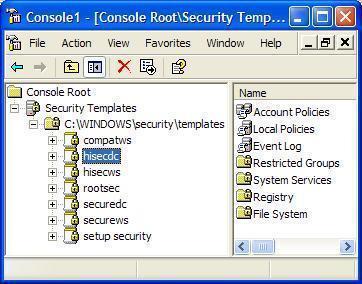
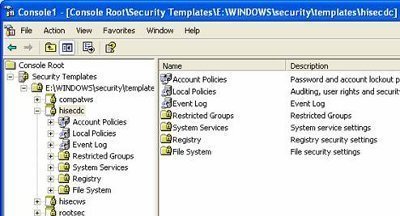
The Security Template areas where you can configure security for Windows 2000, Windows XP, and Windows Server 2003 networking environments are listed here:
-
Account policies. The Account Polices area is associated with policies that are connected to user accounts.
-
Local policies. Local policies deal with who has local access or network access to the computer. It also includes the manner in which events are audited.
-
Event log. This includes settings that indicate the manner in which Application logs, Security logs, and System logs performs, when the logs are overwritten, and how long logs are kept. You can view Event logs in the Event Viewer tool.
-
Restricted groups. Restricted groups are used to add members to built-in user groups. Built-in user groups consist of Administrators, Backup Operators and Power Users.
-
System services. System Services include security settings of the system services (file, network, print) on the local computer.
-
Registry. Registry includes settings for registry keys.
-
File System. File System is used to set access permissions for the directories and files on the local system.
There are a number of predefined security templates as well:
-
setup security.inf; contains the default security settings created by the Windows Server 2003 Setup program when a computer is installed.
-
Compatws.inf; enables most types of applications to run. All members in the Power Users group on computers running Windows Server 2003 is removed, and security is relaxed to enable applications to run without errors.
-
DC security.inf; defines default system services settings, default security settings, and file system and Registry settings for a domain controller.
-
hisecdc.inf is a highly secure template which contains security settings for domain controllers. The hisecdc template provides NTLM version 2 and applies Registry and file security. The hisecdc template disables all additional services and removes all members from the Power Users group.
-
hisecws.inf is a highly secure server or workstation template which contains security settings for workstations. The hisecws template applies security settings to servers and workstations, which are similar to those applied in the hisecdc template to domain controllers.
-
securedc.inf; contains security settings for domain controllers and maintains compatibility with most functions and applications. The securedc template includes enhanced security options, auditing policies, and includes restrictions for anonymous users.
-
securews.inf; contains enhanced security settings for workstations and member servers that are not domain controllers. The template maintains compatibility with most functions and applications. The securews template includes enhanced security options and auditing policies.
-
Rootsec.inf; contains the default file system permissions that can be applied as the root permissions to the system drive of a computer.
-
iesacls.inf; includes settings that can be utilized to audit registry settings that control Internet Explorer security.
You can use the Security Templates snap-in to create a security template file which can be deployed using either of these methods:
-
The text security template file can be imported to the Security Settings extension to configure security policy for the local computer, Active Directory domain, or Active Directory organizational unit (OU).
-
The Secedit.exe command-line tool can be used to apply a security template as well.
-
The Security Configuration and Analysis snap-in can be used to analyze system security based on the settings within the security template.
To create a new security template
-
First create a MMC console and add the Security Templates snap-in to it.
-
Open the Security Templates management console.
-
Proceed to expand the Security Templates node.
-
Right-click the Security Templates node and then select New Template Search Path from the shortcut menu.
-
Enter the location which will be used to store your new security template. Click OK.
-
Now, right-click the security template search path, and then click New Template from the shortcut menu.
-
Enter a name and description for the new security template.
-
Click OK.
-
You should now edit your new security template. Through the Security Templates snap-in, you can add security policies to the template.
To customize an existing security template
-
First create a MMC console and add the Security Templates snap-in to it.
-
Open the Security Templates management console.
-
Proceed to expand the Security Templates node.
-
Select the default path folder
-
Right-click the security template you want to change in the right pane.
-
Click Save As
-
Enter a name for the security template.
-
Click Save,
-
The security template you have just created is displayed in the right pane.
-
Double-click the new security template to change the security settings.
-
To change a setting, right-click the appropriate attribute, and then select Properties from the shortcut menu.
Defining Baseline Security Templates
You can use the Security Configuration And Analysis console included in Windows Server 2003 to define a baseline security template. The Security Configuration And Analysis console utilizes a database specific to the computer to analyze computer security.
The features of Security Configuration And Analysis allow you to perform a number activities and functions to define a baseline security template, including the following:
-
Create your own databases to store customized security templates.
-
Analyze security and view results, and sort out any detected discrepancies revealed by the security analysis.
-
Overwrite existing security templates.
-
Add new security templates to the database.
-
Import and export security templates.
-
Combine multiple security templates into one multipart security template.
The typical activities which you need to perform to define a baseline security template through the Security Configuration and Analysis console are listed here:
-
Create a security database.
-
Import a security template into your security database.
-
Analyze security.
-
View the results of the security analysis.
-
Resolve security discrepancies – configure system security.
-
Export the settings of the security database to a security template.
A few best practices for using the Security Configuration and Analysi feature are listed here:
-
To avoid settings implemented through the Security Configuration And Analysis tool from overriding local Group Policy settings, only use the Security Configuration And Analysis tool to configure security settings for system services, local files/folders, and registry keys.
-
You should not use the Security Configuration And Analysis feature to configure domain or organizational unit security. You should rather use either of these methods:
-
Create a security template through the Security Templates snap-in, and apply it to the suitable Group Policy Object (GPO).
-
The Security Settings extension to Group Policy should be used to change any specific security settings on a particular GPO.
-
-
You should use the Secedit command-line tool to analyze a large number of computers.
To add the Security Configuration And Analysis console to a MMC
-
Click Start, Run, and enter mmc in the dialog box. Click OK.
-
Using the Console menu, click Add/Remove Snap-In, and then click Add.
-
When the Add Standalone Snap-In dialog box opens, select the Security Configuration And Analysis feature, and then click Add.
-
Click Close. Click OK.
-
Using the Console menu, click Save and enter a name for the console.
-
Click Save.
-
The Security Configuration And Analysis console can now be accessed from the Administrative Tools menu.
How to create a security database
Before you can analyse system security and define a baseline security template, you first have to create a security database:
-
Open the Security Configuration And Analysis console.
-
Right-click Security Configuration And Analysis, and then select Open Database from the shortcut menu.
-
When the Open Database dialog box opens, enter the name of the file in File Name, and then click Open.
-
When the Import Template dialog box opens, choose the security template that should be imported into the new security database.
-
Click Open.
How to analyze system security settings
-
Open the Security Configuration And Analysis console.
-
You need to have already created the security configuration and analysis database.
-
Right-click Security Configuration And Analysis and then select Analyze Computer Now on the shortcut menu.
-
When the Perform Analysis dialog box opens, verify that the path specified for the log file is correct.
-
Click OK to start the analysis of the computer.
How to view the security analysis results
-
Open the Security Configuration And Analysis console.
-
Expand the Security Configuration And Analysis node, expand the appropriate security policies node such as Account Polices or Local Policies, and then select the policy whose results you want to examine.
-
The analysis results are displayed in the details pane of the Security Configuration And Analysis console, together with flags that indicate whether issues were detected or not.
-
The columns displayed in the details pane of the Security Configuration And Analysis console are:
-
Policy column; contains the policy name for the results.
-
Database Setting; contains the value within the security template.
-
Computer Setting; displays the security setting configured for the system.
-
-
The different flags which can be displayed are:
-
Red X; signifies a disparity from the security database.
-
Green checkmark; signifies consistency with the security database.
-
Red exclamation; signifies an entry which was specified in the security database, but which does not exist in the system which was analyzed.
-
Black question mark; signifies an entry which was not specified in the security database. The item was therefore not included in the analysis.
-
No icon; signifies a policy that was not in the template.
-
How to examine the Security Analysis log file
-
Open the Security Configuration And Analysis console.
-
Right-click Security Configuration And Analysis and then select View Log File from the shortcut menu.
-
Any discrepancies between the security template and the existing security settings on the computer are specified as a mismatch.
How export the security database settings to a security template
-
Open the Security Configuration And Analysis console.
-
Right-click Security Configuration And Analysis and then select Export Template on the shortcut menu.
-
The Export Template To dialog box opens.
-
Enter a name for the file in the File Name box.
-
In the Save In box enter the path wherein the template should be saved.
-
In the Save As Type list, select the type of file which should be saved.
-
Click Save.
How to resolve security configuration discrepancies
There are a number of options which you can consider to resolve security discrepancies detected from the security analysis:
-
Edit the security database to reflect the existing system security configuration.
-
Import a more suitable template to the security database, and use this template as the baseline security template for the system.
-
Set existing system security to reflect the settings within the security database.
To edit the security database to reflect the existing system security configuration,
-
Open the Security Configuration And Analysis console.
-
In the details pane of the console, double-click the particular security setting that you want to change.
-
Enable the Define This Policy In The Database checkbox.
-
Specify the security value which should be reflected in the security database.
-
Click OK.
To import a more suitable template to the security database,
-
Open the Security Configuration And Analysis console.
-
Right-click Security Configuration And Analysis and then select Open Database from the shortcut menu.
-
When the Open Database dialog box opens, select the security database that the security template should be imported to, and then click Open.
-
Right-click Security Configuration And Analysis in the left pane again and then select Import Template from the shortcut menu.
-
When the Import Template dialog box opens, select the security template file which you want to import.
-
Click Open.
To configure system security to match the security configuration and analysis database,
-
Open the Security Configuration And Analysis console.
-
The security database should be set already.
-
Right-click Security Configuration And Analysis and then select Configure Computer Now from the shortcut menu.
-
The Configure System dialog box opens.
-
In the Error Log File Path box specify the path for the Security Analysis log file.
-
Click OK.
Troubleshooting Security Configuration And Analysis
A few typical issues encountered when using Security Configuration And Analysis are listed here, together with a few recommendations for resolving the issues:
-
If a particular security policy is not propagating as it should, use the RSoP feature to determine which GPO is relevant for the computer. Then, use the log file to identify the specific issues which happened when the security policy was propagated.
-
If you suspect that you have a corrupt security and analysis database, first run esentutl/g to determine whether the database is corrupt. Next, perform either of these actions to resolve the issue:
-
Run esentutl/r on the %Systemroot%Security folder to recover the security and analysis database.
-
Run esentutl/p on %Systemroot%SecurityDatabaseSecedit.sdb to repair the security database. You then have to manually delete the log files in the %Systemroot%Security folder.
-
Follow Us!