

Domain Controllers Security Issues
When it comes to Windows Server Active Directory networks, one of the most important server roles which can be configured is probably the domain controllers role.
Domain controllers perform a number of important functions and control activities within a domain, including the following:
- Contain a replica of the Active Directory directory for the domain to which it belongs, and is responsible for managing that directory
- Provide authentication services for the network.
- Store and distribute group policies.
- Manage access to network resources within the domain.
- Manage changes to user accounts and computer accounts.
- Manage changes to passwords.
- Track user account information through Security Identifiers (SIDs). When a user attempts to log on to the system, a request to authenticate the user is sent to each domain controller within the domain.
- Replicates changes made to their Active Directory replica to the remainder of the domain controllers within the domain.
- Domain controllers also integrate with network services such as DNS, DHCP, Kerberos security, and Remote Access. This in turn facilitates centralized management and security.
From the above mentioned functions of domain controllers, you can see that the domain controllersâ€TM server role is an integral server role in all Windows based networks. When configuring domain controllers, you can configure a domain controller to perform only one main function, or you can configure the domain controller to perform a number of functions. The larger the network, the more specialized the configuration of the domain controller tends to become. The domain controllers within your Windows Active Directory environment should be well protected by means of special security configurations. Any unauthorized individuals that are able to access a domain controller would be able to severely compromise security on your network.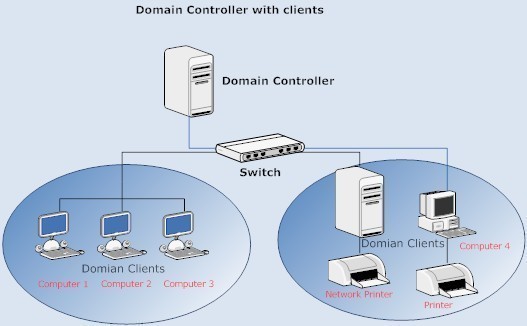
A few threats to domain controllers are listed here:
- Attempts to gain access to the security database on domain controller.
- Attempts to copy the security database so that the database can be viewed and examined at a later stage.
- Attempts to access domain controllers with the objective of viewing and seizing security configuration information.
- Attempts to gain access to the security database on the domain controller to change the existing user rights, with the intent of configuring an unauthorized user with administrative access to your domain.
- Attempts to access the domain controller to change computers belonging to the domain so that rogue computers can access the domain.
The importance of domain controllers basically forces you to implement security measures and policies that minimize the threats to domain controllers.
One of the obvious security strategies that should be implemented is to implement physical security for your domain controllers. Your domain controllers should always be physically secured in a secure location such as a data center. Physical access to the domain controllersâ€TM location should be limited to a few authorized individuals only.
You should also limit access from network connections to domain controllers. You should only configure services and applications that are needed by the domain controller server role. All services and applications that are unnecessary should be disabled or deleted.
Basic Security Measures for Securing Domain Controllers
The recommended basic security measures which you can implement to secure domain controllers are listed here:
- Physically secure domain controllers. This should include access control to the location where domain controllers are kept.
- The NTFS file system should be utilized to protect data on the system volume.
-
Limit membership to the following groups:
- Domain Administrators group
- Enterprise Administrators group
- Strong passwords should be used on domain controllers to secure domain controllers from unauthorized access attempts.
- All unnecessary services and applications should be deleted.
- The syskey utility can be used to further protect the security database.
- You can also secure domain controllers by requiring smart card access for access to domain controllers.
- Use caution if you are delegating administrative control over the configuration of a domain controller.
How to create a system key
- Click Start, Run, and enter syskey. Click OK.
- Select Encryption Enabled.
- Click Update.
- Select the appropriate option.
- Click OK.
Securing Domain Controllers with Firewalls
You can use firewalls to protect domain controllers. Packet filtering features can be used to block traffic destined to and from a domain controller. You can also limit the number of ports that are opened between a domain controller and a computer. Only those ports which are needed for communication should be opened between a domain controller and computer.
The ports used by Active Directory for specific Active Directory communication are listed here:
-
For a user network logon over a firewall:
- MS traffic; TCP port 445 and UDP port 445
- DNS; TCP port 53 and UDP port 53.
- Kerberos authentication protocol; TCP port 88 and UDP port 88.
- Lightweight Directory Access Protocol (LDAP) ping; UDP port 389.
-
For a computer logon to a domain controller:
- MS traffic; TCP port 445 and UDP port 445
- DNS; TCP port 53 and UDP port 53.
- Kerberos authentication protocol; TCP port 88 and UDP port 88.
- Lightweight Directory Access Protocol (LDAP) ping; UDP port 389.
-
For verification of trust relationships between domain controllers:
- MS traffic; TCP port 445 and UDP port 445
- DNS; TCP port 53 and UDP port 53.
- Kerberos authentication protocol; TCP port 88 and UDP port 88.
- Lightweight Directory Access Protocol (LDAP); TCP port 389, for SSL TCP port 686.
- Lightweight Directory Access Protocol (LDAP) ping; UDP port 389.
- Netlogon.
-
For creation of a trust relationship between domain controller located in different domains:
- MS traffic; TCP port 445 and UDP port 445
- DNS; TCP port 53 and UDP port 53.
- Kerberos authentication protocol; TCP port 88 and UDP port 88.
- Lightweight Directory Access Protocol (LDAP); TCP port 389, for SSL TCP port 686.
- Lightweight Directory Access Protocol (LDAP) ping; UDP port 389.
Domain Controller-Specific Predefined Security Templates
When a server is first promoted to the domain controller role, a security template called the DC security.inf template is applied to the domain controller. A security template can be defined as a collection of security configuration settings or parameters that can be applied to a domain controller, member server or a workstation. The settings within a security template are used to control the security configuration of a computer through both local policies and group policies.
The DC security.inf security template defines default system services settings, default security settings, and file system and Registry settings for a domain controller. The DC security template is created when a server is first promoted to the domain controller role, and basically forms the baseline security for the domain controller.
The other predefined security templates which you can specify for a domain controller are:
- securedc.inf template: This predefined security template contains security settings for domain controllers that enhance security ona domain controller while at the same time maintaining compatibility with most functions and applications. The securedc template includes enhanced security options and auditing policies. It also includes restrictions for anonymous users. The impact on applications is minimized, and computers are configured to LAN Manager responses.
- hisecdc.inf template: This highly secure template contains security settings for domain controllers. The hisecdc template is considered a stronger, more secure setting than the securedc template. The hisecdc template provides improved security for NTLM (NTLM version 2), and applies both Registry and file security. The hisecdc template also disables all additional services and removes all members from the Power Users group. It is recommended that you use the hisecdc.inf template on domain controllers (if feasible).
Backing Up and Restoring Domain Controllers
A domain controller contains system state data that includes Active Directory and the SYSVOL directory. System state data consists of the Registry, system boot files, COM+ Class Registration database, Certificate Services database, and files under Windows File Protection. Backing up system state data backs up all system state data associated with the local computer. A domain controller can also contain applications or files that are specific to that particular domain controller. All these components have to be included when you back up the domain controller.
When you restore system state data and Active Directory to a domain controller, you have to decide on the method of restore to perform. System state data can be restored on the domain controller through either of the following methods:
- Nonauthoritative restore: When a nonauthoritative restore is performed, Active Directory is restored from backup media on the domain controller. This information is then updated during replication from the other domain controllers. The nonauthoritative restore method is the default method to restore system state data to a domain controller.
- Authoritative restore: In an authoritative restore, Active Directory is installed to the point of the last backup job. This method is typically used to recover Active Directory objects that were deleted in error. An authoritative restore is performed by first performing a nonauthoritative restore, and then running the Ntdsutil utility prior to restarting the server. You use the Ntdsutil utility to indicate those items that are authoritative. Items that are marked as authoritative are not updated when the other domain controllers replicate to the particular domain controller.
How to back up a domain controller
- Log on to the domain.
- Click Start, All Programs, Accessories, System Tools, and then click Backup.
- When the Welcome To The Backup Or Restore Wizard page opens, click Next.
- In the Backup Or Restore page, choose the Backup Files And Settings option. Click Next.
- When the What To Back Up page opens, choose the Let Me Choose What To Back Up option. Click Next.
- In the Items To Back Up page, select System State. Click Next.
- When the Backup Type, Destination, And Name page opens, select the appropriate option in the Select The Backup Type box.
- Choose the location for the backup in the Choose A Place To Save Your Backup box.
- Enter a name for the backup job in the Type A Name For This Backup box. Click Next.
- Click the Advanced button on the Completing The Backup Or Restore Wizard page.
- When the Type Of Backup page opens, choose the Normal option for the backup type, and then click Next.
- In the How To Back Up page, it is recommended to select the Verify Data After Backup option.
- If hardware compression is supported, and you are using a tape mechanism, click the Use Hardware Compression, If Available option. Click Next.
- When the Backup Options page opens, choose Replace The Existing Backups, an choose Allow Only The Owner And The Administrator Access To The Backup Data And To Any Backups Appended To This Medium. Click Next.
- Select the Now option in the When To Back Up page. Click Next.
- Click Finish.
- Click the Report button on the Backup Progress page to view a report on the backup job just completed.
How to restore system state data on a domain controller (nonauthoritative restore)
- Restart the local computer.
- During startup, press F8 to access the Windows Advanced Options.
- Proceed to select Directory Services Restore Mode. Press Enter
- Choose the operating system that should be started at the Please Select The Operating System To Start prompt. Press Enter.
- Log on to the domain using an account with Administrator privileges.
- Click OK when a message appears stating that Windows is running in safe mode.
- Click Start, All Programs, Accessories, System Tools, and then click Backup.
- When the Welcome To The Backup Or Restore Wizard page opens, click Next.
- In the Backup Or Restore page, choose the Restore Files And Settings option. Click Next.
- On the What To Restore page, choose the data that should be restored. Click Next.
- Verify that the media that contains the backup file is in place.
- Click Finish to start the nonauthoritative restore.
- Click OK when a message appears stating that the restore will overwrite existing system state data.
- When the restore process completes, restart the computer.
Because of the type of information stored on domain controllers, you should audit all backup and restore events which are performed on your domain controllers. It is recommended that you enable the Local Policies | Security Options | Audit: Audit the use of Backup and Restore privilege option so that you can detect when backups are being performed dishonestly.
Digitally Encrypting and Signing Authentication Traffic
Computer accounts are used to manage and authenticate computers within a domain. Computer accounts are stored in Active Directory, and can be managed using the Active Directory Users And Computers management tool. A computer has to belong to a domain in order for you to log on to it using a domain user account. Computer accounts are automatically created for computers running Windows NT, Windows 2000, Windows XP Professional or Windows Server 2003 when joining a domain. Computer accounts contain a name, password, and security identifier (SID). Computer properties are included in the computer object in Active Directory. Active Directory automatically creates a computer object in the Computers OU when a computer joins a domain, and no computer account exists for the computer.
For a computer to access and communicate with a domain controller within the domain, the computer has to be authenticated.
There are three GPO settings that determine whether authentication traffic is signed and encrypted:
-
Domain member Digitally encrypt or sign secure channel data (always): Here, the computer will only use secure channel data to communicate with the domain controller. Before you can use this option, domain controllers have to minimally be upgraded to Windows NT 4.0 SP6a. Enabling the Digitally encrypt or sign secure channel data (always) option assist in preventing the following attacks when computers and domain controllers communicate:
- Replay attacks
- Man-in-the middle attacks
- Domain member Digitally encrypt secure channel data (when possible): This option should be enabled and used if any down-level domain controllers or clients prevent you from using the former option. When this option, and the option below are enabled, the best possible security which can be used, is used.
- Domain member Digitally sign secure channel data (when possible): This option should be enabled and used if down-level domain controllers or clients prevent ou from using the Digitally encrypt or sign secure channel data (always) option.
Configuring Audit Policies and Event Log Policies for Domain Controllers
When Active Directory is installed on a computer and a new Active Directory domain is created, the computer object of the domain controller is stored in the Domain Controllers organizational unit (OU). A Group Policy Object (GPO) that is linked to the Domain Controllers OU is also created.
The Domain Controllers OU contains the following audit policies which you can customize:
- Audit Account Logon Events, Audit Account Management, Audit Directory Service Access, Audit Logon Events, Audit Policy Change, and Audit System Events
You might also need to modify the policy settings of the Event Log to suit your auditing strategy.
Limiting User Rights
The Domain Controllers OU GPO by default grants the Allow Log On Locally user right to these groups:
- Account Operators
- Administrators
- Backup Operators
- Print Operators
- Server Operators
For the Print Operators and Account Operators built-in groups, it is recommended that you remove the Allow Log On Locally user rights.
It is also recommended that you limit which individuals are allowed to shut down domain controllers. The Domain Controllers OU GPO by default grants the right to shut down domain controllers to these built-in groups:
- Administrators
- Backup Operators
- Print Operators
- Server Operators
For the Print Operators and Backup Operators built-in groups, it is recommended that you remove the right to shut down domain controllers.
Limiting Anonymous Access
Anonymous authentication is an authentication method that actually allows a user and network client to be authenticated with the user/client furnishing no user credentials. However, if you are running Windows Server 2003, the user will not be authorized to access network resources. With the earlier Windows operating systems, this was not the case. Anonymous authentication is typically used to supply backward compatibility with systems prior to Windows 2000, for the following scenarios.
- Windows NT 4.0 could possibly use anonymous access to obtain information from domain controllers.
- Remote Access Server (RAS) servers on Windows NT 4.0 utilizes anonymous access for ascertaining dial-in permissions
- Older operating systems could also use anonymous access to change passwords (Pre "Windows 2000"compatible access group) in Active Directory.
To enable anonymous authentication, activate one of the following security policy settings:
- Network Access: Share That Can Be Accessed Anonymously: Use this security policy setting to define specific shares which can be accessed.
- Network Access: Let Everyone Permissions Apply To Anonymous Users: When enabled, anonymous users are added to the Everyone group.
A better method of enabling anonymous access is to include the Anonymous Logon security principal in the specific access control list (ACL) that needs access.
With Windows Server 2003, the Anonymous account is restricted by default. If you need to enable it for systems that require Anonymous access, use these recommendations to enable the Anonymous account so that you do not reduce security unnecessary:
- To prevent intruders from using the using Anonymous logon to calculate accounts on a computer, you should use the Do not allow anonymous enumeration of SAM accounts and shares policy Group Policy Object. This option can be used if you are running Windows 2000 or later Windows operating system versions.
- One of the most secure methods of enabling Anonymous logon or access is to edit the ACLs of resources that need to allow Anonymous logon. This is though a manually intensive process.
- For clients that are running preWindows 2000 operating systems, you can add Everyone and Anonymous to the pre-Windows 2000 compatible access group if users need to be able change their passwords.
- While it is not strongly recommended, you can use the Let Everyone permissions apply to anonymous users GPO to change the security configuration back to the Windows NT model.

guest123
You missed the boat on replication ….
Build Your Own PC
Hi there, just was alert to your blog thru Google,
and located that it’s truly informative. I’m gonna
watch out for brussels. I will appreciate for those who proceed this in
future. Numerous other people might be benefited out of your writing.
Cheers!
Shawn
Great article. Small correction though. You wrote above “…SSL TCP port 686”.
Secure LDAP is over “636”, not “686”
Cheers!