

An Overview on the Public Key Infrastructure (PKI)
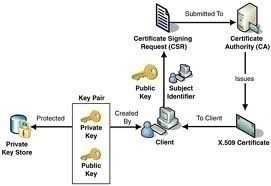
A set of components, standards, and protocols make up the Public Key Infrastructure (PKI), which protects data as it is transmitted over the network. The PKI is an integral aspect of security within a network. Digital certificates form the basis of the PKI because these certificates use cryptographic algorithms and key lengths to protect data as it is transmitted over the network.
The more important components of the PKI are summarized below:
- Cryptographic components are the encryption and hashing algorithms that are used to provide data confidentiality, and integrity; and to authenticate the identity of the senders of data.
- Public key components: A number of methods are available to create public and private keys, and Windows Server 2003 supports the majority of these methods.
- Digital certificates: Certificates are the foundation of the PKI. The certificate contains the public key of the user. The public key can be used to encrypt and sign data before it is transmitted over the network. The digital certificate contains information such as the certificate version, serial number, signature, issuer, and validity period, among other information.
- Certification Authorities (CAs): A CA is a trusted entity that issues certificates to users, computers, applications, and services. An organization can contain multiple CAs, arrange them in a CA hierarchical structure, and define a CA trust model. In the CA hierarchy, you would define root CAs, intermediate CAs and leaf CAs. Users that trust the root CA would automatically trust all subordinate CAs beneath the root CA, which received certificates from the particular root CA.
- Certificate repositories: After certificates are issued by CAs, they have to be located in the certificate repository or store. The preferred location to store issued certificates, is Active Directory.
- Certificate enrollment and revocation: Certificate enrollment is the process whereby which users request certificates from CAs. The lifetime of the certificate is defined when the CA issues the certificate. However, when certificate become untrusted, outdated, or compromised; the CA can reduce the lifetime of the certificate through a process called certificate revocation. This is done by the CA issuing and distributing a certificate revocation list (CRL) that details the serial number of the certificates which have been revoked.
- Key archival and recovery: Because a user can lose their keys, key recovery agents (KRAs) can be used for the retrieval of a private key, public key and original certificate, if they were archived.
While you can use third party entity CAs for the PKI implementation within your organization, the management of certificates through such entities could become complicated, and take quite some time. This is especially true for organizations which are quite large in size. With a Windows PKI implementation, you can create and manage your own internal PKI structure in the organization. This would enable you to create, manage, and audit digital certificates in your environment. Tools are available for creating and managing digital certificates in Active Directory. You can monitor certificates, and revoke them as the need arises. The strategy that you would use for your PKI implementation is ultimately determined by the security requirements of the organization, and the location of its users.
The Windows Server 2003 Public Key Infrastructure (PKI) is based on the following standards:
- Public key infrastructure X.509 (PKIX) standard.
- Internet Engineering Task Force (IETF) standards: IETF recommends that the security standards listed below interoperate with the PKI design to further enhance the security in enterprise applications.
- Transport Layer Security (TLS)
- Secure Multipurpose Internet Mail Extensions (S/MIME)
- Internet Protocol Security (IPSec)
The remainder of this Article focuses on implementing and configuring a PKI in your organization, using the available graphical interface tools. There are command-line utilities which you can use to manage certificates and CAs. The Certification Authority management console is however considered the best tool for managing the CAs within your PKI implementation. The command-line utilities which you can use are listed below:
- CERTUTIL: You can use this utility to view and manage certificates, the CA database and CRLs.
- DSSTORE: This utility provides finer control when administering the CA database.
How to install Windows Server 2003 certificate services (enterprise root CA)
- Place the Windows 2003 CD-ROM into the CD-ROM drive.
- Select Install optional Windows components.
- This action launches the Windows Components Wizard.
- On the Wizard Components page, select Certificate Services.
- Click Yes in the message dialog box that warns that you would not be able to modify the name of the server.
- In the CA Type page, select Enterprise Root CA. Click Next.
- In the CA Identifying Information page, set the common name for the CA. This name will be used in Active Directory, and in the enterprise.
- In the Validity Period boxes, enter the lifetime for the CA. Click Next.
- On the Certificate Database Settings page, verify that the locations specified for the database file and log files are correct.
- At this stage IIS services are stopped, and the certificate service is installed and the CA database started. IIS is restarted after this.
- Click OK when a message dialog box appears, warning that ASP must be enabled for Web enrollment.
- Click Finish.
How to use Web enrollment to request a certificate
- Use Internet Explorer 5.0 or later to connect to the CA.
- In the Web browser’s Address windows, enter http:// <servername>/certsrv, and press Enter.
- On the Certification Services Welcome page, click Request a Certificate.
- The following page presents the User certificate option with an Advanced Certificate Request option for acquiring a smart card certificate.
- Click the Advanced Certificate Request option.
- When the Advanced Certificate Request page appears, click Create And Submit A Request To This CA.
- Select Web Server from the Certificate Template list box.
- Proceed to provide the necessary information in the Identifying Information For Offline Template section of the page.
- Click Submit.
- Click Yes if a message is displayed on a potential scripting violation.
- After the server processes the certificate, you are presented with a Certificate Issued page that allows you to install the certificate on the Web server.
- Click Install This Certificate to complete the process.
How to install a stand-alone root CA
- Click Start, Control Panel, and click Add Or Remove Programs.
- Select Add/Remove Windows Components in the Add Or Remove Programs dialog box.
- When the Windows Components Wizard starts, click Certificate Services, and click Details.
- In the Certificate Services dialog box, enable the Certificate Services CA checkbox, and enable the Certificate Services Web Enrollment Support checkbox.
- Click Yes to the message warning that the name of the CA cannot be changed.
- Click OK to close the Certificate Services dialog box.
- Click Next in the Windows Components Wizard.
- When the CA Types page appears, select Stand-alone Root CA. Click Next.
- On the CA Identifying Information page, enter a name for the CA in the Common Name For This CA box. Click Next.
- You can accept or change the default settings in the Certificate Database Settings page. Click Next.
- The certificate srvice is installed and the CA database started. IIS is restarted after this.
- Click OK if a message dialog box appears, warning that ASP must be enabled for Web enrollment.
- Click Finish.
An Overview on Certificate Templates
With a Windows PKI implementation, certificate templates are used to assign certificates, according to the purpose for which they are to be used. Certificate templates can be defined as a set of rules and settings which specify the content and format of certificates that are issued, based on intended use. You configure certificate templates on the CAs within your PKI implementation. The certificate template is applied when a user requests a certificate from the CA. When a user requests a certificate, the user basically selects types of certificates as specified by certificate templates. You should customize the default certificate templates according to its intended use before you deploy them within your environment. The security requirements of your organization, ultimately determines which types of security templates should be deployed within your organization. Default certificates are provided for users, computers, code signing, and Encrypting File System (EFS).
The certificate templates also stipulate how a valid certificate request should be submitted to the CA. From this short discussion, you can conclude that certificate templates ease the management process of certificates, because it can be used to automate the process of issuing certificates, based on the requirements set by the Administrator. Windows Server 2003 includes the new auto-enrollment feature which allows for the issuing of User certificates when the user logs on to a Windows Server 2003 client.
Certificate templates are also used to manage whether security principals are allowed to enroll, auto-enroll, or read certificates, according to the particular certificate template. Each certificate template has an access control list (ACL) which specifies permissions for security principals for the particular certificate template. The Certificate Templates snap-in is used to define permissions for certificate templates.
Because different certificate templates can be used for different users, and they can be used by an assortment of applications; you can define application policies. An application policy allows you to specify the manner in which a certificate template can be used, and with what applications.
In order to use a certificate template, the certificate template’s definition has to be published in Active Directory, so that it is available to all CAs in your Active Directory forest. To enable this, certificate template information should be stored in Active Directory. Active Directory replication would distribute the certificate template’s definition to each CA within your PKI implementation.
Windows Server 2003 supports the following certificate template types:
- Version 1 Certificate Templates: With Version 1 certificate templates, all information within the certificate template is hard-coded. What this basically means is that you cannot modify the properties of these certificate templates. In addition to this, you cannot remove Version 1 certificate templates either. You can however duplicate these certificate templates. Support for Version 1 certificate templates is included in Windows Server 2003 for backward compatibility for servers running Windows 2000 operating systems. Version 1 certificate templates can be used by Windows 2000 and Windows XP clients.
- Version 2 Certificate Templates: This certificate template type improves on the shortcoming of Version 1 certificate templates, which prevented Administrators from modifying existing certificate templates’ properties. By default, when the initial CA is installed in a forest, Version 1 certificate templates are created. Version 2 certificate templates are created when you duplicate Version 1 certificate templates. Computers running Windows 2000 and Windows X are unable to issue certificates using Version 2 certificate templates. Computers running Windows Server 2003 Enterprise Edition and Windows Server 2003 Datacenter Edition can issue certificates which are based on Version 2 certificate templates.
The methods which can be used to modify an existing version 2 certificate template are listed below:
- You can directly modify the original Version 2 certificate template: You can use the new Windows Server 2003 capability, and change the properties of Version 2 certificate templates. After the modifications are done, new enrollees would be issued certificates, based on the new settings. The Certificate Templates snap-in can be used to re-issue the particular certificate to users that have formerly been issued the certificate, based on the prior Version 2 certificate template.
- You can supersede Version 2 certificate templates: When you supersede a Version 2 certificate template, you replace the certificate template with a new one. This method is also used when changes need to be made to version 1 certificate template. You basically have to supersede the certificate template with a version 2 certificate template.
As mentioned preciously, Windows Server 2003 includes default user certificate templates. These certificate templates are Version 1 certificate templates, and are listed below:
- Administrator; used for user authentication, secure e-mail, EFS encryption, and certificate trust list signing.
- Authenticated Session; used to authenticate users to a Web server.
- Basic EFS; used for encrypting and decrypting data through EFS encryption.
- Code Signing; used to digitally sign software code.
- EFS Recovery Agent;for decrypting files which were encrypted with EFS encryption.
- Enrollment Agent; for requesting certificates for other users.
- Exchange Enrollment Agent (Offline request); for requesting certificates for other users


Follow Us!