

Group Policy Objects (GPOs) containing Group Policy settings can be linked to sites, domains, and organizational units (OUs), so that they are applied to user objects or computer objects located in the particular site, domain, or OU in Active Directory. Because of numerous Group Policy settings that exist, and the flexibility of group policies, Group Policy management can be an intricate task. GPOs can be linked, filtered, inherited and blocked, and are cumulative when they are applied to the local computer, site, domain or OU.
Resultant Set of Policy (RSoP) actually refers to the sum of all group policies which are applied to a user and computer. This includes all filters and exceptions. Exceptions are the No Override option and Block Policy Inheritance option. As you can see, just determining the Resultant Set of Policy of a particular user or computer can be an overwhelming experience. To simplify group policy management, and to simplify the process of determining the RSoP of a user or computer, Windows Server 2003 includes the Resultant Set of Policy feature for this purpose. What this means is that you can create and run RSoP queries in Windows Server 2003 to find out what the RSoP of a user or computer is. Based on the information specified in the RSoP query, RSoP collects information on all existing group policies to determine the policies which are associated with a user or computer, and its effects. RSoP also determines the order in which policies are applied, and reports on its search results. You can use RSoP queries to determine what would occur when a particular user logs on to a particular computer. You can also use RSoP queries to determine what occurs with group policies if a particular user object or computer object is moved to a different OU. RSoP queries can assist with Group Policy planning and troubleshooting.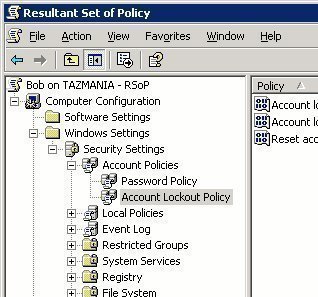
A RSoP query has the following two modes:
-
Planning Mode: This mode enables you to create a RSoP query to test Group Policy settings with the purpose of simulating its effects on users and computers.
-
Logging Mode: This mode enables you to determine what policy settings have been applied to a particular user or computer.
You can run RSoP queries on a number of different containers and objects. The objects and containers on which you can run queries are listed below:
-
User accounts
-
Computer accounts
-
Sites
-
Domains
-
Organizational Units
-
Local Computers
Windows Server 2003 includes the tools listed below which can be used to generate RSoP queries:
-
Resultant Set Of Policy Wizard. This wizard is also referred to as the RSoP tool.
-
Gpresult command-line utility
-
Advanced System Information-Policy tool
Using the Resultant Set of Policy (RSoP) Wizard to Create RSoP Queries
The Resultant Set Of Policy Wizard included in Windows Server 2003 can be used to generate RSoP queries. The Resultant Set Of Policy Wizard can be used to determine the effects of existing group policies on users and computers. You can also use the wizard when planning your Group Policy implementation strategy for your organization. The two modes which you can choose between when running the Resultant Set Of Policy Wizard are discussed in more detail next.
The ways in which you can create a RSoP query using planning mode or logging mode are listed below:
-
Create a RSoP query console, and use the Resultant Set Of Policy Wizard to specify the settings or options which the query should utilize.
-
Open the Active Directory Users and Computers console, right-click the object which you want to query, and click All Tasks and then Resultant Set of Policy (Planning) or Resultant Set of Policy (Logging) from the shortcut menu.
-
Open the Active Directory Sites and Services console, right-click the site which you want to query, and click ll Tasks and then Resultant Set of Policy (Planning) or Resultant Set of Policy (Logging) from the shortcut menu.
RSoP Planning Mode
If you are busy planning a Group Policy implementation, or restructuring your existing design, then you should use RSoP planning mode. Planning mode enables you to query and test policy settings to determine the effects of them on users and computers. You can also use planning mode to determine how group policies behave when a user or computer is moved to a different location or to a different security group.
RSoP planning mode is typically used for the purposes listed below:
-
To simulate GPO processing over a slow network connection, such as a dial-up, DSL or ISDN connection.
-
To simulate loopback.
-
To test the precedence of GPO application for the circumstances listed below:
-
A user and computer are located in different organizational units (OUs).
-
A user and computer are located in different security groups.
-
A user or computer is being moved to a different location.
-
The options which are presented by the Resultant Set of Policy Wizard when the wizard runs in planning mode are listed below:
-
Slow network connection: Select this option if you want to simulate a slow connection for computer startup or user logon.
-
Loopback processing: This option simulates GPO processing for a user who logs on to a computer that is controlled by alternate user policy settings. The simulation can be specified for Merge mode or Replace mode.
-
Site name: This option makes it possible for you to set the site that the simulation should utilize.
-
Alternate user location and computer location: This planning option enables you to simulate the result of policies when the user or computer is moved to a different location.
-
Alternate user security group and computer security group: This planning option enables you to simulate the result of policies when the group membership of a user or computer is changed.
-
WMI filters for the user or computer: This option enables you to select which WMI filters to utilize on the user or computer.
How to create a RSoP query with the Resultant Set Of Policy Wizard (Planning Mode)
-
Click Start, Run, and enter mmc in the Run dialog box. Click OK.
-
From the File menu, select Add/Remove Snap-In.
-
When the Add/Remove Snap-In dialog box opens, click Add.
-
When the Add Standalone Snap-In dialog box opens, select Resultant Set of Policy from the available list, and click Add.
-
Click Close to close the Add Standalone Snap-In dialog box opens.
-
Click OK in the Add/Remove Snap-In dialog box.
-
Proceed to right-click Resultant Set of Policy in the MMC, and select Generate RSoP Data on the shortcut menu.
-
The Resultant Set of Policy Wizard launches.
-
Click Next on the Welcome To The Resultant Set Of Policy Wizard page.
-
When the Mode Selection page appears, select Planning Mode. Click Next.
-
On the User And Computer Selection page, proceed to enter the name of the user, and enter the name of the computer. Use the Browse button to search for a user or computer. Click Next.
-
When the Advanced Simulation Options page opens, you can enable the Slow Network Connection checkbox, enable the Loopback Processing checkbox, and select the site which RSoP should use in the Site list. Click Next.
-
The Alternate Active Directory Paths page allows you to set a different OU for the user and computer which you have previously selected. Click Next.
-
The User Security Groups page displays the security groups to which the user is a member of and enables you to select additional groups or remove groups to ascertain what changes will take place. Click Next.
-
On the Computer Security Groups page choose additional groups, or remove groups t determine what changes will take place. Click Next.
-
On the WMI Filters for Users page choose which WMI filters to utilize on the user in the simulation. Click Next
-
On the WMI Filters for Computers page choose which WMI filters to utilize on the computer in the simulation. Click Next.
-
When the Summary Of Selections page opens, check that the domain controller listed for the simulation is the correct one. Click the Browse button to choose a different domain controller. Click Next.
-
After the RSoP query has been processed, a Finish page is displayed.
RSoP Logging Mode
If you want to determine what the current Group Policy settings are for a particular user account or computer account, you would need to utilize logging mode. Logging mode provides the means for you to re-examine the existing GPOs which are applied to a user or computer. You can also use logging mode to examine existing software installation applications and security for a user or computer.
RSoP logging mode is typically used for the purposes listed below:
-
Identify any failed policy settings. This includes policy settings which have been overwritten.
-
Determine the manner in which local policy affect Group Policy settings, and the manner in which certain security groups affect the application of Group Policy settings.
How to create a RSoP query with the Resultant Set Of Policy Wizard (Logging Mode)
-
Click Start, Run, and enter mmc in the Run dialog box. Click OK.
-
From the File menu, select Add/Remove Snap-In.
-
When the Add/Remove Snap-In dialog box opens, click Add.
-
When the Add Standalone Snap-In dialog box opens, select Resultant Set of Policy from the available list, and click Add.
-
Click Close to close the Add Standalone Snap-In dialog box opens.
-
Click OK in the Add/Remove Snap-In dialog box.
-
Proceed to right-click Resultant Set of Policy in the MMC, and select Generate RSoP Data on the shortcut menu.
-
The Resultant Set of Policy Wizard launches.
-
Click Next on the Welcome To The Resultant Set Of Policy Wizard page.
-
When the Mode Selection page appears, select Logging Mode. Click Next.
-
On the Computer Selection page, you can choose the This Computer option, or you can choose the Another Computer option. If you select the Another Computer option, click Browse to select the other computer.
-
Enable the Do Not Display Policy Settings For The Selected Computer In the Results | Display User Policy Settings Only! checkbox if you only want to view user policy settings. Click Next.
-
On the User Selection page, you can choose the Current User option, or you can choose the Select A Specific User option. If you select the Select A Specific User option, choose the user from the list.
-
Enable the Do Not Display User Policy Settings In the Results | Display Computer Policy Settings Only! checkbox if you only want to view computer policy settings. Click Next.
-
When the Summary Of Selections page opens, verify that the options which you chose are correct.
-
Click Finish.
-
To view the query results, click the folders in the RSoP console tree.
How to save RSoP queries
You can view the results of the RSoP query in the RSoP query console after you have saved it. To save a RSoP query,
-
On the console for the RSoP query, click Save on the File menu.
-
When the Save As dialog box opens, enter the name which you want to use in the File Name box.
-
Click Save.
-
The RSoP query console which you saved is now displayed in the Administrative Tools menu.
How to save the data from a RSoP query
-
On the console for the RSoP query, right-click the computer account or the user account node, click View, and then click Archive Data In Console File on the shortcut menu.
-
Click Save on the File menu.
-
When the Save s dialog box opens, enter the name which you want to use in the File Name box.
-
Click Save.
-
The RSoP query console which contains the archived data that you saved is now displayed in the Administrative Tools menu.
How to view RSoP query results using the RSoP query console
The RSoP query console includes the different types of information listed below, which you can view:
-
Individual policy settings
-
The GPOs connected to the RSoP query
-
GPO revision information
-
The scope of management connected to the RSoP query
When viewing individual policy settings, the RSoP query console contains the RSoP query results for the different policy setting types, including:
-
Software Settings results: The Software Settings RSoP query results displayed include the following:
-
Name, shows the name of the software package which was deployed
-
Version, shows the software version of the package which was deployed
-
Deployment State, indicates if the package was published or assigned.
-
Source, lists the source of the deployed package
-
Origin, lists the name of the GPO which deployed the particular package.
-
-
Windows Settings results: The results for scripts settings, security settings and Internet Explorer Maintenance settings are displayed here. For scripts, the following information is shown
-
Name, shows the name of the script
-
Parameters, lists the parameters which were assigned to the particular script.
-
Last Executed, indicates the date on which the script was run.
-
GPO Name, lists the name of the GPO which assigned the particular script.
-
-
Administrative Templates results: If you want to view additional information on the GPO which affected a policy setting, double-click the setting to open the dialog box of the setting. The following tabs can be selected
-
Setting tab
-
Explain tab
-
Precedence tab
-
Use the steps below to view individual policy settings connected to a RSoP query.
-
Access the appropriate RSoP query console.
-
In the RSoP query console tree, double-click the user account or the computer account.
-
Proceed to double-click the subfolders.
-
The individual policy settings are displayed in the details pane of the RSoP query console.
Use the steps below to view the GPOs connected to the RSoP query.
-
Access the appropriate RSoP query console.
-
In the RSoP query console tree, double-click the user account or the computer account.
-
Right-click Computer Configuration and click Properties on the shortcut menu, or right-click User Configuration and click Properties on the shortcut menu.
-
In the Properties dialog box for user configuration or computer configuration, on the General tab, click the Display All GPOs And Filtering Status checkbox.
-
The GPOs connected to the RSoP query are displayed.
Use the steps below to view GPO revision information
-
Access the appropriate RSoP query console.
-
In the RSoP query console tree, double-click the user account or the computer account.
-
Right-click Computer Configuration and click Properties on the shortcut menu, or right-click User Configuration and click Properties on the shortcut menu.
-
In the Properties dialog box for user configuration or computer configuration, on the General tab, click the Display Revision Information checkbox.
-
The information is displayed in the Revision column.
Use the steps below to view the scope of management connected to the RSoP query
-
Access the appropriate RSoP query console.
-
In the RSoP query console tree, double-click the user account or the computer account.
-
Right-click Computer Configuration and click Properties on the shortcut menu, or right-click User Configuration and click Properties on the shortcut menu
-
In the Properties dialog box for user configuration or computer configuration, on the General tab, click the Display Scope Of Management checkbox.
-
The information is displayed in the Scope Of Management column.
Using the Gpresult Command-line Utility to Create RSoP Queries
You can use the Gpresult command-line utility to create a RSoP query using the command line, and to display an RSoP query. The information which Gpresult can provide is listed below:
-
Information on the operating system (OS), computer and user.
-
Group Policy information, including:
-
When Group Policy was last applied
-
The domain controller which applied Group Policy
-
Information on all GPOs that are applied, and details for these.
-
Information on the Registry settings that are applied, and details for these.
-
Scripts
-
Software management information and details on published and assigned applications.
-
Disk quota information
-
Internet Protocol (IP) security settings.
-
Redirected folder information, and details on these.
-
The syntax of the Gpresult command and its parameters are listed below:
gpresult [/s computer [/u domainuser /p password]] [/user username] [/scope {user|computer}] [/v] [/z]
-
/s computer, defines the IP address/name of a remote computer. The local computer is used by default.
-
/u domainuser, specifies the user account that should be used to run the command. The permissions of the user currently logged on are used by default.
-
/p password, the password of the user account.
-
/user username, the user name for which RSoP information should be shown.
-
/scope {user|computer, used to define that user settings or computer settings should be displayed. Both are displayed by default.
-
/v, indicates output to show verbose policy information
-
/z, indicates output to show all policy information
Using the Advanced System Information-Policy Tool to Create RSoP Queries
The Advanced System Information-Policy tool can be used to create an RSoP query. You can view the RSoP query results in a HTML report which is displayed in the Help And Support Center window. You can choose to print the report, or you can save the report to a.htm file. The RSoP query results in this case is acquired from RSoP logging mode for the user currently logged on to the computer from which the RSoP query is performed. The information displayed in the HTML report is listed below:
-
Computer name, the domain and the site
-
User name, and the domain
-
All applied GPOs for the particular user and computer.
-
Security group information on the particular user and computer.
-
Startup and shutdown scripts, and logon and logoff scripts
-
Security settings
-
Registry settings
-
Microsoft Internet Explorer settings.
-
Applications installed
-
Folder redirection
Use the steps below to create a RSoP query using the Advanced System Information-Policy Tool
-
Click Start, and click Help And Support.
-
In Support Tasks, proceed to click Tools.
-
When the Tools pane opens, click Advanced System Information in Help And Support Center Tools.
-
Click View Group Policy Settings Applied in Advanced System Information.
-
The Group Policy results are displayed.
How to delegate control of RsoP
You can delegate administrative control of the RSoP Wizard to specific users so that they can create RSoP queries. To delegate control of RSoP, you have to be a member of the Enterprise Admins group.
Use the steps below to delegate control of RSoP to specific users
Click Start, Administrative Tools, and click Active Directory Users And Computers.
-
In the console tree, navigate to the domain or OU for which you want to delegate control of RSoP.
-
Right-click the domain or OU, and then choose Delegate Control from the shortcut menu.
-
The Delegation Of Control Wizard launches.
-
Click Next on the Welcome To The Delegation Of Control Wizard page.
-
When the Users Or Groups page opens, click Add.
-
On the Select Users, Computers, Or Groups dialog box, enter the names of the users or groups who should be able to create RSoP queries. Click OK. Click Next.
-
When the Tasks To Delegate page appears, click Delegate The Following Common Tasks. You can select one of, or both of the following checkboxes:
-
Generate Resultant Set Of Policy (Logging) checkbox
-
Generate Resultant Set Of Policy (Planning) checkbox
Click Next.
-
-
Verify that you chose the correct settings on the Completing The Delegation Of Control Wizard page.
-
Click Finish.

Follow Us!