

There are a large number of websites and programs that prompt end users to save passwords on their personal computer(s). Popular web browsers such as Mozilla Firefox, Internet Explorer, Google Chrome, and instant messaging software like Windows Live Messenger are capable of saving user logins and passwords on the local computer. A common task that arises for the end-user is to find stored passwords on a computer in order to recover lost or forgotten access information. Depending on the application being used, operating system, and specific user permissions, the task can be as easy as choosing some options in the OS or having to download specific tools to crack the password file hash.
How to Find Stored Passwords in Windows XP
Microsoft Windows has the capability to manage stored user names and passwords for individual users so unique software may not be required for this purpose.
Step 1 – Click on the “Start” menu button and launch the “Control Panel”.
Step 2 – Locate the “Pick a category” menu label the select “User Accounts” menu option.
Step 3 – Open the “Stored User Names and Passwords” menu option by selecting “Manage my network passwords” beneath the “Related Tasks” menu label. If you are logged in as an administrator, select your user account. Then under related tasks choose the “Manage my network passwords.”
Step 4 – View the list of stored usernames and passwords.
How to Find Stored Passwords in Windows 7
Step 1 – Click on the “Start” menu button and launch “Control Panel”.
Step 2 – Click on “User Accounts and Family Safety”, then on “User Accounts”
Step 3 – In the left pane, click “Manage your network passwords”.
How to Find Stored Passwords in Windows 8
Step 1 – Click on the “Start” menu button and launch “Control Panel”.
Step 2 – Click on “User Accounts and Family Safety”, then on “Credential Manager”
How to View Stored Passwords on a MAC
On computers than run the Mac OS X operating system, when a user tells their computer to store a password associated with an application, website, or wireless network, the information is saved on the computer’s hard drive. OS X uses the Keychain Access utility to help Mac users to look-up and manage their stored passwords.
Step 1 – Launch the OS X “Finder” by clicking the menu icon on the computer’s dock. Then, navigate to the “Utilities” folder which is located under the “Applications” section on the Mac hard drive.
Step 2 – Open the “Keychain Access” program icon to launch the password utility application. Then, select “Passwords” from the options located in the lower left corner of the program window.
Step 3 – From the list find the application, web site or network name associated with the password you want to view and double click on it. A new window showing information about it will display.
Step 4 – Click on the “Show password” checkbox to reveal the password. You will be asked to enter your user password, and click “Allow”, in order to see it. Once you do it will be visible in the “Show password” field.
How to Find Stored Passwords in Firefox
The Mozilla FireFox Password Manager application stores user names and passwords on your computer’s hard drive and will automatically enter the data when visiting websites that require the information.
Steps to Use the Mozilla FireFox Password Manager
Step 1 – Launch Mozilla Firefox by double clicking the program icon on your computer’s desktop.
Step 2 – Select the “FireFox” menu button and then click the “Options” menu choice.
Step 3 – Select the “Security” menu tab that is located at the upper portion of the “Options” window.
Step 4 – Select the “Remember Passwords for Sites” check box if not already selected.
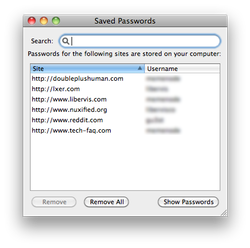
Step 5 – Log into a website that requires a username and password. Choose the “Remember” menu button on the subsequently displayed dialog box to save a new password in the FireFox Password Manager. Alternatively, you can choose the “Never for This Site” menu option to add an exception to the Password manger.
Step 6 – Choose the “Exceptions” menu button in FireFox to view the current exception list that the web browser is configured to never save a password. Sites can be removed from this list by clicking the “Remove All” menu button (removes all exceptions) or individually by selecting a site and choosing the “Remove” button.
Step 7 – View the saved passwords in the Password Manager by selecting the “Saved Passwords” menu button. You can also remove passwords from this window by clicking the “Remove All” or “Remove” menu buttons.
Steps to Change the FireFox Password Manager Master Password
The FireFox master password is used to protect the master key for the FireFox browser on your computer. The master key is used to encrypt email passwords, web site passwords, and other potentially sensitive information stored by the Form and Password Manager on your computer.
Step 1 – Launch Mozilla FireFox by double clicking the program icon.
Step 2 – Select the “FireFox” menu button, then click the “Options” menu choice, and choose the “Security” tab.
Step 3 – If the “Use a master password” checkbox is not selected you don’t have a master password. If it is selected then click on the “Change Master Password” button.
Step 4 – Enter your current password, and then in the fields below enter and re-enter the new password you wish to set.
How to Recover Passwords Hidden Behind Asterisks
A common problem that arises for end-users is determining what passwords are saved by their web browser if they do not have access to the Password Manager or equivalent application on their computer. The BulletsPassView utility is one of the most used freeware applications capable of performing this task. The program is a tool that is designed to reveal the passwords stored behind the asterisks in the standard password text box on the Windows operating system and Internet Explorer web browsers.
Improvements made to the BulletsPassView application from the legacy Asterisk Logger utility include support for Windows 7/8/Vista, support for Internet Explorer password text boxes, improved command line support, Unicode support to properly capture non-English language passwords, and not revealing the password inside of the password text-box itself (inside of the main window of the application only). The new version of BulletsPassView does have limitations; however, as it is not able to retrieve passwords displayed in the Chrome, FireFox, or Opera web browsers as well as the network and dial-up passwords on Windows. This is due to the fact that these applications do not save the password stored behind the asterisks to improve security.
Steps to Use BulletsPassView
Step 1 – Download the appropriate version of BulletsPassView for your computer. Please note that if you are using a 64 bit Windows computer there is a different version of the software than for 32 bit computers. You can tell if your Windows computer is a 64 bit by selecting “Start,” “Control Panel,” and “System” menu options and the OS type will be listed about half-way down the subsequently displayed screen.
Step 2 – Double-click the executable file downloaded to launch the application. The BulletsPassView program does not require an installation process. On launch, the program will make a first scan to locate any password text-boxes actively displayed and show the result on the program’s main window.
Step 3 – Open a website in Internet Explorer that has a password saved which you need to recover. Then click the “Refresh” menu button on BulletsPassView or press the “F5” key on your computer to display the password. Alternatively, the application supports an “Auto Refresh” option that is selectable under the “Options” menu to automatically scan for new passwords every few minutes.
Step 4 – Open the Windows command prompt by selecting the “Start” menu button and entering “CMD” in the search text field. Then, enter the fully qualified path to the BulletsPassView application and include “/stext <Filename>” followed by pressing the “Enter” key. This will save the list of passwords currently displayed on the computer’s screen to save the information in a simple text file.
BulletsPassView Command Line Options
BulletsPassView supports a number of command line options to save on-screen data into a number of formats to include text, XML, HTML, CSV.
/stext <Filename> Save the list of bullet passwords into simple text file.
/stab <Filename> Save the list of bullet passwords into a tab-delimited text file.
/scomma <Filename> Save the list of bullet passwords into a comma-delimited text file (csv).
/stabular <Filename> Save the list of bullet passwords into a tabular text file.
/shtml <Filename> Save the list of bullet passwords into HTML file (Horizontal).
/sverhtml <Filename> Save the list of bullet passwords into HTML file (Vertical).
/sxml <Filename> Save the list of bullet passwords into XML file.
Find Stored Passwords Using Cain & Abel
Cain & Abel is able to disclose or recover stored passwords on computers using the Windows operating system (OS). The application is distributed as freeware and includes the capability to conduct password-box revealing, network sniffing, brute-force, and dictionary attacks. The application does not exploit software bugs or vulnerabilities to ensure a higher quality of service. The primary purpose of the software is to simplify the recovery of passwords and credentials for network administrators, security professionals, and security software vendors. The current version of the software is faster than previous versions and provides support for encrypted protocols such as SSH-1 and HTTPS.
Find Stored Passwords in ZIP Files Using ALZip
ALZip is freeware produced by ESTSoft and is designed to recover lost or forgotten passwords from ZIP files. ALZip allows end-users to compress, uncompress, and recover lost passwords for zip file archives. The application has a “Password Recovery” menu option that when selected will recover the lost information for the end-user.
Other Popular Password Recovery Tools
Some of the other popular password recovery tools found are the freeware utilities produced by NirSoftFreeware, Ultimate ZIP Cracker, and the Password Recovery Tool for MS Access 1.
NirSoftFreeware has a number of handy freeware utilities for recovering lost passwords from IE, Outlook, and various Instant Messaging clients.
Ultimate ZIP Cracker (shareware from VDGSoftware) recovers passwords from ZIP, ARJ, MS Word, and MS Excel formats. The program supports Brute Force attacks, Smart, Dictionary, Date, and Customized searches when recovering passwords associated with the supported file formats.
Password Recovery Tool for MS Access 1 (from Hongxin Technology & Trade) is a free tool to recover MS Access passwords. The application provides support for MS Access database files through the 2003 version. The ability to recover passwords for newer versions of Access is not stated to be supported.


Rachael
Is there any safe way to manage passwords that will help me not get hacked ,hijacked or violated ..again?
Tony Caudill
I have a rocketmail account. When I try to access rocketmail it goes to Yahoo mail . I need to get to my rocketmail email, it keeps saying not recognized. Any ideas here ?? Thanks in advance.
Shirley Lister
I accidently erased my various passwords in Notes. How can I retrieve them? I am using an I-pad
George Ekman
Is there a program that will list all the pass words in Windows 10 and be able to change them
sandee
my password is gone from yahoo and the cell phone to accept an activation code is broke. I have no way to access my emails at yahoo. what can I do?
Ralph Smith
My experience with Yahoo was very unproductive, they won’t let you change the phone number if you don’t still have the original phone YOU’RE SCREWED !!!!!!!
al_maso_gh
Hello.
Google Chrome is my default browser. Is there a way to view the web credentials of my Chrome browser? All I see in that window are the web credentials of the Internet Explorer account.
mary washington
I have a username and password for MyChart on my kindle fire tablet and to put the same password on my HP Laptop
Christopher Bergin
How can I get my email password back when I am not at my computer and don’t have it stored?
michael marshall
how do i retrieve my password fr gmail
michael marshall
i forget my gmail password and it makes it hard for me access my gmail
michael marshall
i would like my password
Sylvia Laking Bishop
I have a memory problem and cannot find where I hid my password if I knew how many letterslit contains it may help me remember
Clinton Villaflor
is there an android app to get the password on the facebook app? basly needed it.
Florence8569
dfg sdgsagadsfg
Dawn Lemberg
Yeah
Jamie Hass
Hi I have an alienware laptop, I have a password on it at start up that I cant remember, can anyone help me with a ay of retrieving the password pls ??
billy
fake
BIGMAC1953
I can’t remember my password for my STEAM account how can I find it on my computer ?
Skyline
Is there a way to retrieve my password on garena messenger? I have it saved there but i forgot what it is so what i need now is something that can reveal my password there or some advice to view my saved password on the specific application. I’m using Windows 7
Syemer
I have same problem bro help me
Coco_Loco
My laptop died – need to try to retrieve passwords from HDD (I have it in an external enclosure). Where can I find these if I don’t have a ‘start’ button to click on?
Salvelinus_alpinus
Hi! I just revived my old computer where MSN messenger was still installed. When I tried to open it, it merged with Skype – and I lost the password that was stored to the MSN account. Of course now I don’t remember the old stored password, but I found that the account with password is stored in the “Manage my user account” – the password however is hidden behind pullet points. Are there any of the software programs I should download to retrieve the old password? 🙂
Salvelinus_alpinus
Thank you, but I found it with Nirsoft-program (BPV I think?) 🙂
kristine
I have a new Dell desktop that I cannot locate the password to log on. When I turn on the computer Microsoft Outlook comes up with my email but it says my password in wrong. I logged on with the same password on a different PC. How do I fix it?
dlreggae
how do i view pass word of router on mac
Donald Watson
Hi Will please help me get my bios password removed or reset I have a Lenovo ideapad z580 laptop please
H3llas
I never had that one in my hands. I guess you will need to open it to see is there any clear cmos jumpers or to take out battery. But good chance is that those things will not help. You should contact Lenovo support.
WillSpencer
How to Find Stored Passwords in Windows 7:
Step 1 – Click on the “Start” menu button and launch “Control Panel”.
Step 2 – Click on “User Accounts and Family Safety”, then on “User Accounts”
Step 3 – In the left pane, click “Manage your network passwords”.
arlene
does not work there is no manage your network passwords to choose from.
bubble
hello how do I retrieve a password that was not saved on my computer but was used? windows 7
WillSpencer
If it wasn’t saved, it can’t be retrieved.
That makes sense, no?
james
i know this is off topic but how do i see a password that i just made for windows 7 and must have entered incorectly ? but i still have my computer open , what can i do ?
WillSpencer
Step 1 – Click on the “Start” menu button and launch “Control Panel”.
Step 2 – Click on “User Accounts and Family Safety”, then on “User Accounts”
Step 3 – In the left pane, click “Manage your network passwords”.
Kate
that’s all fine and dandy except there is no “manage your network passwords” option . . . . . . ?????????
Eagleeye7
No “manage your network passwords” window in Windows 7
dennis
Hi, How can i track someones email password if he used my computer for checking his email.
Thanks
H
I just made an account to say thankyou!
Amazing, I cant believe this is possible on Windows 8!
Thankyou, this website is great!
Roger@loch
how do i retrieve a forgotten/unveil ‘unsaved’ facebook password in my PC?
Ajay Khule
Hi Roger,
Mozilla Firefox application stores username and password on your computer’s hard drive if you are using Mozilla Firefox. Follow some simple steps to resolve your problem.
> Launch Mozilla Firefox.
> Go to Tools drop down in menu.
> Click on options.
> Select security tab.
> In there you have save passwords button, clicking that button you will be able to retrieve your forgotten password.
The other option is to go to to get your forgotten password.
Lindsay Hill
what if u use google. ive forgotten my FB password and the only way to reset is if they send me a link to the email address i used to sign up with FB..except the email address is so old its been deleted???. i have stumbled across loads of passwords on my laptop once but cant find them now
davehclements@yahoo.com
the imformation is very useful just love the video’s and the computer’s..Thank you
bgrn57
How can I see my Son’s and Daughter’s passwords that they use to log into FB, Gmail etc. Want to make sure they are not doing anything wrong before i go and buy them a computer of their own?
They have been using my computer when they do log in,
Thank You
Marlon Franco
Hi Anthony, If you need assistance regarding your disabled Facebook account, please go to Facebook Disabled FAQ page. Thanks
Mikha
Thanks for the great and very useful article. 🙂