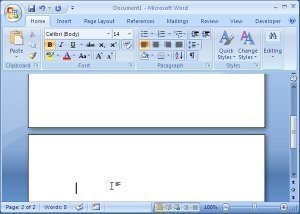
How to Add or Delete a Page in Microsoft Word

Microsoft Word is the commercial word processing program that the Microsoft Corporation created. It was first released in 1983. Since that time, the program has been upgraded to keep pace with technology and is available for use on both the Windows and OS X Operating Systems (OSs). A common task for Microsoft Word users is adding or deleting a page on a current document.

How to Add or Delete a Page in Microsoft Word

MS Word 2007 and 2010 (2011 for OS X)

Step 1 – Open Microsoft Word by double clicking the program icon on the computer’s desktop or by selecting the program from the Microsoft Office sub-menu under “Program Files” on the computer’s “Start” menu on a Windows computer.

Step 2 – Open an existing document or create a new document from the MS Word “File” menu.

Step 3 – Click the location to add a new blank page in the document.

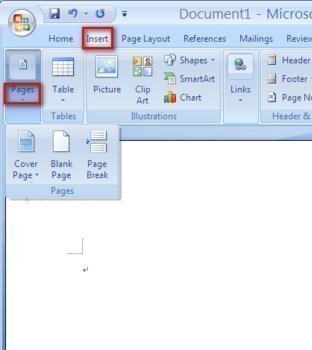
Step 4 – Select the “Insert” menu tab and choose the “Blank Page” menu option under the “Pages” group.

Step 5 – Enter information on the newly created page.add or delete page in microsoft word How to Add or Delete a Page in Microsoft Word
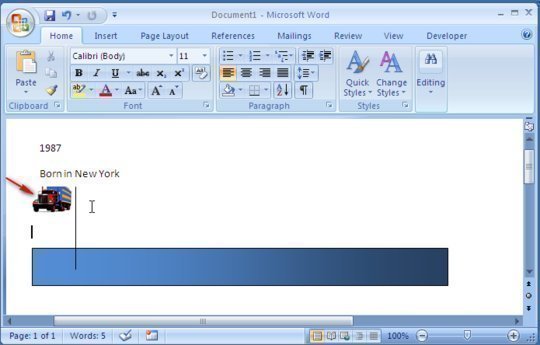
Step 6 – Alternatively, to delete a page click (ctrl click on a Mac) and highlight the data on the page to be deleted. Once the information is highlighted, press the “delete” button.

Step 7 – Press the “Save” icon or “File” and “Save” menu options to save the changes made to the document.

Microsoft Word 2003

Step 1 – Open Microsoft Word, then open an existing document or create a new document with the “File” menu option for new document creation.

Step 2 – Click the location where the new page will be entered.

Step 3 – Select “Insert,” click the “Break” menu option, then click the “Page Break” choice.

Step 4 – Select a page or more of information in the same manner as in Word 2007, 2010, 2011 to delete a page in Microsoft Word 2003.

Step 5 – Save the changes made to the document by clicking the “File” and “Save” or “Save As” menu options to finish adding or deleting a page in MS Word 2003.
VN:F [1.9.17_1161]
Rating: 0.0/10 (0 votes cast)
Follow javanx3d on

Leave a Reply

Related Posts

  • How to Convert JPG to Word

    When end-users discuss converting files store in the JPG or JPEG image format to Word it is typically for one of two reasons: 1 – To add a JPG image to a Word document or 2 – To convert a text document that is stored in JPG format to Word format. Due to the JPG [...]...


  • How Does Microsoft Word Password Recovery Work?

    Microsoft Word documents can utilize three passwords: Password to open Password to modify Protect document password   Password to Open   The Password to open requires a user to enter a password to view the document.   When the user sets a Password to open, the entire Microsoft Word document is encrypted with the RC4 [...]...


  • How Do I Make Index Cards in Microsoft Word?

    One of the better functions of Microsoft Word is the ability to change the layout of the page so that you can create different sized documents. Making index cards in Microsoft Word is very easy and, if your printer is good, they will print and read very good. It is important, though, to get blank [...]...


  • How to Use Microsoft Word

    What is Microsoft Word? Microsoft Word is a powerful text editor that comes with the Microsoft Office software bundle. Microsoft Word allows the user to edit text in a wide variety of ways through the use of font styles, font sizes, layouts, background and foreground colors, tables, links, and more. Microsoft Word is also able [...]...


  • Microsoft Word Tutorials

    Formatting and Layout Tutorial A tutorial that shows how to do text formatting and layout. Formatting is easy to apply in moderation but can quickly become confusing, especially when Word starts switching the language on you without warning. Automatic numbered lists can be a great time-saver when they work. Styles can save you even more [...]...