

Funcres.xla is a Microsoft Excel add-in that adds additional features to the software. Funcres.xla (Analysis Toolpak) includes 19 various features and a number of statistical functions that allow the user to correlate data and perform calculations that are not otherwise found in Microsoft Excel. However, Funcres.xla is included in most Microsoft Excel copies and the user must simply activate it in order to use it. If Funcres.xla is activated, it will be displayed when the user starts Microsoft Excel, which may confuse some users. Fortunately, Funcres.xla is not harmful and is not meant to be accessed directly.
How Funcres.xla Works
Funcres.xla is a workbook that is included with most Microsoft Excel copies. It consists of various commands that add functionality to the program. While users cannot access Funcres.xla itself as it is hidden and password protected, its functions can be accessed by opening the Tools menu in Microsoft Excel and selecting the Add-Ins menu item. This will display a window that lists the many different Microsoft Excel add-ins, which should include Analysis Toolpak. The user must simply click the checkbox next to it and click OK in order to activate the Analysis Toolpak, which will also display Funcres.xla whenever Microsoft Excel is started. Users should not confuse Analysis Toolpak with Analysis Toolpak – VBA, which is a similar add-in designed for use with macros.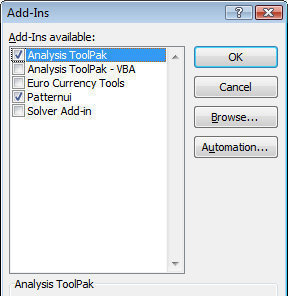
Is Funcres.xla Harmful?
Funcres.xla is not a harmful program, although it may appear so to users who do not know what it is. However, Funcres.xla is known to use large amounts of CPU memory at times and may cause Microsoft Excel to take longer to load than usual. Additionally, using large amounts of CPU memory may slow down the computer, prevent other programs from running properly, or cause the computer to stop working altogether.
How to Remove Funcres.xla
If Funcres.xla is using too much CPU memory, causing other problems, or the user simply does not use it and wishes to remove it, he/she can do so by opening Microsoft Excel, selecting the Tools menu, and selecting the Add-Ins menu item. The user can now clear the checkbox for Analysis Toolpak and click OK. The user should then close Microsoft Excel and open it again. Funcres.xla should no longer be seen.

Dingens
Not too helpful. Full points for the explanation how to activate and deactivate it, but I for example knew that part already. More advice on what do I need it for or who can safely do without its functionalities would be more helpful. I’m sure there’s an official Microsoft Page describing the “Analysis Toolpak” which you could’ve linked to.