

New computer malware is discovered daily on the Internet. As computer security companies successfully combat emerging threats, computer virus authors grow more creative in designing attacks that take advantage of the many computer users that have not taken appropriate security measures or updated anti-virus software to defend against new attacks. Once a computer is infected, the infection should be removed as quickly as possible in order to prevent additional malware from being installed, making recovery more difficult.
How to Remove Malware
Step 1 – Download the Bleeping Computer, RKill application, and the free version of the Malwarebytes antivirus program to a memory stick or portable hard drive on a different computer from the one infected with the virus(es). Even if there is an anti-virus program installed on the infected computer, the reason for it permitting the computer virus to successfully attack the PC is unknown at this point and Malwarebytes provides an independent means of removing the infection without additional cost.
Step 2 – Insert the memory stick or hard drive that the Rkill and Malwarebytes programs were downloaded on into the infected computer’s USB slot, then move the Rkill application file to the infected computer’s desktop.
Step 3 – Double click the Rkill program file to run the application and wait for the program to stop all active computer malware processes from running on the computer. The program will display the applications stopped and the number of false pop-up warnings or other infection symptoms will cease.
Step 4 – Turn off Windows System Restore to prevent the infection from being re-installed at a future point. To do so in Windows XP (other versions of Windows will have slightly different steps), select the “Start” menu button and right click the “My Computer” icon. Click “Properties,” then choose the “Turn Off System Restore” menu option on the System Restore menu tab. Click “Apply,” “Yes,” and “Ok” to finish turning the service off.
Step 5 – Move the Malwarebytes installation file from the portable storage device to the infected computer’s desktop.
Step 6 – Double click the Malwarebytes installation file and follow the default menu prompts to install the anti-virus program.
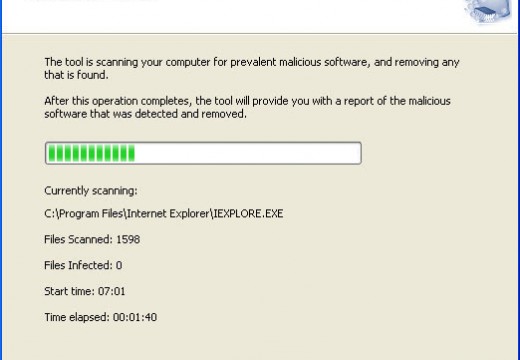
Step 7 – Run a complete anti-virus scan of all drives on the infected computer, including the portable drive used to transfer the Rkill and Malwarebytes programs. Select the default menu option to remove all infected files that the anti-virus scan discovered. Restart the computer after the infected files are deleted.
Step 8 – Update the virus definitions of the installed computer security program on the computer that was infected with computer malware. If the computer does not have a commercial anti-virus program, the commercial version of Malwarebytes is required for real-time protection or other leading brands such as Norton, McAfee, AVG, or AVAST may be considered.
Step 9 – Restore Windows System Restore and restart the computer a final time to complete the malware removal.
Follow Us!