

Importing data to MS Excel is the process of transferring data from other database sources and converting it into .xls format. This process eliminates the need to manually enter every item into a new Excel worksheet. Importing data therefore saves the user a lot of time and reduces human error.
The source data is called internal data source if it is located in files or folders in a personal computer.
Importing Data through the Import Data Functionality
On a new Microsoft Excel worksheet, click the Taskbar menu labeled Data then scroll down to Import External Data. A new menu will pop up on the right. Select Import Data to open the Select Data Source dialog box. Browse over the files in the computer to find the data source or file.
Just remember that the data should be in a format that Excel supports. The data is importable to Excel if it appears in the default Select Data Source dialog box settings Files of type, All Data Sources.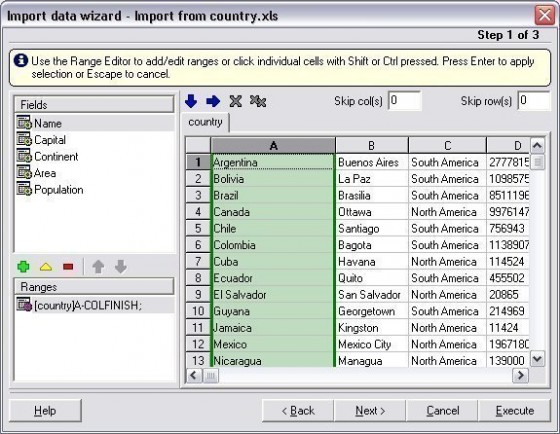
Once the data source or file is selected, click Open. The Select Table dialog box will appear. Highlight the particular worksheet to be imported and click OK at the bottom of the dialog box.
The Import Data window will pop up and ask where the imported data should be placed. Click the Existing Worksheet button to put the data in the current worksheet or click the button for New Worksheet to add another worksheet to the current MS Excel file to accommodate imported data.
After choosing, click OK at the upper right corner of the window to initiate the data import. In order to import other worksheets from the same file, repeat the process. Select another worksheet when the Select Table window comes up.
Importing Data through Copying and Pasting
To import data from another .xls file, importing data to a new Excel file can be done through copying and pasting. Simply open a new workbook file or a new worksheet in an existing Excel file. Also open the source Excel workbook.
In the source Excel file, select the worksheet to be imported by clicking on the cell at the upper left corner, the apex cell between Column A and Row 1. This will highlight all the values in the source worksheet.
Right click then select Copy from the pop-up menu or select Edit then Copy from the Excel worksheet Menu Taskbar. Click on the destination Excel workbook tab then click the same apex cell between Column A and Row 1 on the destination worksheet. Right click then select Paste from the right click menu or select Edit from the Menu Taskbar and scroll down to Paste. This will transfer all values, formats, and formula from the source worksheet to the new Excel file.

magdi babiker
its very important to know how to do it
Teo
I am trying to import refreshed info into excel without success.
I need to track information from a website that changes frequently. I have been able to import the information successfully into excel but each time it imports it writes over the old info and i would like it to import below the last entry each time.
Is there any way to do this?
memenode
Would this guide be of any help? It shows multiple methods, but the one on the page I linked might be what you’re looking for.