

Many computer owners find the multiple monitor features extremely useful. The multiple monitor feature has been around for many years and is available on Macintosh computers, Linux computers and Windows Operating systems- specifically on Windows 98, ME, XP, and Vista.
It is quite easy to add one or more monitor to your computer, however there are generally only two modes available. They are Mirror Mode and the Multi Monitor Mode.
Mirror Mode
The first mode is called the mirror mode. In mirror mode, the second monitor you add will be an exact replica of the image on your laptop's computer screen. For instance, many laptops include a separate monitor port so that you can view a mirror image from your monitor's screen and send it to a projector for viewing of the same exact image on a large silver screen. It is important to note that all video cards that include a separate monitor port in laptops allow the mirroring of an image to a second screen or projector.
It should be noted that if your laptop's screen is more advanced than the screen you are sending the mirror image to, the mirror image will be inferior. While each monitor can have different settings, including resolution, color depth and refresh rate, it doesn't guarantee image quality. Another point to make is that not only is the image replicated in mirror mode, but if you use your mouse on the original screen it will also be replicated as well. This way, you can easily use the mirrored image to help you control your mouse location and thus control your computer.
Multi Monitor Mode
Multi monitor mode is quite different than standard mirroring. In multi monitor mode, one or more monitors can be connected to the video card already installed in your laptop and form one single desktop. For instance, using multi mode with four monitors, you can create a huge desktop with each monitor representing only 1/4 of the screen. While this set up might not be good for word processing, it can be ideal for certain video games.
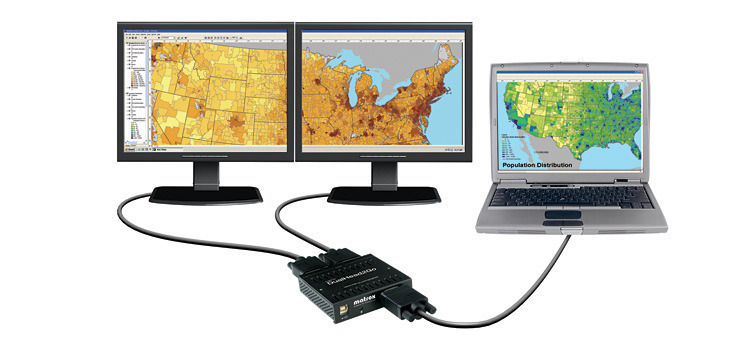
Microsoft Windows supports multi monitor mode, however this support does depend on the type of video card you have.
How to Connect Multiple Monitors to a laptop
There are a few ways to connect multiple monitors to a laptop; however all of them require an operating system that supports multiple monitors and a video card that supports multiple monitor mode. Here are some tips.
Using the Second VGA Output of the Laptop
On most laptop computers, you can easily spot the VGA port for adding an external monitor. It should be noted that the default setting for any device added to the VGA port is the mirroring of the screen and not multi mode.
If your laptop comes with a video card or chipset installed that is capable of supporting multi monitors, you can easily choose this setting instead of the default mirror setting.
Adding a Monitor via USB
You can add one or more monitors to your laptop computer via the USB ports. Some monitors that are sold today can connect via USB instead of through a larger VGA port. However, in order to realize multi monitor images, your chipset or video card will need to have multi mode capability.
Adding a PCMCIA Video Card
Since practically all laptops have PCMCIA support, you can usually add multi monitor support by installing a PCMCIA video card with this capability. Remember, with a PCMCIA card, you just need to easily insert the card into the laptop PCMCIA slot. It should be noted that to ensure the video card is working properly with your operating system, you may need to download the current driver.
Using a Docking Station with Video Card
If you have access to a docking station for your laptop and it includes a video card with multi mode capability, you can obviously use the docking station to connect your laptop to additional monitors. For instance, one docking station that has a built in video card with multi mode capability is EasiDock 1000EV. Some docking stationshave the capability of adding or installing a video card with multi mode capability. In this case, you can easily install a video card to the docking station and then connect your laptop to acquire multi mode capability.
Adding an External Video Card
There are devices that can be connected to your laptop that include an external video card. Some devices can be connected via a PCMCIA card; others can be connected via USB.
Using a Second Laptop or Other PC as an Additional Monitor
In certain situations, you can use a second laptop's screen or a desktop PC's monitor to add multi mode capability. The second laptop or desktop PC can be connected to the laptop via a network connection. You may do this either via Ethernet or even WiFi. It should be noted that you will need at least Windows 2000, XP or Vista. In addition you may need special software. One software application that can give you this capability is MaxiVista.
An Important Note about Mirroring (same display) on Multiple Monitors
It should be noted that there is currently no built in support for mirroring of more than one monitor. For instance, if you have one laptop and you want the exact screen to be shown to three monitors around a room, you will need to purchase additional software. One software solution is called UltraMon and works with Windows 2000 and XP.
Chips that Support Multi Mode
- RAGE MOBILITY
- RAGE LT PRO
- ATI MOBILITY RADEON
- Nvidia GeForce Go
- Trident Cyber 9525DVD
How Many Monitors Can Be Connected
In theory, the actual number of monitors that can be connected is not known; however, most experts cite the limit as 10 using Windows 2000 or XP. The reason for citing 10 deals with the limitation on the display properties applet and is not necessarily due to the system. If you would like to add more than 10 monitors, you may require a custom application such as UltraMon.

Paul Clarke
Thanks, why is this so difficult to figure out. I have a laptop (Toshiba S55), I have two external HDMI montiors that I would like to run as extended desktop, not mirrored. Ideally my laptop screen is my primary desktop and I use two wide screen monitors for my workspace. I have one hdmi port and many USB 3 ports. Isn’t there an external video card that can offer two hdmi ports so all I have to do is plug in the usb cord? Put another way, what is the least amount of cords/simplest solution. I am going to guess I have two options, use a usb to hdmi adapter/ext vcard for HDMI monitor #1 and use the built in hdmi port on the laptop for monitor #2 ? Is there a USB to HDMI solution that has two HDMI ports? Or is a 3rd option to just run two different single external USB 3 to single HDMI cards. I travel between office and home office alot and ideally I would have something that I can just plug in power and one usb cord and I am done, 3 screens. Thanks for the help.,
B Trafficlight
I use usb-to-dvi adapters for extra monitors (EVGA). To avoid unplugging extra cables, use a dock station or USB hub.
Charlie
This contains less than basic information, if you look at the other forums, people are having a major problem installing three screens on Windows 8, not finding the damn port to plug the cable in…
c
lol
phillip hurst
we have a laptop and hooked up an external monitor, it worked fien for a month or so then friday it said no signal, unplugged it from laptop and power supply reconnect and still the save no signal, what is wrong