Home     Blog

How to Erase Browser History

Erasing browser history clears the record of what web sites the user visited over a period of time. This can help to protect privacy by preventing others from monitoring what web sites the user has been visiting.

Erasing Internet Explorer’s Browser History

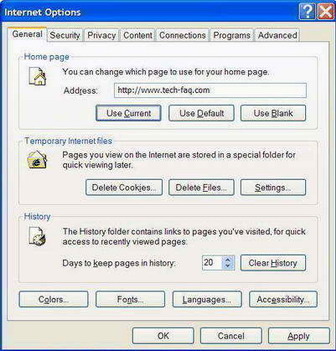
By default, Internet Explorer keeps browser history for 20 days. To erase browser history in Internet Explorer, follow these steps:

  • Open the Tools menu from the toolbar.
  • Select Internet Options from the Tools Menu.
  • Click the Clear History button.
  • Click the Yes button on confirmation.

clear internet explorer brosing history How to Erase Browser History

Erasing Firefox’s Browser History

To erase browser history in Firefox, follow these steps:

  • Open the Tools menu from the toolbar.
  • Select Options from the Tools Menu.
  • Click the Privacy tab at the top.
  • Click the Clear Now button under the Private Data heading.
  • Check the Browsing History and Saved Form and Search History checkboxes (if not initially checked).
  • Click the Clear Private Data Now button.
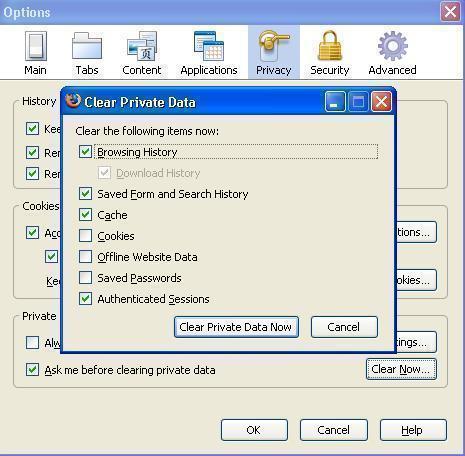
clear firefox brosing history How to Erase Browser History

Erasing Safari’s Browser History

To erase browser history in Safari, follow these steps:

  • Open the History menu from the toolbar.
  • Select the Clear History from the History menu.

Erasing Opera’s Browser History

To erase browser history in Opera, follow these steps:

  • Open the Tools menu from the toolbar.
  • Select the Preferences from the Tools menu.
  • Click the Advanced tab at the top right.
  • Choose History from the left side vertical menu.
  • Click the Clear button to clear the history.
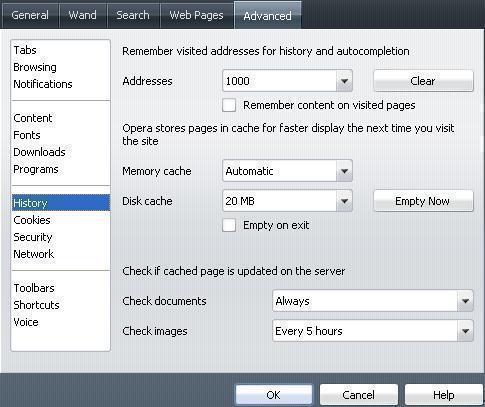
clear opera brosing history How to Erase Browser History

Erasing Google Chrome’s Browser History

To erase browser history in Google Chrome, follow these steps:

  • Click the small spanner icon at the top-right, next to the address bar. A hover over the spanner icon will say Customize and Control Google Chrome.
  • Select Clear Browsing Data (or press Ctrl+Shift+Del without opening the menu) from the menu.
  • Check the Clear Browsing History and Clear Download History checkboxes (if not initially checked).
  • Click the Clear Browsing Data button to clear Google Chrome’s browsing history.
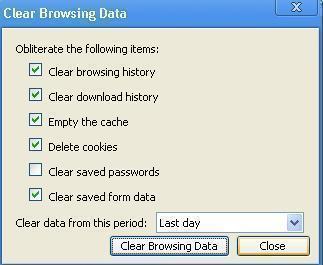
clear google chrome brosing history How to Erase Browser History

Videos Related to Delete Browsing History Firefox and Internet Explorer

VN:F [1.9.17_1161]
Rating: 0.0/10 (0 votes cast)
Follow Will.Spencer on

Comments


  1. mimi says:

    thanks sooooooooo much i needed this so bad thanks to you im not getting in trouble!!!!! :lol: ;-) :D

    VA:F [1.9.17_1161]
    Rating: 0.0/5 (0 votes cast)

Leave a Reply

Related Posts

  • How to Delete Google History

    For many different reasons, people want to delete their search engine history. To delete history using either Internet Explorer or FireFox requires going into the options and erasing them manually. However, if you have the Google Toolbar installed on your site, you are able to erase your search history with just two clicks. Regardless, the [...]...


  • How Do I Clear Previous Google Searches?

    Clearing previous Google searches is a straight forward process that can take about one minute to accomplish. It should be noted that unless you’re using the Google toolbar, erasing only the history of Google is impossible. However, since people typically only use one search engine predominately, erasing the search history will only affect Google. Erasing [...]...


  • How to Clear MSN Search History

    When using MSN and doing a search, you are using the Bing software which is Microsoft’s search engine. However, one of the things that you might want to do is clear your search history. Perhaps you were searching fro something on a computer that you don’t want anyone to know. Maybe you just don’t want [...]...


  • How to Delete History on Google Chrome

    Google Chrome is a browser that Google created that allows users to manage their Google services while browsing the Internet. Google Chrome is designed to be highly intuitive, personal, and fast while not using a large amount of CPU memory. Google Chrome includes a wide variety of features that are already built into the browser [...]...


  • How to Clear Your Cache

    Most web browsers store web pages and images that we browse on the Internet. The web browsers cache (meaning, temporarily store) these files for a short time in your computer. If we revisit a pre-visited web page while these files are still in the cache, the web browser retrieves the files from the disk cache [...]...