

Although connecting a laptop to a projector is simple, without proper preparation, the projector connection can fail, resulting in a delayed or cancelled presentation. The most common way to connect a laptop to a projector is via VGA cable, with SVGA and S-Video cables providing alternative means of making the connection. A common task that arises for students and business personnel is connecting a computer to a display projector to show a presentation to a group of people.
How to Connect a Laptop to Projector
Step 1 – Identify the laptop’s video output types. The VGA (Video Graphics Array) is the most common, followed by S-Video (Separated Video), and HDMI (High Definition Multimedia Interface).
Step 2 – Verify the projector’s input cable type and if the cable should be taken to the presentation. HDMI and VGA connectors are the most prevalent. However, the HDMI type is more expensive. S-Video inputs are more commonly found on LCD or Plasma televisions, though modern TV displays also have HDMI input.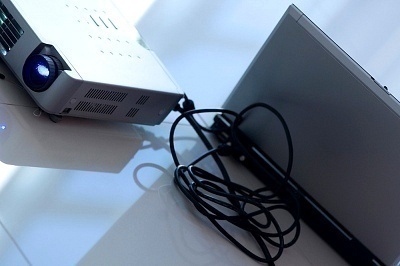
Step 3 – Turn on the projector and connect the laptop to the projector with the video cable.
Step 4 – Press the “Fn” key and the “F” key corresponding to the remote display on the computer simultaneously. On most Windows computers this key is “F1,” however, it does not have to be defined for this function. There is a graphic display of a television screen on the function key.
Step 5 – Press the “Fn” and “F” key a second time to view the laptop’s screen on the projector’s display and the laptop screen at the same time.
Step 6 – After completing the presentation, press the “Fn” and “F” key again to cease pushing the computer display to the remote terminal. Then, disconnect the projector from the laptop to complete the presentation. Newer Windows computers automatically detect when a projector display has been disconnected automatically. However, older Windows computers may require this step so that the computer screen can be seen again.
George Breckenridge
Is there a battery saver in the laptop that turns it off after x number of Power point slides. If so can it be turned off to allow the projector to operate without interruption ?