

A large number of consumers have digital music purchased through or uploaded to the iTunes multimedia player on Mac and Windows computers. Unfortunately, the native iTunes format, AAC, for music files is not compatible with many non-Apple brands of MP-3 player. As a result, a common task that arises for end-users is to convert iTunes to MP3.
How to Convert iTunes to MP3
Step 1 – Launch the iTunes application on your computer by double clicking the program icon on the computer’s desktop.
Step 2 – Select the “Edit,” “Preferences,” and “General” menu options.
Step 3 – Click the “Import Settings” menu button.
Step 4 – Change the “Import Using” to “MP3 Encoder.” On iTunes version 8 or older, you select the “Edit,” “Preferences,” “Importing” menu options to get to the same location to change the import format type.
Step 5 – Select the “Ok” menu button to save the setting.
Step 6 – Restart iTunes.
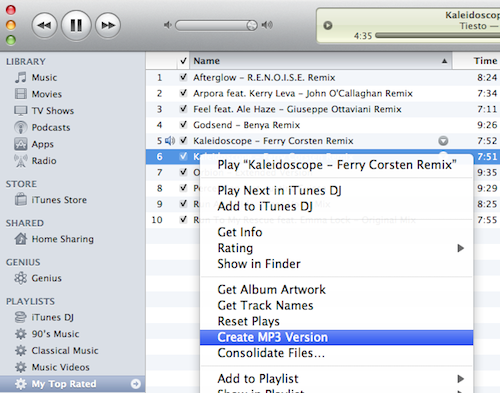
Step 7 – Right click the music track to convert to MP3.
Step 8 – Choose the “Create MP3 Version” or “Convert Selection to MP3” depending on version of iTunes installed on the computer. There will now be copies of the song in the library; one stored in AAC format and one in MP3 that can be downloaded or burnt to CD/DVD.
Step 9 – Select “File” and “Display Duplicates” menu options. Choose the option “Kind” to display the file types simultaneously in iTunes.
Step 10 – Repeat the conversion steps until complete with all iTunes to MP3 conversions.
Convert DRM-Protected iTunes to MP3
For music purchased from iTunes prior to 2009, it may be DRM-protected and will throw an error when taking the steps listed earlier in this article. To convert tracks saved under this restriction, the music will need to be ripped to CD and then converted by iTunes.
Step 1 – Open the iTunes player.
Step 2 – Select the “Preferences” menu button followed by clicking the “Burning” icon.
Step 3 – Choose “Audio CD” as the CD format and choose the “Use Sound Check” checkbox if the playlist contains songs from multiple albums to ensure playback at the same volume followed by choosing the “Ok” button.
Step 4 – Pick the playlist to burn to CD and convert to MP3.
Step 5 – Choose the “Burn Disc” menu button and then insert a blank CD-R or CD-R/W disc into your computer’s CD/DVD drive.
Step 6 – Click the “Burn Disc” button again to rip the music to CD.
Step 7 – After the CD burn is complete; open the disc in the iTunes player.
Step 8 – Use the “Create MP3 Version” or “Convert Selection to MP3” option displayed by right clicking individual tracks to create the MP3 version of the music track.
zombiesleigher
Everytime I try to convert a song it pops up saying none of the selected files were converted because they could not be found. help?
Shad Groverland
in iTunes, instead of looking at Recently Added or Albums make sure you are looking at Songs. From there, select the song you want to convert and that worked for me when I had the same problem as you.
Scott Brady
I am trying to convert audiobooks that I’ve downloaded. Your method says it can not convert them because protected files can not be converted to MP3.
Is there any way around this? ALL audiobooks downloaded from iTunes are protected. (exactly why I am changing to an Android)
pedrogawdin
i use iDealshare VideoGo to convert all kinds of video and audio files including caf, qcp, aiff, voc, flac, ogg
Eve
Here’s my solution: Forget about itunes. Buy a proper mp3 player and buy actual CDs. This way you can put it anywhere and everywhere you like and don’t have to convert anything. You can even put it on as many computers and you like.
Donna Clark Mcdonald
As I am not computer savy what is a good mp3 player?
Huey
Why do you have to go through so much to convert songs to mp3 to play in your vehicle? I have been on internet talked with computer people for hours and still no luck. I have purchased new vehicle and has UVO by microsoft technology radio system and has a “jukebox” that I can save my favorite songs to but they have to be MP3….so how do I get all my favorites to MP3 on the USB and transfer to my car…FRUSTRATED
TonyVov
Method worked well. To maintain the quality of the file check the bit rate of the mp3 conversion against your original AAC files on the Import preferences.
This metod allows me to use Songbird and iTunes on the same music database each one syncing their favorite devices,
Big Wave Dave
Great assistance……… Needed to convert iTunes to MP3 for my car stereo. To keep from having duplicate listings, I copied the entire library and put it into another folder on the iTunes. Opened that folder and then did the conversion. Both are available and no problems with multiple listings showing up. Simply pick which folder (format) and away you go !!!!!!!!
ChrisL
I have been trying to add music to a slideshow I made using Windows Movie Maker. I followed your tips and converted to MP3 but only 1 song worked!!!! Every time I convert to MP3 I can’t add it to the slideshow. I receive an error message but no reason why!! I’m so frustrated and have spent hours trying this and am about ready to give up! Any suggestions…anyone? Thanks!!
Will.Spencer
ChrisL:
What is the exact text of the error message you are receiving?
you should be able to add MP3 files into Windows Movie Maker by using the Import option from the File menu.
Steven
I have followed the steps as directed.
When I right click, my only file option is still AAC.
I then go back to preferences and find it has reverted to Itunes.
What may I be doing wrong.
effie
Thanks — this was so easy!
peter
Awesome!! thanks much!!
Bob
Thanks for the tip. I was just about to give up after struggling with this problem for over a day.
Kjax
Is there a way to convert music videos to MP3…that can then be played on my car deck/usb that only plays mp3 no visual??
in other words I know how to convert itunes to mp3 but my videos won’t and I want those songs playable in my car as just a audio.
Charles
Go to Freemake.com. Download their Freemake converter. You can use it to convert video to MP3 audio only.
teresa adams
I converted the songs to MP3 and it listed the new songs at the bottom of the list of recently purchased songs that I converted. Now how do I get them to the MP3 player it is just a GPX 4GB touchscreen that I got my 12 year old for Christmas. Any help would be appreciated.
Tara
I have converted all my songs to MP3 and how no idea how to trsf them onto my MP3 player…Help I am computer dumb! 🙂
Marlon Franco
via USB? probably Bluetooth. What’s your MP3 player so we can help you out better.
derek yeaman
Hi My Itunes doesn’t have preferences in the Edit window so i can’t begin to convert my itunes files to MP3????
What can i do? I have xp windows.
thank you
Chris
Wow, thanks for the simple directions on converting selected iTunes files to MP3! I had no idea how easy it was.
John
After select the Mp3 importer and creating mp3 verions I found the mo3 versions were in the iTunes media folder on the file system it was just easier to copy them from there.
Select Edit|Preferences|Advanced and see the folder name under iTune Media folder location.
Fleur
I tried this and in the process, ALL MY SONGS WERE LOST!! Can anyone help me try to get them back? I’m really upset about this, I had about a thousand songs.
ZHUGGER
ive followed your instructions to the “T”. When I right click the file, go to “create MP3 version” I get “none of the selected files were converted because the could not be found”
John
I am not able to right cick on my files
Marlon Franco
What do you mean “can’t right click”, can you elaborate on this please. I’d like to help.
Jordan
Useful tip! Go ahead and create the duplicates, and when it comes time to sort them just click on the “date added” tab/column on the far right of the player (name – time – artist – genre – rating – plays – and then … date added) and from there it will sort out the mp3 files that you just created (being created most recently). From there … I just copied and pasted
KMH
I dont have the option to save the settings once I’ve changed the Import Settings to MP3. How can I ensure that the settings have been saved? Thanks!
legolas
oh my god thank you so much this helped me so much. thank you from saving from having to use software from the internet 😀
Wildcat
Wow!!! I’m a Mac so instead of right click I pressed “Control”. And my “Preferences” was under “iTunes” — so it’s: Select iTunes > Preferences > General, and press Import Settings’, Change the ‘Import Using’ to ‘MP3 Encoder’. That was so easy to convert my iTunes purchases to MP3s!! I tried to use iTunes help, which wasn’t helpful and couldn’t play purchased songs on my smart phone. Thank you!!
Lovli
Thank you for the help. Your instructions worked perfectly. I believe the mix up for some people happened where you told us to Select Edit>Preferences>General>and the PRESS>Import Settings). After you click on General, Close to the bottom of the Screen you will see where it says, WHEN YOU INSERT A CD, right next to that it says, ASK TO IMPORT CD, and right next to that is where you CLICK in the box and click IMPORT SETTINGS. I hope this helps others. It worked for me. After that I followed the instructions that INFORMED gave and it allowed me to convert all of the songs at once. It took about 15 minutes I believe or less. You can find your converted music in the section where it says LIBRARIES and then click on MUSIC. Next go to ITUNES MUSIC, then click on ITUNES MEDIA, then click on MUSIC and you will find all the music you downloaded and converted to MP3 from there.
alaskabound
THANK YOU!! This was the part of the puzzle I was missing!
Leslie Chow
Thank you! That worked! I was trying to upload music into a PowerPoint presentation for work, and it would not let me. I am just going to reiterate your directions to include the beginning steps so people don’t have to read everything in this thread.
Converting Music from i Tunes into Mp3
· Download iTunes if you don’t have it already
· Rip any music that you want into the library
· Go to Edit (at the top) > Preferences…it should open in the general tab>Click import settings>Under the import using, scroll down to Mp3 encoder>okay
· Go back to iTunes and into your music library
· Right click on the song that you are trying to convert into mp3
· You should see the option Create MP3 Version
· It will convert it for you and then you will see two versions of the song in your library. The version that you want is the bottom one.
· I then dragged that song into untitled play list.
To convert it to PowerPoint
· Minimize i Tunes screen and minimized where the PowerPoint is saved
· Drag the song from your i Tunes play list to where the PowerPoint is saved, for example my documents.
You should be able to insert the song in your PowerPoint
Guy
I followed these instructions, but when I right-click on a music track, no option appears that mentions mp3.
Nathan
This dialogue proved helpful–thanks to all.
bob
your instructions aren’t worth a crap!
Duh
BORING GO TO http://WWW.ACC2MP3.com and then just upload the itunes folder and wait for it to give you the new one
Lesley
Hi, I did as suggested above and used Advanced to create an mp3 version of my iTunes library however, when looking at my library now, it looks like there are two of everything. Are these now duplicates? Do I have to go in manually and delete these dupes or is there another way?
Eileen Sidney
Hi, I want to add an iTunes file to a Roxio PhotoSuite Slideshow. I converted the iTunes file to MP3 and added it to my slideshow. When I tried to “play the sound” I got this message: Unable to play – make sure a sound card is present and working properly”. Any suggestions ? Thank you, Eileen
lulu
My itunes have changed all my music from mp3 to mp4 format which causes my computer hard disk(in my computer) disappeared. how? and i can’t donload any video from any website. They told me that”No download links were found for the selected video”. Can you help me??
Bee Cee
True, there’s something missing from these instructions. I convert them using these instructions and I go to burn them and it says that they’re not “converted” so they can’t be burned. At least they don’t seem to be in this playlist, even though I watch on the task bar and they’re all being converted.
Second, going into edit, preferences and then the advanced tab, once there, there is NO import option.
Also, no new track is shown anywhere to right click on… another suggestion above.
I can find the actual mp3’s going into my music folder under itunes, but they’re all buried in individual folders, which make them impossible to burn on to a cd unless I copy and past the 500 songs I’m trying to burn on the 4 cd’s I’m trying to make with mp3’s.
Any suggestions on what instruction is missing? I have the newest itunes download.
memenode
Well, looks like Apple changed the location of import settings. They’re now in the General tab. I changed the article to reflect that.
ak
@BeeCee: it’s the weirdest thing, but iTunes stores the converted files in the main Music library, not the current playlist. So if you click on the “music” library and search for your converted song you will see it appears twice in your library: the original format and the converted version. You have to manually add the converted song to your playlist. It’s a huge drag if you convert many songs but if they all have something in common (same album, comment, rating, artist or whatever) you can search for the whole bunch of converted songs in one go.
TouchingGrace
OK, confused. Want to put the Converted MP3 on disc. The process runs through but when I go to transfer the music to CD it lists it as MPEG-4.
The last step is missing something. I have done all this and Convert to MP3 shows and runs when clicked..Where did the MP3 version go?? so I can burn it?? I feel so dumb!! Thank you!!
memenode
In iTunes click on the new track, then right click on it and “Show in Windows Explorer”. If you’re on a Mac it’s “Show in Finder”. It will then show you the actual file you can burn, copy elsewhere etc.
Paul
Excellent article. Thanks. Have converted all my iTunes music to MP3 and succesfully got them onto my SonyEriccson cell phone. Through Windows Explorer, have deleted the previous versions of music (.m4a .mp4 .aif) ~ however, iTunes still lists them as there (ie. I have 2 of everything listed, but only 1 plays). Any ideas please? Thanks again
memenode
iTunes just list them in its database. I think you just need to delete all of the extra entries from it.
If you’re up for some fiddling you can check out the methods posted here.
don
i want to put music from itunes on a web site and it wont allow me too
Informed
Simplest method is this.
1) Press “Control” and “A” to select all songs
2) Push “Advanced” at the top
3) Choose “Create MP3 Version” option
4) Voila! Just sit back and wait for the conversion to complete.
Apple Hater
Awesome! Just the shortcut I was looking for.
Joseph
Man, you are a saviour….kooollllllll
DalRescue
Step #3 – ??
When I click on Advanced there is no option to convert to Create MP3 version. I am so frustrated. Purchased my first itune only to find out I can’t use it with windows movie maker. I have spent hours trying to figure out how to convert the file and can’t find a solution.
memenode
Have you tried the instructions in the article, and notes form other comments? Also, couldn’t you just right click on the track and choose “Show in Folder” (“Show in Finder” on Mac) to locate the actual AAC file and use a different program to convert it?
Leo
Follow the instructions and once you have burned it to the audio CD you need to rip it into your media player library and save it. It is now MP3 format
Sugar Bear
Sounds great and it works but then you are stuck with two of every song in your library. Will it hurt to delete the mp4 files?
memenode
Why would it hurt? 🙂 You’ll just be left with the mp3 versions, and if you like them better it shouldn’t be a problem.
gabriel
Ok, but this way I end up with the songs duplicated (one copy on each format). Can this be avoided? Otherwise is a having to delete every other song… Thanks!
lets dance
Or you can say screw you itunes and download i suggest bearshare.com where when you buy the files they are already mp3 (why use itunes? just a pain in the ass)
Mike
This method does not work on files purchased from Itunes, as the article says. When following your instructions, a window pops up saying “*** could not be converted because protected files cannot be converted to other formats.”
Kelli
Perfect!! What a time saver. I just wanted to import my purchased music into audacity. This was great!
LastDay
I have compared different converters and I recommend MelodyCan.
It converts music and movies, and also can remove drm protection. The converter is easy to install and use.
David
MelodyCan worked great!