

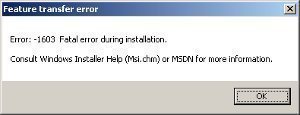
When installing software that is packaged with the Windows Installer, users may get an error 1603. The actual error message that displays is “error 1603: A fatal error occurred during installation.” There are a few things that cause this to occur.
Windows Installer and Encrypted Folders
Users cannot install software packaged in the Windows Installer format into an encrypted folder.
- Install the software into a different folder that does not have encryption turned on.
- Remove the encryption and install the software again.
Windows Installer and Substituted Drives
Users cannot install software packaged in the Windows Installer format to a drive that is substituted for another drive.
- Try installing the package into another non-substituted drive.
- Also, try un-substituting the drive being installed to and try again with the original drive letter. NOTE: This may cause some software to stop working.
Windows Installer and the SYSTEM Account
The Windows Installer software uses the SYSTEM account for installation purposes. Because of this, it is necessary for the SYSTEM account to have full control of any folder being installed to. Ensure that the SYSTEM account has the appropriate privileges as follows:
- Double-click “My Computer.”
- Right click the drive that the software should be installed to and click “Properties.”
- Select the “Security” tab.
- For Windows 2000, verify that the “Name” box has the “SYSTEM” user account in it.
- For Windows XP, verify that the “Group or User Names” box has the “SYSTEM” user account in it.
If the “SYSTEM” user account does not appear, add it. - Click the “Add” button.
- When the “Select Users or Group” dialog appears, Click “SYSTEM” in the “Name” field.
- Click “Add.”
- Click “OK.”
- In the “Permissions” section, click the “Full Control” checkbox under “Allow” then click “Advanced.” A dialog box will appear.
- If using Windows XP, select the “Replace permission entries on all child objects with entries shown here that apply to child objects” checkbox next to the “SYSTEM” user account. Click “OK.”
- For other Windows systems, select the “Reset permissions on all child objects and enable propagation of inheritable permissions” checkbox next to the “SYSTEM” user account. Click “OK.”
- If a security dialog box pops up, be sure to click the “Yes” button.
Fixing Error 1603 in Windows 7
Users can still encounter error 1603 on Windows 7. Unfortunately, the fixes for the error on previous Windows OS versions will not work.
How to Fix Error 1603 in Windows 7
Step 1 – Log into the computer in administrator mode.
Step 2 – Click the “Start” menu button, enter “services.msc” in the search text field, then press the “Enter” key. Enter the administrator password for the computer if asked then click the “Continue” menu button.
Step 3 – Double-click the “Windows Installer” on the services list and select the “Automatic” option in the Windows Installer properties dialog box.
Step 4 – Select the “Start” button, then “apply” and “Ok” buttons, then restart the software installation.
Step 5 – If the error is not corrected, restart Windows to configure the computer for a “clean” startup or boot without other programs running in the background that could be causing the error to get thrown.
Step 6 – Select the “Start” menu button, enter “System Configuration” in the search text field, then press the “Enter” key.
Step 7 – Choose the “System Configuration” menu option from the programs list and enter the administrator password if the system asks.
Step 8 – Choose the “Selective Startup” menu option then clear the following check boxes: load startup items, load system services, and the use original boot configuration.
Step 9 – Select “Services,” pick the “Hide All Microsoft Services” check box, then click the “Disable All” menu option.
Step 10 – Choose the “Ok” menu button then restart the computer. Error 1603 will be cleared.

kilroy
*the use original boot configuration.* Is grayed out
kilroy
Solved:
These did it:
https://www.microsoft.com/en-us/download/details.aspx?id=46148
https://www.catalog.update.microsoft.com/search.aspx?q=kb3125574
frederik
Try to use “Long Path Tool”
MrJanx
If you have Windows 7 64 bit save the update to the desktop, right click and set it to compatibility xp and run as administrator. It worked for me
Scott Welker
My instance of this error on Windows 7 64 bit proved to be due to the attempted installation of an unsigned driver, VMware’s vstor2.sys. With 64 bit OSs Microsoft instituted the requirement that all drivers be digitally signed.
Was able to “Disable Driver Signature Enforcement” via the Windows Advanced Boot Options menu and successfully complete the installation.
Scott Welker
F8 during boot = Windows Advanced Boot Options menu
Amanda Stewart
Were you trying to download the latest version of VM Player?
Juro
Hi, the error occurs to me when installing Sony Vegas 10. I have Windows 7 x64. I cleared the registry, I ran the installer as administrator, I went offline, I tried steps suggested above for Win7, but there’s no Windows Installer in my services list. I’ve been googling for a solution for two days, but the error still appears. Any suggestions, please? Thank you!
Thales
It´s not working (windows7)
but thnx all the way for help…
still needing to fix the problem!!
memenode
Have you tried running the installer as administrator?
It might also help to check your registry and do any repairs if necessary. Also look here and here for potential solutions and let us know what worked.
des
hello,,
as ” OMG ” wrote that is wasn’t work in widows 7
please i need a help
OMG
Doesent work (windows 7)