

This is an error commonly witnessed when you try to uninstall a program using the "Add or Remove Programs" in Microsoft Windows XP. The message itself will read: "Error 1721. There is a problem with this Windows Installer package. A program required for this install to complete could not be run. Contact your support personal or package vendor."
Resolution #1: Reregistering the Windows Installer service
It is known that if the Microsoft installation engine malfunctions or is internally corrupted, there is a possibly that you will not be able to remove programs that you used the Windows Installer, the service that administers the installation and configuration of programs, to install with. Thus, in the case of error 1721, it is necessary to unregister and then reregister the Windows Installer service to fix the corrupted parts of the engine. This can be accomplished through the Safe Mode by: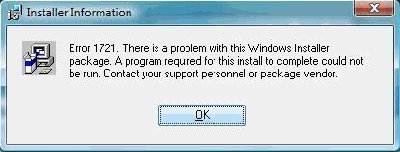
-
Enter your computer in Safe Mode by:
- Restarting the computer and pressing F8 after the BIOS information is shown
- Select Safe Mode and Enter
- Select your computer and Enter
- Log on as the local administrator
- Open up the command prompt by clicking Start, Run, and then typing cmd.exe and Ok
- At the command prompt, first unregister the service by typing msiexec /unregister and then hitting Enter
- Reregister the service by typing msiexec /regserver and then hitting Enter
- Type Exit to exit the command prompt safely
- Try to remove the program once again using Add or Remove Programs
Resolution #2: Running a System File Checker
If the above resolution does not work, running a System File Checker (Sfc.exe) could solve your problem. However, the above method should be attempted before this resolution. The System File Checker is designed to scan protected operating system files to verify whether it is the correct version or not. Thus, it could detect incorrect versions or corrupt files and replace it with a correct file from the Windows installation source files. Use the System File Checker by following the steps below:
- Open the command prompt by clicking Start, Run, and then typing cmd.exe and OK
- In the command prompt, type sfc /purgecache and hit Enter
-
Now type sfc /scannow and hit Enter
Note that both of these steps may ask you to provide the Windows installation source files and the full process of running of the command line may take up to several minutes.
- Type Exit to safely exit the command prompt
- Try to remove the program once again using Add or Remove Programs
frederik
just suggest to try “Long Path Tool” program
rejohn
Please try long path tool
Joshua
It says there UnRehisterCOM_3.0 location: C:\Windows\Installer\MSl57E0.tmp, command- uninstall C:\Lg electronis\LGNPST\Componets 3.0