

A common error encountered by Microsoft Windows users when trying to read or write from a drive, disk, or portable media device is the I/O device error. When this error is generated, the transfer mode that the operating system is attempting to use for the operation may not be recognized. The I/O error may be experienced with various media storage devices such as: external hard drives, DVD or CDs, DVD or CD drives, SD cards, or USB sticks/drives. Common causes of the error include faulty hardware, a loose connection between the hardware and computer, outdated hardware drivers, or the IDE channel properties require modification.
What Are the Common I/O Device Error Messages?
Unfortunately, the I/O device error can generated more than one error message. Some of the most commonly encountered messages associated with the error include:
– The request could not be performed because of an I/O device error
– Only part of a readprocessmemory request was completed
– Only part of a writeprocessmemory request was completed
Windows may display a “Windows error code” along with the plain language error message. The I/O device error codes that are associated with the error include: error 6, error 21, error 103, error 105, and error 131.
Why Does the I/O Device Error Occur?
There are a number of potential causes for I/O device errors on computers that run the Windows Operating System (OS). These include:
– Outdated or corrupt driver installation for the affected hardware device.
– Windows using an incompatible transfer mode for the hardware.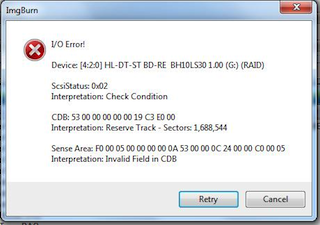
– Faulty or loose connection with the hardware.
– The portable media (CD, DVD, or SD card) is damaged or excessively dirty.
Basic I/O Device Error Troubleshooting
Before throwing away a “faulty” CD/DVD, or delving into more complex troubleshooting, there are some basic steps computer users can attempt to clear the I/O device error. If the steps do not solve the issue, they may help pinpoint what is causing the error to be thrown and save time in fixing the issue.
Step 1 – Restart the computer that is throwing the I/O device error.
Step 2 – Attempt to access the disk, drive, or portable media again.
Step 3 – If the error is still being thrown, try to access the disk on another computer (if available). This will help identify if the error is with the drive, IDE channel, or media (disk) itself.
Step 4 – If the disk/media opens on the alternative computer, there is an issue with the primary PC (drive, IDE, or connection). If it does not, there could be a problem with the media itself or IDE channel. If you do not have another computer available and the error is being thrown when attempting to read a CD/DVD or SD card, insert a different disk or card into the respective computer’s drive to see if it can be read. If it works, then the issue is with the disk/drive/device you are trying to use. If not, then it is with the IDE, drive, or connection on your primary computer.
How to Check Hardware Connections
Loose drive or hardware connections are a common cause of the I/O device error.
Step 1 – If the device throwing the error is an external hard drive, reseat the USB or fire wire connection to your computer.
Step 2 – If the error persists, connect the drive to an alternative USB port on the computer. If you are using a USB hub, connect the drive directly to one of the computer’s USB ports.
Step 3 – Obtain a replacement cable for the drive and reconnect to the computer.
Step 4 – Attempt to read or write to the drive or disk again. If the error continues to be thrown, the connection is not the likely cause of the problem. If you suspect the problem is with the internal hard drive on your computer, attempting to reconnect the drive is not recommended for the casual user as significant damage can result to the computer if the task is conducted improperly.
Change the IDE Channel Transfer Properties
Another cause of the I/O device error is that Windows has the transfer mode for the drive or device set incorrectly. The transfer mode can be changed or corrected by the end-user if logged in to the computer in administrator mode.
Step 1 – Select the “Start” menu button and then right click the “My Computer” icon.
Step 2 – Choose the “Manage” menu option on the subsequently displayed menu. Then, click or choose the “Device Manager” menu option located beneath the “Computer Management” window.
Step 3 – Select the menu icon to expand the “IDE ATA/ATAPI” controller display. There will be one or many listings for IDE ATA/ATAPI channels available on the computer.
Step 4 – Right click the channel that corresponds to the drive that is throwing the I/O device error. If you can’t determine which IDE channel is the appropriate one for the error being thrown on your computer choose the one labeled “Secondary IDE Channel.”
Step 5 – Select the “Properties” menu option followed by opening the “Advanced Settings” menu tab.
Step 6 – Choose the “PIO Only” menu option located in the “Transfer Mode” box. This will be the device corresponding for the drive throwing the error. On most computers, the correct option will be “Device 0.” Ensure you do not change the Primary IDE Channel Device 0 when manipulating the IDE properties since this is normally the system disk. Modifying the transfer mode for this disk can result in the Windows OS failing to work properly. On computers running the Windows 7 OS, uncheck the “Enable DMA” menu option to disable DMA. This is equivalent to the “PIO Only” setting on older versions of the Windows OS.
Step 7 – Select or click the “Ok” menu button and exit the configuration applications. On the Advanced Settings tab, select PIO Only in the Transfer Mode box for the device that represents the appropriate drive. Typically, this is Device 0. Then, click OK and exit all windows.
Step 8 – Restart your computer and test the drive or device that is throwing the I/O device error.
Step 9 – If the device or drive does not work after restart, then it may not be located under the secondary IDE channel device 0. If this is the case, change device 0’s transfer mode back to DMA, and repeat the process for the Primary IDE channel device 1 and then the Secondary IDE channel device 1 if the primary does not work (remembering not to change the Primary IDE channel device 0). After each change, restart the computer.
Verify the Status of the Device in Windows Device Manager
If changing the IDE channel device settings does not work, the drive status can be verified and troubleshoot via Windows Device Manager.
Step 1 – Select the “Start” menu and then click the “Control Panel” menu option.
Step 2 – Choose the “Performance and Maintenance” menu choice and then click the “System” menu option.
Step 3 – Choose the “Hardware” menu tab and open the “Device Manager.”
Step 4 – Locate the device that is throwing the I/O device error by expanding the menu items under the applicable category in the device manager.
Step 5 – If you note a red “X” on the menu icon located next to the device description, the hardware periphery has been disabled by the OS.
Step 6 – Open the “General” menu tab and select the “Enable Device” menu option located beneath the “Device Status” menu section.
Step 7 – Click the “Ok” menu button and follow the default menu prompts that follow. After the enabling device wizard exits, test the disk or drive that is throwing the error.
Step 8 – If the disk or drive does not work or continues to throw the same I/O error, select the “General” menu tab and click the “Troubleshoot” menu option found under the “Device Status” section.
Step 9 – Press the “Ok” menu button and follow the menu prompts. If there is still an error displayed, then the device driver likely requires updating.
Step 10 – Select the “Driver” menu tab. Then, click the “Update Driver” menu option and follow the default OS prompts.
Step 11 – Restart the computer and test the hardware throwing the I/O error.
Seek Help from the Hardware Manufacturer
After troubleshooting the I/O device error some end-users may not be able to solve the problem. Seeking additional information, firmware, or driver updates from the hardware manufacturer that may not be available through the Windows Device Manager is the next step to take to fix the issue.
Step 1 – Visit the hardware manufacturer’s website.
Step 2 – Locate the specific webpage for the hardware device that is throwing the device error.
Step 3 – Download the latest firmware or device driver available for the device onto your computer.
Step 4 – Double click the firmware or device driver after downloading to install on the computer.
Step 5 – Restart the computer and open or load the device that has been throwing the I/O device error.
Troubleshooting SD Card I/O Device Errors
Over the past five years, the number of devices that contain SD cards for use around the home or car have significantly increased. These include GPS devices, modems, TV and radio tuners, bar-code readers, and IrDA adapters. Unfortunately, a common problem that arises for Windows Vista users is getting an I/O device error when attempting to read SDHC memory cards that are 8 GB or larger. The error can be triggered from either a normal state of operation of the computer or when it resumes from hibernation or sleep modes.
Step 1 – Eject the SD card that is throwing the I/O device error.
Step 2 – Visit the Microsoft Update Center.
Step 3 – Download and install all recommended operating system updates. If the website does not guide you to the appropriate download, visit the 32 Bit SD Update Package or 64 Bit SD Update Package sites directly and download the new OS update.
Step 4 – Install the new OS updates if the application did not start automatically by double clicking the program file saved on the computer’s desktop.
Step 5 – Select the default menu prompts and then restart your computer when the installation is completed.
Step 6 – After the computer has restarted, insert the SD card into the computer’s SD card reader and it will now function properly.
Dhrumil
My drive is shown healthy in device manager and it copies till 1.24 GB any data from any of but after that in Windows transfer it shows I/o error and in terracopy it satyas stuck for hours… please help😭😭😭
frederik
Yes “Long Path Tool” is great.
Erin
Have tried the password generator and using disks.
Dell Latitude e5530
Service Tag: 5JK4VY1-1D3B
Kolin Armstrong
Long Path Tool solves the issues of path size limit / path too deep errors
Niamh van Meines
Greetings,
My WD Drive does not show up & I get the I/O error message. I can’t find the drive in the IDE ATA section in device manager, but I see it listed by itself. It does not have the “advanced settings” tab when I click on it, so I can’t change the channel or uncheck any DMA box. What should I do next? Appreciate your help
Robjs
Please Help, when I go to My Computer and click on my hard drive it opens and shows me all my folders. If I click on one of seven folders on that drive it gives me the error “the request could not be performed because of an i/o device error” It’s weird that all looks good until I try to go into the folder where my files are. Can you please help?
Esther Diana
I cant access my USB KEY… Because I/O error.. But i need my data so much.. What should i do? Pls pls help me
Nomoremaxtor
One of my files cannot be accesed in Maxtor OT4, the computer hanged and I need to unplug and restart my comupter and OT4 again. I then click to fix the problem but it caused all the files in OT4 cannot be accessed although they still show in window explorer. Can anyone help.
Thanks
terrell
i have a western digital hard drive that is giving me the IO error. I have plugged it into different ports on the computer and even tried to use it on a laptop and it still will not open. It will power up and if you check the device manager screen it shows the device.
Nigel Duncan
My OS is Win XP SP3.
My problem is either with my burning tools (Imgburn and CDBurnerXP) or the CD-RW media. Existing bootable CD disks work fine, but the one that I have been trying to make for several days using both tools and media from different names including Sony and Emtec produce the disk I/O error.
Imgburn has a very good name, but I shall now search for another burning tool. Perhaps also there is a media gold standard that would solve the problem.
Ian
I have a H.P. computer running Windows XP, and was trying to use a 16 GB Sandisk in the “G” drive. I would like to download some video’s and pictures I have on my hard drive, but get the error code of, “G:\ is not accessible. The request could not be performed because of an I/O device error.”
I did try your fix about going to the device manager, but it did not work.
Any suggestions as to what I need to do? I would appreciate any and all help.
GREGG JOHNSON
BEAUTIFUL, WELL WRITTEN EXPLANATION! THANKS FOR HELP AND SOLUTION – WAS THE CD.
Jeff
Hi, I found my external hardisk in Device Manager but I can’t seem to find advance setting tab. My laptop is Window 7..
Thanks for your help.
ahmed
i have a problem to upload songs from pc to memory card.the option which appeared is;
(cannot copy, the request could not be performed because of an I/O device error).
noe tell me about this problem that how could i handled it in a most easy way
ahmed
i have a problem to upload songs from pc to memory card.the option which appeared is;
(cannot copy, the request could not be performed because of an I/O device error).
noe tell me about this problem that how could i handled it in an most easy way
NIKKI
i have vista ,and there is no advance settings tab. what should i do??
TheMan
Don’t worry; here’s how to access the advance settings tab/administrative tools. (There are two ways to get to this tab thing in Vista)
The First way:
Open up the Control Panel and if you have it set to Control Panel Home then click System and Maintenance. If you have it set on Classic View look for Administrative Tools and double click on it. (it should be right after Add Hardware.)
Right click on Computer Management and click on Run as administrator and when the User Account Control authorization prompt comes up type in the administrator’s password. (Note: You must run Computer Management as the administrator otherwise you will not have the user rights sufficient to complete the procedure.)
Once in Computer Management click on System Tools to expand it, and–or if it is already expanded–click on Device Manager, which is the last item in the System Tools menu thing.
Select the appropriate submenu in Device Manager
Find the appropriate drive/device and right click on it and select Properties
Then uhh… oh… there is no advanced settings tab… hm…. gimme a second.
TheMan
I can’t find it, either. Sorry.
PGvideo
I’m having the same problem (no advanced settings tab) but i’m using Windows 7. I’m trying to burn or copy a dvd onto my laptop please help.
error 0x8007045D the request could not be performed because of an I/O device error
dj92
Just read the above posting on I/O error.
What can I do if it is the boot disc that is causing the error?
I have no OS on my PC and, when I try to install OS, I get the error message.
Any ideas what’s wrong please?
LoveURGeek
Have you tried using a different cd or dvd drive?, it is possible that the dvd drive you are using is causing this error
ally
please, please help.
I am not able to find the Advanced Settings tab and I’m running Vista. What do I do ? 🙁
Kathy
I am having a problem with my exterior hard drive. All was working well and then I could not access it. I first checked on My Computer and the drive had disappeared. It had also disappeared from Device Manager. I have reinstalled it about 5 times and when I try to access it I get the I/O device error. I have tried to install it on my laptop and the same error comes up. What could be causing this to happen???
Thank you in advance
memenode
I’m not sure, but try rebooting the computer with the hard drive connected and see if it loads. If not try doing a full scan with an anti-virus program while the drive is connected. According to what I’ve read around the web this can be caused by a virus infection.
indhi
Hi, I have a Motion computing M1400 and when I started Win this tell me a device error: An error occurred while trying to access the user’s storage device. Most likely the device in not present, no ready or is locked, please correct the problem and click retry to try the operation again” Please help me how I can fix that.?
Please!!!
Nikola
When I go to Properties and go to Advanced Settings the only thing that I can do is to uncheck “Enable DMA”…Look … http://prikachi.com/images/940/3158940o.jpg
memenode
Unchecking “Enable DMA” is equivalent to enabling PIO only. So all you would need to do to follow those instructions is just disable DMA.
Nikola
thanks mate I have just one more question … How can I know which is my device …
PS Im not English,sorry 4 that
memenode
I just check all of the listed controllers till I find those that list my devices in the Advanced Settings tab. I’m not sure how else to do this. On my computer a DVD drive is represented as “ATAPI Cdrom”, and a hard drive is represented as “ATA Disk”. If there’s no drive on the controller, nothing is listed.
Nikola
ooh so helpful i found it… atapicdrom…I unchecked the DMA enabled in ATA Disk and i had problems with the sound and the mouse…I understand now..Thank you for everything
m scott
i have the same problem but with windows 7 starter, if i put in a 2 or 4gb card and it is not recognised, if it is i can do nothing with it or the win explorer freezes. Error given is 0x8007045D, since so many users seem to have the same problem microsoft should surely issue a patch or solution program not say it is either hardware trouble (their usual answer) or tell us to buy a registry cleaner that may or may not fix it – no guarantees there.
Can anyone help please?
Arvind
Sir,
All of a sudden while transferring MP3 songs from my pc to creativve zen stone plus mp3 player, the process stopped and I got an I/o device error. The player is no longer recognized by my pc (OS Windows XP).
Pl. guide me and oblige.
Thanks,
Arivnd
laptop cd/drivers problem
hi im having a compaq presario laptop with the same error.
I got the error after i installed XP on my laptop, normally use vista.
The problem is that it shows in the device manager that alot of my drivers are missing.
Even my lan/wi-fi doesnt shows up becouse it cant find any of the important drivers.
i tried to download a network card to my wi-fi, it show my internet connection, but can’t load any of ip or dns et.c..
I thought that reformatting it back to vista could help, becouse the drivers are probably only only working in vista.
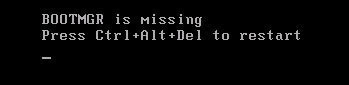
But now that i tried to format it back to vista with my usb flash driver, it told me that there is an I/O Error, also when i tried to install/boot with the cd, and im sure there is nothing wrong with the cd, its new. It keep telling me that there is the I/O error, also my pc starts to huge lag.
Sorry for my bad english, but if anyone understood my problem, please help me.
i almost tried everything, also after the article.
And also i gotta say if its to any help, that when im trying to install vista with cd, it says press any button to boot from cd. and when i do that, it start to lag, and after 4-5 minuts, its says that ”An unexpected I/O error bla bla bla.. Status: 0x00000e9”
hope anyone can tell me what to do.
memenode
Within Windows XP the USB I/O error could simply be because drivers aren’t installed.
I assume if you haven’t managed to format or install Vista yet you still have your Windows XP install. You could run chkdsk in it to check for any errors on your disk that might be what’s creating problems.. If it finds and fixes errors try Window Vista DVD again.
It is also suggested to reset the bios to default values so you might want to try that too.
Dick
I just installed a new hard drive. The CD/DVD drive recognized the recovery disc and formatted the hard drive and installed Windows XP service pack 1. When it asks for an installation disc for hardware discovered, ie, printer, the CD/DVD drive does not recognize the disc and if I force it to open, it comes up with the I/O device error. Changing the transfer mode in the advanced settings did not help.
memenode
Have you rebooted and checked that the mode change settings took effect? If so, and it didn’t work, have you tried returning it back to “DMA if available” and changing the Primary IDE to “PIO only” as the article says?
Are other CDs working in that drive with Windows XP?
As a last resort, especially if the issue is the CD itself (corrupted or scratched media for example) you can try downloading hardware drivers from the internet. Just check manufacturer’s websites (usually in support or download sections).
sanjay
i have problem sending pitchers to laptop to memorey card
plaese help me
Daniel Memenode
Originally posted by RoG: “am having an I\O device error while download thru torrent… my torrent gets shutdown. can any1 tell me if this a torrent issue or my pc issue?? any help is appreciated :D”
It could be one of multiple issues:
Are you downloading to an external hard drive?
Do you use a FAT32 file system (usually on older Windows) while downloading a file larger than 4GB (because it doesn’t support it)?
Do you have enough space on your drive to save the file you’re downloading?
Is another torrent client trying to access the same torrent?
RoG
am having an I\O device error while download thru torrent… my torrent gets shutdown. can any1 tell me if this a torrent issue or my pc issue?? any help is appreciated 😀
Daniel Memenode
Originally posted by Taylor B: “i have the I/O error but it is on my micro sd transflash Adapters. it works fine with my 1GB micro sd card but not with my new 16GB micro sd card plz help me> :cry:”
It’s possible that your SD card reader has a limit to how many gigabytes it can read (might be an USB 1.1 reader).
You could try reformating your SD card to FAT32 and see if that fixes the issue. Otherwise it is probably an incompatible reader. If possible you could test this by putting it in another reader and see if it works.
Taylor B
i have the I/O error but it is on my micro sd transflash Adapters. it works fine with my 1GB micro sd card but not with my new 16GB micro sd card plz help me> 😥
chetan raj
🙂 thanks for helping
Alan M
I had this problem with a portable hd and i unplugged it then plugged it in again and everything was fine and dandy 😆
Busy_duck
Thanks! it help a lot 😛