

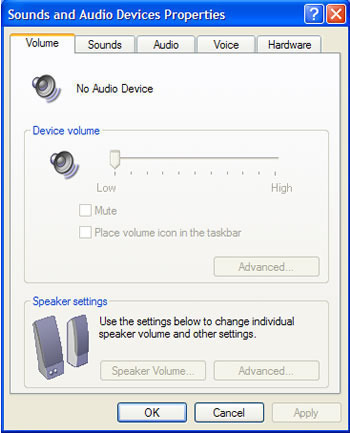
The no audio device error is commonly encountered on the Windows operating system. The error is normally thrown when the end user upgrades a computing device to a newer version of Windows or after reinstalling the existing version of Windows. When the error is thrown, computer applications that require an audio device will not be capable of producing sound and may throw additional errors. Additionally, when viewing the Windows sound configuration option located under the Windows Control Panel, there will be a “no audio device” label displayed. All of the options located underneath of the device will also be disabled and grayed out. When an end-user encounters the error, it can be fairly frustrating. For many cases, the resulting fix will entail reinstalling a new audio driver.
No Audio Device Error Indications
There are several indications that a Windows computer is throwing the “No Audio Device” error. First, when an application is run that requires the use of an audio device on the Windows computer, a visual “No Audio Device” or “No Audio Device Found” error will be displayed on the screen. Second, if the audio device is displayed under the “Systems Properties” sub-menu of the Windows Control Panel, there will also be a “no audio device” label displayed beneath the sound or device option. Beneath the icon, all of the options will be grayed out and the device will indicate that it is disabled.
Steps to Fix the No Audio Device Error
The following troubleshooting steps are tailored to the Windows XP operating system, but can also be used to trouble shoot with slight variations on Windows Vista and Windows 7 when the “No Audio Device” error message is thrown.
Method 1 – Attempt to Enable the Microsoft Windows Audio Service
Although upgrading the Windows Operating System is a common cause of the No Audio Device error, the installation of other related audio software or related software upgrades have also been found to disable the Windows audio service. In some instances, the Windows Audio Service just needs to be restarted or re-enabled. The following steps can be used to confirm if this is the case with your computer and allow the audio service to be turned back on if required.
Step 1 – Ensure you are logged in to the computer with an account that has administrator privileges.
Step 2 – Select the Windows “Start” menu button and click the “Run” menu option.
Step 3 – Enter “services.msc” into the search text or “Open” menu field.
Step 4 – Scroll down the list of services displayed on the subsequently displayed Window and locate the “Windows Audio” option.
Step 5 – Select “Windows Audio” and then right click the program icon.
Step 6 – Choose the “Properties” menu option.
Step 7 – Click the “Automatic” menu option from the “Startup” type dropdown menu list.
Step 8 – Click the “Start” menu option to start the Windows audio service. If the option is grayed out, the service should already be started.
Step 9 – Choose the “Ok” menu button and test for sound being restored to the Windows computer.
Click OK and test for sound. If the problem has been corrected, then there may have been a software application that was causing the issue with Windows Audio starting up when the computer restarts or Windows opens. If the computer continues to see the Audio service disabled on restart, these steps can be repeated to enable the service after computer restart.
Method 2 – Enabling the Windows Audio Device
In the event the previous method did not work to help prevent the “No Audio Device” error from being thrown on your Windows computer, the following steps can be taken to enable the particular audio device on the affected computer.
Step 1 – Restart the computer and login using a user profile that has administrator permissions.
Step 2 – Select the Windows “Start” menu button.
Step 3 – Right click the “My Computer” icon and then select the “Properties” menu option.
Step 4 – Select the “Hardware” menu tab and then choose the “Device Manager” menu button.
Step 5 – Scroll down the menu listing and then select the “+” menu option located next to the “Sound, Video, and Game Controllers” menu label.
Step 6 – Beneath any menu item listed underneath this category that has an icon with a red “x,” right click the item and choose the “enable” menu option.
Step 7 – If there are no items that have a red “x” overtop of a “speaker” icon, then proceed to closing the “Device Manager.” If there are and you completed step 6, close the Device Manager and proceed to the next step.
Step 8 – Restart the computer and test to see if the “No Audio Device” error has been cleared. If the computer does not have the sound capability re-enabled, then proceed to the next method to troubleshoot the error.
Method 3 – Restore the Original Audio Driver on the Computer
Most Windows computers that have Windows XP or older versions of the popular operating system installed use Creative Audigy or Realtex Audio Codec software. To complete this method for correcting the No Audio Device error, it will be important to ascertain what audio driver software is installed on the computer in order to restore the software on the computer.
Step 1 – Select the “Start” menu button on your computer.
Step 2 – Choose the “Windows Control Panel” program icon and select the “Device Manager” program icon.
Step 3 – Scroll down the listing of installed hardware to locate the installed audio driver software driver(s) on your computer.
Step 4 – Locate the name of the sound hardware installed on the computer. Once located, download and install the appropriate audio drivers from the manufacturer’s website. Some of the more commonly encountered drivers for Windows computers include
Realtek and Creative.
Step 5 – After downloading the current driver for the audio device driver installed on your computer, double click the program file to start the installation process. Once the process is complete, if not prompted to do so restart the computer.
Step 6 – After restarting the computer, attempt to run the application that was throwing the No Audio Device error. If the computer does not have sound, proceed to the next method to correct the error.
Method 4 – Rest the On-Board Audio in the Computer’s BIOS
On Windows computers, the audio settings in the BIOS must be setup to match the audio hardware configuration on the computer. The following steps can be taken to setup the BIOS to automatically detect and implement these settings.
Step 1 – Restart the computer and press the “F1” key until a “BIOS Setup” screen is displayed. If the “F1” key does not work to display the BIOS, the “F10” key may be required to be pressed on certain models of Windows computers.
Step 2 – Once on the BIOS setup screen, press the “F5” key. Then, press the “Yes” or “Ok” menu button followed by selecting the computers’ “Enter” key.
Step 3 – Choose or press the “F10” key followed by selecting the “OK” or “Yes” menu buttons to save the default settings.
Step 4 – Restart Windows and check the program throwing the No Audio Device error to see if it has sound. If there continues to be no sound proceed to the next method for troubleshooting the error.
Method 5 – Reset the Sound Card on the Windows Computer
Step 1 – Logon to the computer with an account that has administrator access.
Step 2 – Select the “Start” menu button and then choose the “Windows Control Panel” program icon.
Step 3 – Select the “System and Security” menu option.
Step 4 – Choose the Windows “Device Manager” menu option and then click the “Continue” menu button if you are prompted to continue to access the Windows Device Manager.
Step 5 – Select the “+” symbol located next to the “Sound, Video, and Game Controllers” menu label.
Step 6 – Choose the appropriate sound card from the listing of audio devices subsequently displayed.
Step 7 – Right click the affected sound card and choose the “Disable” menu option.
Step 8 – Restart the computer and then repeat steps 2 through 5.
Step 9 – Right click the computer’s sound card and choose the “Enable” menu option.
Step 10 – Restart the computer and test the computer application that was throwing the No Audio Device error for proper operation.
Method 6 – Conduct a System Recovery on the Affected Computer
Another method that one can undertake to fix the No Audio Device error on a Windows computer is to conduct a system recovery on the affected computer.
Step 1 – Disconnect the affected computer from the local network or Internet.
Step 2 – Select the Windows “Start” menu button.
Step 3 – Select the “All Programs” and “Accessories” menu options.
Step 4 – Click the “Systems Tools” and “System Restore” menu options.
Step 5 – Ensure the “Restore my computer to an earlier time” radio button is selected and then click the “Next” menu button.
Step 6 – Choose an appropriate date and restore point on the “Select a restore point” menu screen. Then, select the “Next” menu button after selecting the appropriate restore point.
Step 7 – Choose the “Finish” menu button after Windows System restore is complete.
Step 8 – Test the Windows application that was throwing the No Audio Device found error to see if the issue has been corrected.
How to Reset a Computer Sound Card
A related error to the No Audio Device found problem on Windows computer is when a computer sound card cannot be found. When this error occurs, there are a number of actions that the computer user can take to correct to include updating the device driver or replacing the sound card.
Step 1 – Turn off all power sources to the computer to include removing the battery if conducting the actions on a laptop.
Step 2 – Disconnect all external devices and cables attached to the peripherals.
Step 3 – Take a screwdriver and undo the screws located on the back panel of the computer.
Step 4 – Remove the computer casing in order to make the motherboard accessible.
Step 5 – Locate the sound card that will normally be connected to an audio port on the motherboard.
Step 6 – Firmly grasp the sound card and remove from the slot on the motherboard. On some models, there will be screws holding the card in place that will need to be removed before disconnecting the card from the board.
Step 7 – Re-insert the sound card back into the motherboard slot. Ensure you follow the same order of pins as when the card was removed to avoid inadvertently damaging the card. When inserting the card into the slot, you should do so firmly, but in a slow motion to avoid disturbing other hardware devices installed on the board. Once reinserted, refasten any screws that were removed to hold the card in place.
Step 8 – Reinstall the computer’s casing. Then, refasten all screws that were previously removed.
Step 9 – Reconnect all of the cables and peripherals attached to the computer.
Step 10 – Restart the computer.
Step 11 – Once restarted, you will have to likely run the “Add New Hardware” wizard even if you were not installing a new sound card. If prompted to do so, insert the installation CD/DVD into the CD/DVD drive and restart the computer once installed.
Step 12 – Select the “Start” menu option and then click the “Control Panel” menu option.
Step 13 – Choose the “System” menu option followed by clicking the “Hardware” menu tab.
Step 14 – Then, click the “Device Manager” menu option and expand the menu for the “Sound, video, and game controllers” menu item.
Step 15 – Right click on the name of the sound device and then choose the “Update Driver” menu option to update the device driver for the audio hardware. Once you choose this option, follow the default instructions for the device driver update wizard.
Step 16 – Once the device driver update wizard has concluded updating the software on the target computer, restart the machine.
Step 17 – Attempt to run the software that has been throwing the No Audio Device error. If the error is no longer thrown, then the problem has been corrected.
JAYA VERMA
No Audio Device’ Error
If you’ve got skilled a Windows “No Audio Device” mistakes, it most likely manner that your sound card is not hooked up well. Even though different troubles can purpose this mistake, an improperly mounted sound card is the maximum commonplace motive. If the audio card isn’t always nicely linked within the motherboard or you do not have an audio controller connected, you may get this mistake.
Pete
Hi, I have the same problem mentioned above: No audio device. I have a WinXP and a few weeks ago suddenly lost audio. My PC is HP (year 2005). I have tried every kind of suggestion I could find on the internet. My PC has originally onboard audio installed and I even bought a new sound card hoping it would solve the problem. I disabled onboard audio in BIOS and installed the new sound card – did not help. I went through all the audio settings in device manager – it looks everything works how it should be. I tried system restore to an earlier date when the audio worked fine but without any help.
I use this computer only for editing home videos which is now impossible without sound therefore I would not be keen on making a full system recovery as I would loose all the updates I needed for my video editing software to be able to work properly and now there is no updates or support is available for this old video editing software.
Any suggestion would be greatly appreciated to solve this annoying problem. Thank you.
Tony W2
I know this is an old article but in case anyone else uses it, there is an important check not mentioned.
Having accessed Sound & Audio device properties, (by any of the means given) it is essential to ensure that the audio device showing on the harware tab is also the same as the Sound playback default field under the Sound tab,
eg SoundMax player in hardware is replicated with SoundMax digital audio in Sound –and not the default “Windows”..
Having said that, I did find this article the most comprehensive and helpful guide.
Ekta Patel
how to solve the speaker problem error 0x8000FFFF
Daniel Memetic
Try reinstalling the sound card driver for your computer. You can find the driver either on a CD that came with your computer (if any) or online by searching for your computer name and model and then looking for the driver’s section of the manufacturer. Let me know if in need of help here.
Noel
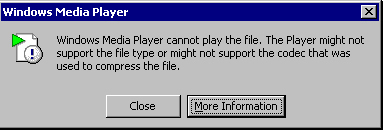
I bought a stripped down dell optiplex 745 professional windows xp computer @ a company yard sale a couple months ago. They stripped it down to factory status. So I re-installed the disc and everything works great except for the sound. The player is media 9, which doesn’t matter to me. It loads wonderfully I can hear little beeps and what not, however I cannot play a CD or DVD because there is this msg ” Windows Media Player cannot play the file because there is a problem with your sound device. There may not be a sound device installed on your computer, it may be in use by another program, or it may not be functioning properly”
. . when I have gone to the programs hardware there isn’t a sound card listed. So I have no clue what to do…any suggestions? When I click on the other media hardware listed it says that the drivers are up to date…I have gone to the microsoft websisite and there is no help there. I am using my speakers from my old dell they are working. any help you could give would be greatly appreciated!!
Nidhi K
If it’s Dell machine, then I can help-
Go to My computer- Local disk(C:)- Dell- drivers- Open folder ‘R215959’- Open setup(icon with two arrows)- install ‘IDT Audio Control Panel’- It will be downloaded in control panel. No need of internet.
S Williams
Hi there,
After trying to set up voice recognition my microphone seemed to not turn off so i went into audio devices and disabled the microphone device thinking that i was just turning it off. it seems though that i have actually deleted the device and i can’t seem to find it to enable it again. The speakers are working fine. Can i download another recording device? Or will i have to go and buy a mircophone?
Thanks!
Wilfred
Hi, my computer dispay no sound device installed and can not play any sound. Please help me.
emz
hi i have the same problem..but problem is dont have a volume options in current items..what should i do?
Gabriela Lopez
I have problem with it said no audio Device my desk top it a dell please help me and it not let me hear my music
jordan
ive been having the same problem no audio output device installed and my i tunes messed up and i had to reinstall i tunes and when i uninstalled it my audio output started to work then when i re installed it i lost again so it sucks but now i can atleased watch a movie or listen to music through another music player hope this helped now i just install i tunes to do stuff to my i phone then un install again
john
My Windows has no speaker picture next to the time. what do I do?
sheila
I just followed the instructions above and it worked for me. Thank you so much.
latha
How it worked for me:
1. Right click the blue task bar at the bottom of the comp (Tray).
2. Click “Properties”.
3. Click “Customize” in the ‘Task bar/ Start Menu’ window.
4. In the ‘current items’, click ‘Volume options’ to expand it.
5. Click ‘Always show’ & click ‘OK’.
6. Click ‘Apply’ & then click ‘OK’ in the ‘Task Bar/Start Menu’.
7. Shut down the comp completely & then ‘Start’. (Don’t ‘restart’ the comp.)
It works. Problem solved.
arshad mehmood
in current items there is no volume option i found to expand now what to do???
Phebe Molinari
This sounds pretty exciting. Reminds me of the time when I went on a trip with my wife and we’ve had a very similar experience.
Aroha Kelly
hello i turned my laptop on one day and then a message came up sayin i have no sound device i have tried lookin and doin everything i can i guess i just don’t understand
marlon
Thank you for your post. Please check if the speakers/headphone are disabled.
Right-click the speaker icon in the system tray next to the time > Select ‘Playback Devices. Do you see the speaker option? If not, Right-click in the empty space and click ‘Show Disabled Devices’, Then if you see your speaker icon, you can Right-click > enable. Highlight the Speaker icon and select ‘Properties’. Then go to the ‘Levels’ tab and ensure that your Speakers are turned up and not muted.
Please let us know if this helps or not. We look forward to hearing back from you.
Tricia Mayeux Barber
I am having the same problem and came across this conversation. Problem is, I don’t have the speaker icon in the task tray and which i right click on the blank space, it doesn’t say “show disabled devices” anywhere either. what am i doing wrong?