

In order to burn an AVI file to a DVD, the file must often be converted to a proper DVD format. This can be done with the use of file converters and/or DVD burning software. File converters are often able to convert many different formats into any of the other formats that they support. Some DVD burners have built-in file converters while others are designed to encode all files in the same manner so that file format is irrelevant. AVI is a very popular format, however, and most DVD burners can recognize it. The following information will define what AVI and DVD formats are and list several AVI to DVD converters.
What is AVI
AVI stands for Audio Video Interleave and is one of the most popular formats in the world for digital movies and videos. AVI is able to store audio and video data in the same container and play them simultaneously. AVI does this by storing information in three separate categories marked by the “hrdl” tag, “movi” tag, and “idx1″ tag, respectively. The first category stores information concerning the header, width, height, and frame rate of the video. The second category stores information about the actual film such as source files for the audio and video. The third category stores information depicting where each frame is in the film, how far apart they are, and how the other two categories interact with each other. These three categories work together in order to create synchronized films that can support multiple audio/video streams, subtitles, and video editing functions.
The AVI video format was created by the Microsoft Corporation and widely used throughout the home and marketplace. The CODEC is popular with users who desire preservation of video quality and do not want to worry about large file sizes for video storage or playback. A common task that arises for consumers is to convert AVI to DVD for use in portable or home DVD players. The Nero Kwik Burn and WinAVI Video Converter are two popular free and commercial software options that can be used to complete the conversion task between the AVI and DVD formats.
What is DVD
A DVD, or Digital Versatile Disk, is a type of compact disk that can store audio, video, and data individually or simultaneously. DVD can also refer to the actual format that the disk uses to organize and store information. While a DVD is similar in design to a CD, or compact disk, it is capable of storing seven times as much information. DVDs are available in varying types with DVD-ROM, DVD-R, and DVD+R all able to be recorded once and DVD-RW, DVD+RW, and DVD-RAM able to be recorded multiple times. While DVDs are capable of storing raw data, AVI files and other media formats must be converted to a DVD format through a process called burning in order to be automatically played from the disk and be compatible with industry-standard equipment. Examples of AVI to DVD converters and burners have been listed below.
Steps to Convert AVI to DVD Using Nero Kwik Burn
The Nero Kwik Burn software application is a freeware application that can be used to convert AVI to DVD format. The program was created in order to replace Nero 9 Lite and includes new features to include a faster burning technique reducing the overall time required for video conversion. Nero Kwik Media allows end-users to organize, find, edit, share, and synchronize videos.
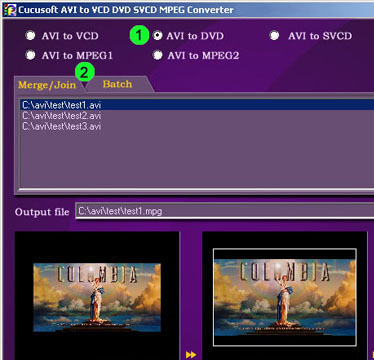
Step 1 – Visit the Nero Kwik Media home page and download and install the application on your computer.
Step 2 – Once the Nero Kwik Media program is installed on your computer, open the company’s app store and select the Nero Kwik Burn app. This will activate the program and make it ready for use.
Step 3 – Choose the “Data Burning” icon located in the primary user interface and select the AVI file to convert to DVD.
Step 4 – Insert a DVD into the DVD-R drive and the application will then burn the AVI to DVD.
Step 5 – To convert the AVI file to DVD format to store on your computer’s disk, Nero will force the end-user to upgrade to the commercial version of the software application. Once upgraded, the target drive and DVD format may then be selected to save the converted AVI file on the desired drive on the computer.
Steps to Convert AVI to DVD Using WinAVI Video Converter
Step 1 – Download and install the WinAVI Video Converter. The software package is available as a limited trial or for commercial purchase for a single seat or site license.
Step 2 – During installation, follow the default menu options presented by the software package.
Step 3 – After install is complete, open the software program by double clicking the program icon located on the computer’s desktop. Then, enter the registration name and code provided by the company to the email address used during registration. If using the software in trial form, there will be a large watermark included on all videos converted with the software package.
Step 4 – Select the “DVD” menu button located on the lower, right-hand corner of the program
window. This action will then open a dialogue box hat will allow you to find the AVI file to
convert to DVD.
Step 5 – Select the AVI file to convert to DVD. Additional AVI content can be selected by
clicking the green menu button. The red minus option can alternatively be used to remove files.
Step 6 – Use the program’s file chooser to choose the output folder or directory to save the
converted video content on your computer.
Step 7 – Select the output format of the video content. The program will default to DVD. Then,
click the “Ok” menu button to proceed.
Step 8 – Wait for the application to complete the file conversion which can take up to half of the length of time of video playback depending on the speed of the computer.
Step 9 – Burn a DVD from the converted content by choosing the burn button located on the bottom left-hand side of the application screen. Select the converted DVD file on the pop-up dialogue menu and then enter a label for the DVD on the right-hand side of the screen. Then, select the “Burn” menu button to create the physical DVD.


axyymp4
Un nou site cu filme pentru telefonul mobil a fost deschis. Site-ul ofera filme subtitrate cu diacriticele corect afisate si calitate superioara a imagini. Toate filmele sunt in format mp4 si pot fi redate pe aproape orice dispozitiv care stie sa redea videoclipuri. Daca vrei sa te increzi la prieteni cu ceva nou, te incurajam sa o faci aratandu-le un film tare de pe site-ul nostru. http://axyy-mp4.hi2.ro – structura site-ului este creata de versiune web (pentru pc) si versiune wml (pentru mobil). Va asteptam. http://axyy-mp4.hi2.ro