

If you surf the web or watch media on your computer, you have probably come across the WMV file. WMV stands for Windows Media Video and while it was originally designed for streaming video from websites, it is also used for music videos and full length motion pictures. WMV, a Microsoft product plays with Windows Media Player. The current WMV version is WMV9. WMV files can play in Windows Media Player along with VLC, Winamp and DivX players as well.
While WMV files are usually high quality, their compression rate lags behind other types of files such as DivX. Many computer users that have a file in WMV may want to share it with other online or save it to a DVD, requiring a much more compressed version. A WMV converter can take a WMV source file and transform it to a new type of file that has different attributes such as compressing easier or that has the ability to be played on a specific type of player. Converting a WMV file is quite easy and can be accomplished in a timely manner, here are some tips.
How to Convert a WMV File
First off, you will need a WMV converter, which is an application that can first read and encode the file and then transform it or convert it to the new type of file. There are several applications available to accomplish the WMV conversion process, some are free, others are shareware and others are commercial products. Popular software titles include; Freemake Video Converter, Xilsoft Video Converter, Aone Software, ASF Converter and Power RM Video Converter among others.
Using the Software to Convert WMV Files
Once you have downloaded your software application of choice, you can easily start using it to convert your WMV files. Most software applications are extremely similar, so here are the steps that one must generally follow to convert WMV files.
Launch Software and Choose the Type of Files to Convert
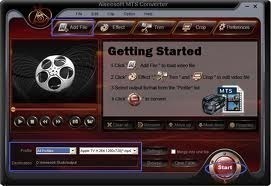
Launch your software and you should be greeted with a welcome screen and an intuitive user interface. You should choose to convert files. When you choose this category, you should see a new menu asking which type of conversion you would like.
Choose Your Conversion Type
Since you would like to convert WMV files, you should choose the source file as being WMV. The software will ask you where these files are located, so you will need to select the files whether they are on a DVD, CD or your hard drive.
Choose Your Conversion Type
Now that you have chosen to convert WMV files, you must choose which format these files should be converted to. You will be able to choose from a drop down list and the choices may include, AVI, MPEG, DivX, etc. Once you have chosen the type of files you would like the WMV file to be converted to, you should also choose a destination for these new files. This destination is usually a new folder or subfolder.
Start the Conversion Process
Now that your destination folder has been chosen, check over your request and if everything is correct start the conversion process. Depending on the size of the file and the type of file you would like it to be converted to, expect the process to take from less than one minute to more than an hour.
Confirm the Conversion Process is a Success
Once the conversion process is complete, you should receive notification from the software. From this point you can open up the newly converted file and determine whether it plays correctly under its new file format. If the conversion is a success, you can start sharing it, uploading it or recording it to your DVD media.


AlexSeva
I use another WMV converter, Convert-tune. It is easy-to-use and it converts into different formats, including MP4, WMV, AVI, 3gp, etc. There are also ‘surf and catch video’ feature, free CD ripper, free CD burner, etc. 🙂 😉