

Using a internet browser is very commonplace nowadays. Unfortunately, a “cannot find server” error code may interrupt the user’s website visit. This is not only frustrating for Microsoft Internet Explorer users, but for Opera, Safari, Firefox, and other web browser users. Finding and fixing the cause of this error is very important, as web users will be hindered from using the Internet.
This error message is displayed when the computer or device being used simply cannot complete the connection. The first thing that the user should do is find the problem on his/her end if he/she has successfully connected in the past. The Internet access settings may have been changed inadvertently.
Below is the troubleshooting process:
Attempting to Reestablish a Connection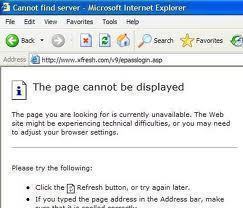
After receiving the error message, wait a minute or so and refresh the page. If the page does not load, then proceed to the other steps. If the page loads, then it is possible that the Internet service provider had some downtime or the website host was down momentarily.
Verifying the Destination Address
Misspellings in website domain names or the URL to their access location may also cause this problem. Double check the address bar to ensure that the website domain name and destination location were spelled right, and that the top level domain extension (*.com, *.net, *.gov, *.org, etc.) was correct. If there is an error in any portion of the URL, the “Cannot Find Server” message may appear if the resulting address does not exist. If this does not fix the problem, proceed to the next step.
Verifying the Browser Connection Settings
Check the web browser’s connection settings to ensure that they match up with those that the Internet provider or local area network/wireless access point require. The browser or Internet enabled application usually has a “tools” option or tab that grants access to “Internet Options.” Select the connection options or a network tab under Advanced Options in order to check the configuration settings. When the configuration settings window is available, verify that the settings match what the Internet service provider requires.
If any of the settings were changed, reset them or try different options that the ISP provides if they are unavailable. Once the changes have been made, try reloading the web page. If it works, then the configuration has been successful. If not, put the Internet settings back to normal and try another option.
Resetting the Router or Modem
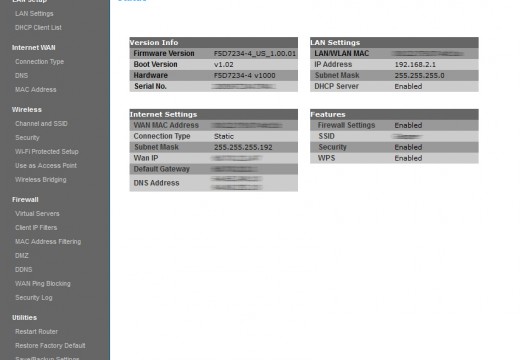
Reset or refresh the Internet router/modem being used. First, check the router/modem lights to see if it is the reason for the Server Not Found/DNS Error message. If they are all off, then the power to the router has failed. If only one light is on or many lights are blinking, check the connections from the router/modem and ensure that they are all in place. Follow any wired connections to their destination and check whether they have been disconnected at the other end. If none of these is the problem, reboot the router or modem hardware to try and regain a connection. Allow the router or modem to connect and try the website request again. If it works this time, then the problem may be solved. If not, continue to the next step.
Windows Based Self Correction
Microsoft Internet Explorer users often get the error message window that has some choices. Select “Detect Network Settings,” which allows Windows to automatically attempt to optimize the connection. Windows will attempt to reconnect the available Internet connection settings. If this does not fix the “Cannot Find Server” or “DNS” issues, continue to the next step.
Setting up DNS Settings in Windows
The Internet connection’s DNS settings may not be set correctly to automatically obtain a DNS server address, which would constantly result in “Cannot Find Server” errors. In order for the automatic options to be available, do the following:
Click “Start” on the Task bar and select “Control Panel” from the list of options. Click “Network and Internet Connections” or “Networks and Sharing Center.” Select “Network Connections”/”Manage Network Connections,” then right click the network connection.
Note: The connection that should be selected depends on whether the computer can be connected to the Internet via multiple options. If a wired connection is being used, the connection that should be selected is “Local Area Network Connection.” Those on a wireless connection should choose “Wireless Network Connection.”
In this window, click “Internet Protocol (TCP/IPv4)” then click “Properties.”
Select the “Obtain DNS server address automatically,” then click “Apply.” Check if the Internet connection is now working before closing the network connections window. If the Internet is up and running again without the “Cannot Find Server” or “DNS Error” message, then the Internet is back to working order. If not, contact the Internet service provider.
Ask the Internet service provider which DNS server addresses to use and where they should be placed under the Internet Protocol (TCP/IP) properties, so that the “Cannot Find Server” and “DNS Error” messages will not show again. If the DNS server numbers are put in correctly, and there is still no connection, request further technical support from the Internet service provider.

Ron Welch
Safari on my MAC cannot find server. Safari on my IPad Air has no problem finding the server at all. What is going on. I have had the problem once before. It will not find any page I try.