

An IP address is the numeric label or sequence of numbers that is assigned to a computer or device used on the Internet or a local area network. It is a means of identification and determining the user's address online. When an IP address is blocked, network connections to or from that address are not permitted. An IP address can only be blocked through a firewall that is installed on the computer. Windows users have two options for blocking an IP address: 1) Through the built-in Windows firewall or 2) by using third party software such as Norton Internet Security. If a different firewall is installed on the computer, the steps will be similar to those used for Norton or the built-in firewall to block an IP address.
How to Block an IP Address Using the Windows Firewall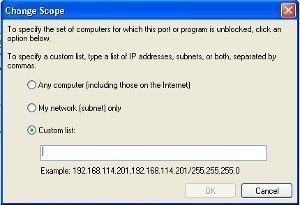
Step 1 – Select “Start” and “Settings” then open the “Control Panel.”
Step 2 – Double click the “Windows Firewall” icon on the subsequently displayed screen.
Step 3 – Choose “Inbound Rules” then click “New Rule.”
Step 4 – Click the “Custom” radio button then click “Next.”
Step 5 – Select “All Programs” then click “Next” twice in a row.
Step 6 – Pick the “These IP Addresses” menu option and click “Add.”
Step 7 – Enter the IP address to be blocked in the text field, then click “Ok” and “Next.”
Step 8 – Choose the “Block the Connection” menu option then enter a name for the new firewall rule.
Step 9 – Click “Next” and “Finish” to complete blocking the IP address.
How to Block an IP Address on Norton Internet Security
Step 1 – Open the Norton Internet Security Control Panel by either double clicking its icon on the computer's desktop or by selecting from the Windows System Tray.
Step 2 – Click “Settings” under the “Internet” menu.
Step 3– Select the “Advanced Settings” and “Smart Firewall” menu options then click “General Rules” and “Add.”
Step 4 – Click “Block” then “Next.”
Step 5 – Choose “Connections to and from other computers” then “Next.”
Step 6 – Select “Only computers and sites listed below” then click “Add.”
Step 7 – Enter the IP address to be blocked in the subsequently displayed text field, then click “Ok” and “Next” and the IP address will be blocked.
Catherine Martinez
I spoke with a Lynksys online support tech to find the software for a WUSB54GP adapter and he told me it was outdated and I needed to buy a new one from his sight. It is a 2006 and I am sorry I think they have the software but just wanted to sell me a new router and adapter. How can I find the software?