

Reading Windows log files is an important part of maintaining proper operation and ensuring system security. In addition, log files can be extremely useful in troubleshooting Windows errors.
Only a Windows Administrator can read some Windows log files, such as the Security Event Log. Any system user can view other log files, such as logs that software applications created.
Each log contains a list of events that occurred, along with problems, failures, and warnings.
How to Read the Windows Application, Security, and Sytem Log Files
The Windows application, security, and system log files can be read with a Windows application called “Event Viewer,” which is accessed through the Control Panel: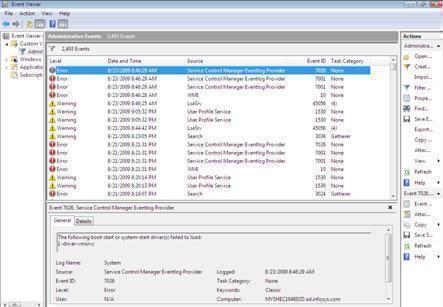
-
Click the Start button on the desktop’s Taskbar
-
Click the Control Panel menu item
-
The Control Panel’s window will open
-
In the Control Panel, double-click the Administrative Tools icon
-
The Administrative Tools window will open with a list of different icons
-
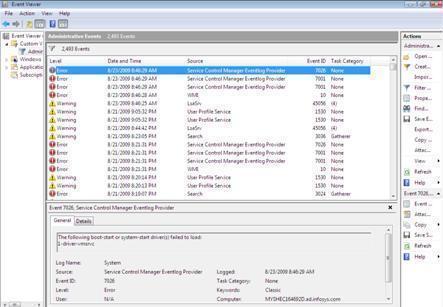
Double click the Event Viewer icon
How to Read Other Windows Log Files
Many log files that software applications use are written as plain text file, making it possible to use any freeware text editor, “Notepad” or “WordPad”, to read the generated log files. To read .txt files in WordPad:
-
Click the Start button on the desktop’s Taskbar
-
Click All Programs option
-
Click Accessories menu item
-
Click WordPad application
-
A new WordPad window will open
-
Click the File menu
-
Click the Open menu item
-
Navigate to the desired log file and click the Open button
There are also programs that allow the user to monitor log files as they occur in real-time. Examples of such software include Tail For Win32 and Hoo WinTail. These programs make it easy to read new entries from the bottom (tail) of the log file.
George
Very useful information. I would also like to know how can I what other users have been doing on my machine, softwares installed, and changes to the system settings done by the users and reverse them.
also if I create a guest or non-administrator user/profile, how can I ensure the user will not install unwanted software or change computer settings
sam
hi just wondering if anyone can help me
i need something that can read a hst file that has come from my computers back memory i ahve tried alot of things but they wont work has anyone got any idea how i can do this
ty
Rahul Godhani
Good Job… But I need to see log without event viewer…. .
Will.Spencer
Please explain your requirement.
Steve Marshall
My requirements may be different, but Ive dumped various log files in different machine states from a broken machine and need to view them, preferably in unix.
Does the event viewer allow this? Unix isnt a requirement, but opening logs in alternative locations IS.
Why does Microsoft go with binary log files? seems illogical to me. Text/compressed text (if its a space thing) seems far superior. Must be a reason I’m not seeing?
pointer
Yes, you miss so obvious a point – the binary log files are not so easily user-changeable. You cannot easily rig them with false information.
magnon86
Elles sont petites et illisibles les tofs.
Pics too small. Unreadable.
Diane Connelly
got a wrning that anther computer has same ip address whats up?
Marlon Franco
Then it means that you need to assign a different IP address on your machine. You can’t have 2 the same ip addresses in the same network/
Satish Thakur
How to checks the logs during the installation of any software at time.