

Windows Explorer is the Microsoft file management program that has been bundled with all releases of the Windows Operating System (OS) since Windows 95. Explorer provides the user interface or GUI for the end-user to access the computer's files system. The Windows OS can run without Windows Explorer being loaded, however, most Windows users have come to rely on using the helper application for day-to-day use of the computer. A common problem that arises for Windows users, is that after installation of third-party applications, the Windows Explorer application will crash.
What Causes Windows Explorer to Crash?
Although its common for users to blame Microsoft for all crashes or faults of the Operating System, Windows Explorer crashes typically occur from conflicts created by program installers of third-party software creating “useful” additions to the “Properties” menu of Windows Explorer. These functionalities are added through the “Shell Scripts” used by the third-party applications to add short-cut menu items to files to let users run the program directly from the file menu. Errors in these shell scripts don't necessarily result in direct Windows Explorer crashes, however, as they can also show the following symptoms: 1 – Windows informing the user that it must restart Explorer, 2 – File Folders that “Hang” or result in significant delays with no warning, 3 – Windows Explorer crashes when choosing a contextual menu, or 4 – Contextual menus taking a significant amount of time to open.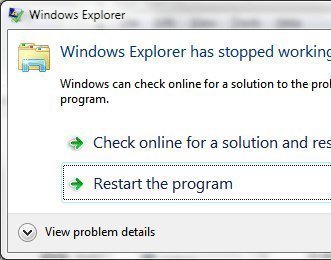
Steps to Troubleshoot Windows Explorer Crashers
Step 1 – To eliminate computer spyware or virus infection as a potential source of Windows Explorer crashing, update your computer's antivirus program and run a complete system scan. Spyware infection could be the cause of Windows Explorer scripting errors causing the system to crash.
Step 2 – Double-click the “My Computer” program icon on your computer's desktop. Right-click the “C” or “Local” hard drive and select the “Properties” menu option.
Step 3 – Click the “Tools” menu label and select the “Check for Errors” menu button. This will check the hard disk for errors and correct which could be another cause of Windows Explorer crashing on your computer.
Step 4 – Disable the Windows Explorer Preview Pane to see if that keeps the application from crashing. To disable this option, select the “Organize,” “Layout,” and “Preview Pane” menu options.
Step 5 – If Explorer continues to crash, choose “Organize,” “Folder and Search Options,” “View,” “Advanced Settings” and then click “Launch Folder Windows in a Separate Process” followed by “Apply” and the “Ok” menu buttons.
Step 6 – Download and install the free, Shell extension manager from NirSoft.
Step 7 – Run the Shell Extension manager and sort the installations on your computer using the program menu tabs to sort Microsoft extensions from third-party programs. Remove the most recently installed program extensions progressively until Windows Explorer ceases to crash.
Step 8 – Restart your computer after finishing removal of the third-party shell extensions installed on your computer in step 7 and Windows Explorer will no longer crash.

X_Robert
I tried the solutions mentioned but no luck. Some from the forums said the reasons are various. Virus, drivers, mismatches, etc. Finally, I resolved this issue by using OSToto Driver Talent updated the drivers.
Now my computer works great.
Ramin
Of course, Microsoft deserves the blame when problems in the Windows OS happen. When the operating system grants such an unleashed freedom to the third party software that they can manipulate the system, arbitrarily change the system settings setting to their own advantage and undermine the OS stability, then yes, it’s the Microsoft’s fault not the user. No wonder why people are switching to OS X and Microsoft is loosing the battle to the competition even in desktop/PC platform.
Herbert Buetow
I downloaded the “Shelxview” application. One by one I tried to disable various context menu handlers but the problem persisted. I noticed that several context menu handlers had been disabled for from the very start. I did something strange in that I enabled everything. Oddly enough the problem is now gone. Not saying that this is going to work for everyone, but it worked for me.